` or apply a `style` attribute or a CSS rule.
### Step 4 — Retrieve the outcome
The component handles the entire flow, including the redirects for 3DS authentication and to APMs.
At the end of the payment, Fabrick redirects the buyer to the positive or negative outcome URL configured for the transaction and, at the same time, sends a server-to-server (S2S) notification with the outcome.
Example of redirect URL and S2S notification:
- `https://merchant-url.com?a=GESPAY12345&Status=OK&paymentID=1881129911957&paymentToken=f0419188-8a78-4918-913c-a491e4e78084`
The redirect URL and the S2S notification contain the **`Status`** parameter, which immediately identifies the status of the payment. The possible values are:
- **`OK`**: payment completed with a positive outcome
- **`KO`**: payment completed with a negative outcome
- **`XX`**: payment on hold, awaiting the final outcome
> **Suspended status (XX)**
>
> The **`XX`** status is used only by some alternative payment methods (APMs) and is returned when the outcome is asynchronous. In this scenario Fabrick redirects the buyer to the positive outcome URL, but the status is **not yet final**: you need to wait for a subsequent S2S notification communicating the final outcome (**OK** or **KO**).
>
> - If you receive the XX status, do not ship the goods or deliver the service.
> - Wait for the S2S notification communicating the final outcome of the payment.
To check the outcome or the updated status of the transaction you can use the **`GET payment/detail`** endpoint, passing as a parameter the **`paymentID`** returned by the **`payment/create`** call or obtained from the redirect URL or the S2S notification.
The response contains the **`transactionResult`** parameter, which indicates the status of the payment. The possible values are:
- **`AUTHENTICATED`**: payment authenticated (OK)
- **`APPROVED`**: payment approved (OK)
- **`DECLINED`**: payment declined (KO)
- **`PENDING`**: payment awaiting confirmation (XX)
- **`WAITING`**: payment in progress (XX)
- **`UNSUBMITTED`**: the payment has not started yet (XX)
Example of a call to check the status of the transaction through the paymentID.
**Request**
```http
GET /api/v1/payment/detail/{paymentID}
Host (sandbox): sandbox.gestpay.net
Host (production): ecomms2s.sella.it
Authorization: apikey ****************
Content-Type: application/json
```
**Response**
```json
{
"error": {
"code": "0",
"description": "request correctly processed"
},
"payload": {
"transactionType": "detail",
"transactionResult": "APPROVED",
"transactionState": "AUT",
"transactionErrorCode": "0",
"transactionErrorDescription": "Transaction correctly processed",
"bankTransactionID": "1825",
"shopTransactionID": "FBK_OrderID",
"shopTransactionID_2": "",
"authorizationCode": "794183",
"paymentID": "1881129911957",
"currency": "EUR",
"country": "ITALIA",
"company": "VISA",
"tdLevel": "FULL",
"threeDS": {
"authenticationResult": {
"authenticationLevel": "2C",
"authenticationStatus": "Y",
"authStatusReason": "",
"challengeResultTransStatus": "",
"XID": "1dd3cf75-92a7-4487-abb5-b1f3cdd68f3b",
"AV": "MTIzNDU2Nzu5MDA5ODc2NTQzMjE=",
"ECI": "05",
"AVAlgorithm": "",
"threeDsVersion": "2.2.0"
},
"transDetails": {
"authData": "",
"authMethod": "02",
"authTimeStamp": "202505131259",
"acsID": "f688e45c-ff27-4ba6-a631-4b68df2dbf99"
}
},
"events": [
{
"event": {
"eventtype": "AUT",
"eventamount": "0.00",
"eventdate": "13/05/25 13:01:52",
"eventARN": "",
"eventID": "",
"eventReferred": ""
}
}
],
"buyer": {
"name": "",
"email": ""
},
"risk": {
"riskResponseCode": "",
"riskResponseDescription": ""
},
"customInfo": null,
"alertCode": "",
"alertDescription": "",
"cvvPresent": "TRUE",
"dcc": null,
"maskedPAN": "",
"paymentMethod": "VISA",
"productType": "Credit",
"token": "40G5LMXUQQ613101",
"tokenExpiryMonth": "05",
"tokenExpiryYear": "27",
"tokenDetails": {
"TokenValue": "40G5LMXUQQ613101",
"TokenExpiryMonth": "05",
"TokenExpiryYear": "27",
"TokenProvider": "AXERVE",
"CardDetails": {
"CardSuffix": "3101",
"CardExpiryMonth": "05",
"CardExpiryYear": "27",
"CardHolderName": null
},
"CardAssets": {
"CardArt": {
"Type": null,
"MediaContents": null,
"Height": null,
"Width": null
},
"BrandLogo": {
"Type": null,
"MediaContents": null,
"Height": null,
"Width": null
}
}
},
"fraudPrevention": {
"check": "FALSE",
"state": "",
"description": "",
"order": ""
},
"automaticOperation": {
"type": "CAN",
"date": "07/06/25 00:00:00",
"amount": "0.00"
}
}
}
```
#### Order confirmation page and server-to-server notification
When creating the request you can use the **`responseURLs`** object to dynamically define the redirect URLs and the server-to-server notification URL that the system will use at the end of the transaction, for both positive and negative outcomes.
When the **`responseURLs`** object is included in the call, the system applies the URLs specified in the request **for that transaction only**, instead of those configured in the Gestpay back office. If the object is not present, the back office settings are used.
You can also specify only some of the parameters: if, for example, only the server-to-server notification URL or only one of the redirect URLs is set, the system overrides only the values provided and keeps using the other URLs configured in the Gestpay back office.
Below is an example of a request defining all the redirect URLs and the server-to-server notification URL.
**Request**
```http
POST /api/v1/payment/create
Host (sandbox): sandbox.gestpay.net
Host (production): ecomms2s.sella.it
Authorization: apikey ****************
Content-Type: application/json
```
```json
{
"shopLogin": "GESPAY12345",
"amount": "100",
"currency": "EUR",
"shopTransactionID": "FBK_OrderID",
"responseURLs": {
"buyerOK": "https://merchant-url-ok.com",
"buyerKO": "https://merchant-url-ko.com",
"serverNotificationURL": "https://merchant-url-s2s.com"
}
}
```
### Complete example
A minimal checkout page, with the sandbox script and the `
` component:
**checkout.html**
```html
Web Component Payment Test
```
---
## Available components
| Component | Methods shown | When to use it |
| --------------------------------------------------------------------------------------------------------------------------------------- | ---------------------------------------- | ------------------------------------------------------------- |
| [``](https://docs.fabrick.com/en/payment-hub-and-orchestra/ecommerce/integration-methods/web-component/#fbk-checkout) | All the methods enabled on the shopLogin | Standard integration, with a single component for all methods |
| [``](https://docs.fabrick.com/en/payment-hub-and-orchestra/ecommerce/integration-methods/web-component/#fbk-card) | Card and Click to Pay | Card payment without Apple Pay and Google Pay |
| [``](https://docs.fabrick.com/en/payment-hub-and-orchestra/ecommerce/integration-methods/web-component/#fbk-apple-pay) | Apple Pay only | Standalone Apple Pay button |
| [``](https://docs.fabrick.com/en/payment-hub-and-orchestra/ecommerce/integration-methods/web-component/#fbk-google-pay) | Google Pay only | Standalone Google Pay button |
> **Recommended component**
>
> For most integrations [``](https://docs.fabrick.com/en/payment-hub-and-orchestra/ecommerce/integration-methods/web-component/#fbk-checkout) is recommended: it presents the enabled payment methods in a single interface and updates automatically when Fabrick adds new ones.
### ``
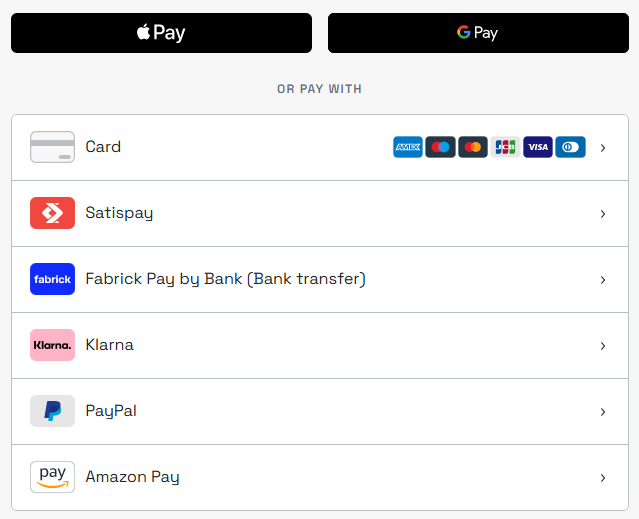
Shows all the available payment methods in a single interface and handles the buyer's choice of method. New payment methods introduced by Fabrick that do not require mandatory input fields are automatically displayed.
```html
```
| Attribute | Values | Default | Description |
| --------------------- | --------------------------------- | ------------ | ----------------------------------- |
| `layout` | `horizontal`, `vertical` | `horizontal` | Layout of the card form |
| `apple-button-style` | `black`, `white`, `white-outline` | `black` | Appearance of the Apple Pay button |
| `apple-button-type` | `plain`, `buy`, `pay` | `plain` | Label of the Apple Pay button |
| `google-button-style` | `black`, `white` | `black` | Appearance of the Google Pay button |
| `google-button-type` | `plain`, `buy`, `pay` | `plain` | Label of the Google Pay button |
> **Wallets in the component**
>
> To show Apple Pay and Google Pay in ``, the configuration of the two wallets must be completed (see [Apple Pay and Google Pay](https://docs.fabrick.com/en/payment-hub-and-orchestra/ecommerce/integration-methods/web-component/#apple-pay-and-google-pay)).
#### Payment method presentation logic
When creating the request, if the `shopLogin` is enabled for more than one payment method (APM), you can use the **`paymentType`** field in the **`payment/create`** call to specify which methods to present to the buyer in ``.
| `paymentType` | `` behaviour |
| ----------------------------------------------------------------- | --------------------------------------------------------------------------------------------------------------------------------------------------------------- |
| Not populated | Shows all the methods enabled for the `shopLogin` in the Gestpay back office that do not require mandatory fields |
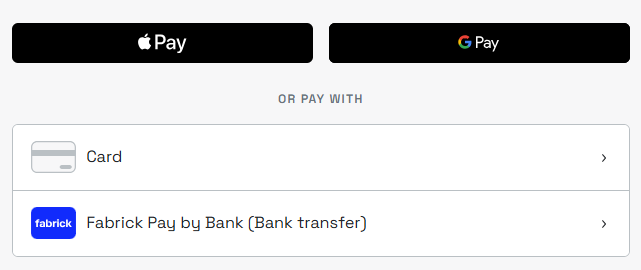
| More than one method, for example `["FABRICKPASS", "CREDITCARD"]` | Shows the selection limited to the methods specified |
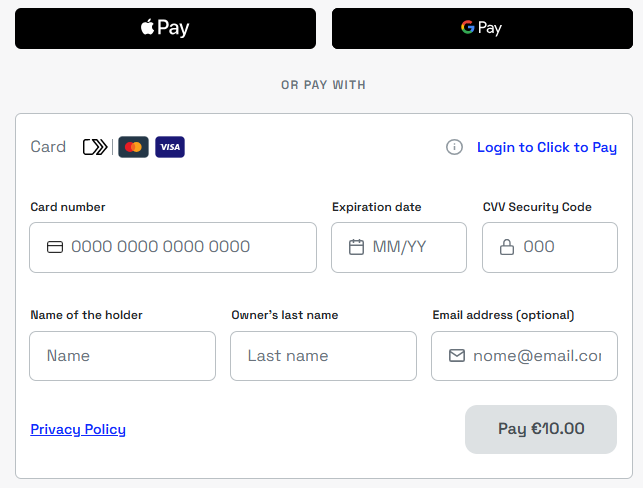
| `["CREDITCARD"]` only | Shows the selection with the card and the enabled wallets |
| A single APM, for example `["FABRICKPASS"]` | Skips the selection: if the method requires a redirect, the buyer is taken straight to the service; if not, they complete the payment directly in the component |
> **Methods with mandatory fields**
>
> Some payment methods require mandatory fields in the **`payment/create`** call. These methods are presented in `` only if the call includes the required fields; otherwise they are not shown. The fields required by each method are listed on the method's page.
> **Full list of paymentType values**
>
> The possible **`paymentType`** values are listed in the [payment type codes](https://api.paymentorchestra.fabrick.com/#payment-type-codes) section. Alternatively, you can use the **`GET shop/paymentMethods`** endpoint to check in real time the payment methods enabled for the `shopLogin` used, filtering the response by `payload.paymentMethod.paymentType`.
Below is an example request for each case.
**Not populated**
The `paymentType` field is omitted: `` shows all the methods enabled for the `shopLogin` that do not require mandatory fields.
**Request**
```http
POST /api/v1/payment/create
Host (sandbox): sandbox.gestpay.net
Host (production): ecomms2s.sella.it
Authorization: apikey ****************
Content-Type: application/json
```
```json
{
"shopLogin": "GESPAY12345",
"amount": "100",
"currency": "EUR",
"shopTransactionID": "FBK_OrderID"
}
```
**More than one method**
More than one payment method is specified, for example Pay By Bank and card: `` shows the selection limited to the methods specified.
**Request**
```http
POST /api/v1/payment/create
Host (sandbox): sandbox.gestpay.net
Host (production): ecomms2s.sella.it
Authorization: apikey ****************
Content-Type: application/json
```
```json
{
"shopLogin": "GESPAY12345",
"amount": "100",
"currency": "EUR",
"shopTransactionID": "FBK_OrderID",
"paymentType": ["FABRICKPASS", "CREDITCARD"]
}
```
**Card only**
Only `CREDITCARD` is specified: `` shows the selection with the card and the enabled wallets.
**Request**
```http
POST /api/v1/payment/create
Host (sandbox): sandbox.gestpay.net
Host (production): ecomms2s.sella.it
Authorization: apikey ****************
Content-Type: application/json
```
```json
{
"shopLogin": "GESPAY12345",
"amount": "100",
"currency": "EUR",
"shopTransactionID": "FBK_OrderID",
"paymentType": ["CREDITCARD"]
}
```
> **Cards and wallets**
>
> When the `paymentType` field is populated with the **`CREDITCARD`** tag, `` shows the enabled wallets, such as Apple Pay, Google Pay and Click to Pay, alongside card payment.
>
> 
**A single APM**
A single alternative payment method is specified, for example `FABRICKPASS`: `` skips the selection. If the method requires a redirect, the buyer is taken straight to the service; if not, they complete the payment directly in the component.
**Request**
```http
POST /api/v1/payment/create
Host (sandbox): sandbox.gestpay.net
Host (production): ecomms2s.sella.it
Authorization: apikey ****************
Content-Type: application/json
```
```json
{
"shopLogin": "GESPAY12345",
"amount": "100",
"currency": "EUR",
"shopTransactionID": "FBK_OrderID",
"paymentType": ["FABRICKPASS"]
}
```
---
### ``
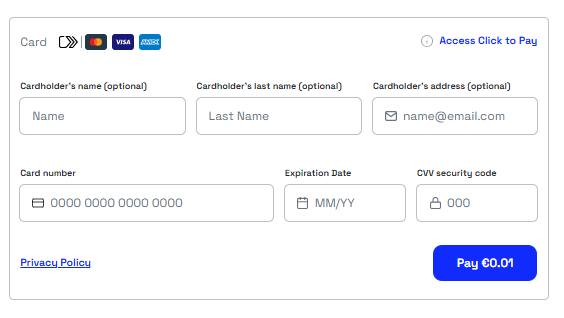
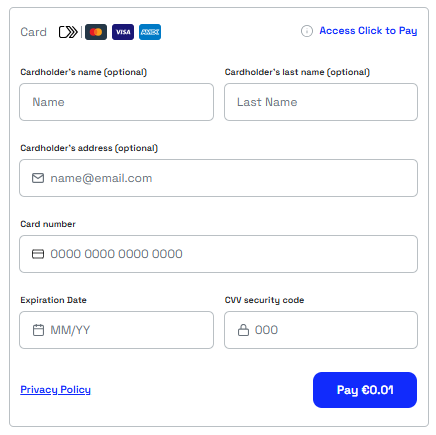
Collects the card details and also shows Click to Pay, if enabled on the shopLogin. Use it when you want to offer card payment without Apple Pay and Google Pay.
```html
```
| Attribute | Values | Default | Description |
| --------- | ------------------------ | ------------ | ----------------------- |
| `layout` | `horizontal`, `vertical` | `horizontal` | Layout of the card form |
`layout="horizontal"`
`layout="vertical"`
---
### ``
Shows a standalone Apple Pay button, whose label adapts automatically to the browser language. The payment is available on **all browsers, including on non-Apple devices**.
> **Configuration required**
>
> To show the button, the [Apple Pay configuration for Web Components](https://docs.fabrick.com/en/payment-hub-and-orchestra/ecommerce/alternative-payments/apple-pay/#additional-configuration-for-web-component-and-lightbox) must be completed.
```html
```
| Attribute | Values | Default | Description |
| -------------- | --------------------------------- | ------- | ------------------------ |
| `button-style` | `black`, `white`, `white-outline` | `black` | Appearance of the button |
| `button-type` | `plain`, `buy`, `pay` | `plain` | Label of the button |
`button-style="black"`
`button-style="white"`
Example with Italian localisation:

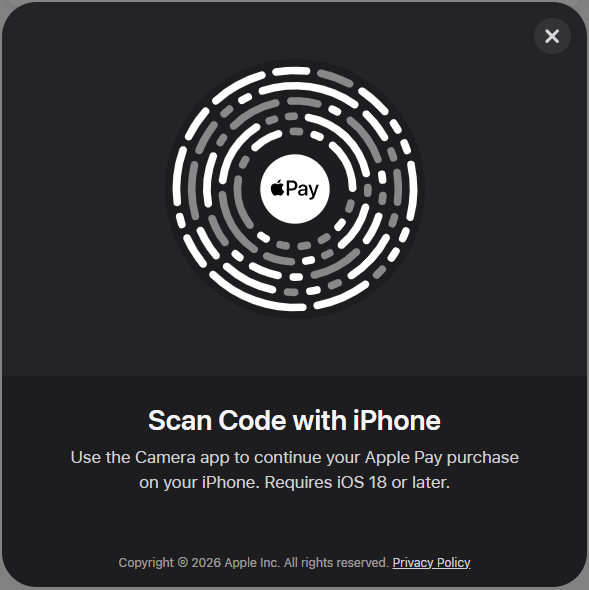
For payments from non-Apple devices, a QR Code is shown that lets the buyer complete the payment with an external Apple device: after scanning, the flow starts on the device and the transaction is processed by Fabrick.
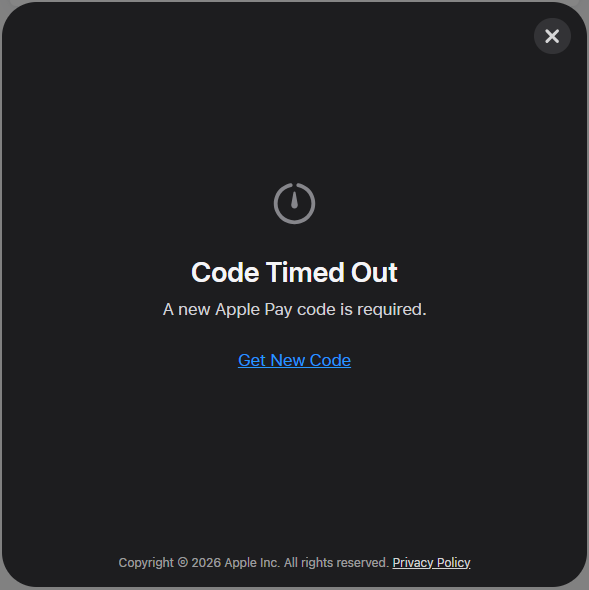
If the QR Code expires, you can **generate a new one** for the same transaction by clicking *Ricevi nuovo codice*.
---
### ``
Shows a standalone Google Pay button.
> **Configuration required**
>
> To show the button, the [Google Pay configuration for Web Components](https://docs.fabrick.com/en/payment-hub-and-orchestra/ecommerce/alternative-payments/google-pay/#additional-configuration-for-web-component-and-webview) must be completed.
```html
```
| Attribute | Values | Default | Description |
| -------------- | --------------------- | ------- | ------------------------ |
| `button-style` | `black`, `white` | `black` | Appearance of the button |
| `button-type` | `plain`, `buy`, `pay` | `plain` | Label of the button |
`button-style="black"`
`button-style="white"`
---
## Apple Pay and Google Pay
To show Apple Pay and Google Pay in Web Components, each wallet requires a dedicated configuration, described on the page of the payment method:
- [Apple Pay — Additional configuration for Web Component and Lightbox](https://docs.fabrick.com/en/payment-hub-and-orchestra/ecommerce/alternative-payments/apple-pay/#additional-configuration-for-web-component-and-lightbox)
- [Google Pay — Additional configuration for Web Component and WebView](https://docs.fabrick.com/en/payment-hub-and-orchestra/ecommerce/alternative-payments/google-pay/#additional-configuration-for-web-component-and-webview)
---
## Non-blocking errors
During the flow the component may emit the `fbk-elements-error` event, which reports errors that do not interrupt the transaction but may be shown to the buyer.
The event detail has the following structure:
```json
{
"code": "",
"title": "",
"message": ""
}
```
| Field | Type | Description |
| --------- | -------- | --------------------------------- |
| `code` | `string` | Error code |
| `title` | `string` | Short title of the error |
| `message` | `string` | Detailed description of the error |
To intercept and handle the event in the page, register a listener:
```js
window.addEventListener('fbk-elements-error', event => {
const { code, title, message } = event.detail;
// Handle the error, for example by showing a message to the buyer
});
```
---
## Go-live checklist
Before activating the integration in production, check the following points.
**Script and configuration**
- The script points to the production URL, not the sandbox one.
- The shopLogin is set before the component is mounted in the DOM.
- The outcome page performs the `GET /payment/detail` call with the `paymentID` and `paymentToken` and handles all transaction statuses, including declined payments and expired sessions.
**Security**
- The `payment/create` call is performed on the server side and the API key is not exposed in the client code.
**Wallets**
- The Apple Pay and Google Pay configuration is completed for the production environment (see [Apple Pay and Google Pay](https://docs.fabrick.com/en/payment-hub-and-orchestra/ecommerce/integration-methods/web-component/#apple-pay-and-google-pay)).