Fabrick Customer Setup
Introduction
The steps to start using the Fabrick Active Engine and / or Fabrick Pass services will be described below:
-
Registration of the Company
-
Certificates Onboarding (only for Active Engine - TPP)
The TPP or FPP will subsequently have at its disposal:
-
Customer Dashboard
-
Service Desk Support (important)
-
Test environment
Fabrick provides a test environment in order to allow the TPP to start integration and developments even in the absence of authorization from the Bank of Italy and / or eIDAS certificates.
Registration of the Company
As anticipated, each customer has to be registered in the Fabrick registry to be able to use the products. To do this, a simple digital onboarding process will be done together with us in which the data of the Company and those of the legal representative will be requested.
The legal representative indicated in the form will by default be a SuperUser (see section Customer Dashboard).
Certificates Onboarding (only for TPP - Active Engine product)
Once the certificates have been obtained, they must be shared with Fabrick through agreed channels.
In this way, Fabrick will interact with the gateways, eliminating this complexity from the TPP.
Fabrick will proceed to the onbording of the certificates for all the exposed gateways. The duration of this operation varies as some gateways require interaction with them. It may take between two and three weeks for the entire task to be completed.
Fabrick also provides the certificate management service on behalf of the TPP: this means that the entire request and forms process with the provider (InfoCert for example) is fully carried out by Fabrick, making TPP free from any activity in this regard.
Customer Dashboard
Once the census phase has been completed, the TPP/FPP will have a personal dashboard available both for reading the values of the Api-keys (see Api key section) and for configuring a series of other parameters.
The Dashboard can be reached directly from the Fabrick website https://www.fabrick.com/it/ selecting the section Sviluppatori then Login.
For all the details, refer to the document Fabrick Consumer Portal.
SuperUsers and TechUsers
To access the portal you have the possibility to register two types of users:
- TechUser: he will be able to check the Sandbox environment (APIKey, IP settings, ...);
- SuperUser: he will be able to check Live e Sandbox environment (APIKey, IP settings, …) and register other TechUsers or SuperUsers as well (se you want to change type it is necessary to open a ticket to Fabrick support)
The legal representative you report in the census form will have the last role by default. Since the credentials of this user (including OTP via SMS) are also required for operational activities, we suggest to assign this role to someone who has the appropriate powers and who is easily involved.
in the event that a new user is registered, the latter will receive the following email:
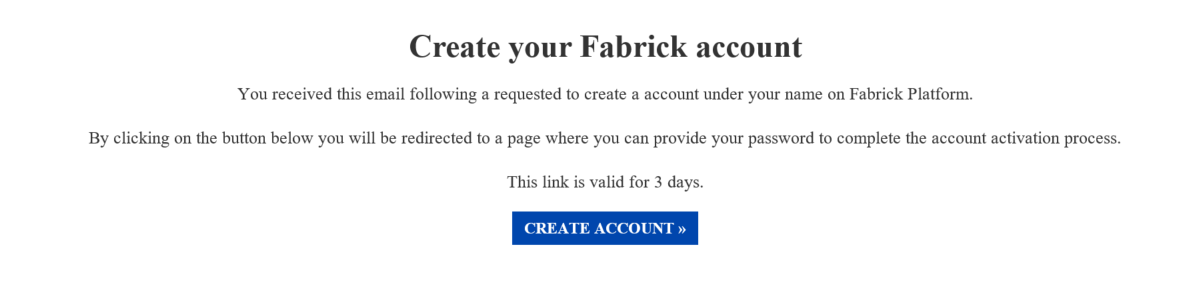
As you can see from the email template below in the figure, the link has a duration of 72h: please proceed by this deadline or check its validity.
Service Desk Support
Fabrick is obviously always available for any type of eventuality both in the integration and development phase and after the production of its product.
The support is generally set up as described below, but of course it is intended as a guideline and absolutely not categorical.
Direct contacts
During the start-up phase, each TPP or FPP can refer to a Technical Account Manager to conclude the setup phase and become familiar with the product in question. The contacts can therefore be emails or meetings or calls.
Ticketing system
At any time it is always possible to use the ticketing system made available by Fabrick: an entire support team will respond to any type of need, both organizational and technical. To access the service, it is sufficient to indicate the desired e-mail addresses in the registration form or, alternatively, a group e-mail. Also in this case a registration email will be sent. Anyone with access to the platform will be able to open new tickets and comment on all the others opened by their company.
For further details refer to the document JiraServiceDeskUsersGuide_v1.0.pdf
It is advisable to use the ServiceDesk where possible as it is generally more efficient and effective for obvious reasons, but direct contacts will remain such for any type of need.
For example, addressing the opening of a ticket for a timely question, preferring an email or a call se not.
Necessary information
To allow a more rapid analysis of the cases reported, it is advisable to share the correlationId with Fabrick. If the error happens on the final bank page you should share more details. The two cases are explained in detail in the following sections.
The correlationId
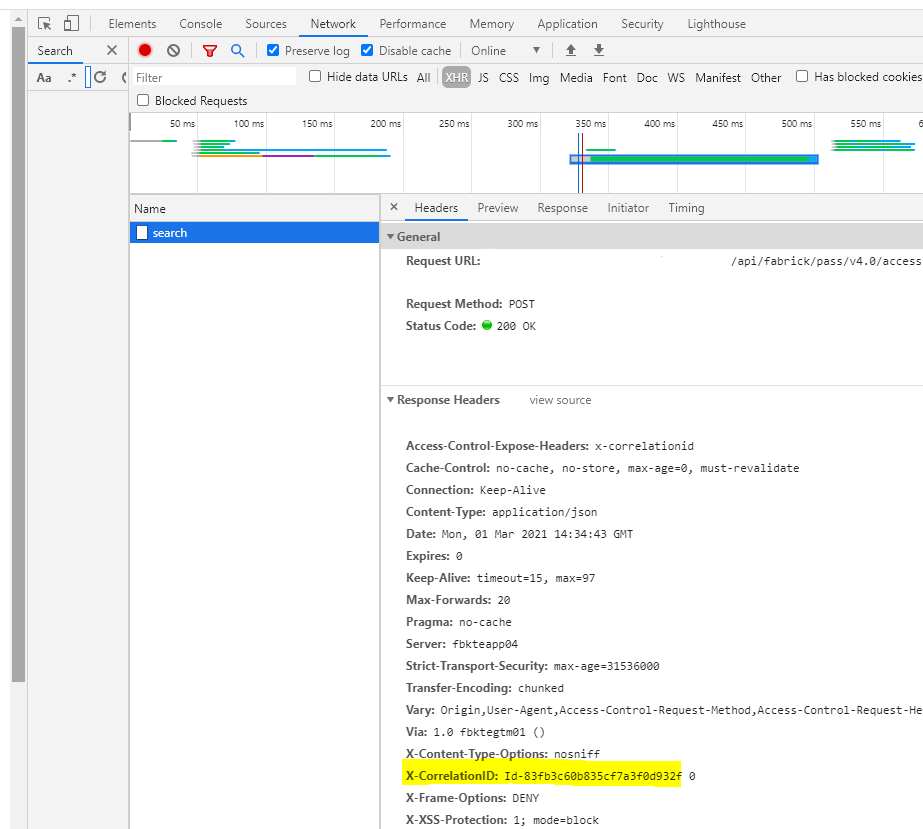
For any support request referring to a particular Fabrick HTTP request or flow, it is necessary to forward the correlationId to Fabrick. The correlationId is a string that uniquely identifies one and only one HTTP request on Fabrick systems. This parameter obviously allows an immediate search to trace and, therefore, analyze the reported case.
The correlationId is returned in the response headers of each request, below are two images that indicate respectively how to retrieve it from the browser or from Postman.
From the browser, simply open the Developers console and select the Network tab, then click on the desired Fabrick request:
From Postman instead you will have to click on the Headers tab of the response as shown in the figure:

If it is not possible to retrieve the correlationId, it is still advisable to try to provide Fabrick with as many details as possible to allow a timely search:
- one of many ids (userId, accountId, workflowId) based on the flow in question
- the time, even indicative, in which the unexpected behavior was found
- a brief description of the reported problem
Error on the bank page
In the event of a Redirect Flow (for both AIS and PIS) the user will be redirected to the page of their own bank in order to insert credentials and authorize the operation through the SCA. On this page Fabrick has no visibility, for this reason, se any error happens in this circumstance it will be necessary to retrieve as many details as possible so that Fabrick can communicate them to the final bank. A screen shot of any error on the screen may be useful, as an alternative or in addition to a description of the user experience. Some examples can be:
-
The bank page appears unreachable (check se you are on the internal network and / or your firewall settings / ...);
-
The following error message appeared immediately after entering the credentials (check that you can access internet banking with the same credentials);
-
It is not possible to proceed because the UI does not allow it (button disabled, other UI error, ...);
-
The user has not received the notification / SMS to proceed with the SCA;
-
...
Only in certain circumstances, the end bank may request the end customer's username for further checks. Obviously also in this case Fabrick will manage the entire communication with the final banks.
It is possible to carry out some checks independently:
- check that the PSU has entered the credentials correctly and secondly for the correct service (example using Retail service credentials and selecting the Business service or vice versa)
- test the credentials on the Internet Banking and verify that it is possible to log in correctly.
APIs structure and environments
Once the above steps have been completed, it is possible to verify the correct functioning of all the configurations and then start the implementation of your project.
Even se in a test environment (pre-production) Fabrick allows you to operate with real accounts, both as regards the aggregation part (AIS) and the payments part (PIS). Alternatively, it is always possible to use the sandbox accounts that each bank exposes to allow the development and testing phase. Furthermore Fabrick has created a Mock bank that simulates the behavior of a PSD2 interface. For the list of sandbox credentials of the main banks, refer to the SandboxAccounts.xlsx document. The Sandbox environments are managed directly by the relative bank, for any service interruption it is possible to report it directly to Fabrick who will forward the report indicating all the details.
Fabrick API Overview
All Fabrick APIs have the same structure, below we briefly describe the two main aspects, all the details are instead shown on the Fabrick website (API Overview).
The Api-Key
The FPP / TPP at this point, can get from the personal dashboard a unique and strictly private key that will allow him to use the enabled Fabrick service. This key is called Api-Key. The Api-Key must never be disclosed to third parties. Not even Fabrick is aware of it. Furthermore, each TPP will be associated with a public identifier called TppUid.
The Api-Key must be added as the value of the Api-key header for each http request to Fabrick.
The Api-Key will be created, and so available, on the first Monday following the completion of the census form (considering 1 - 3 days of configurations on the Fabrick side)
Headers Request
Once the API-KEY has been obtained, it must be added as a header to all endpoints of the Fabrick PSD2 Active Engine platform. The following headers are also required for each Http Request
Api-Key:{{Api-Key}}
Auth-Schema:S2S
Content-Type:application/json
The X-PSU-IP-Address header will be enhanced with the IP address of the PSU (end user), se not available, the TPP will use the IP address used by the TPP itself to forward the request. This parameter is mandatory for the PSD2 regulation whenever there is an interaction with the bank.
This means that it will be mandatory for the TPP to create a consent, to authorize a payment or to synchronize data with the bank. It can be omitted in all other cases (interaction with Fabrick db).
While it can be ignored by the FPP (exception for refresh payment se necessary) as it will be totally managed by Fabrick.
In this guide, for simplicity and greater readability, we will omit the mandatory headers, however they are to be considered necessary for all the endpoints.
Reset pre-production environment
Every week (during the weekend) the data from the pre-production (test) environment will be erased. It will therefore be necessary to recreate the entities necessary to proceed with the integration and the tests. On the other hand you will always have a clean test environment. So pay attention to the IDs of the various elements used in the event of a "Resource not found" error (the product Pass Pay by Bank is an exception, every week all the production data will be copied in pre production env).
Implementation advice
As far as application developments are concerned, we recommend avoiding the use of the HTML iFrame for the world of the web as some ASPSPs do not allow correct functioning for security reasons.
As far as the mobile world is concerned, it is instead recommended to use the WebView inside the app rather than opening the browser application for greater ease of use by the PSU
In any case, all Fabrick services must be invoked from a backend. First of all to protect the apiKey (which must not be exposed or written within the frontend app); secondly, in this way only the backend IPs will be enabled (the only IPs from which Fabrick will take on requests).
All frontends applications will call the backend according to the internal FPP/TPP choices.