Affiliation API
Subscription Management
As mentioned earlier, each TTPP will need to manage the affiliation process with third parties in order to allow them to use the exposed services.
Creating a Subscription
To initiate an affiliation phase, the TTPP must invoke the POST CreateAffiliatedSubscription service as shown below:
POST /api/fabrick/platform/v4.0/affiliations/{affiliationCode}/affiliated-subscriptions

{
    "affiliatedSubscriptionCode": "testGrantorCode",
    "customerMetadata": {
        "grantorFiscalCode": "12345678910",
        "grantorCode": "testGrantorCode",
        "grantorCountryCode": "IT",
        "grantorName": "Gianni",
        "grantorSurname": "Rossi",
        "grantorBusinessName": "Idraulico Rossi srl",
        "grantorEmail": "gianni.rossi@fabrick.com"
    },
    "completionRedirectUrls": {
        "onSuccess": "https://www.fabrick.com/",
        "onFailure": "https://www.google.com/"
    }
}
where:
- affiliationCode: a unique code provided and communicated to the TTPP during the setup phase
- affiliatedSubscriptionCode: a freely assignable string to facilitate potential mappings or to identify the subscription more easily at a later stage
- grantorFiscalCode: the grantor's tax code (the legal entity's tax code, not the individual's)
- grantorCode: a string that can be associated with the grantor. For example, it can coincide with the affiliatedSubscriptionCode parameter. To reuse the same grantorCode, the affiliated subscription request must first be cancelled.
- grantorCountryCode: the country code according to the ISO 3166-1 alpha-2 standard
- grantorName: the grantor's first name
- grantorSurname: the grantor's last name
- grantorBusinessName: the grantor's company name
- grantorEmail: the grantor's email address
- completionRedirectUrls: this object contains the two URLs to which the customer will be redirected upon completion of the subscription creation: the URL specified in onSuccess in case of success, and the one in onFailure otherwise.
The response will be:
{
    "affiliatedSubscriptionId": 1,
    "affiliatedSubscriptionCode": "subCode",
    "redirectUrl": "https://www.fabrick.com/affiliation/...",
    "createdDatetime": "2022-07-15T09:55:46.865Z",
    "acceptedDatetime": "2022-07-15T09:55:46.865Z",
    "declinedDatetime": "2022-07-15T09:55:46.865Z",
    "cancelledDatetime": "2022-07-15T09:55:46.865Z",
    "expiredDatetime": "2022-07-15T09:55:46.865Z",
    "status": "WAITING_ACCEPTANCE",
    "customerMetadata": {
      ...
    }
}
where:
- affiliatedSubscriptionId: uniquely identifies the subscription request just created
- redirectUrl: the URL to which the consumer must be redirected to complete the affiliation phase. This link is valid for 30 days, meaning it is always possible to interrupt the onboarding procedure and resume it from the same previously created link. Even if the FPP creates a new link, Fabrick will remember all previously completed steps (such as user registration, company registration, AML, etc.), provided the user logs in first.
- createdDatetime: the date the request was created
- acceptedDatetime: the date the request was accepted by the consumer
- declinedDatetime: the date the request was declined by the consumer
- expiredDatetime: the date the request expired if the consumer took no action (neither acceptance nor refusal)
- cancelledDatetime: the date the subscription was cancelled
- status: identifies the status of the operation; it can take the following values:
- ACCEPTED: the consumer accepts the TTPP's affiliation request;
- EXPIRED: the affiliation request expires before the consumer accepts or declines it;
- CANCELLED: the TTPP has cancelled the affiliation;
- WAITING_ACCEPTANCE: the request is pending acceptance or refusal by the consumer;
- WAITING_ACCEPTANCE_BY_FABRICK: the request is pending acceptance or refusal by Fabrick (this may take up to 2 weeks).
Onboarding Details
SuperUser and TechUser
SuperUsers and TechUsers will, for obvious reasons, already be registered on Fabrick; for this reason, the first time they access the onboarding phase they will be redirected to the login page. To log in, simply use the same credentials used to access the console at https://www.platfr.io/#/platfr/login.
For the same reason, SuperUser and TechUser credentials cannot be used to test the onboarding or login phases in the pre-production environment.
PSUs registered in the production environment
Once a PSU successfully completes the onboarding phase in the production environment, they will no longer be able to complete a new onboarding or access the pre-production environment dashboard. For testing purposes, mock data can always be used as indicated previously.
Once onboarding is complete, the new affiliate will receive a confirmation email from Fabrick confirming the completed flow (no further emails will be sent following status updates).
Searching Subscriptions
At any time, a TTPP can view the list of its subscriptions or perform a specific search using the POST SearchAffiliatedSubscriptions service as shown below:
POST /api/fabrick/platform/v4.0/affiliations/{affiliationCode}/affiliated-subscriptions/search
As can be seen from the input model, it is possible to filter by any parameter. Pagination is mandatory; below is an example request body:
{
  "pagination": {
    "limit": 10,
    "offset": 0
  }
}
The response will be a list of subscriptions:
{
    "list": [
      {
        "affiliatedSubscriptionId": 1,
        "affiliatedSubscriptionCode": "affCode",
        "redirectUrl": "string",
        ...
        "status": "WAITING_ACCEPTANCE",
        "customerMetadata": {
          ...
        }
      }
    ]
  }
Subscription Detail
If the subscription ID is known in advance, it is possible to invoke the GET Affiliated Subscription service directly:
GET /api/fabrick/platform/v4.0/affiliations/{affiliationCode}/affiliated-subscriptions/{affiliatedSubscriptionId}
Unlike the search API, in this case the response will contain a single element.
Cancelling a Subscription
The TTPP can of course cancel a subscription at any time. This operation must be performed via the PUT cancelAffiliatedSubscription service:
/api/fabrick/platform/v4.0/affiliations/{affiliationCode}/affiliated-subscriptions/{affiliatedSubscriptionId}/cancelled
The response will contain the details of the subscription that was just cancelled.
Grants
Once a subscription is activated and a service is therefore enabled for a Grantor, the TTPP will need to make requests to the Fabrick platform on behalf of the Grantor; this process is called Personification. The Personification Core handles the management of Personification processes.
Personification is therefore the management of permissions and impersonation requests — that is, the ability granted to a technical party (TTPP) to use platform services on behalf of the Grantor.
Specifically, a technical party (TTPP) sends an Impersonification request to a Grantor for a specific Product. By accepting this request (provided the Grantor has completed onboarding and subscribed to the product), the TTPP obtains a token with which it can operate on behalf of the Consumer, within the functional scope enabled by the token.
To do so, the grantor must have enabled the relevant grants. Before making a personification request, grants must therefore be managed via the following APIs.
This step is currently optional as grants are automatically included during the subscription phase.
Grant Search
The TTPP has access to the POST SearchPersonificationGrants service to view and/or search issued grants, each with their associated details.
POST /api/fabrick/platform/v4.0/personification/grants/search

{
  "pagination": {
    "limit": 0,
    "offset": 0
  },
  "sorting": [
    {
      "customFieldName": "string",
      "direction": "ASCENDING"
    }
  ],
  "grantedDatetime": {
    "from": "2022-07-15T10:51:30.631Z",
    "to": "2022-07-15T10:51:30.631Z"
  },
  "lastRevokedDatetime": {
    "from": "2022-07-15T10:51:30.631Z",
    "to": "2022-07-15T10:51:30.631Z"
  },
  "grantorCode": {
    "contains": "string",
    "equals": "string",
    "in": [
      "string"
    ],
    "equalsIgnoreCase": true,
    "isEmpty": true
  },
  "status": {
    "contains": "string",
    "equals": "string",
    "in": [
      "string"
    ],
    "equalsIgnoreCase": true,
    "isEmpty": true
  },
  "lastGrantedDatetime": {
    "from": "2022-07-15T10:51:30.631Z",
    "to": "2022-07-15T10:51:30.631Z"
  },
  "grantId": {
    "contains": "string",
    "equals": "string",
    "in": [
      "string"
    ],
    "equalsIgnoreCase": true,
    "isEmpty": true
  },
  "requestId": {
    "contains": "string",
    "equals": "string",
    "in": [
      "string"
    ],
    "equalsIgnoreCase": true,
    "isEmpty": true
  }
}
The API returns a list of elements as shown in the example:
{
    "list": [
      {
        "grantId": "string",
        "grantorCode": "string",
        "grantorSubscriptionId": "string",
        "lastGrantedDatetime": "2022-07-15T13:21:30.597Z",
        "lastRevokedDatetime": "2022-07-15T13:21:30.597Z",
        "requestId": "string",
        "status": "GRANTED"
      }
    ],
    "pagination": {
      "limit": 0,
      "offset": 0,
      "pageCount": 0,
      "resultCount": 0
    }
}
Where:
- grantId: uniquely identifies the associated grant object;
- grantorCode: see previous sections;
- grantorSubscriptionId: ID that uniquely identifies the product subscription for which personification was requested;
- lastGrantedDatetime: the most recent date on which the grant assumed the GRANTED status. The grantor may revoke it at any time;
- lastRevokedDatetime: the most recent date on which the grant assumed the REVOKED status;
- requestId: the ID of the request; this can be ignored in this product;
- status: the status of the grant. The personification grant statuses are:
- Granted: if the TTPP has the permissions;
- Revoked: if the consumer revokes the grant (from the dashboard/portal);
- Waiting_renewal: in the event that the grantor subsequently wishes to re-enable a grant that was initially in the Revoked state, the TTPP can submit a grant renewal request (see Grant Renewal). Following such a request, while awaiting the user's acceptance, the status will be Waiting_renewal.
Grant Detail
Alternatively, the details of a specific grant can be obtained by simply invoking the GET GetPersonificationGrantDetails service:
GET /api/fabrick/platform/v4.0/personification/grants/{grantId}
Unlike the POST SearchPersonificationGrants API, the response will be a single element.
Grant Renewal
Finally, a grant can be renewed via the PUT RenewPersonificationGrant service:
/api/fabrick/platform/v4.0/personification/grants/{grantId}/requested-renewal
In this case as well, the response will contain the grant element that was just renewed.
This request simply generates a notification on the user's dashboard, so that upon their first login they can decide whether to confirm it or not.
Personification
Creating a Personification Token
Once the grants have been verified, it will be possible to make a personification request. To do so, the TTPP must request an authorisation token from Fabrick for the desired grantor via the POST CreatePersonificationToken service as shown below:
POST /api/fabrick/platform/v4.0/auth/personification/tokens

{
  "grantorCode": "agenzia1"
}
The following header must be added to this request:
X-Producers: fabrick
The grantorCode parameter is the value passed by the TTPP when creating the Affiliation via the POST Create Affiliated Subscription API. It is therefore sufficient to pass only the grantorCode as indicated. Alternatively, grantorProductSubscriptionId can also be passed as an input parameter. If both are provided, they must naturally be consistent with each other.
The response will be:
{
"payload": {
    "personificationToken": "6c82....6cac5",
    "grantId": "1",
    "grantorId": "1",
    "grantorCode": "Customer1",
    "grantorProductSubscriptionId": "subId"
  }
 }
Once the personificationToken has been obtained, it must be used for all subsequent requests to Fabrick services. The personificationToken is valid for 3 hours.
At least one active subscription and one active grant are naturally required; otherwise the request will return the following error:
{"code":"WOP016","description":"Failed to get provider's accounts"}
The TTPP naturally has access to additional APIs that will allow it to manage all Personification requests submitted along with their respective statuses: the first group of APIs described below concerns successfully completed requests, while the next group allows management of all requests in general.
Guidelines
This section provides a simple diagram showing all requests made by the Affiliator:
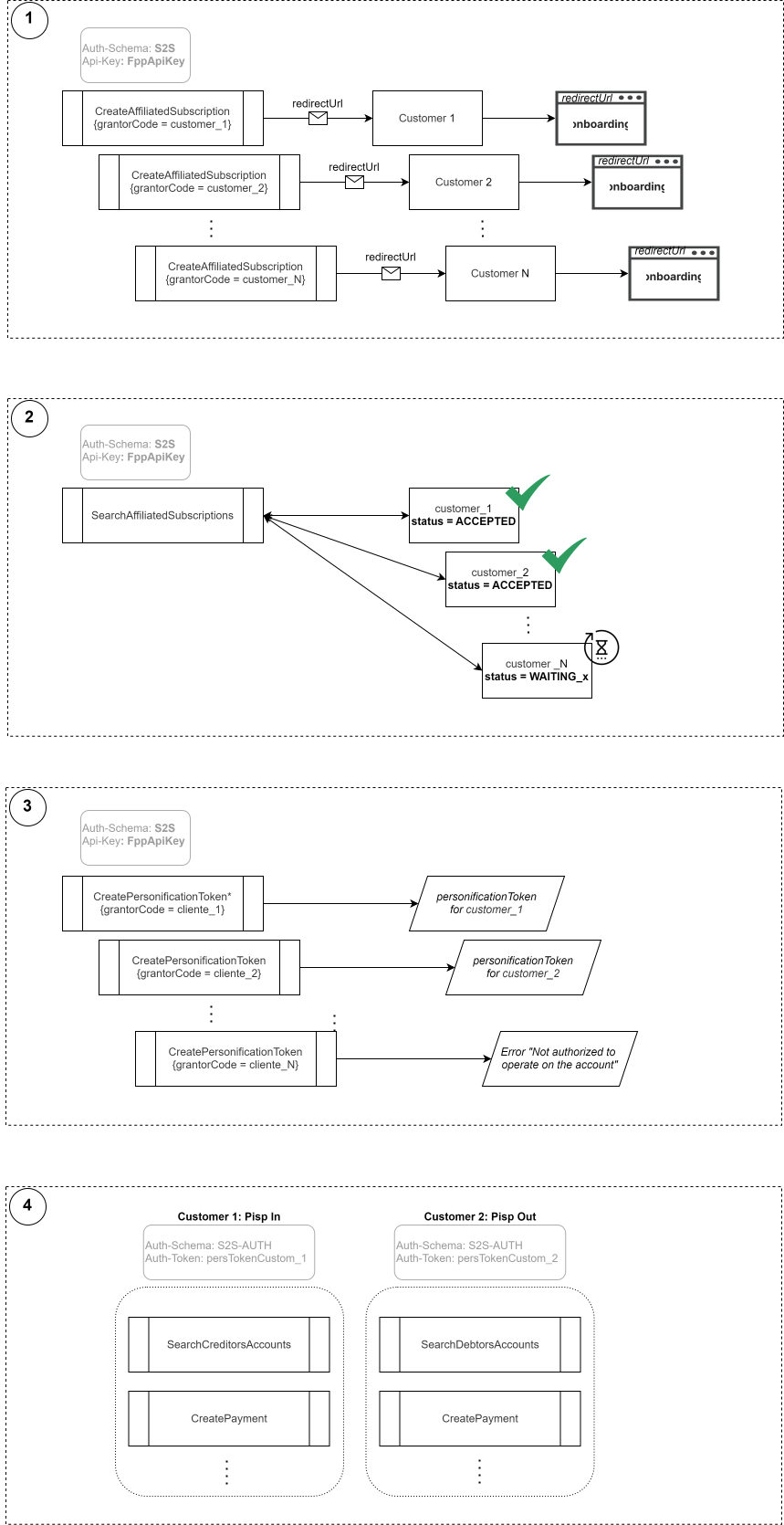
Below are a couple of sequence diagrams illustrating the most common usage of the services described so far, along with a simple example:
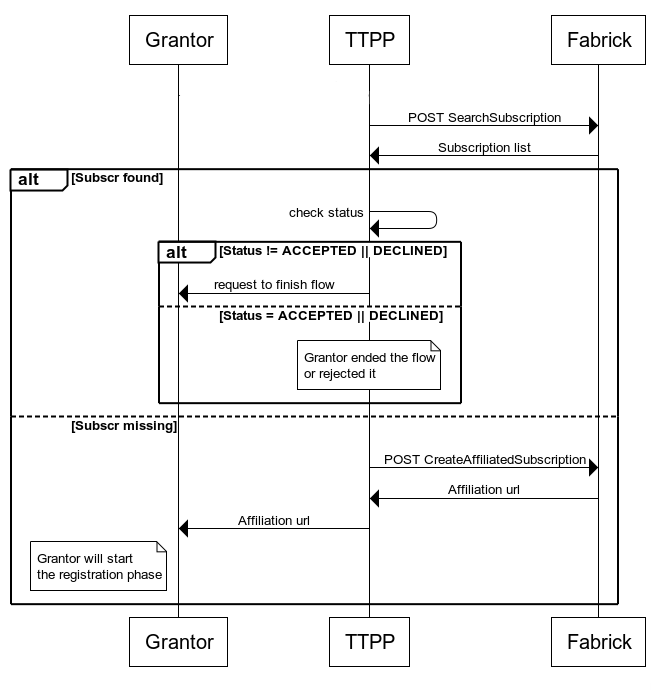
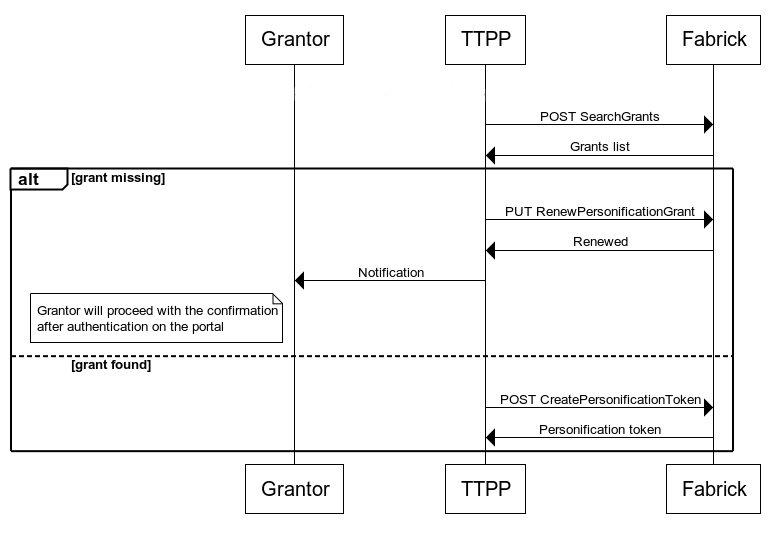
Making Requests to Services
As mentioned earlier, every TTPP request must include the personificationToken. This parameter is to be included in the request headers as shown in the following example.
For details on the illustrated services, please refer to the relevant documentation. The only difference will be replacing the two headers in all requests:
--header 'Auth-Schema: S2S'
--header 'Api-Key: fppApiKey'
with
--header 'Auth-Schema: S2S-AUTH'
--header 'Auth-Token: personificationToken'
since the TTPP must not present itself with the apiKey, but with the Grantor's token that it will substitute.
Test Data
This section provides the information needed to complete the onboarding process during the testing phases (see the Affiliation - PSU Guide document).
The onboarding process is divided into 3 main phases:
-
Entering personal information
-
Entering KYC data
-
Signing contracts, power of attorney, and IBAN configuration
Entering personal information
The step for entering personal information is further divided into the Legal Representative’s personal information and the Company’s personal information.
For the Legal Representative, you can enter the following information, for example:
Pier Paolo Verdi - 01/01/1980 - Milan - Male

Tax ID: VRDPPL80A01F205C
The verification of personal information against the tax ID number is also performed in the test environment; for this reason, you must have a real and valid tax ID number. For example, you can use an online tax ID generator.
Note that the check for existing users is based on the tax ID number; if you wish to proceed with a new registration, you will therefore need to modify the tax ID number (e.g., add 1 to the day of birth). The same applies to the email address, which must be unique for each onboarding process, as it is used as the username to access the Onboarding portal.
Finally, the phone number must be valid because, even in a test environment, a message is sent to the provided number for the FEA contract signing step.
After entering the Legal Representative’s information, the procedure will require you to enter two OTPs (Authorization Confirmation). You will need to enter the following OTP twice:
1111
Once you have completed your first onboarding, for subsequent onboarding processes, you can log in using your previous credentials rather than registering from scratch.
You can also reuse a previously created company or create a new one.
KYC Data Entry – Identification
In this process, you must verify the identity of the Legal Representative. You can verify your identity using SPID, bank-based SCA, or document-based.
SPID
In the test environment, you can select the Fabrick AGID provider from the drop-down menu. Once selected, you can enter a username and password from the following official list: https://demo.spid.gov.it/users, choosing from the Level 2 users.
The first and last names of the Legal Representative must match those associated with the account being used, as verification is based on the exact match of the full name.
If the Fabrick AGID provider is not available, please request reactivation by submitting a ticket to the Service Desk.
SCA
Once you have verified that the Legal Representative’s name is Pier Paolo Verdi, you can select the Mock Bank and use the following credentials
Username: use03

Password: passwd03

OTP: 34567890
Document-Based
Regarding this method, in the pre-production environment only, you can also upload documents from your desktop.
As for the section on beneficial owners, you must register at least one. In this case, there is no validation of the tax ID number, so it can be entered arbitrarily.
If you wish to skip the Beneficial Owners entry section, you can select “Sole Proprietorship” as the business type.
Signing Contracts, Authorization, and IBAN Configuration
In the next step, you will receive a real OTP via SMS (from Infocert). You will then receive another OTP for the Authorization to Act on Behalf of Another Party, but this time it will always be 1111. As for the IBAN, you can use one of the sandbox accounts listed
In the pre-production environment, the Infocert service may occasionally be temporarily unavailable. Unfortunately, in such cases, we recommend waiting and trying again later. If the problem persists, please contact our Service Desk.
IBAN Verification (Pay By Bank Case)
For Pass products, if the merchant exits the flow before completing the final step—that is, before entering their credit account—the subscription will still be active (status: ACCEPTED).
The affiliate will then be able to call all payment APIs, including POST SearchCreditors, which will, however, return an empty vector.
At this point, you’ll need to redirect the affiliate to the onboarding link so they can complete the final step and enter the desired IBAN. The link must not have expired; otherwise, you’ll need to contact Fabrick via the Service Desk.