Test Environment
The test environment (sandbox) allows you to simulate the entire payment flow, from creating the transaction to receiving the result, without moving real money. It is the first step toward integrating Fabrick Payment Orchestra into your e-commerce platform.
Create a test account
Signing up for the sandbox is quick and easy:
- Go to the sandbox registration page
- Enter your email, first name, last name, and choose a password
- Click Sign Up
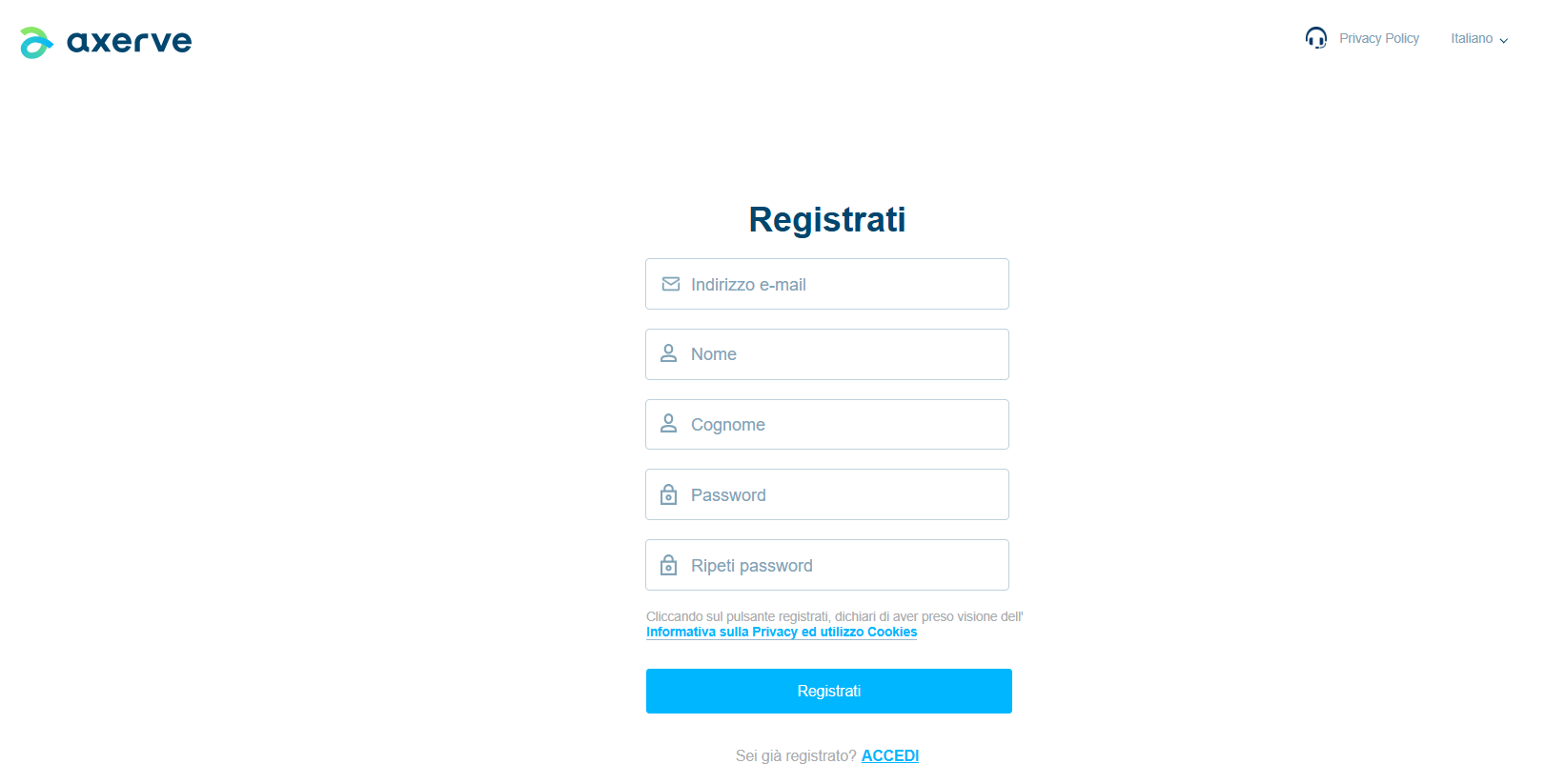
Once registration is complete, a shopLogin will be generated in the format GESPAYXXXXX. This identifier is unique to your test account and will be required for all API calls to the sandbox.

Log in with the email and password you chose during registration.
Accessing the Sandbox
After registering, log in to the sandbox dashboard to configure your test environment and perform your first operations.
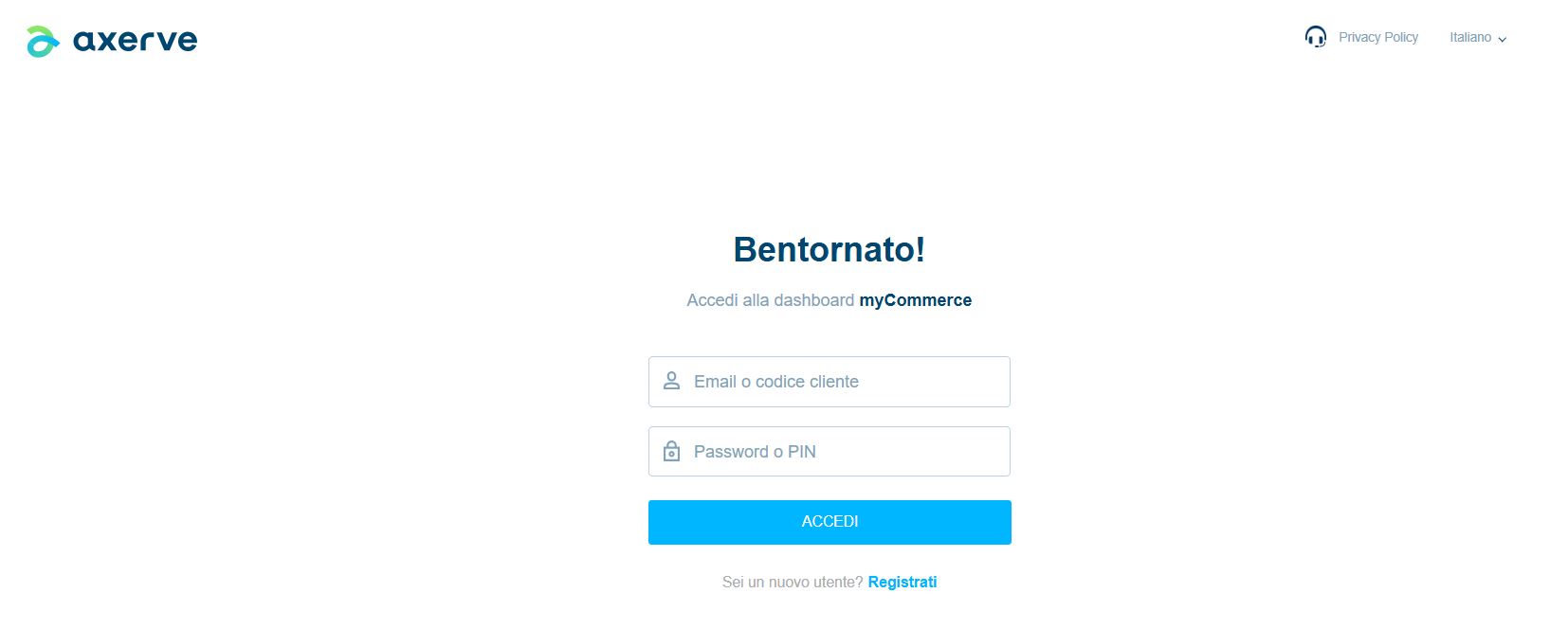 } alt="Sandbox dashboard" />
From the dashboard, you can manage the environment configuration, monitor test transactions, and administer store settings.
For operational details, refer to the dedicated guides in the Next Steps section.
Password Reset
To request a password reset for your test account, contact Fabrick Support, providing the shopLogin and the email address associated with the account for which you are requesting the reset.
Once the request is sent, you will receive an email with instructions on how to complete the password change for your profile.
The password reset can be sent only to the email address provided during registration.
Next Steps
Once the test account has been created, you can proceed with:
- Environment Configuration — initial configurations
- First Payment — executing the first transaction
- Test Cards — credentials and cards to use in the sandbox
- APM — digital payment methods alternative to cards
Before going live, you must complete all tests in the sandbox and request activation of the production environment from your sales representative.