Lightbox
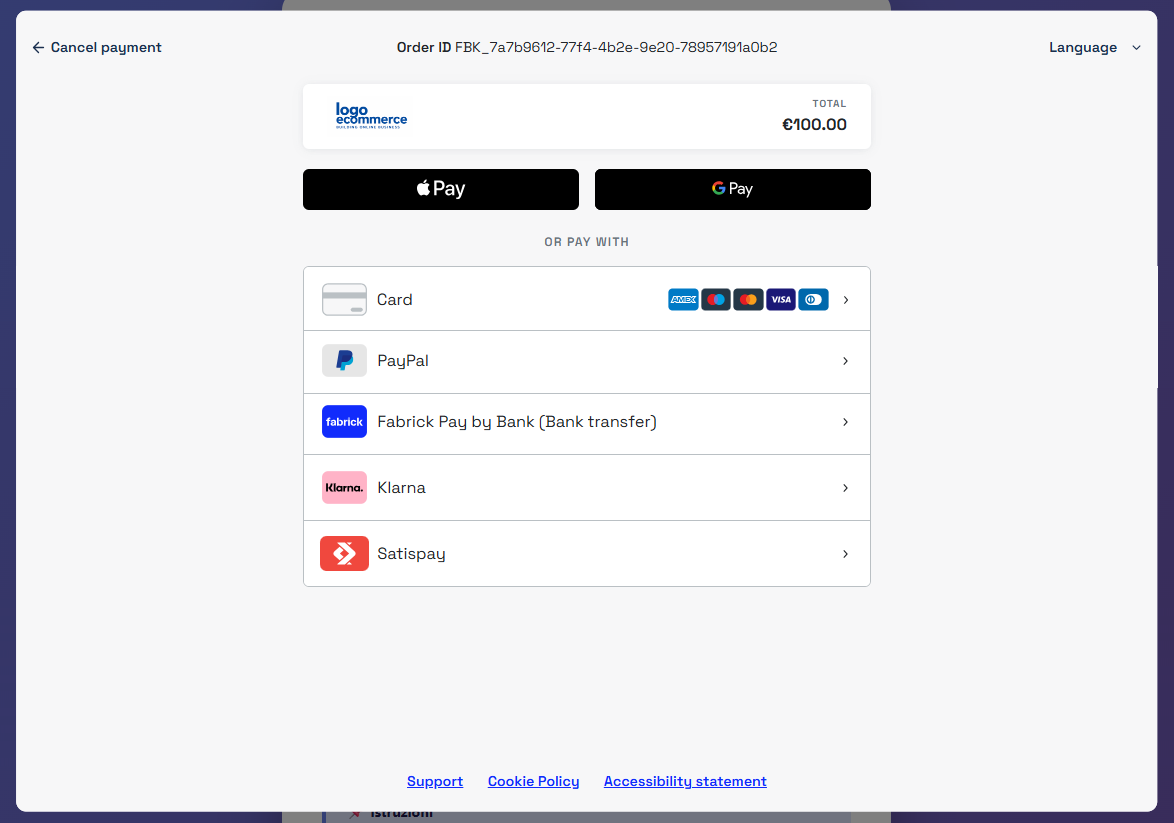
The Lightbox integration lets you show the buyer the Fabrick payment page in a pop-up displayed over the e-commerce cart page, avoiding a redirect to a new page to present the payment page.
The Lightbox offers a simple integration with limited graphic customisation, since the interface, the authentication flows and the redirects to other payment methods (APMs) are handled directly by Fabrick.
If pop-up blocking is enabled on the device or browser in use, this setting may prevent new pages from opening. On desktop devices or browsers the user is not always asked to allow an external page to open, and this may prevent the payment from being completed.
The Lightbox is optimised for use in a browser and does not guarantee compatibility with channels such as WebViews or native applications.
Amazon Pay is not compatible with the Lightbox integration: even if it is enabled for the shopLogin, the method is not shown on the selection page. To offer Amazon Pay to your customers, use the Checkout Page, Pay By Link, Web Component or API Only integrations.
Payment initialisation
To initialise a payment request you need to use the payment/create call on the server side.
This approach ensures a higher level of security in generating the payload and handling the API key, avoiding the exposure of sensitive information in the front end.
The payment/create call is the basis of the payment request and can be extended by integrating the services provided by Fabrick, such as:
- the fraud prevention service
- the Tokenization features
- the dedicated objects of the individual payment methods
This flexibility allows the merchant to build a complete, customisable payment request in line with their operational needs.
The following sections go into detail on how to use the integration and on the parameters to include in the call to customise the payment request.
Payment method presentation logic
When creating the request, if the shopLogin is enabled for more than one payment method (APM), you can use the paymentType field in the payment/create call to specify which methods to present to the buyer on the payment page.
paymentType | Lightbox behaviour |
|---|---|
| Not populated | Shows the selection page with all the methods enabled for the shopLogin in the Gestpay back office that do not require mandatory fields |
More than one method, for example ["FABRICKPASS", "CREDITCARD"] | Shows the selection page limited to the methods specified |
["CREDITCARD"] only | Shows the selection page with the card and the enabled wallets, such as Apple Pay, Google Pay and Click to Pay |
A single APM, for example ["FABRICKPASS"] | Shows the selection page with only the specified method |
Unlike Checkout Page and Pay By Link, the Lightbox always presents the selection page, even when only one method is specified in the paymentType field.
Some payment methods require mandatory fields in the payment/create call. These methods are presented to the buyer only if the call includes the required fields; otherwise they do not appear on the selection page. The fields required by each method are listed on the method's page.
The possible paymentType values are listed in the payment type codes section. Alternatively, you can use the GET shop/paymentMethods endpoint to check in real time the payment methods enabled for the shopLogin used, filtering the response by payload.paymentMethod.paymentType.
Below is an example request for each case.
- Not populated
- More than one method
- Card only
- A single APM
The paymentType field is omitted: the Lightbox shows the selection page with all the methods enabled for the shopLogin that do not require mandatory fields.
Request
POST /api/v1/payment/create
Host (sandbox): sandbox.gestpay.net
Host (production): ecomms2s.sella.it
Authorization: apikey ****************
Content-Type: application/json
{
  "shopLogin": "GESPAY12345",
  "amount": "100",
  "currency": "EUR",
  "shopTransactionID": "FBK_OrderID"
}
More than one payment method is specified, for example CREDITCARD and FABRICKPASS: the Lightbox shows the selection page limited to the methods specified.
Request
POST /api/v1/payment/create
Host (sandbox): sandbox.gestpay.net
Host (production): ecomms2s.sella.it
Authorization: apikey ****************
Content-Type: application/json
{
  "shopLogin": "GESPAY12345",
  "amount": "100",
  "currency": "EUR",
  "shopTransactionID": "FBK_OrderID",
  "paymentType": ["CREDITCARD", "FABRICKPASS"]
}
Only CREDITCARD is specified: the Lightbox shows the selection page with the card and the enabled wallets, such as Apple Pay, Google Pay and Click to Pay.
Request
POST /api/v1/payment/create
Host (sandbox): sandbox.gestpay.net
Host (production): ecomms2s.sella.it
Authorization: apikey ****************
Content-Type: application/json
{
  "shopLogin": "GESPAY12345",
  "amount": "100",
  "currency": "EUR",
  "shopTransactionID": "FBK_OrderID",
  "paymentType": ["CREDITCARD"]
}
A single alternative payment method is specified, for example FABRICKPASS: the Lightbox still shows the selection page, with only the specified method.
Request
POST /api/v1/payment/create
Host (sandbox): sandbox.gestpay.net
Host (production): ecomms2s.sella.it
Authorization: apikey ****************
Content-Type: application/json
{
  "shopLogin": "GESPAY12345",
  "amount": "100",
  "currency": "EUR",
  "shopTransactionID": "FBK_OrderID",
  "paymentType": ["FABRICKPASS"]
}
Order confirmation page and server-to-server notification
When creating the request you can use the responseURLs object to dynamically define the redirect URLs and the server-to-server notification URL that the system will use at the end of the transaction, for both positive and negative outcomes.
When the responseURLs object is included in the call, for this transaction only, the system does not use the URLs configured in the Gestpay back office but applies those specified in the request. If the object is not present, the back office settings are used.
You can also specify only some of the parameters. For example, if only the server-to-server notification URL or only one of the redirect URLs is set, the system overrides only the values provided and keeps using the other URLs configured in the Gestpay back office.
Below is an example of a request defining all the redirect URLs and the server-to-server notification URL.
Request
POST /api/v1/payment/create
Host (sandbox): sandbox.gestpay.net
Host (production): ecomms2s.sella.it
Authorization: apikey ****************
Content-Type: application/json
{
  "shopLogin": "GESPAY12345",
  "amount": "100",
  "currency": "EUR",
  "shopTransactionID": "FBK_OrderID",
  "responseURLs": {
    "buyerOK": "https://merchant-url-ok.com",
    "buyerKO": "https://merchant-url-ko.com",
    "serverNotificationURL": "https://merchant-url-s2s.com"
  }
}
Lightbox integration
Once you have obtained the PaymentToken and PaymentID in response to the payment/create call, you can proceed with the integration of the Lightbox solution.
1. Fabrick JavaScript
The first step is to include the dedicated JavaScript library in the page, through a <script> tag pointing directly to the Fabrick URL of the environment in use:
- Sandbox:
https://sandbox.gestpay.net/pagam/javascript/axerve.js - Production:
https://ecomm.sella.it/pagam/javascript/axerve.js
<script src="https://ecomm.sella.it/pagam/javascript/axerve.js"></script>
The library must always be loaded from the Fabrick URLs. A saved copy does not receive updates and may stop working.
The Fabrick script must be loaded before your script that uses it, or handled through an onload callback, to ensure the library is initialised correctly.
2. Setting the variables
Next, you need to set the shopLogin value, using
axerve.lightBox.shop = shopLogin
The shopLogin value is unique for each merchant and is provided by Fabrick when the service is activated.
3. Showing the payment page
Once the shopLogin is configured, you can open the Lightbox with the axerve.lightBox.open() function.
The function takes as input the paymentID and paymentToken obtained in response to the payment/create call, and also accepts an optional third parameter to specify a callback for custom handling of the payment outcome.
Available modes:
-
Automatic redirect
By passing PaymentID and PaymentToken to the
axerve.lightBox.open(paymentID, paymentToken)function, the Lightbox opens and, at the end of the payment, Fabrick automatically redirects the buyer to the positive or negative outcome URL configured for the transaction.Below is an example:
<!DOCTYPE html><html lang="en"><head><meta charset="UTF-8" /><title>Lightbox Payment Test</title><script>// Initialisation once axerve.js has loadedfunction initFabrickLightbox() {console.log("Fabrick Lightbox SDK loaded correctly");// Set the shopLoginaxerve.lightBox.shop = "GESPAY12345";// These values are for illustration ONLY// In production they must come from the backendwindow.paymentID = "1610469726440";window.paymentToken = "c7d0cb20-0d82-4f8a-b54b-18f1b3a3b82f";}</script><!-- Fabrick script with onload --><scriptsrc="https://sandbox.gestpay.net/pagam/javascript/axerve.js"onload="initFabrickLightbox()"></script></head><body><button onclick="axerve.lightBox.open(paymentID, paymentToken)">Start payment</button></body></html>
-
Callback
By passing PaymentID, PaymentToken and, as a third parameter, a callback to the
axerve.lightBox.open(paymentID,paymentToken, handleCallback)function, you can override the redirect behaviour handled by Fabrick. In this case, once the payment is complete, the callback function is invoked and receives as a parameter an object with the following information:- error: any errors encountered during the process (
codeanddescriptionfields) - paymentId: identifier of the transaction, useful to retrieve its details through
payment/detail - responseURL: redirect URL to the positive or negative outcome page
- status: payment status (OK, KO)
Below is an example:
<!DOCTYPE html><html lang="en"><head><meta charset="UTF-8" /><title>Lightbox Payment Test</title><script>// Initialisation once axerve.js has loadedfunction initFabrickLightbox() {console.log("Fabrick Lightbox SDK loaded correctly");// Set the shopLogin (mandatory)axerve.lightBox.shop = "GESPAY12345";// These values are for illustration ONLY// In production they must come from the backendwindow.paymentID = "1610469726440";window.paymentToken = "c7d0cb20-0d82-4f8a-b54b-18f1b3a3b82f";}// Callback defined globally so that it can be reached from the onclickfunction handleCallback(response) {console.log(response);/* example response:{"error": { "code": null, "description": null },"status": "OK","responseURL": "https://redirect-url.com","paymentId": "1403159914604"}*/}</script><!-- Fabrick script with onload --><scriptsrc="https://sandbox.gestpay.net/pagam/javascript/axerve.js"onload="initFabrickLightbox()"></script></head><body><button onclick="axerve.lightBox.open(paymentID, paymentToken, handleCallback)">Start payment</button></body></html>
Behaviour with alternative payment methods (APMs)
With both Lightbox opening modes, if the buyer selects a payment method other than a card or wallet, the system opens a new page and automatically redirects the buyer to the selected service. At the end of the payment, the page closes and the buyer is automatically taken back to the previous page, where the Lightbox was initialised.
- error: any errors encountered during the process (
Transaction conclusion and payment notification
Once the payment is complete, the Lightbox pop-up closes automatically and the subsequent behaviour depends on the mode used:
- if no callback was defined, Fabrick redirects the buyer to the positive or negative outcome URL configured for the transaction.
- if a callback was specified, the system returns a JavaScript object containing the outcome information, leaving the merchant in full control of the subsequent flow.
Regardless of the mode used, the system always sends a server-to-server (S2S) notification with the outcome of the transaction.
Example of redirect URL and S2S notification:
https://merchant-url.com?a=GESPAY12345&Status=OK&paymentID=1360119538182&paymentToken=8a901523-67a5-4aca-bbd2-c7c412934289
The redirect URL and the S2S notification contain the Status parameter, which immediately identifies the status of the payment. The possible values are:
OK: payment completed with a positive outcomeKO: payment completed with a negative outcomeXX: payment on hold, awaiting the final outcome.
The XX status is used only by some alternative payment methods (APMs) and is returned when the outcome is asynchronous. In this scenario Fabrick redirects the customer to the positive outcome URL, but the status is not yet final: you need to wait for a subsequent S2S notification communicating the final outcome (OK or KO).
- If you receive the XX status, do not ship the goods or deliver the service.
- Wait for the S2S notification communicating the final outcome of the payment.
To check the outcome or the updated status of the transaction you can use the GET payment/detail endpoint, passing as a parameter the paymentID returned by the payment/create call, obtained from the redirect URL or S2S notification, or from the JavaScript object.
The response contains the transactionResult parameter, which indicates the status of the payment. The possible values are:
AUTHENTICATED: payment authenticated (OK)APPROVED: payment approved (OK)DECLINED: payment declined (KO)PENDING: payment awaiting confirmation (XX)WAITING: payment in progress (XX)UNSUBMITTED: the payment has not started yet (XX)
Example of a call to check the status of the transaction through the paymentID.
Request
GET /api/v1/payment/detail/{paymentID}
Host (sandbox): sandbox.gestpay.net
Host (production): ecomms2s.sella.it
Authorization: apikey ****************
Content-Type: application/json
Response
{
    "error": {
        "code": "0",
        "description": "request correctly processed"
    },
    "payload": {
        "transactionType": "detail",
        "transactionResult": "APPROVED",
        "transactionState": "AUT",
        "transactionErrorCode": "0",
        "transactionErrorDescription": "Transaction correctly processed",
        "bankTransactionID": "1825",
        "shopTransactionID": "FBK_OrderID",
        "shopTransactionID_2": "",
        "authorizationCode": "794183",
        "paymentID": "1610469726440",
        "currency": "EUR",
        "country": "ITALIA",
        "company": "VISA",
        "tdLevel": "FULL",
        "threeDS": {
            "authenticationResult": {
                "authenticationLevel": "2C",
                "authenticationStatus": "Y",
                "authStatusReason": "",
                "challengeResultTransStatus": "",
                "XID": "1dd3cf75-92a7-4487-abb5-b1f3cdd68f3b",
                "AV": "MTIzNDU2Nzu5MDA5ODc2NTQzMjE=",
                "ECI": "05",
                "AVAlgorithm": "",
                "threeDsVersion": "2.2.0"
            },
            "transDetails": {
                "authData": "",
                "authMethod": "02",
                "authTimeStamp": "202505131259",
                "acsID": "f688e45c-ff27-4ba6-a631-4b68df2dbf99"
            }
        },
        "events": [
            {
                "event": {
                    "eventtype": "AUT",
                    "eventamount": "0.00",
                    "eventdate": "13/05/25 13:01:52",
                    "eventARN": "",
                    "eventID": "",
                    "eventReferred": ""
                }
            }
        ],
        "buyer": {
            "name": "",
            "email": ""
        },
        "risk": {
            "riskResponseCode": "",
            "riskResponseDescription": ""
        },
        "customInfo": null,
        "alertCode": "",
        "alertDescription": "",
        "cvvPresent": "TRUE",
        "dcc": null,
        "maskedPAN": "",
        "paymentMethod": "VISA",
        "productType": "Credit",
        "token": "40G5LMXUQQ613101",
        "tokenExpiryMonth": "05",
        "tokenExpiryYear": "27",
        "tokenDetails": {
            "TokenValue": "40G5LMXUQQ613101",
            "TokenExpiryMonth": "05",
            "TokenExpiryYear": "27",
            "TokenProvider": "AXERVE",
            "CardDetails": {
                "CardSuffix": "3101",
                "CardExpiryMonth": "05",
                "CardExpiryYear": "27",
                "CardHolderName": null
            },
            "CardAssets": {
                "CardArt": {
                    "Type": null,
                    "MediaContents": null,
                    "Height": null,
                    "Width": null
                },
                "BrandLogo": {
                    "Type": null,
                    "MediaContents": null,
                    "Height": null,
                    "Width": null
                }
            }
        },
        "fraudPrevention": {
            "check": "FALSE",
            "state": "",
            "description": "",
            "order": ""
        },
        "automaticOperation": {
            "type": "CAN",
            "date": "07/06/25 00:00:00",
            "amount": "0.00"
        }
    }
}