Pay By Link
This integration allows the merchant to request a payment through the different channels provided by Fabrick's services, in order to show the buyer the Fabrick payment page to choose the payment method, perform a direct redirect to a specific method (APM) or display the page dedicated to entering the card details.
The solution also allows you to define the validity period of the payment request and to configure the redirect URLs and the server-to-server notification URL that the system will use at the end of the transaction.
By choosing this integration method, the merchant can build a quick implementation with minimal impact on their own systems. Customisation options are more limited than with more advanced integrations, since the interface, the authentication flows and the redirects to other payment methods (APMs) are handled directly by Fabrick.
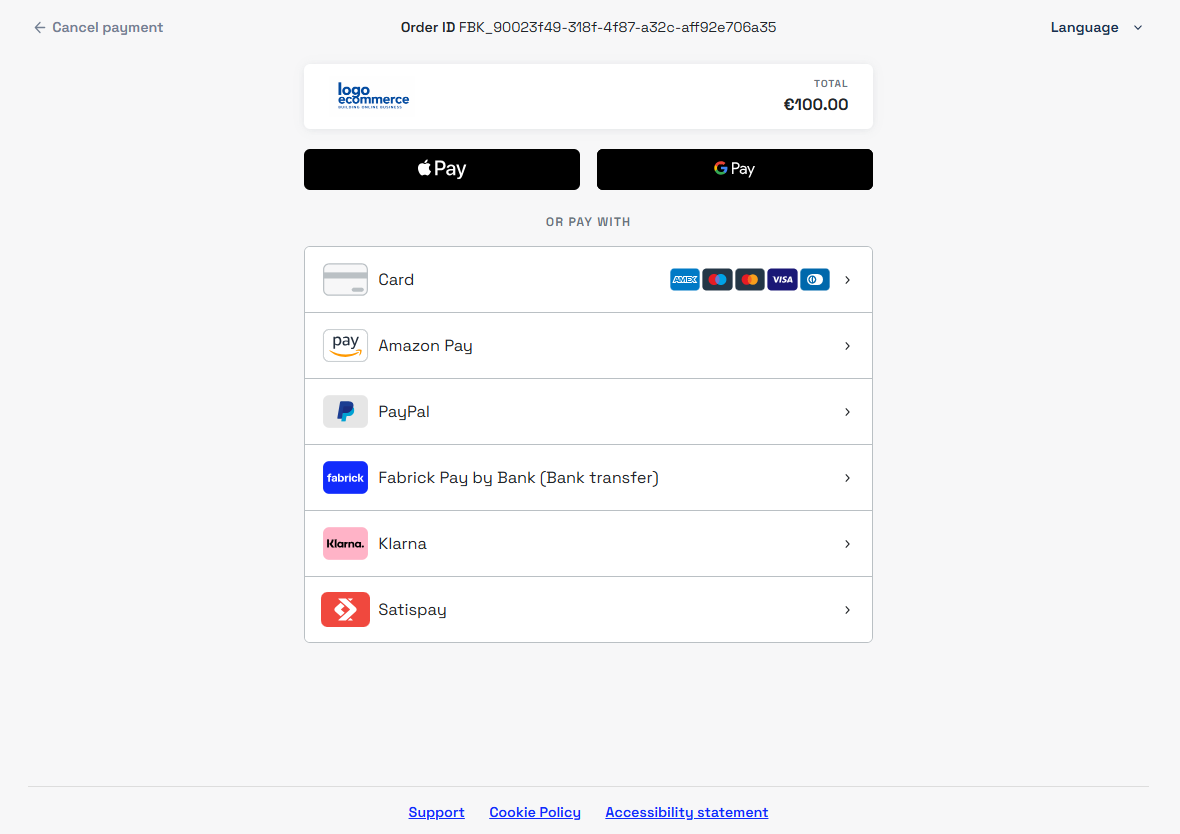
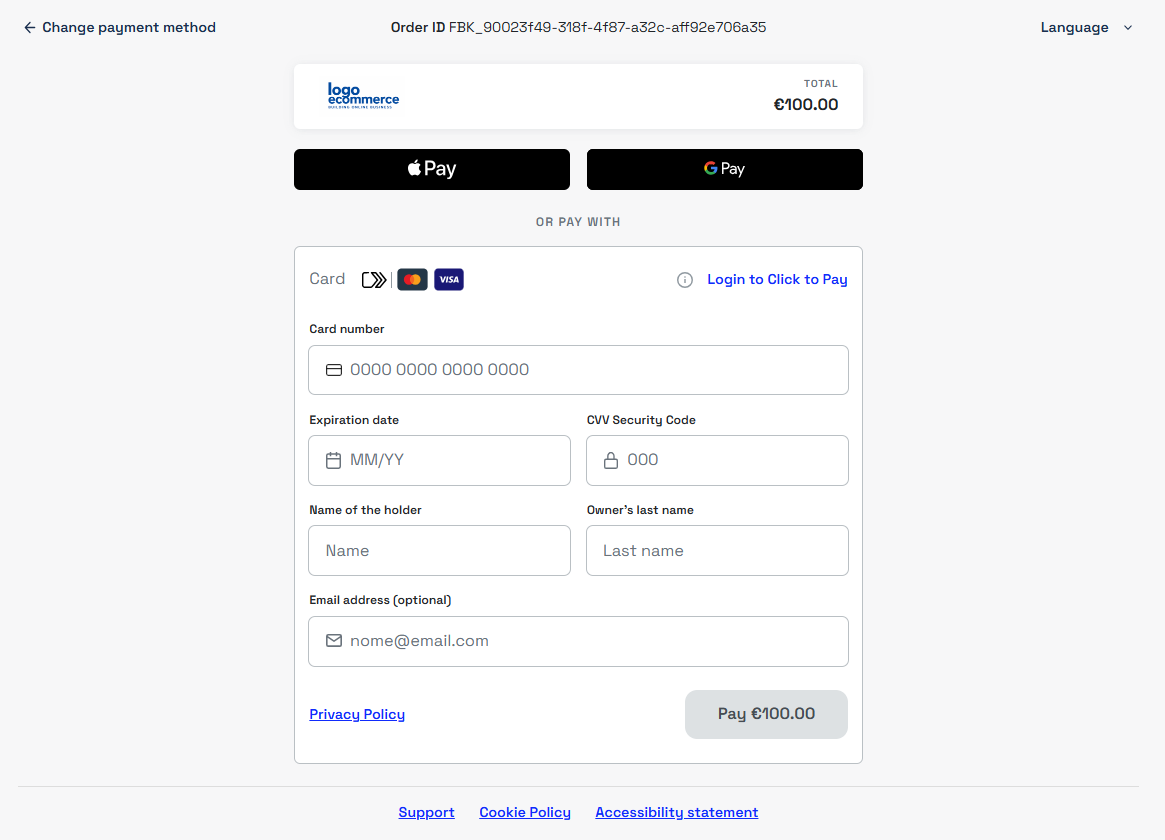
Below is the card details form:
The Pay By Link service can also be used from the dashboard, which allows sending by SMS, an additional channel compared with the API integration.
This option suits merchants looking for an immediate solution, with no need for customisation or specific integration with their own systems.
Pay By Link is optimised for use in a browser and does not guarantee compatibility with channels such as WebViews or native applications.
For these scenarios you can perform an external redirect from the app to the payment link, allowing the customer to complete the payment outside the app context; alternatively, the API Only integration offers greater control over the authentication flows and the handling of payment methods.
Payment initialisation
To initialise a payment request you need to use the payment/create call on the server side.
This approach ensures a higher level of security in generating the payload and handling the API key, avoiding the exposure of sensitive information in the front end.
The payment/create call is the basis of the payment request and can be extended with the parameters specific to the Pay By Link integration, described in the following sections.
You can also extend the request by integrating other services provided by Fabrick, such as:
- the Risk Based Authentication service
- the Tokenization features
- the dedicated objects of the individual payment methods
This flexibility allows the merchant to build a complete, customisable payment request in line with their operational needs.
The following sections go into detail on how to use the integration and on the parameters to include in the call to customise the payment request.
How the payment page is presented
The channelType object identifies the channel, or set of channels, through which the payment request is presented to the buyer. It is the only mandatory parameter for using the Pay By Link integration.
When creating the request, by including the channelType object in the call you can specify the channel or channels required. The available options are:
LINK: used to request the generation of a payment URL.QRCODE: used to obtain a Base64 string, to be converted into a PNG image in order to show the QR Code to the buyer.EMAIL: used to send the payment request by email. In this case you must include and populate thebuyerEmailfield with the buyer's email address, so that the system can deliver the message.
By using more than one channel in the same request, for example LINK + EMAIL, the system generates the payment link and at the same time sends the buyer an email containing the payment request.
- Link
- QR Code
With the LINK option, the system returns the payment URL in the response, in the payload.userRedirect.href object.
This link can be used to redirect the customer or integrated into the front end, for example behind a button. Alternatively, it can be shared through other channels or included in custom communications, such as an email containing the payment request.
Below is an example of a payment request with the LINK option and the related response:
Request
POST /api/v1/payment/create
Host (sandbox): sandbox.gestpay.net
Host (production): ecomms2s.sella.it
Authorization: apikey ****************
Content-Type: application/json
{
    "shopLogin": "GESPAY12345",
    "amount": "100",
    "currency": "EUR",
    "shopTransactionID": "FBK_OrderID",
    "paymentChannel": {
        "channelType": [
            "LINK"
        ]
    }
}
Response
{
    "error": {
        "code": "0",
        "description": "request correctly processed"
    },
    "payload": {
        "paymentToken": "f0419188-8a78-4918-913c-a491e4e78084",
        "paymentID": "1881129911957",
        "userRedirect": {
            "href": "https://sandbox-web.axerve.com/orchestra/checkout/pbl/a/GESPAY12345/b/1881129911957/c/f0419188-8a78-4918-913c-a491e4e78084"
        },
        "qrCode": null
    }
}
With the QRCODE option, the system returns in the response a Base64 string in the payload.qrCode.encodedData field, as indicated by the payload.qrCode.encodingType value.
This string must be converted into an image in the format specified by payload.qrCode.mediaType (PNG in this case), so that the buyer can be shown the QR Code to scan in order to proceed with the payment.
The response also contains the payment link, in the
payload.userRedirect.hreffield, useful for a manual redirect; when choosing the QRCODE option it can be ignored.
Below is an example of a payment request with the QRCODE option and the related response.
Request
POST /api/v1/payment/create
Host (sandbox): sandbox.gestpay.net
Host (production): ecomms2s.sella.it
Authorization: apikey ****************
Content-Type: application/json
{
    "shopLogin": "GESPAY12345",
    "amount": "100",
    "currency": "EUR",
    "shopTransactionID": "FBK_OrderID",
    "paymentChannel": {
        "channelType": [
            "QRCODE"
        ]
    }
}
Response
{
    "error": {
        "code": "0",
        "description": "request correctly processed"
    },
    "payload": {
        "paymentToken": "f1a0ec75-d4d4-459f-81a3-7eb05a377171",
        "paymentID": "2273679911991",
        "userRedirect": {
            "href": "https://sandbox-web.axerve.com/orchestra/checkout/pbl/a/GESPAY12345/b/2273679911991/c/f1a0ec75-d4d4-459f-81a3-7eb05a377171"
        },
        "qrCode": {
            "mediaType": "image/png",
            "encodingType": "base64",
            "encodedData": "iVBORw0KGg...RK5CYII="
        }
    }
}
With the EMAIL option, Fabrick's services are asked to send the buyer an email containing the payment request.
To allow the message to be sent, a valid email address must be specified in the buyerEmail field of the payment/create call.
The response still contains the payment link in the
payload.userRedirect.hrefobject, useful for a manual redirect; when choosing the EMAIL option it can be ignored.
You can also set the language of the email sent to the buyer through the languageId parameter, populated with one of the codes in the following table.
If it is not populated, the default language configured in the Gestpay back office is used.
| Language | Code |
|---|---|
| Italian | 1 |
| English | 2 |
| Spanish | 3 |
| French | 4 |
| German | 5 |
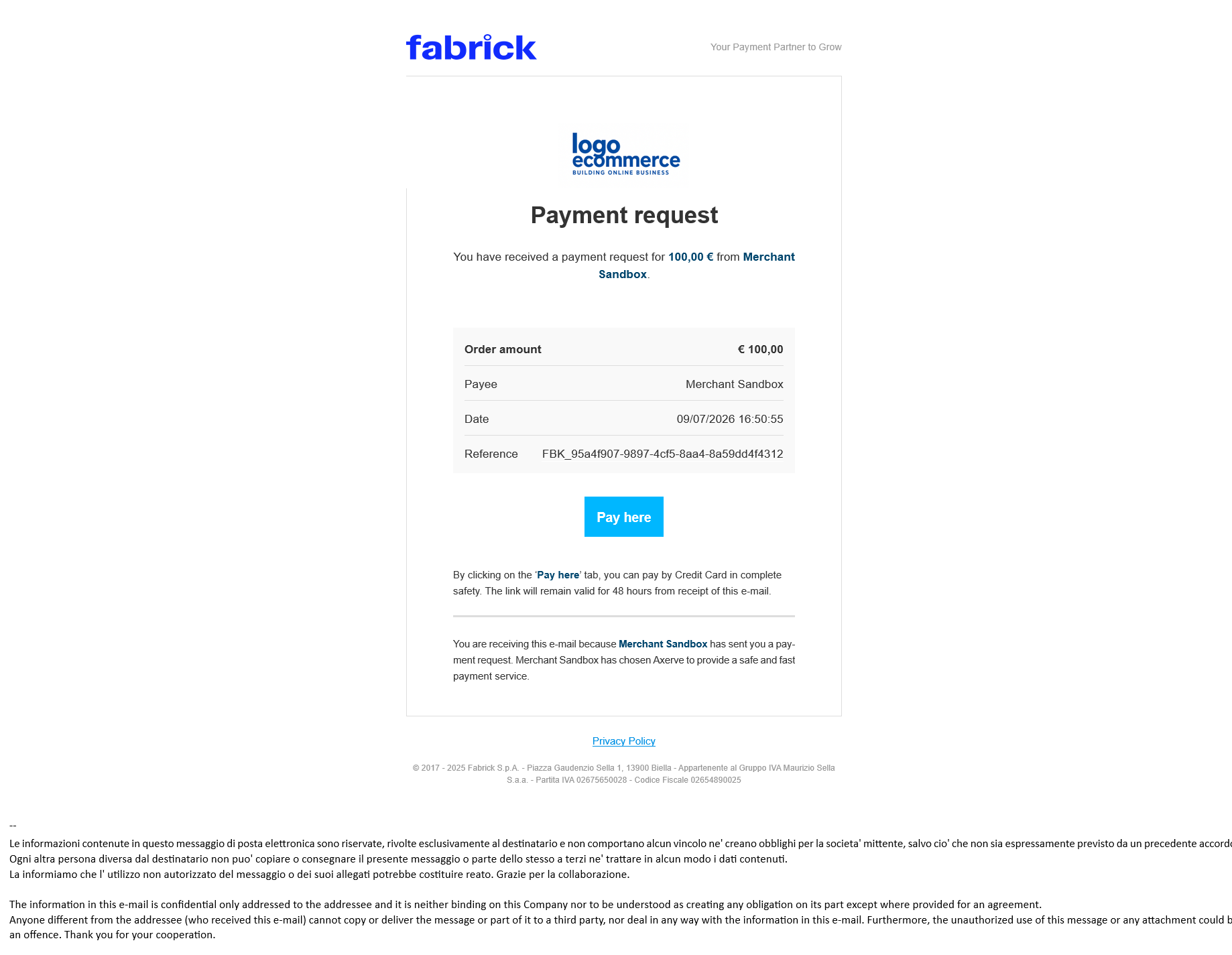
Below is an example of the email sent by Fabrick to the customer:
Below is an example of a payment request with the EMAIL option and the related response:
Request
POST /api/v1/payment/create
Host (sandbox): sandbox.gestpay.net
Host (production): ecomms2s.sella.it
Authorization: apikey ****************
Content-Type: application/json
{
    "shopLogin": "GESPAY12345",
    "amount": "100",
    "currency": "EUR",
    "shopTransactionID": "FBK_OrderID",
    "buyerEmail": "buyer@email.com",
    "languageId": "1", //optional
    "paymentChannel": {
        "channelType": [
            "EMAIL"
        ]
    }
}
Response
{
    "error": {
        "code": "0",
        "description": "request correctly processed"
    },
    "payload": {
        "paymentToken": "d718129f-d39d-4957-a34b-ddc089a01bf2",
        "paymentID": "1353639911973",
        "userRedirect": {
            "href": "https://sandbox-web.axerve.com/orchestra/checkout/pbl/a/GESPAY12345/b/1353639911973/c/d718129f-d39d-4957-a34b-ddc089a01bf2"
        },
        "qrCode": null
    }
}
Validity period of the request
When creating the request you can define the validity of the payment link through the validityPeriod object, placed inside paymentChannel.
If the validityPeriod object is not populated, the default validity is 48 hours.
Setting the start of the validity
The validityPeriod.validityStart object lets you specify the moment from which the payment request becomes active.
This object accepts two parameters, but only one at a time can be used to set the start of the validity of the payment request:
minutesFromNow: sets the start of the payment validity X minutes after the payment initialisation request is sent to Fabrick.UTCDateTime: sets the start date of the payment validity (UTC format, e.g. yyyy-mm-ddThh24:mm:ss).
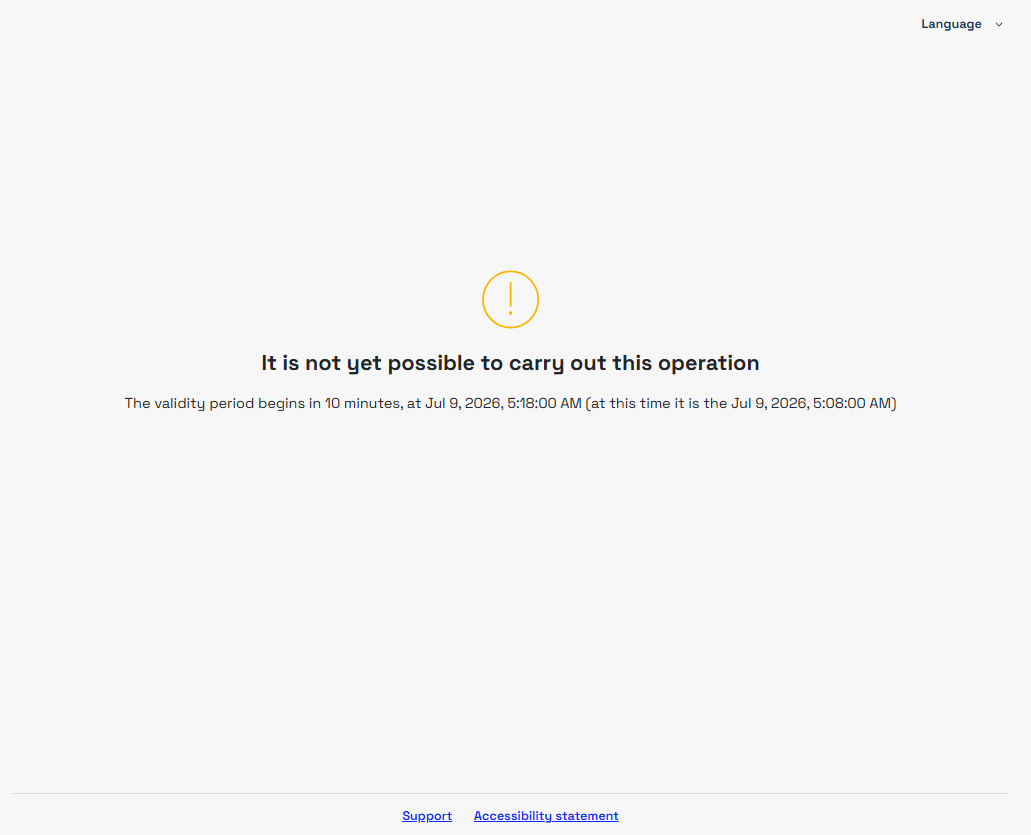
If the buyer opens the link before the start of the validity period, they see a notice stating that the payment request is not yet available, together with the date and time from which the payment can be made.
Example of the notice:
Setting the end of the validity
The validityPeriod.validityEnd object lets you set the moment after which the payment request is no longer valid. Here too, only one of the following parameters can be used:
minutesFromNow: sets the expiry X minutes after the request is created.UTCDateTime: sets the expiry through a date and time in UTC format.validityMinutes: duration of the validity in minutes, calculated from the start set invalidityStart.
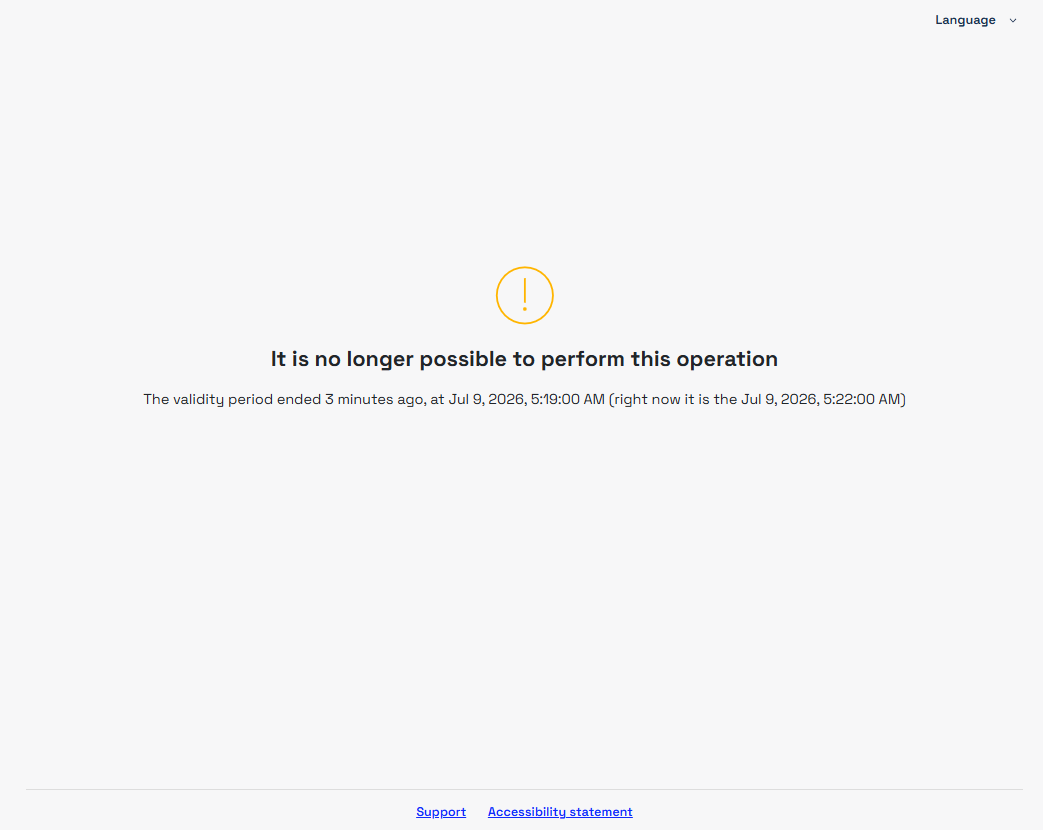
If the buyer opens the link after the expiry, the system shows a notice stating that the payment request is no longer valid.
Example of the notice:
You can use both validityStart and validityEnd to define a specific time interval.
The maximum configurable duration is 49 hours.
Below is an example of a request in which the payment link becomes valid 10 minutes after it is generated and stays active for the following 50 minutes, expiring 60 minutes after creation.
Request
POST /api/v1/payment/create
Host (sandbox): sandbox.gestpay.net
Host (production): ecomms2s.sella.it
Authorization: apikey ****************
Content-Type: application/json
{
  "shopLogin": "GESPAY12345",
  "amount": "100",
  "currency": "EUR",
  "shopTransactionID": "FBK_OrderID",
  "paymentChannel":{
    "channelType":["LINK"],
    "validityPeriod":{
      "validityStart":{
        "minutesFromNow": "10",
        "UTCDateTime": "" //yyyy-mm-ddThh24:mm:ss - e.g. 2025-06-29T13:14:00
      },
      "validityEnd":{
        "minutesFromNow": "60",
        "UTCDateTime": "",
        "validityMinutes": "" //minutes from validity starting timestamp; can have a value only when minutesFromNow and UTCDateTime are not set
      }
    }
  }
}
Replacing a payment request
A payment request sent by link, email or QR Code cannot be cancelled: it remains valid until it expires, according to the default validity or the one set with the validityPeriod object, and until then the buyer can complete the payment.
If you need to replace a request that is still valid, for example to correct the amount or because the same request was sent more than once, we recommend the following approach:
- Save the
paymentIDof the request to be replaced, returned by thepayment/createcall. - Send a new request.
- Check the outcomes through the S2S notification or the
GET payment/detailcall: if the buyer also completes the payment on the replaced request, cancel the authorization with thepayment/cancelcall, specifying thepaymentIDsaved in step 1. - Capture only the payment for the new request.
The payment/cancel call cancels a payment that has been authorised but not yet captured, so it can be used when authorization and capture are separated. With unified capture the payment has already been captured: in this case you need to refund the amount. The mode in use is the one configured in the back office (see Authorization Management - M.O.T.O Processing).
To reduce the risk of payments on requests that are no longer needed, use validityPeriod to set a validity suited to the expected use of the link (see Validity period of the request).
Below is an example of cancelling the authorization of the replaced request.
Request
POST /api/v1/payment/cancel
Host (sandbox): sandbox.gestpay.net
Host (production): ecomms2s.sella.it
Authorization: apikey ****************
Content-Type: application/json
{
  "shopLogin": "GESPAY12345",
  "paymentID": "1881129911957",
  "amount": "100",
  "cancelReason": "Payment request replaced"
}
Direct redirect to the card details page or to a payment method (APM)
When creating the request, if the shopLogin is enabled for more than one payment method (APM), you can use the paymentType field in the payment/create call to specify which methods to present to the buyer and whether to show the selection page.
paymentType | Behaviour |
|---|---|
| Not populated | Shows the selection page with all the methods enabled for the shopLogin in the Gestpay back office that do not require mandatory fields |
More than one method, for example ["FABRICKPASS", "CREDITCARD"] | Shows the selection page limited to the methods specified |
["CREDITCARD"] only | Skips the selection page and shows the Fabrick card details page, with the enabled wallets, such as Apple Pay, Google Pay and Click to Pay |
A single APM, for example ["FABRICKPASS"] | Skips the selection page: if the method requires a redirect, the buyer is taken straight to the service; if not, they complete the payment on the Fabrick page |
Some payment methods require mandatory fields in the payment/create call. These methods are presented to the buyer only if the call includes the required fields; otherwise they do not appear on the selection page. The fields required by each method are listed on the method's page.
The possible paymentType values are listed in the payment type codes section. Alternatively, you can use the GET shop/paymentMethods endpoint to check in real time the payment methods enabled for the shopLogin used, filtering the response by payload.paymentMethod.paymentType.
Below is an example request for each case.
- Not populated
- More than one method
- Card only
- A single APM
The paymentType field is omitted: the buyer sees the selection page with all the methods enabled for the shopLogin that do not require mandatory fields.
Request
POST /api/v1/payment/create
Host (sandbox): sandbox.gestpay.net
Host (production): ecomms2s.sella.it
Authorization: apikey ****************
Content-Type: application/json
{
  "shopLogin": "GESPAY12345",
  "amount": "100",
  "currency": "EUR",
  "shopTransactionID": "FBK_OrderID",
  "paymentChannel": {
    "channelType": ["LINK"]
  }
}
More than one payment method is specified, for example CREDITCARD and FABRICKPASS: the buyer sees the selection page limited to the methods specified.
Request
POST /api/v1/payment/create
Host (sandbox): sandbox.gestpay.net
Host (production): ecomms2s.sella.it
Authorization: apikey ****************
Content-Type: application/json
{
  "shopLogin": "GESPAY12345",
  "amount": "100",
  "currency": "EUR",
  "shopTransactionID": "FBK_OrderID",
  "paymentType": ["CREDITCARD", "FABRICKPASS"],
  "paymentChannel": {
    "channelType": ["LINK"]
  }
}
Only CREDITCARD is specified: the buyer skips the selection page and goes straight to the Fabrick card details page, with the enabled wallets, such as Apple Pay, Google Pay and Click to Pay.
Request
POST /api/v1/payment/create
Host (sandbox): sandbox.gestpay.net
Host (production): ecomms2s.sella.it
Authorization: apikey ****************
Content-Type: application/json
{
  "shopLogin": "GESPAY12345",
  "amount": "100",
  "currency": "EUR",
  "shopTransactionID": "FBK_OrderID",
  "paymentType": ["CREDITCARD"],
  "paymentChannel": {
    "channelType": ["LINK"]
  }
}
A single alternative payment method is specified, for example FABRICKPASS: the buyer skips the selection page. If the method requires a redirect, they are taken straight to the service page; otherwise, they complete the payment on the Fabrick page.
Request
POST /api/v1/payment/create
Host (sandbox): sandbox.gestpay.net
Host (production): ecomms2s.sella.it
Authorization: apikey ****************
Content-Type: application/json
{
  "shopLogin": "GESPAY12345",
  "amount": "100",
  "currency": "EUR",
  "shopTransactionID": "FBK_OrderID",
  "paymentType": ["FABRICKPASS"],
  "paymentChannel": {
    "channelType": ["LINK"]
  }
}
Order confirmation page and server-to-server notification
At the end of the payment flow, whether completed on the Fabrick payment page or through a redirect required for 3D Secure authentication or by the payment method, the buyer is redirected to the Thank You Page. For more information about the Thank You Page and S2S notification, see Response address.
Transaction detail and payment notification
At the end of the payment, the buyer is redirected to the positive or negative outcome URL. At the same time, the system also sends a server-to-server (S2S) notification with the outcome of the transaction.
Example of redirect URL and S2S notification:
https://merchant-url.com?a=GESPAY12345&Status=OK&paymentID=1360119538182&paymentToken=8a901523-67a5-4aca-bbd2-c7c412934289
The redirect URL and the S2S notification contain the Status parameter, which immediately identifies the status of the payment. The possible values are:
OK: payment completed with a positive outcomeKO: payment completed with a negative outcomeXX: payment on hold, awaiting the final outcome.
The XX status is used only by some alternative payment methods (APMs) and is returned when the outcome is asynchronous. In this scenario Fabrick redirects the customer to the positive outcome URL, but the status is not yet final: you need to wait for a subsequent S2S notification communicating the final outcome (OK or KO).
- If you receive the XX status, do not ship the goods or deliver the service.
- Wait for the S2S notification communicating the final outcome of the payment.
To check the outcome or the updated status of the transaction you can use the GET payment/detail endpoint, passing as a parameter the paymentID returned by the payment/create call or obtained from the redirect URL or S2S notification.
The response contains the transactionResult parameter, which indicates the status of the payment. The possible values are:
AUTHENTICATED: payment authenticated (OK)APPROVED: payment approved (OK)DECLINED: payment declined (KO)PENDING: payment awaiting confirmation (XX)WAITING: payment in progress (XX)UNSUBMITTED: the payment has not started yet (XX)
Example of a call to check the status of the transaction through the paymentID.
Request
GET /api/v1/payment/detail/{paymentID}
Host (sandbox): sandbox.gestpay.net
Host (production): ecomms2s.sella.it
Authorization: apikey ****************
Content-Type: application/json
Response
{
    "error": {
        "code": "0",
        "description": "request correctly processed"
    },
    "payload": {
        "transactionType": "detail",
        "transactionResult": "APPROVED",
        "transactionState": "AUT",
        "transactionErrorCode": "0",
        "transactionErrorDescription": "Transaction correctly processed",
        "bankTransactionID": "1825",
        "shopTransactionID": "FBK_OrderID",
        "shopTransactionID_2": "",
        "authorizationCode": "794183",
        "paymentID": "1610469726440",
        "currency": "EUR",
        "country": "ITALIA",
        "company": "VISA",
        "tdLevel": "FULL",
        "threeDS": {
            "authenticationResult": {
                "authenticationLevel": "2C",
                "authenticationStatus": "Y",
                "authStatusReason": "",
                "challengeResultTransStatus": "",
                "XID": "1dd3cf75-92a7-4487-abb5-b1f3cdd68f3b",
                "AV": "MTIzNDU2Nzu5MDA5ODc2NTQzMjE=",
                "ECI": "05",
                "AVAlgorithm": "",
                "threeDsVersion": "2.2.0"
            },
            "transDetails": {
                "authData": "",
                "authMethod": "02",
                "authTimeStamp": "202505131259",
                "acsID": "f688e45c-ff27-4ba6-a631-4b68df2dbf99"
            }
        },
        "events": [
            {
                "event": {
                    "eventtype": "AUT",
                    "eventamount": "0.00",
                    "eventdate": "13/05/25 13:01:52",
                    "eventARN": "",
                    "eventID": "",
                    "eventReferred": ""
                }
            }
        ],
        "buyer": {
            "name": "",
            "email": ""
        },
        "risk": {
            "riskResponseCode": "",
            "riskResponseDescription": ""
        },
        "customInfo": null,
        "alertCode": "",
        "alertDescription": "",
        "cvvPresent": "TRUE",
        "dcc": null,
        "maskedPAN": "",
        "paymentMethod": "VISA",
        "productType": "Credit",
        "token": "40G5LMXUQQ613101",
        "tokenExpiryMonth": "05",
        "tokenExpiryYear": "27",
        "tokenDetails": {
            "TokenValue": "40G5LMXUQQ613101",
            "TokenExpiryMonth": "05",
            "TokenExpiryYear": "27",
            "TokenProvider": "AXERVE",
            "CardDetails": {
                "CardSuffix": "3101",
                "CardExpiryMonth": "05",
                "CardExpiryYear": "27",
                "CardHolderName": null
            },
            "CardAssets": {
                "CardArt": {
                    "Type": null,
                    "MediaContents": null,
                    "Height": null,
                    "Width": null
                },
                "BrandLogo": {
                    "Type": null,
                    "MediaContents": null,
                    "Height": null,
                    "Width": null
                }
            }
        },
        "fraudPrevention": {
            "check": "FALSE",
            "state": "",
            "description": "",
            "order": ""
        },
        "automaticOperation": {
            "type": "CAN",
            "date": "07/06/25 00:00:00",
            "amount": "0.00"
        }
    }
}