Getting started
This section describes the configurations available on the Gestpay Dashboard (Merchant Back Office - MBO).
Gestpay Dashboard configurations
In production, to reach this section you need to log in to the Fabrick Dashboard.
Go to Settings > Access configurations.
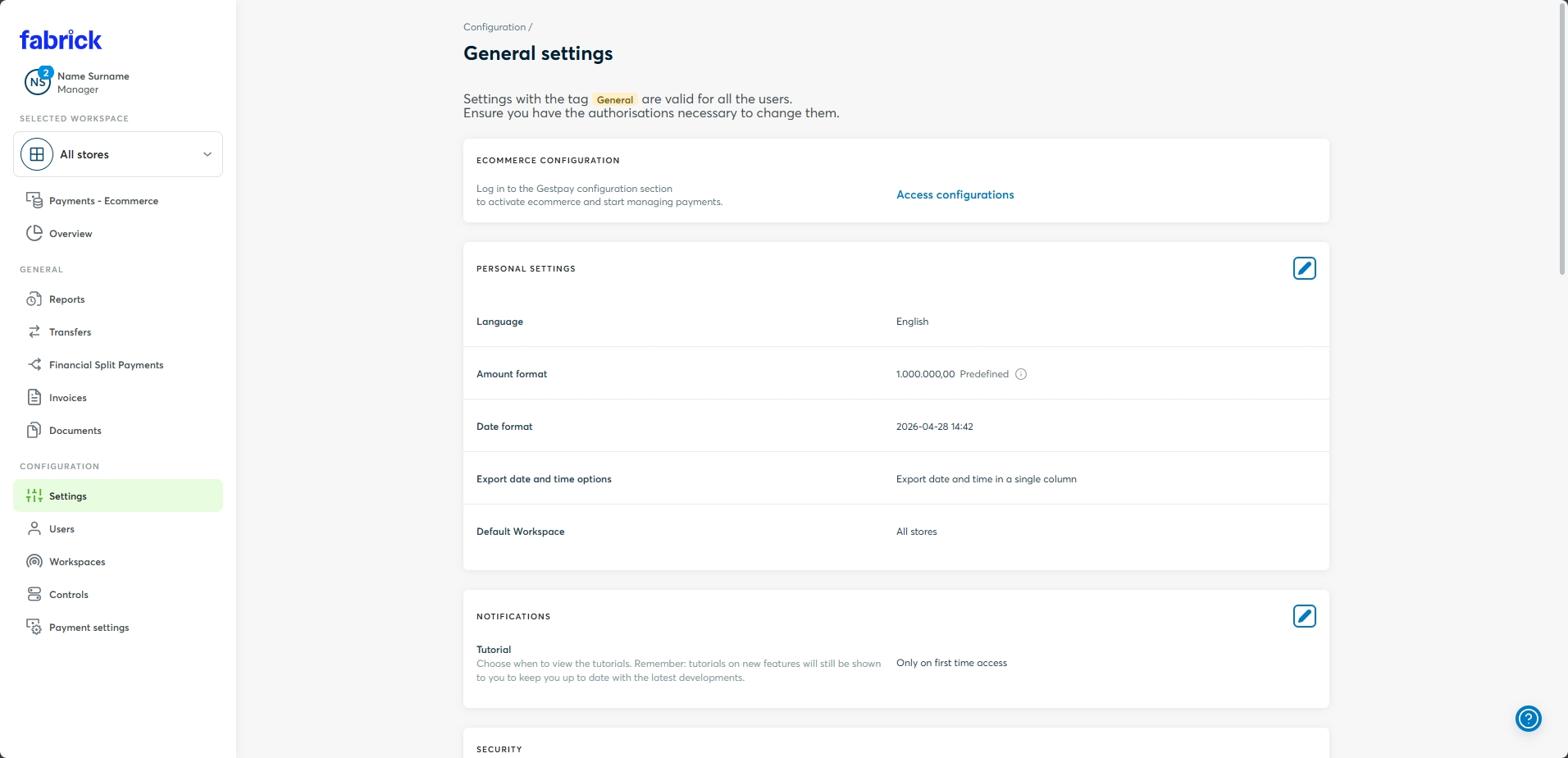
In sandbox you can access the Gestpay Dashboard directly from this link.
To create a sandbox test account, see the dedicated test environment section.
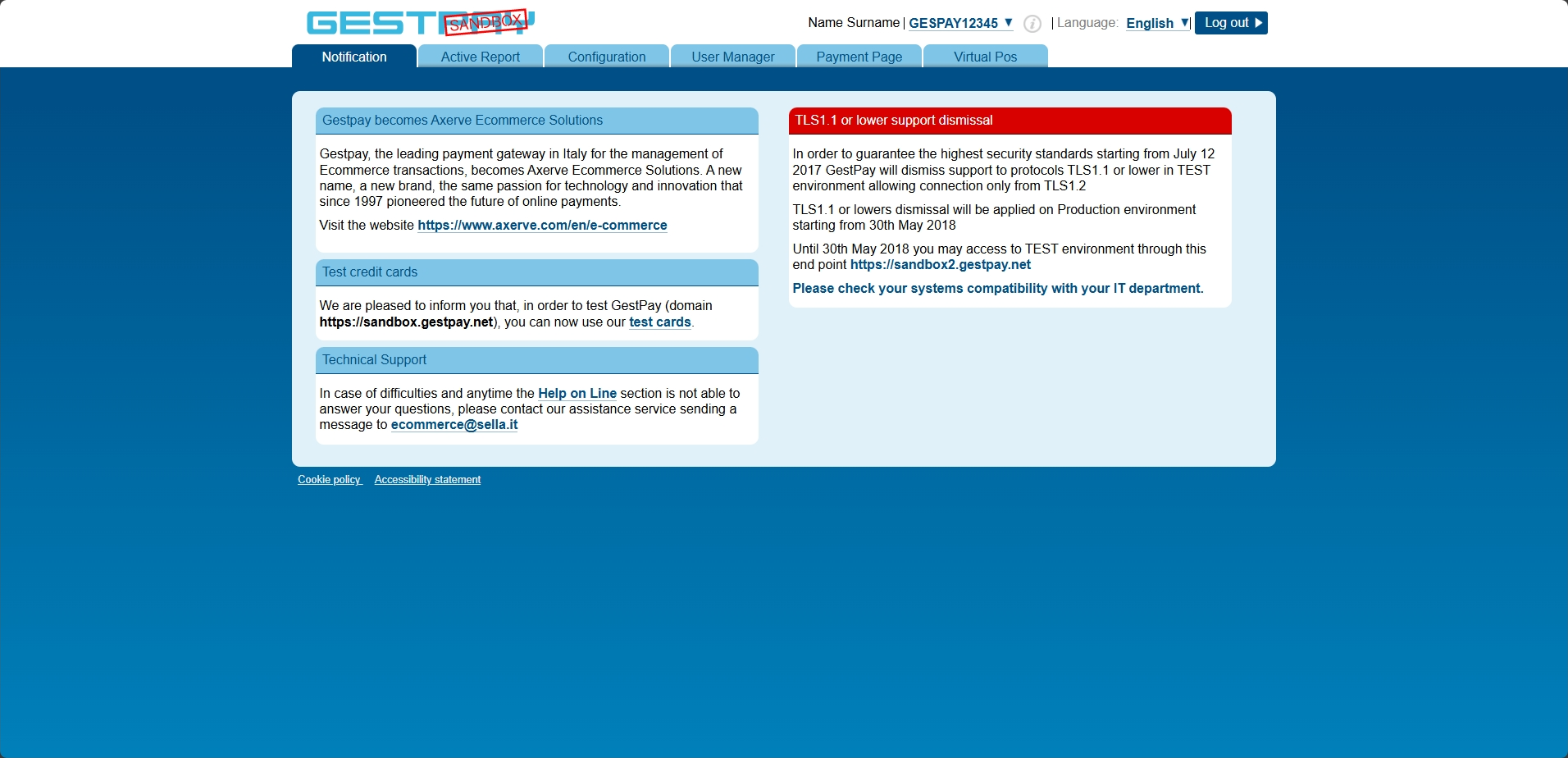
Before configuring a ShopLogin, always check in the drop-down menu at the top right which one you are using.
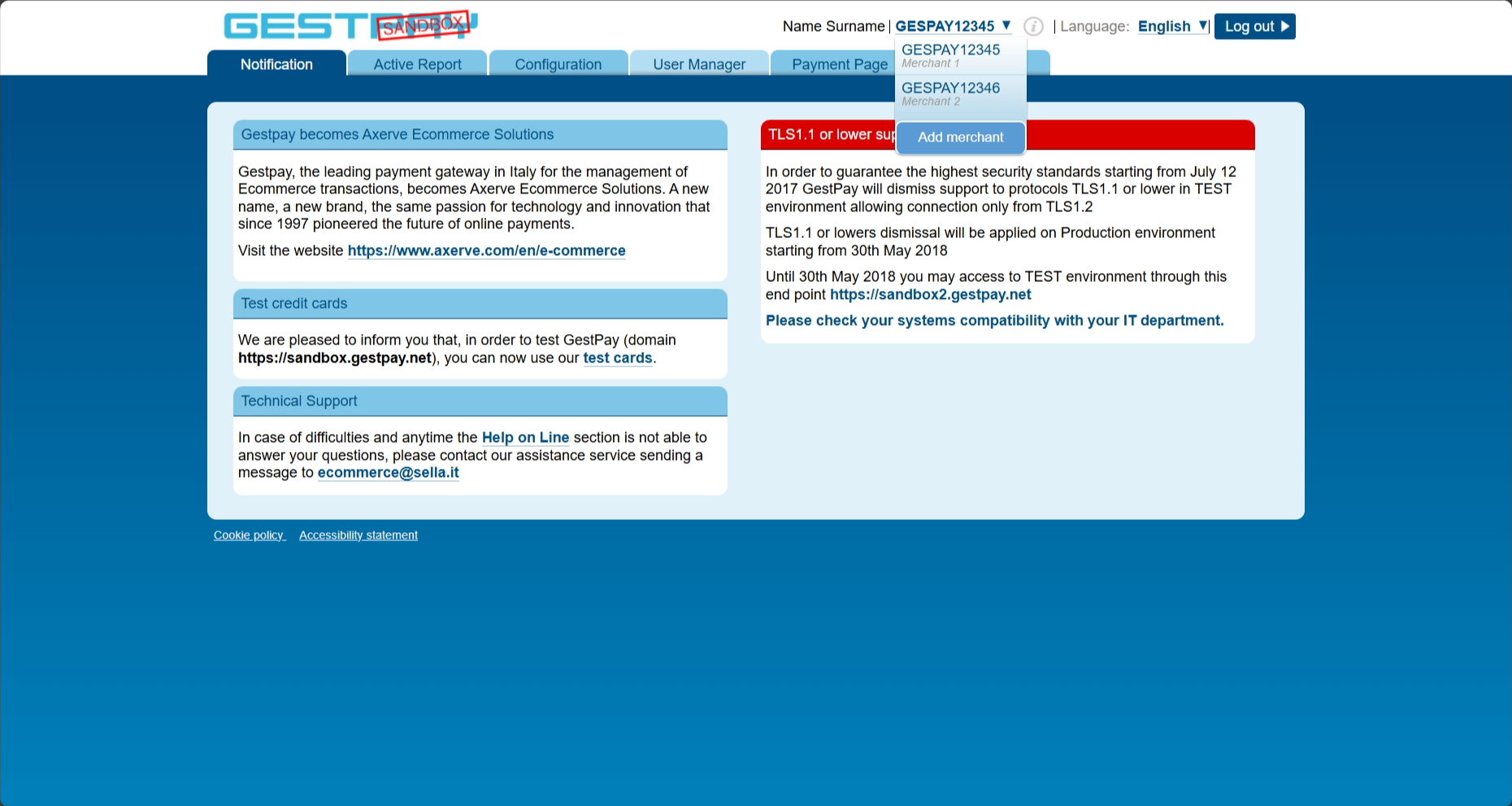
On first access a guided setup is shown in Italian: by selecting English from the menu at the top right you can skip it and go through each section as shown in this documentation.
Security
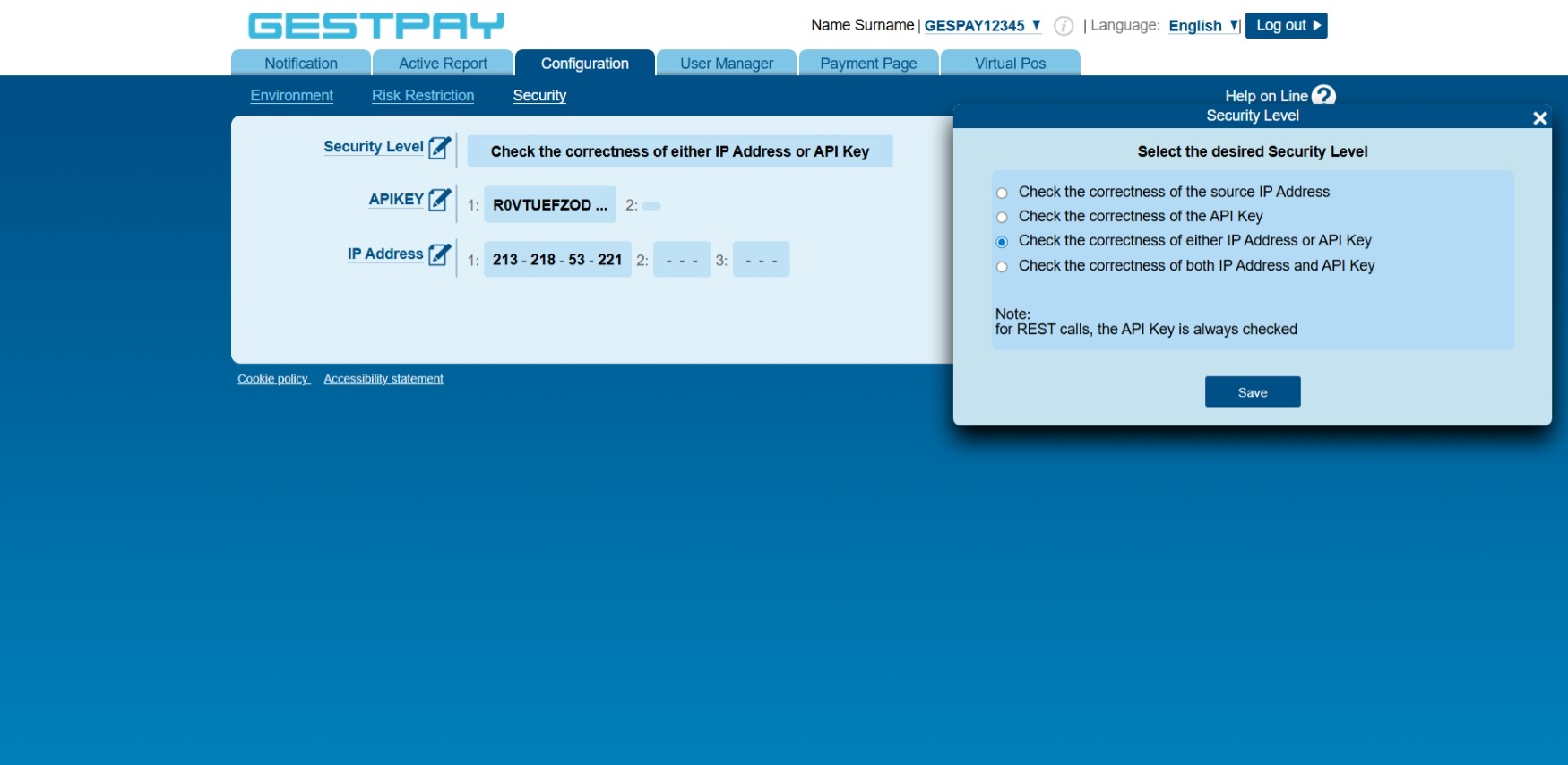
Under Configuration > Security you can check the method configured to authenticate requests to Fabrick Payment Orchestra.
From this section you can manage API Keys and authorized IP addresses.
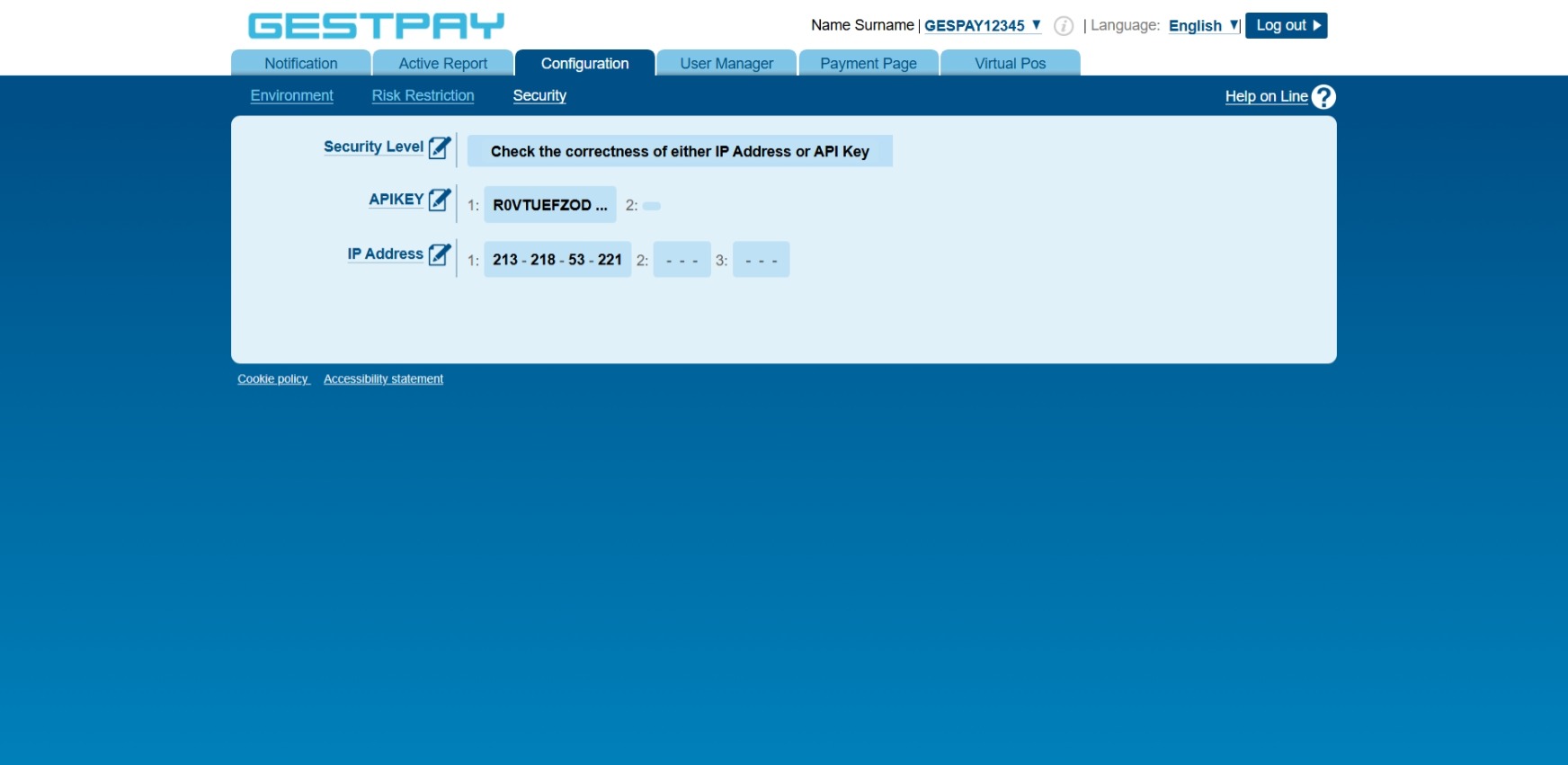
API Key
Under APIKEY > Add Key you can generate an API Key, up to a maximum of 2 active API Keys.
The API Key must be kept secret and used only in server-to-server calls to Fabrick Payment Orchestra.
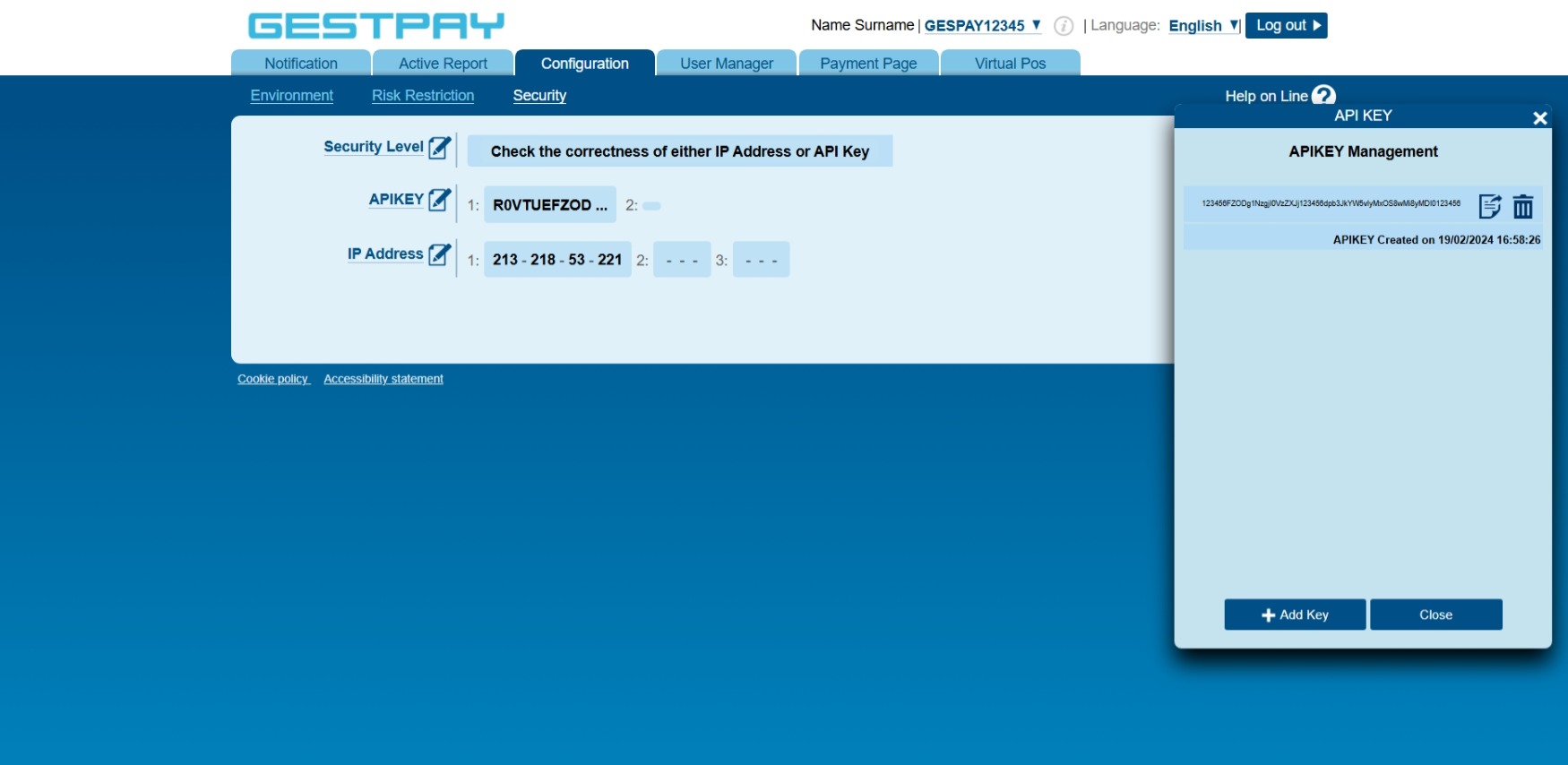
IP Address
Under IP Address you can add or remove the IP addresses authorized to send requests to Fabrick Payment Orchestra.
The * character can be used as a wildcard in the last group of the IP address. For example, 213.218.53.* authorizes all addresses from 213.218.53.0 to 213.218.53.255.
The IP addresses from which Fabrick Payment Orchestra sends notifications are listed in software requirements.
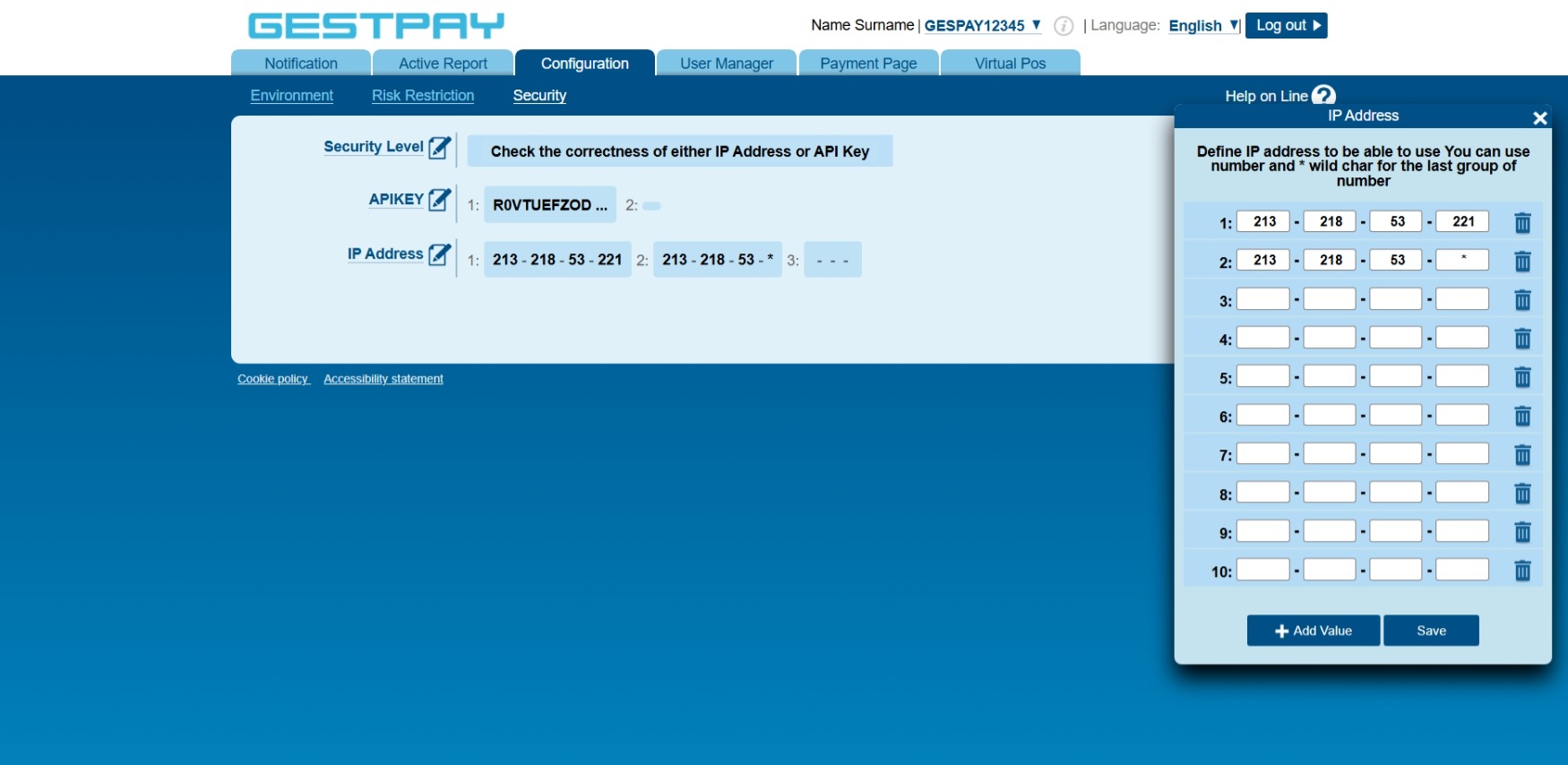
Security Level
By clicking Security Level you can, and must, choose whether to verify the IP address, the API Key or both.
The REST APIs used server side require authentication with an API Key. The key must be kept secret and must never be exposed in the browser.
Environment
MOTO
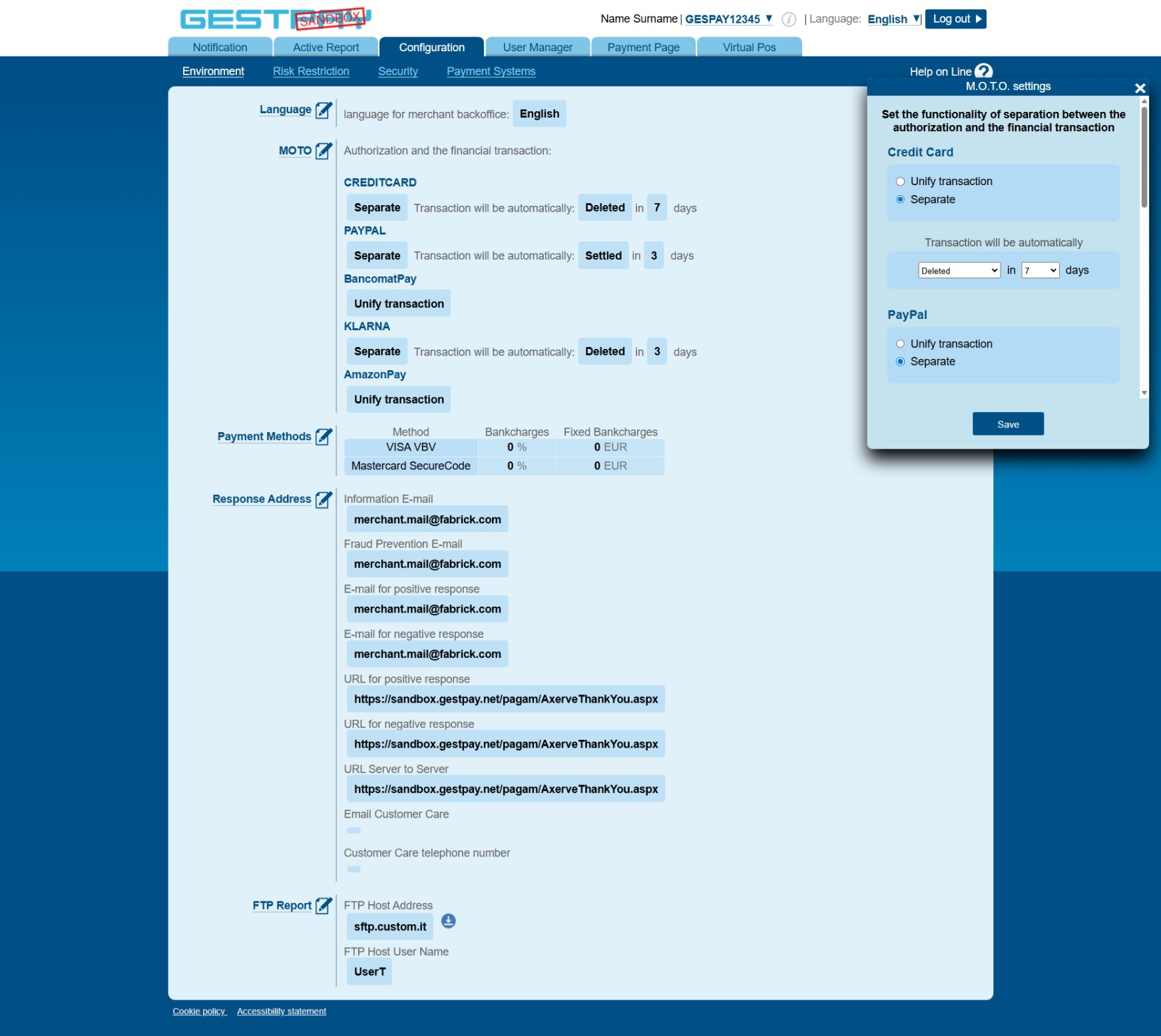
Under Configuration > Environment > MOTO you can choose, for the enabled payment methods that support it, whether authorization and capture are unified or separate.
With separate capture, you can capture or cancel the transaction within the configured period, via API or manually from the Dashboard. When the period expires, if no operation has been performed, the default action, capture or cancellation, is executed automatically.
More information is available in separated and unified capture.
Payment Methods
Under Payment Methods you can add or update values or certificates required by some payment methods,
for example the Apple Pay certificates.
Response Address
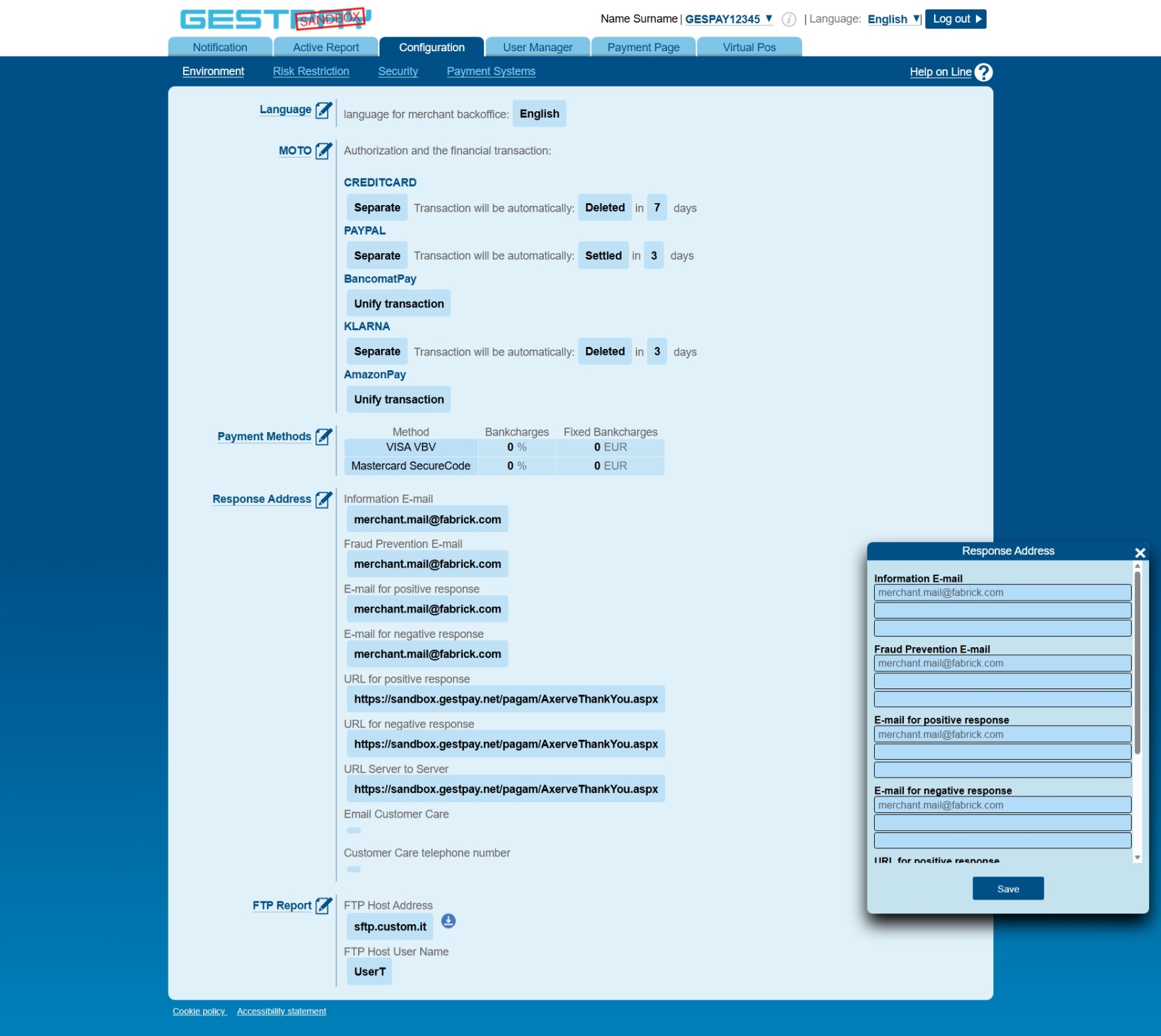
Under Response Address you can configure the email addresses used for email communications and the default addresses of the Thank You Pages and of the Server to Server notifications.
At the end of the payment flow, completed on the Fabrick payment page or through a redirect for 3D Secure authentication or for the payment method, the buyer is redirected to the Thank You Page.
Fabrick provides the following default Thank You Pages:
Production:
https://ecomm.sella.it/pagam/AxerveThankYou.aspx
Sandbox:
https://sandbox.gestpay.net/pagam/AxerveThankYou.aspx
The redirect is a GET request in this format:
{{URL}}?a={{shopLogin}}&Status={{result}}&paymentID={{paymentID}}&paymentToken={{paymentToken}}
https://sandbox.gestpay.net/pagam/AxerveThankYou.aspx?a=GESPAY12345&Status=OK&paymentID=1234567891234&paymentToken=1ab234c5-67d8-48ef-a123-123a45678b9
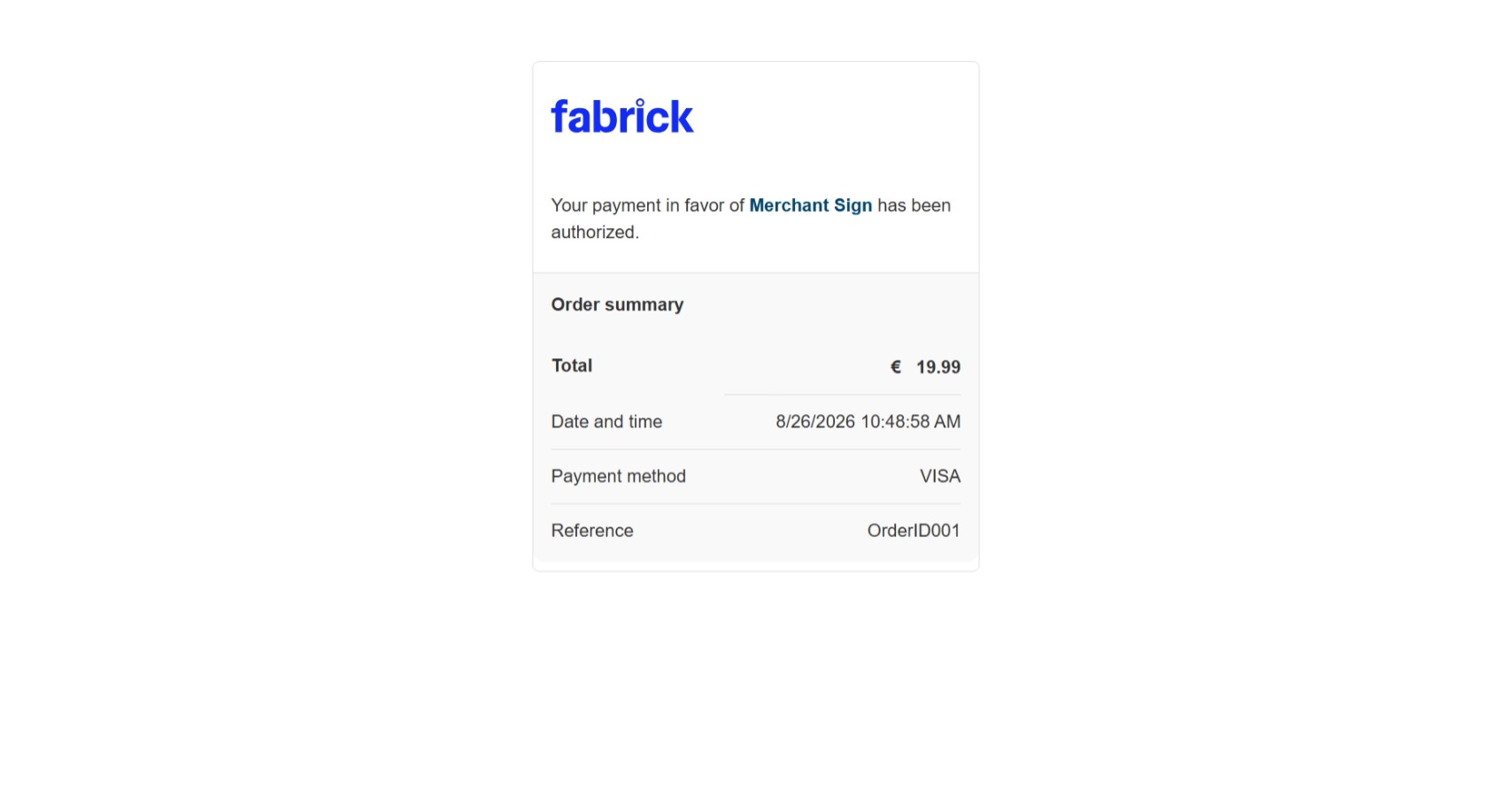
Here is an example of what the buyer would see on the Fabrick Thank You Page.
The addresses set on the Gestpay Dashboard can be overridden for a single transaction by setting the corresponding responseURLs fields in the payment/create request. Each address can be overridden individually and must be reachable from the buyer's browser.
You can also include custom parameters in the query string.
https://merchant.example/payment/success?MyParam=71194
https://merchant.example/payment/success?MyParam=71194&a=GESPAY12345&Status=OK&paymentID=1234567891234&paymentToken=1ab234c5-67d8-48ef-a123-123a45678b9
The buyer lands on the positive response URL even when the Status is XX, which is used for asynchronous payment methods: in that case you need to wait for a later S2S notification to verify the final OK or KO outcome.
The format and handling of the S2S notification (server to server) and the IP address it comes from are described in software requirements. If the S2S URL is not defined, the S2S notification is sent to the same URL set for the buyer's OK or KO redirect, depending on the transaction outcome.
Here is an example payment/create with responseURLs set.
Request
POST /api/v1/payment/create
Host (sandbox): sandbox.gestpay.net
Host (production): ecomms2s.sella.it
Authorization: apikey ****************
Content-Type: application/json
{
  "shopLogin": "GESPAY12345",
  "amount": "100",
  "currency": "EUR",
  "shopTransactionID": "OrderID001",
  "paymentChannel": {
    "channelType": ["LINK"]
  },
  "responseURLs": {
    "buyerOK": "https://merchant.example/payment/success",
    "buyerKO": "https://merchant.example/payment/failure",
    "serverNotificationURL": "https://merchant.example/payment/notification"
  }
}
FTP Report
The FTP Report section was used to configure the delivery of reports generated by the Gestpay Dashboard and is no longer supported.
New reports must be created and configured on the Fabrick Dashboard.
Payment Page
Page Edit - Logo Checkout Page
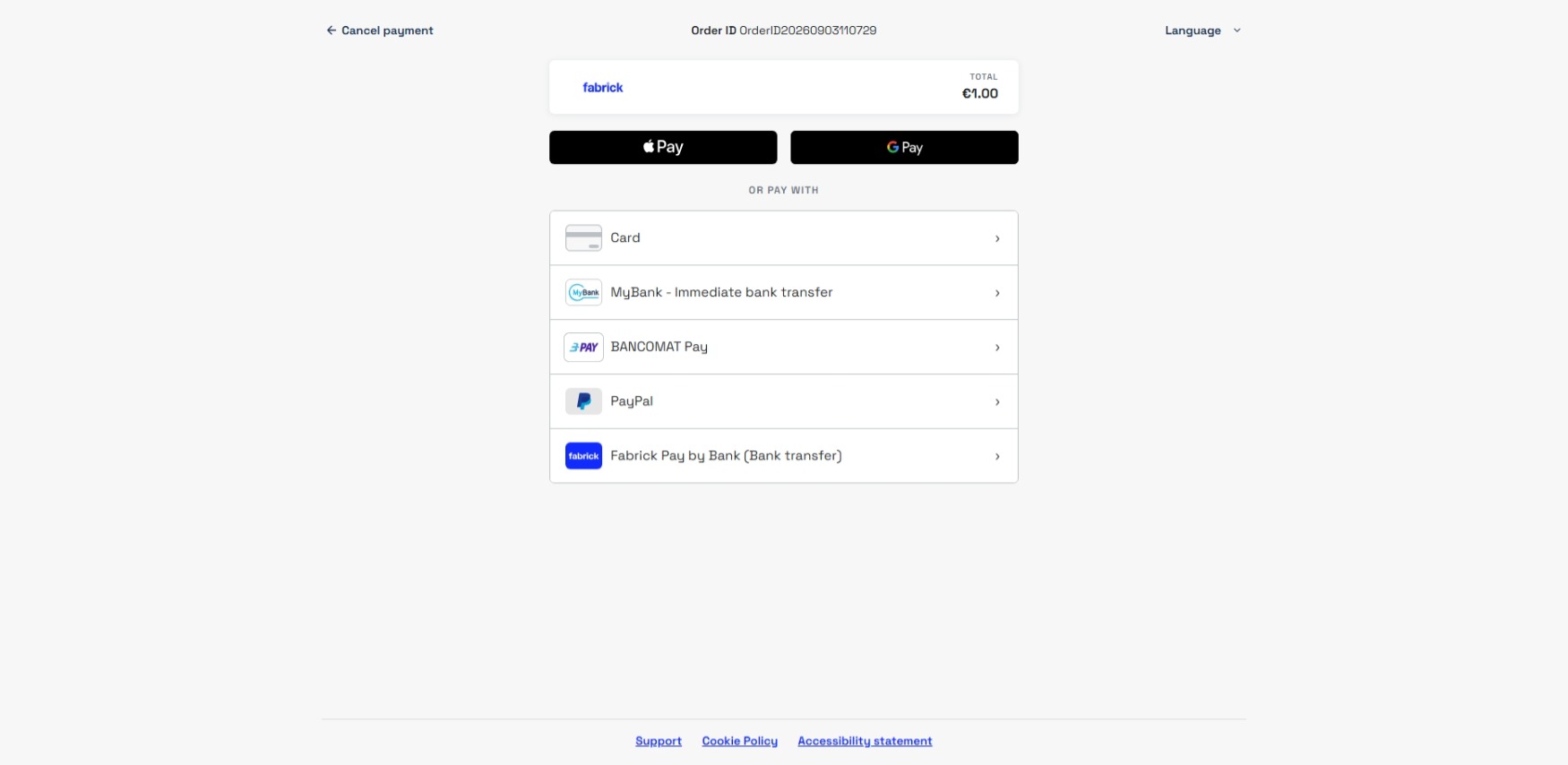
Under Payment Page > Page Edit you can set the logo shown on the Checkout Page. The URL must be reachable and must point to a .png, .jpg, .gif or .webp image, up to 200 KB.
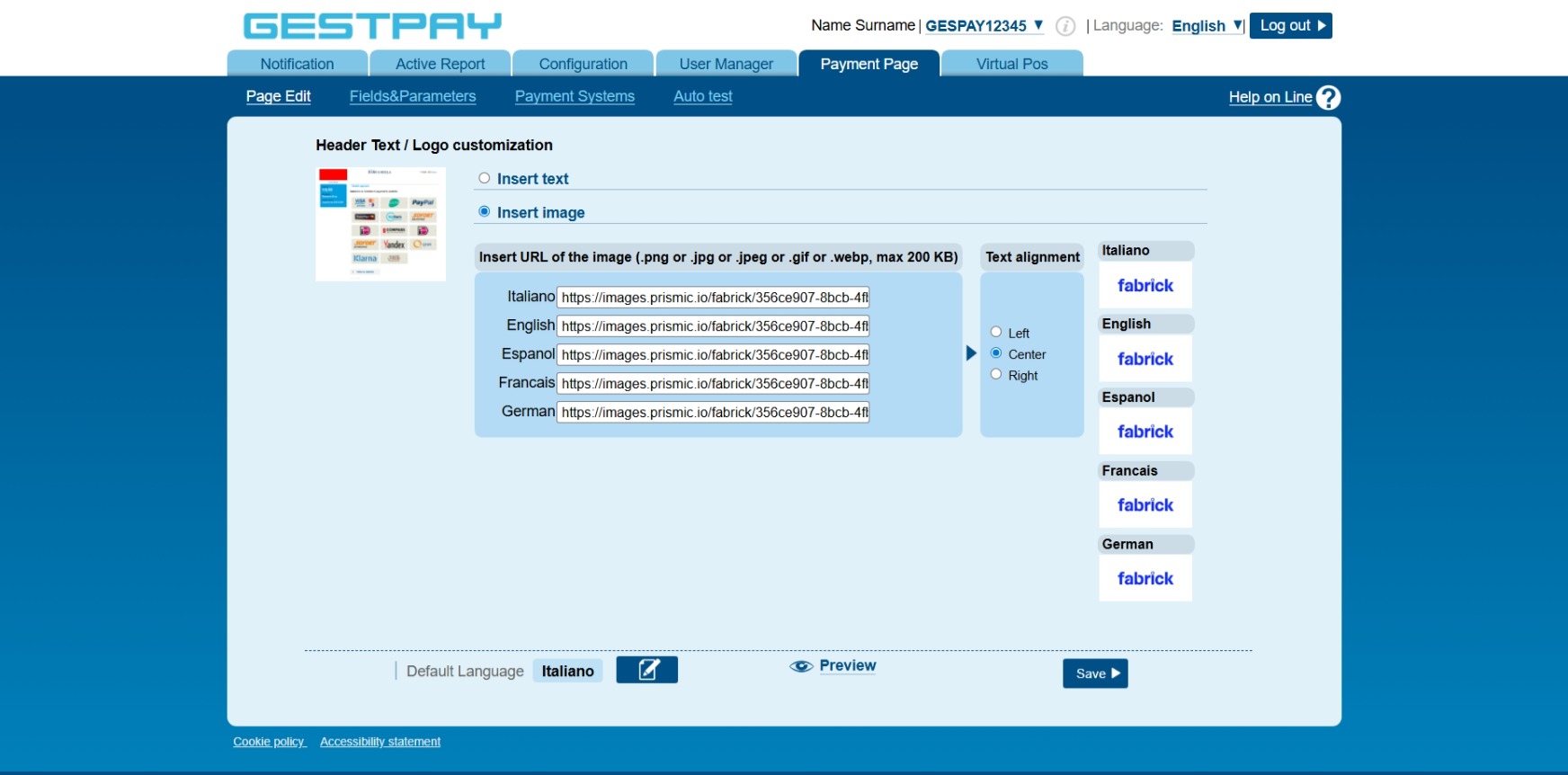
In this example the Fabrick logo has been uploaded.
Fields&Parameters
Under Payment Page > Fields&Parameters, the Display/Payment page and No Display configurations let you manage specific fields and parameters depending on the integration type used. The Display configuration applies to flows that use the Fabrick payment page, while No Display applies to server-to-server or API flows in which payment data is collected directly by the merchant. Some fields may need to be configured separately in the two sections.

You can also add custom parameters, which can be set via API in the CustomInfo object at the start of a payment flow and are returned later.
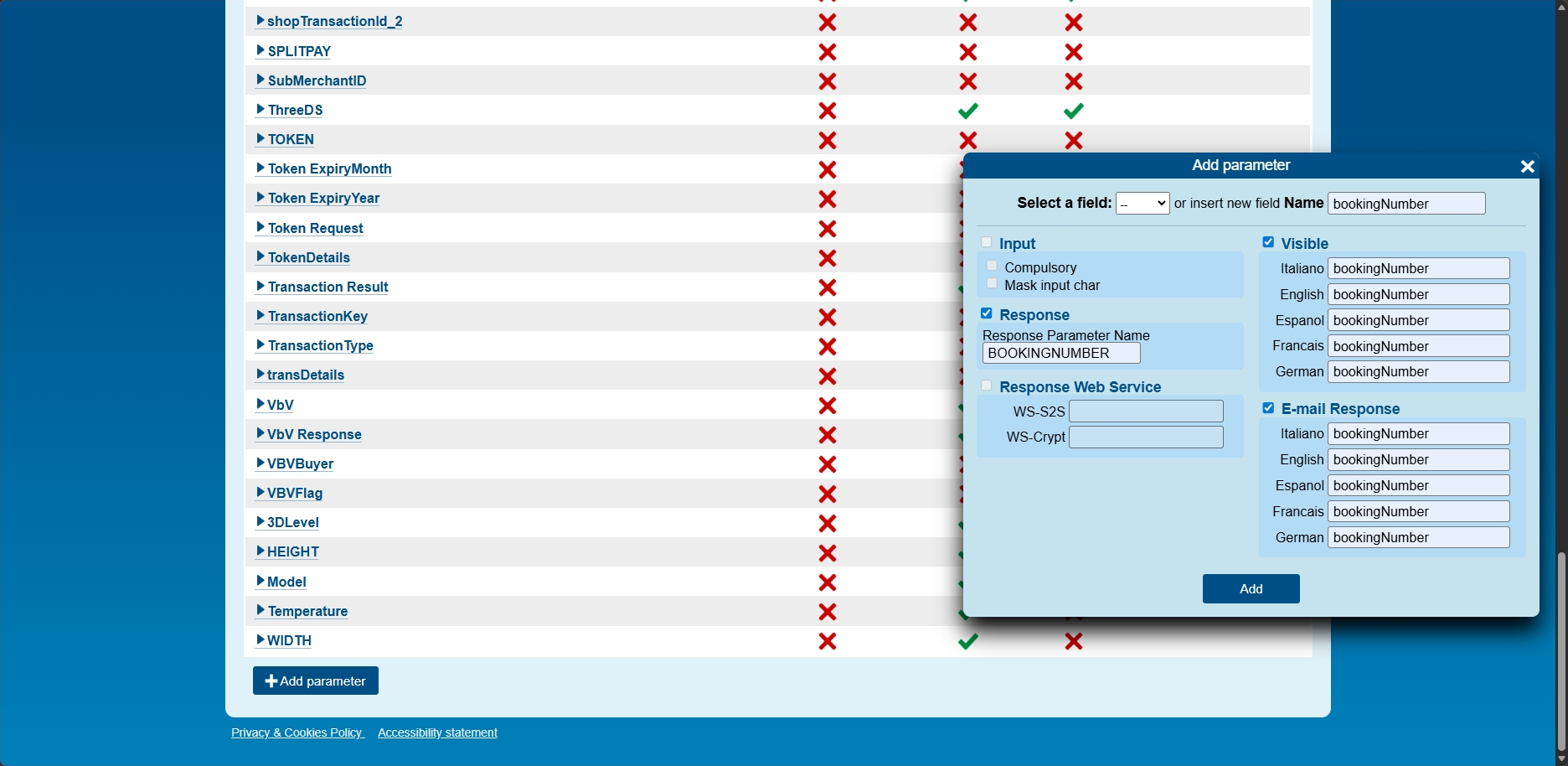
CustomInfo carries custom parameters defined by the merchant. Before you can use them, you need to create the corresponding parameters in the Payment Page > Fields & Parameters section of the Display and/or No Display configuration used by the integration; if in doubt, configure them in both.
Name: the parameter name to use via API.
Response Parameter Name: the name shown in the Dashboard, in the Custom fields section of the transaction detail, and among the parameters available for templates.
Visible and E-mail Response can no longer be used.
The following special characters cannot be used in parameters:
& (space) § ( ) \* < > , ; : \*P1\* / [] ? = -- /\* % // ~
In REST integrations the parameters are sent as key-value pairs inside the customInfo object. Each parameter supports a maximum length of 300 characters. Historically, the content of customInfo was subject to an overall limit of 1000 characters, so we recommend keeping the total size of the data carried small.
Here is an example in which customInfo is set in the create call and returned in the detail.
Request
POST /api/v1/payment/create
Host (sandbox): sandbox.gestpay.net
Host (production): ecomms2s.sella.it
Authorization: apikey ****************
Content-Type: application/json
{
  "shopLogin": "GESPAY12345",
  "amount": "100",
  "currency": "EUR",
  "shopTransactionID": "OrderID001",
  "paymentType":["CREDITCARD", "FABRICKPASS"],
  "paymentChannel":{
    "channelType":["LINK"]
  },
  "customInfo":{
    "bookingNumber":"Booking_123",
    "HEIGHT":"20M"
  }
}
Request
GET /api/v1/payment/detail/{paymentID}
Host (sandbox): sandbox.gestpay.net
Host (production): ecomms2s.sella.it
Authorization: apikey ****************
Content-Type: application/json
Response
{
  "error": {
    "code": "0",
    "description": "request correctly processed"
  },
  "payload": {
    "transactionType": "detail",
    "transactionResult": "APPROVED",
  ...
    "customInfo": {
      "HEIGHT": "20M",
      "bookingNumber": "Booking_123"
    },
  ...
}
Payment Systems
Under Payment Page > Payment Systems, you can choose which payment methods, among those enabled for the ShopLogin, are displayed on the Fabrick payment page. Payment methods that are not enabled are shown in grey and cannot be managed from this section.
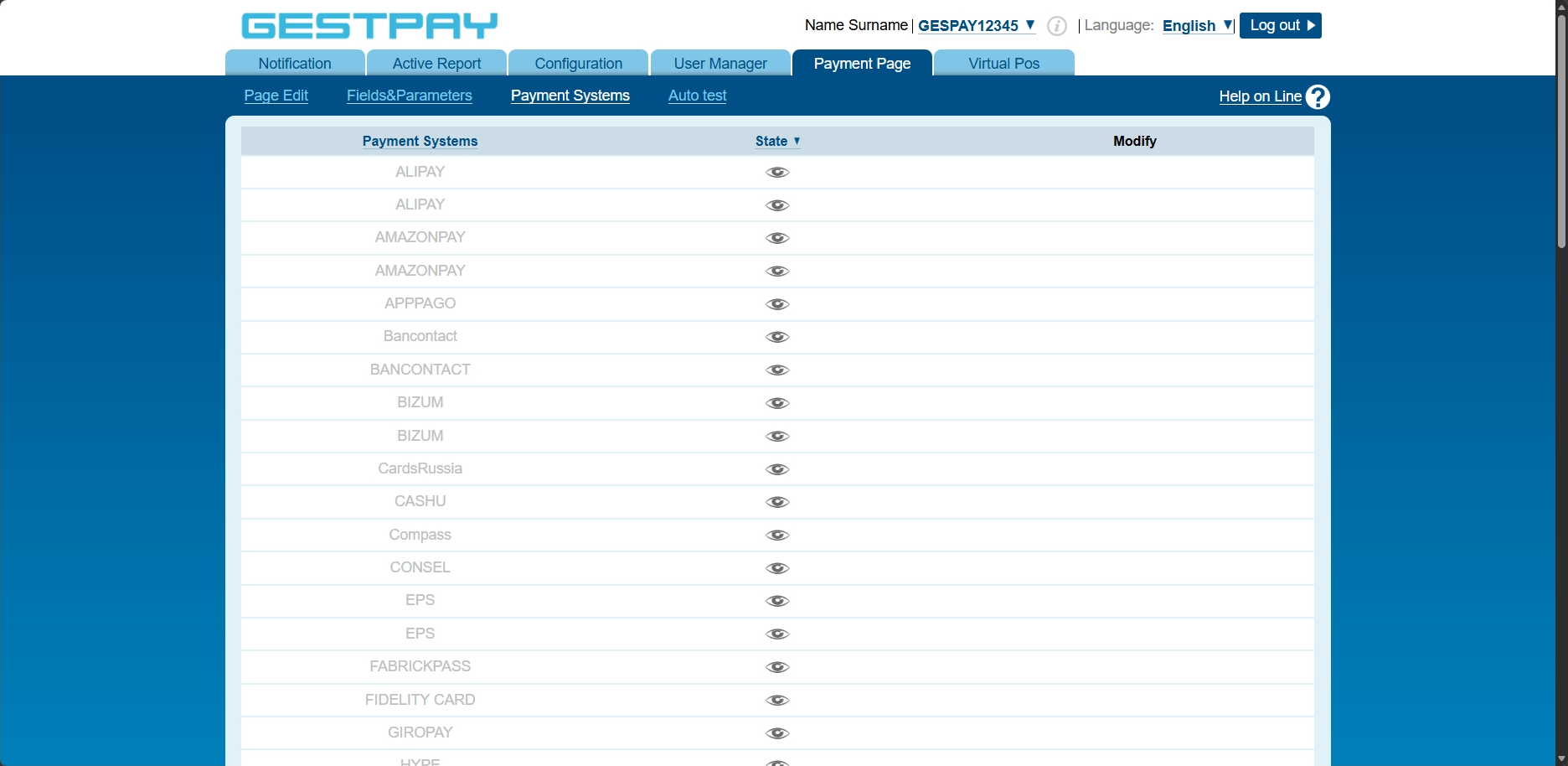
When using an integration that displays the Fabrick payment page, you can specify in the API request which payment methods to display. If no payment method is specified, the payment page displays those that are enabled, set as visible, and compatible with the data provided in the request.
This configuration also applies to Pay by Links created from the Fabrick Dashboard. Since the Dashboard generates a standard request, some payment methods might not be displayed if they require additional information that is not included when the link is created.
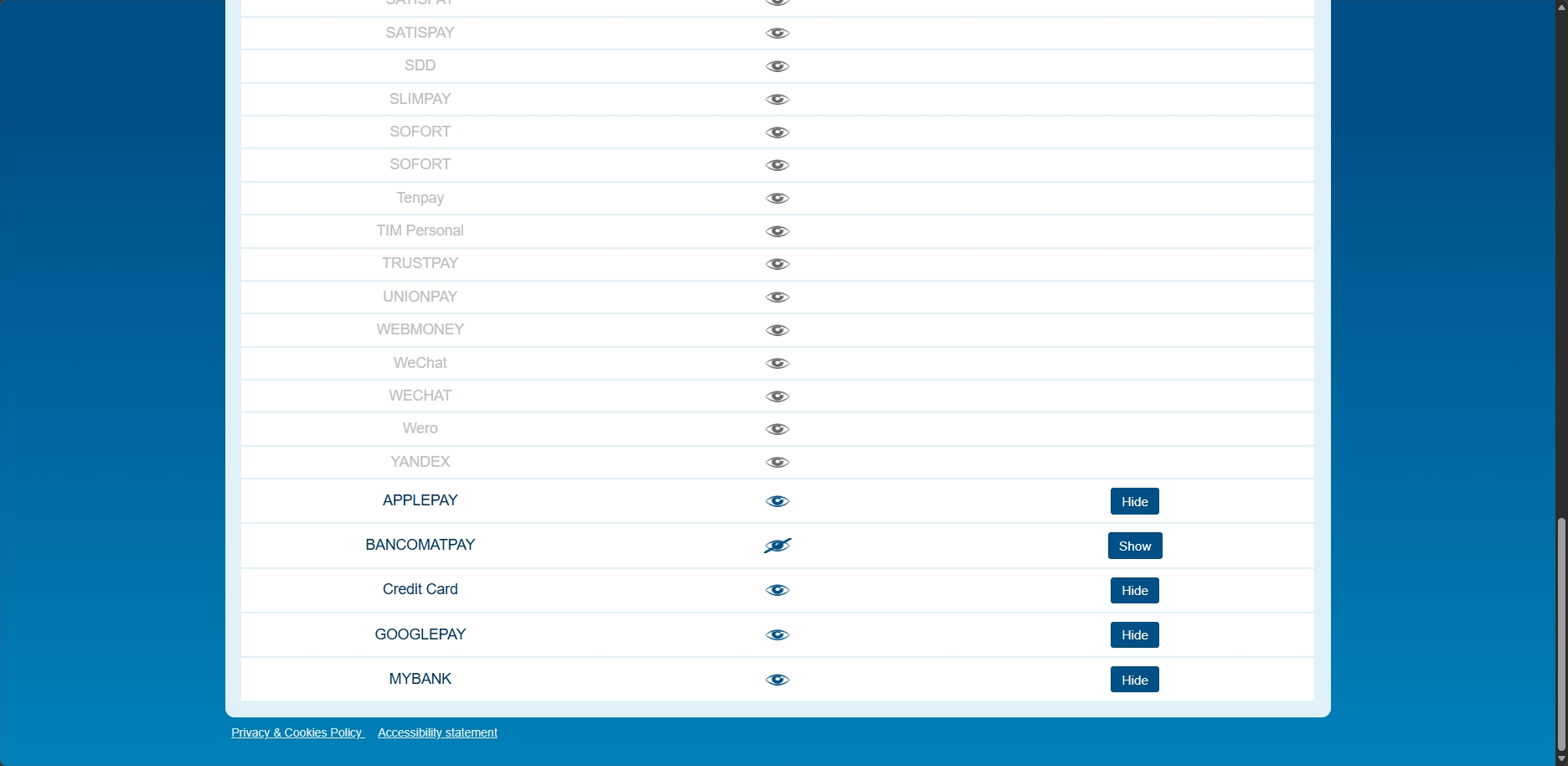
The Hide button indicates that the payment method is currently visible and allows you to hide it. The Show button indicates that the payment method is hidden and allows you to make it visible again.
Next steps
Once the required configurations are complete, see the documentation of the available integration methods.
Support
Fabrick
- Status page: https://status.fabrick.com/
- Support: https://landing.fabrick.com/fabrick-dashboard-support