PayPal
Why choose PayPal
PayPal is one of the most widely used payment methods in the world, available in over 200 countries. Integrating it into your ecommerce expands the available payment options and increases user trust thanks to a well-established and recognisable checkout experience.
For further information visit the official website
Services and features available through Fabrick integration
The integration of PayPal with Fabrick Payment Orchestra provides a complete ecosystem of features to simplify transaction management and improve the experience for both the merchant and the customer.
- Seller Protection: protects the merchant from unauthorised transactions or disputes, reducing the risk of fraud (learn more).
- Fabrick Guaranteed Payments: fraud prevention service supporting the merchant (learn more).
- Instalment payments: the Pay Later solution allows customers to split the amount into instalments, increasing purchasing flexibility (learn more).
- Recurring payments: ideal for subscriptions or ongoing services.
- Advanced transaction management: support for partial or multiple captures and refunds for flexible payment management.
- Multi-currency support: compatibility with multiple currencies (full list).
- International coverage: available in over 200 countries (learn more).
- Simplified reconciliation: payment management via dedicated reports (learn more).
- Chargeback: disputes are managed directly through the PayPal dashboard (learn more).
PayPal on Fabrick Payment Orchestra: activation and integration methods
Activation request
You can request the activation of PayPal through Fabrick by:
- Contacting your account manager
- Contacting support at the following link
Linking your PayPal Business account
Once the payment method has been activated, you need to link your PayPal Business account to the Fabrick platform:
- Sandbox: use a test PayPal Business account
- Production: log in with your Business account credentials
To complete the connection:
-
Access the Fabrick Dashboard
-
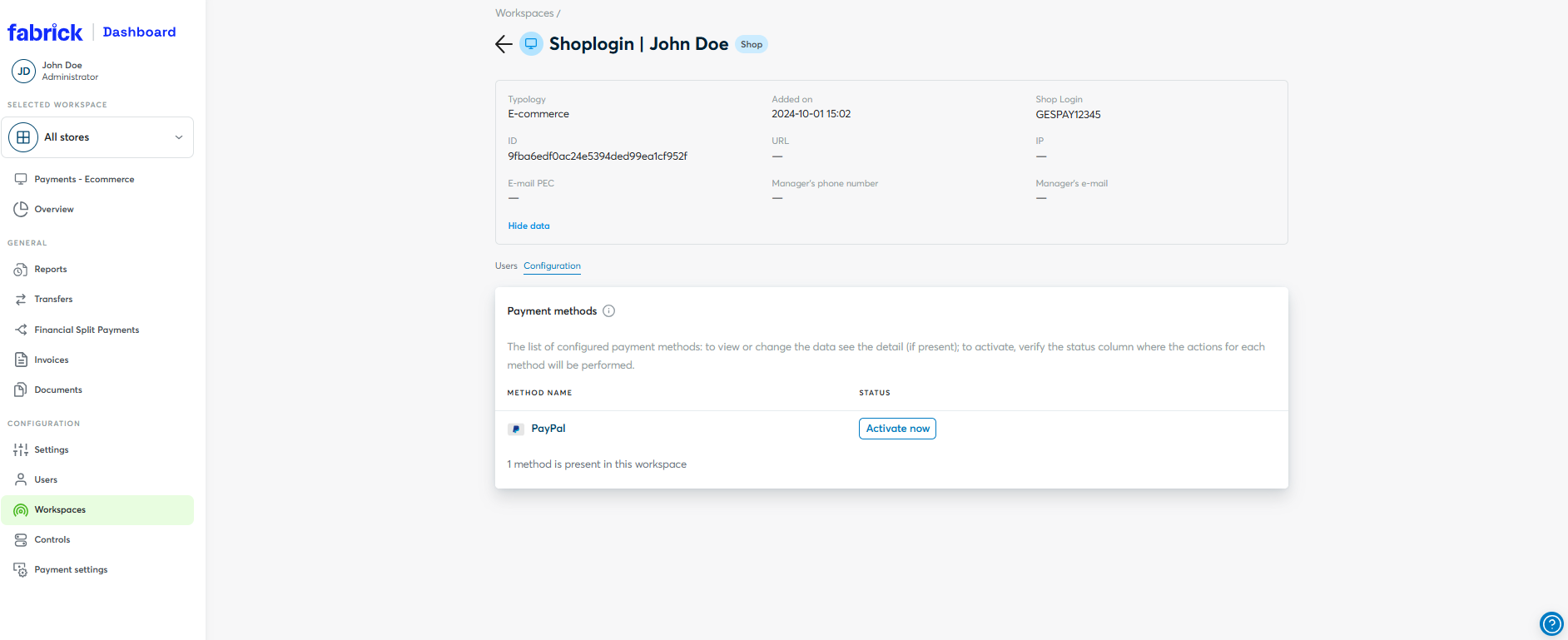
From the side menu, select Workspace → Stores → [Select store] → Configurations → Activate now
-
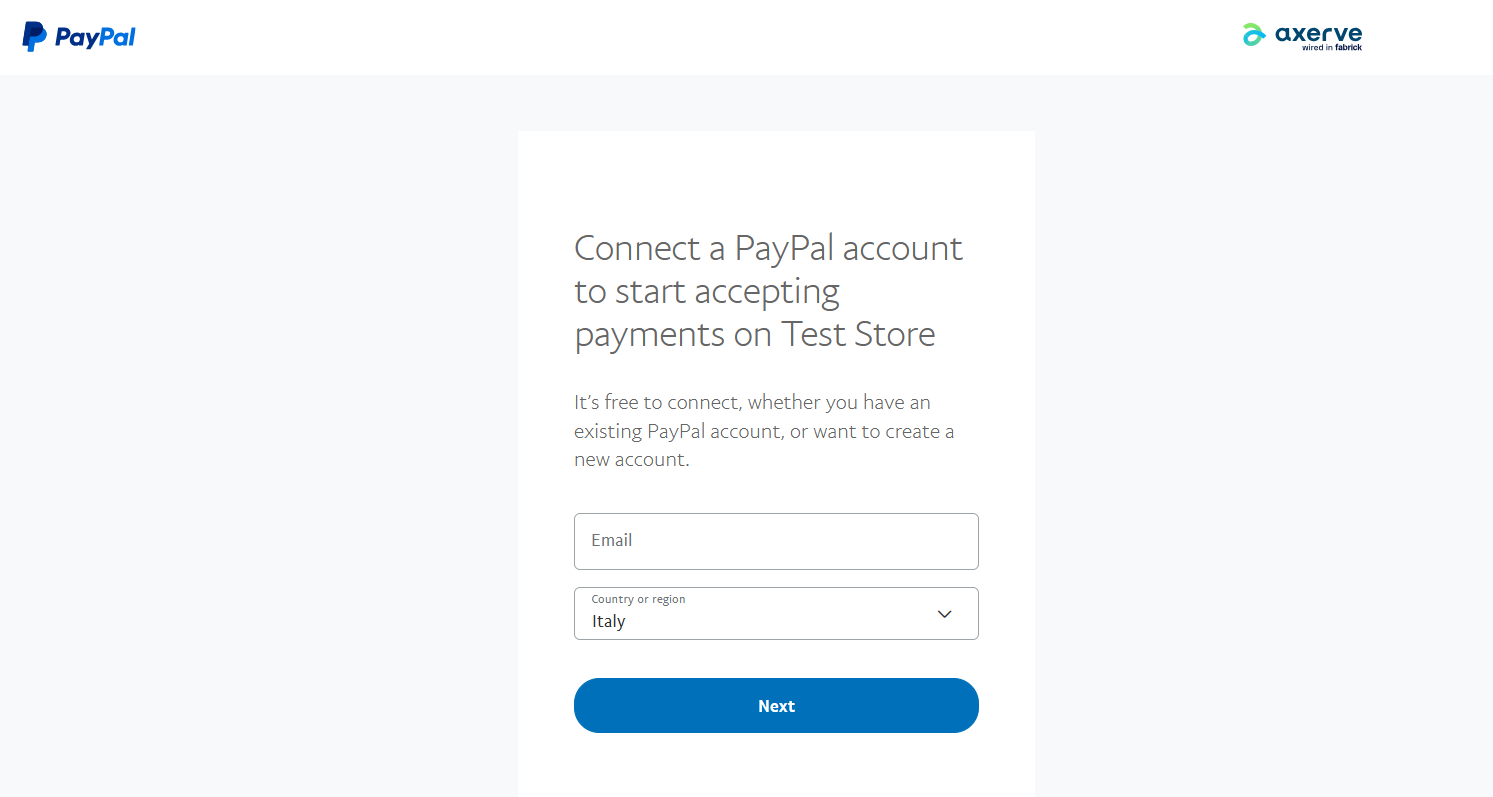
Click Activate now, you will be redirected to the PayPal connection page
-
Enter your Business account credentials and confirm access
-
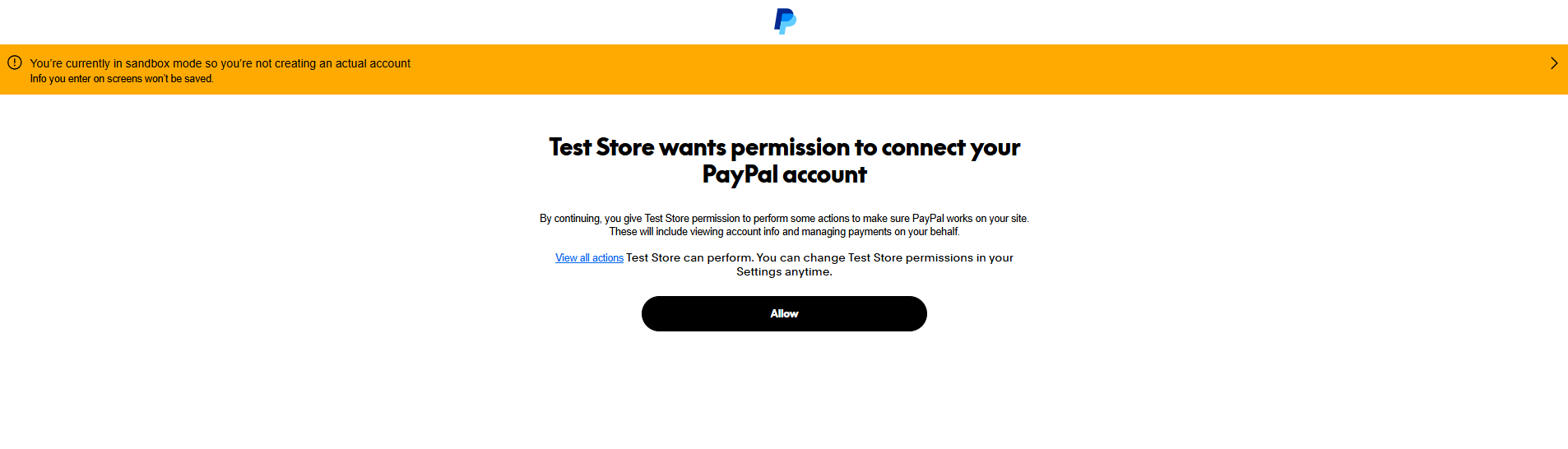
Authorise Fabrick by clicking Allow
-
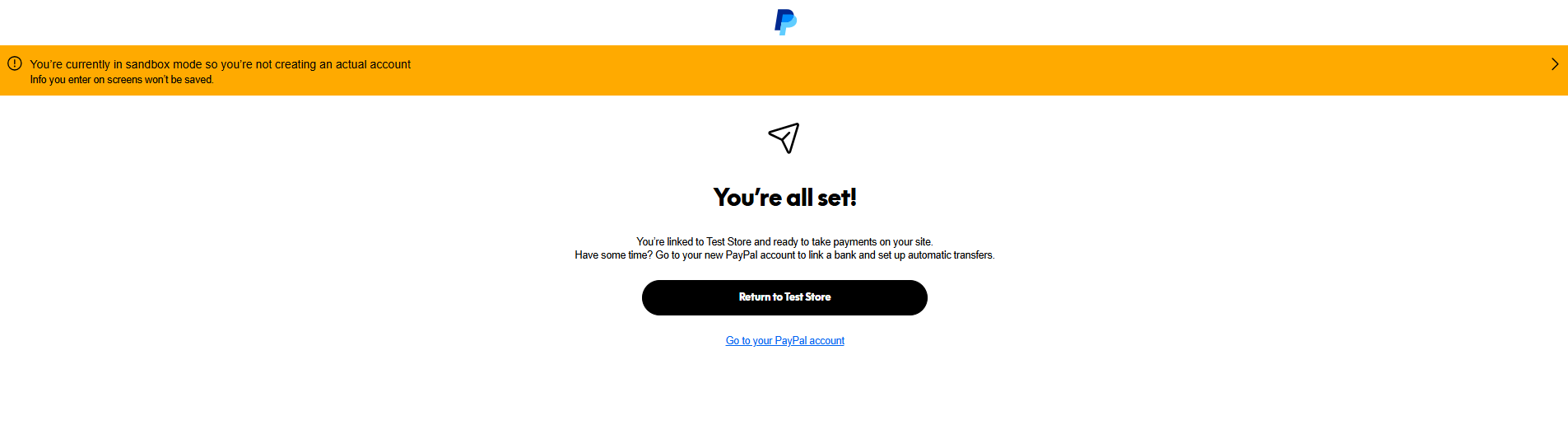
After authorisation, click Return to store to complete the procedure
-
The status in the dashboard will change from Activate now to Activated
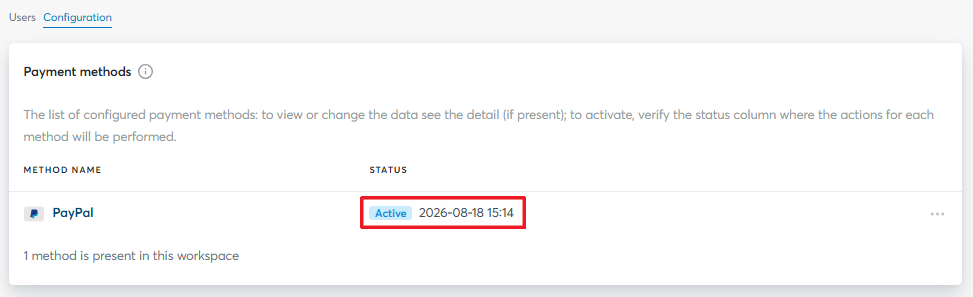
From this moment, your e-commerce is ready to accept PayPal payments through Fabrick Payment Orchestra.
Integration types
Fabrick offers two integration methods for using PayPal:
-
Hosted integration
Supported integrations
✓HPPO✓Pay By Link✓LightboxPayPal is displayed directly on the Fabrick payment page, with no development effort required on the merchant's side. Fabrick autonomously handles the display of the payment method and the entire processing phase.
-
API integration
Supported integrations
✓API OnlyWith this integration type the redirect to PayPal is handled directly through the API. You need to initialise the transaction with
payment/createand handle the buyer's redirect.
Hosted integration
PayPal is displayed directly on the Fabrick payment page, with no additional development required from the merchant. Fabrick autonomously handles the display of the payment method and the entire transaction processing phase.
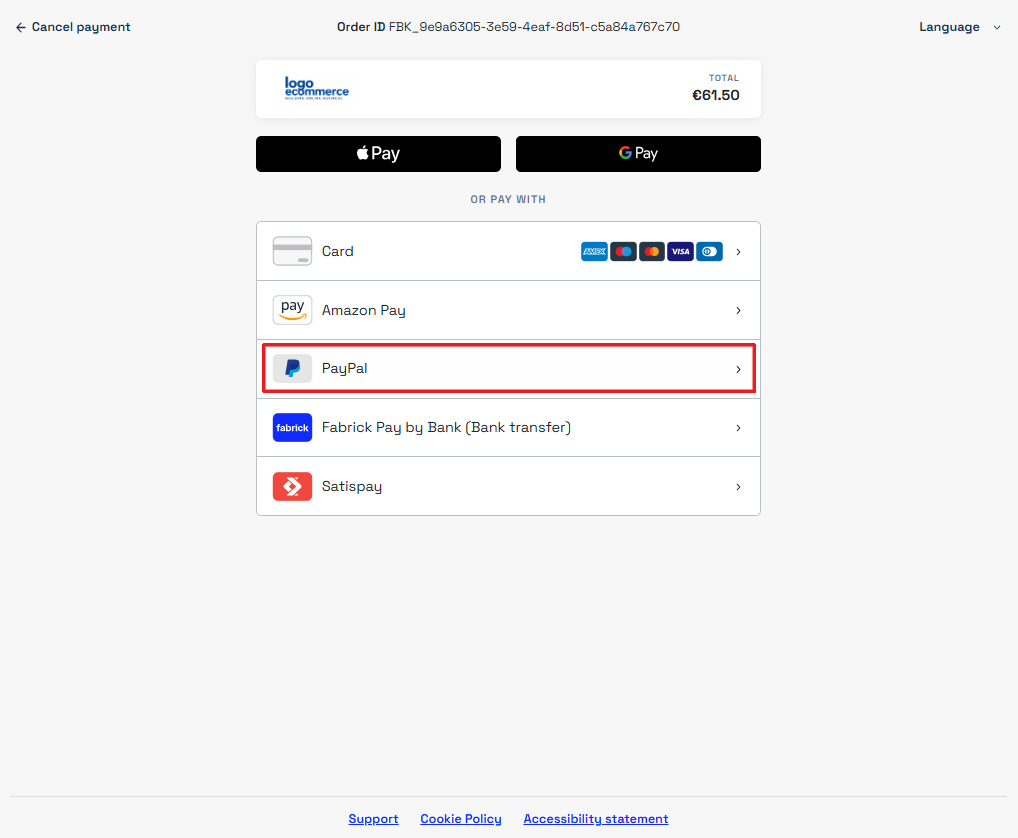
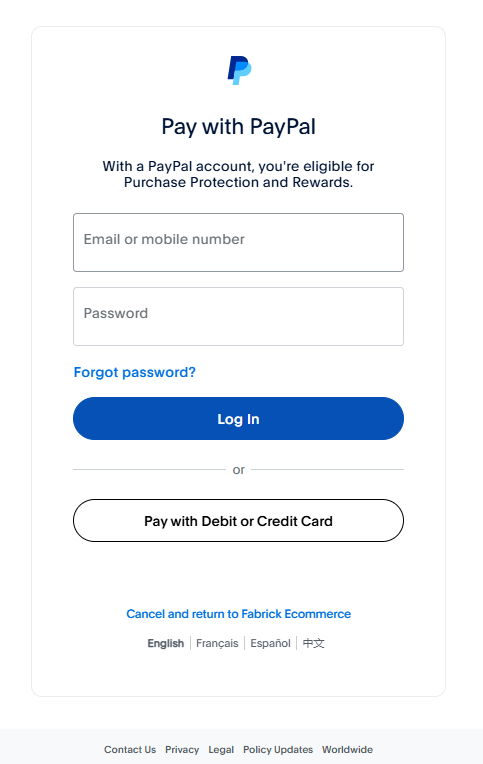
When the user selects PayPal, they are redirected to the service to log in and complete the payment.
API integration
To request a PayPal payment using the API integration, initialize the transaction through payment/create, setting the paymentType field to the PAYPAL tag, and handle the buyer redirect to the payment method.
Create the transaction and redirect to PayPal
Request
POST /api/v1/payment/create
Host (sandbox): sandbox.gestpay.net
Host (produzione): ecomms2s.sella.it
Authorization: apikey ****************
Content-Type: application/json
{
  "shopLogin": "GESPAY12345",
  "amount": "100",
  "currency": "EUR",
  "shopTransactionID": "FBK_OrderID",
  "paymentType": ["PAYPAL"]
}
The response returns the redirect link for the buyer to PayPal in the payload.userRedirect.href field.
Response
{
  "error": {
    "code": "0",
    "description": "request correctly processed"
  },
  "payload": {
    "paymentToken": "f0419188-8a78-4918-913c-a491e4e78084",
    "paymentID": "1881129911957",
    "userRedirect": {
      "href": "https://sandbox-web.axerve.com/orchestra/checkout/a/f991s1ba01d24eacaa3fac4b2145262a/b/36ab092425ff34515f7430e38babb28b84f16a31d63102b829072a1366c13580ae128e86-d779-4d98-88a2-0c035bcbd42eiAQ8ZaRT3IFyanLLjcIxtsuc3DTwycBdj5FD7FjuhlKm-mNnpirMdm9p3O8bhycmHVVPz6QOyo811UzHG3csjOSlH2KbF2EiUIxEwWFPAvk9TdUDrgWtyKLJYWayfzbZlP4iULt9eHTvhJEhK21sS8Smd0hX"
    },
    "qrCode": null
  }
}
The returned link can be used under a Pay with PayPal button, following PayPal's graphic guidelines.
Additional payment method features
You can enable additional features on the transaction by modifying the payment/create call to include specific services. The configured services will be automatically applied to the transaction when the customer selects PayPal.
Seller Protection
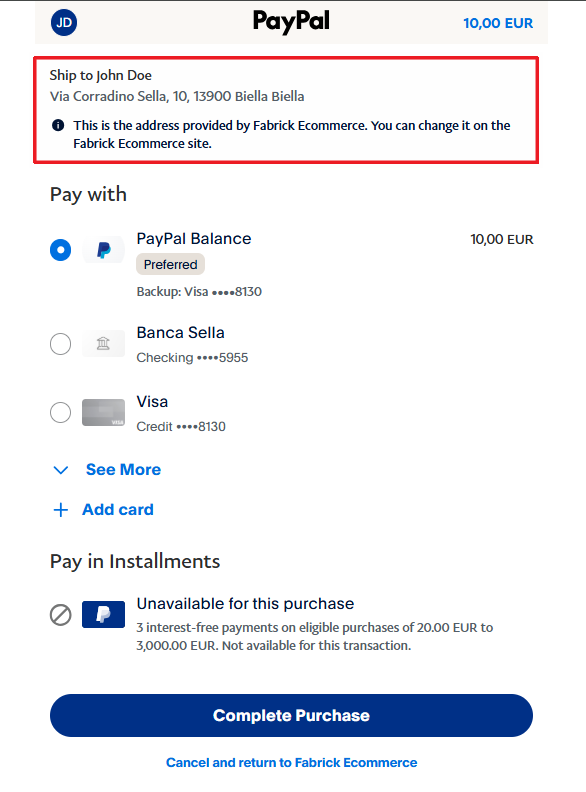
To request the Seller Protection feature applied to a PayPal transaction, in the POST /payment/create call, add the OrderDetails object by populating the ShippingAddress fields, so that the shipping information is correctly transmitted to PayPal.
Request
POST /api/v1/payment/create
Host (sandbox): sandbox.gestpay.net
Host (production): ecomms2s.sella.it
Authorization: apikey ****************
Content-Type: application/json
{
  "shopLogin": "GESPAY12345",
  "amount": "10",
  "currency": "EUR",
  "shopTransactionID": "FBK_OrderID",
  "paymentType": ["PAYPAL"],
  "OrderDetails": {
    "ShippingAddress": {
      "FirstName": "John",
      "Lastname": "Doe",
      "StreetName": "Via Corradino Sella, 10",
      "Streetname2": "",
      "CountryCode": "IT",
      "State": "Biella",
      "StateCode": "BI",
      "City": "Biella",
      "ZipCode": "13900",
      "PrimaryPhone": "015012345"
    }
  }
}
Fabrick Guaranteed Payment
For a PayPal transaction it is possible to add the Fabrick Guaranteed Payment service in the call. It can also be used in combination with Seller Protection for an additional level of protection.
Installment payment
No specific parameters need to be added in the call — PayPal automatically offers the installment option based on the rules of the Pay Later service. Upon completion of the transaction, the full amount is credited to the merchant.
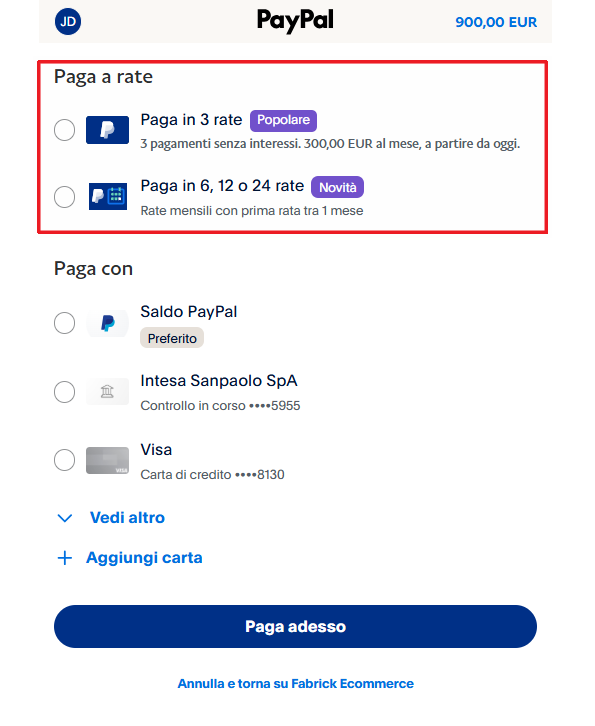
Upon request, the Pay Later button can be enabled separately.
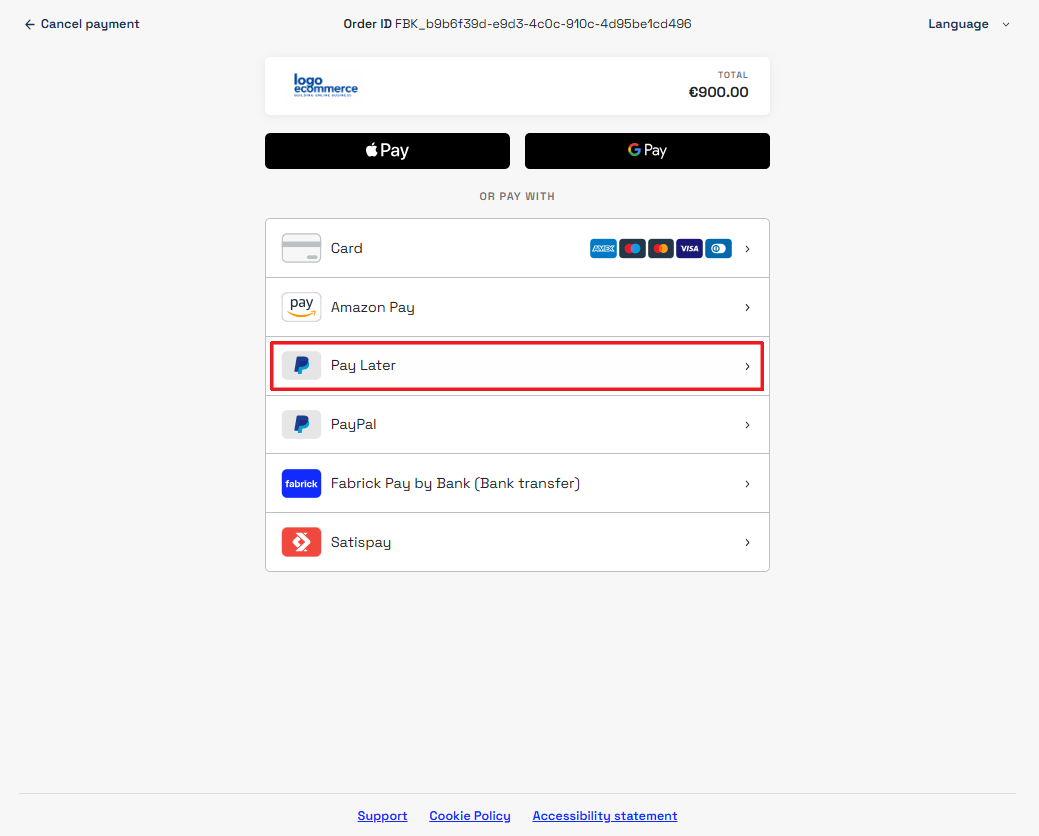
To redirect the buyer directly to the installment payment, if you have requested separate activation of the Pay Later button, set the paymentType field to the PAYPAL_BNPL tag in the POST /payment/create call.
Recurring payments
Billing agreement initialisation
In the POST /payment/create call, add the payPalDescription field with the agreement description. There is no need to specify paymentType: the system automatically returns a direct link to PayPal.
Request
POST /api/v1/payment/create
Host (sandbox): sandbox.gestpay.net
Host (production): ecomms2s.sella.it
Authorization: apikey ****************
Content-Type: application/json
{
  "shopLogin": "GESPAY12345",
  "amount": "100",
  "currency": "EUR",
  "shopTransactionID": "FBK_OrderID",
  "payPalDescription": "Description Billing Agreements"
}
Response
{
  "error": {
    "code": "0",
    "description": "request correctly processed"
  },
  "payload": {
    "paymentToken": "f0419188-8a78-4918-913c-a491e4e78084",
    "paymentID": "1881129911957",
    "userRedirect": {
      "href": "https://sandbox-web.axerve.com/orchestra/checkout/a/f991s1ba01d24eacaa3fac4b2145262a/b/36ab092425ff34515f7430e38babb28b84f16a31d63102b829072a1366c13580ae128e86-d779-4d98-88a2-0c035bcbd42eiAQ8ZaRT3IFyanLLjcIxtsuc3DTwycBdj5FD7FjuhlKm-mNnpirMdm9p3O8bhycmHVVPz6QOyo811UzHG3csjOSlH2KbF2EiUIxEwWFPAvk9TdUDrgWtyKLJYWayfzbZlP4iULt9eHTvhJEhK21sS8Smd0hX"
    },
    "qrCode": null
  }
}
The buyer confirms authorisation by clicking Accept and continue.
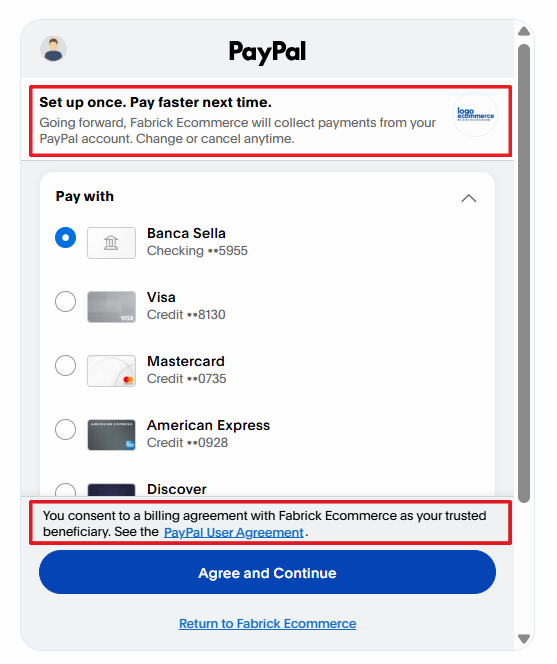
Upon completion, retrieve the generated token via GET /payment/detail in the payload.token field and save it for subsequent payments.
Request
GET api/v1/payment/detail/{paymentID}
Host (sandbox): sandbox.gestpay.net
Host (production): ecomms2s.sella.it
Authorization: apikey ****************
Content-Type: application/json
Response
{
    "error": {
        "code": "0",
        "description": "request correctly processed"
    },
    "payload": {
        "transactionType": "detail",
        "transactionResult": "APPROVED",
        "transactionState": "AUT",
        "transactionErrorCode": "0",
        "transactionErrorDescription": "Transaction successfully completed",
        "bankTransactionID": "1363",
        "shopTransactionID": "FBK_OrderID",
        "shopTransactionID_2": "",
        "authorizationCode": "PP7476",
        "paymentID": "1881129911957",
        "currency": "EUR",
        "country": "",
        "company": "PayPal",
        "tdLevel": "",
        "threeDS": {
            "authenticationResult": null,
            "transDetails": null
        },
        "events": [
            {
                "event": {
                    "eventtype": "AUT",
                    "eventamount": "10.00",
                    "eventdate": "07/05/25 14:45:31",
                    "eventARN": "",
                    "eventID": "",
                    "eventReferred": ""
                }
            }
        ],
        "buyer": {
            "name": "",
            "email": ""
        },
        "risk": {
            "riskResponseCode": "",
            "riskResponseDescription": ""
        },
        "customInfo": null,
        "alertCode": "",
        "alertDescription": "",
        "cvvPresent": "FALSE",
        "dcc": null,
        "maskedPAN": "",
        "paymentMethod": "PayPal",
        "productType": "",
        "token": "PPG5KMGN62NGKRLV",
        "tokenExpiryMonth": "",
        "tokenExpiryYear": "",
        "tokenDetails": null,
        "fraudPrevention": {
            "check": "FALSE",
            "state": "",
            "description": "",
            "order": ""
        },
        "automaticOperation": {
            "type": "CAN",
            "date": "01/06/25 00:00:00",
            "amount": "10.00"
        }
    }
}
It is possible to set the amount to €0. In this way, at the time of billing agreement initialisation, PayPal will not charge the customer any amount but will still return the token needed for subsequent payments.
Response detail
Request
GET api/v1/payment/detail/{paymentID}
Host (sandbox): sandbox.gestpay.net
Host (production): ecomms2s.sella.it
Authorization: apikey ****************
Content-Type: application/json
Response
{
  "error": {
    "code": "0",
    "description": "request correctly processed"
  },
  "payload": {
    "transactionType": "detail",
    "transactionResult": "APPROVED",
    "transactionState": "",
    "transactionErrorCode": "",
    "transactionErrorDescription": "",
    "bankTransactionID": "",
    "shopTransactionID": "",
    "shopTransactionID_2": "",
    "authorizationCode": "",
    "paymentID": "",
    "currency": "",
    "country": "",
    "company": "",
    "tdLevel": "",
    "threeDS": {
      "authenticationResult": null,
      "transDetails": null
    },
    "events": null,
    "buyer": null,
    "risk": null,
    "customInfo": null,
    "alertCode": "",
    "alertDescription": "",
    "cvvPresent": "",
    "dcc": null,
    "maskedPAN": "",
    "paymentMethod": "",
    "productType": "",
    "token": "PPG5KMGN62NGKRLV",
    "tokenExpiryMonth": "",
    "tokenExpiryYear": "",
    "tokenDetails": null,
    "fraudPrevention": null,
    "automaticOperation": null
  }
}
A billing agreement is an agreement between the buyer and the merchant that allows charges to be made to the customer's PayPal account for future payments, without the buyer needing to authenticate again for each transaction. It is the foundation for recurring and on-demand payments via PayPal (learn more).
:::Warning: Compatibility This service does not support payment in installments. :::
Using the token for subsequent payments
Create the payment request using the POST /payment/create call.
Request
POST /api/v1/payment/create
Host (sandbox): sandbox.gestpay.net
Host (production): ecomms2s.sella.it
Authorization: apikey ****************
Content-Type: application/json
{
  "shopLogin": "GESPAY12345",
  "amount": "100",
  "currency": "EUR",
  "shopTransactionID": "FBK_OrderID"
}
Response
{
  "error": {
    "code": "0",
    "description": "request correctly processed"
  },
  "payload": {
    "paymentToken": "f0419188-8a78-4918-913c-a491e4e78084",
    "paymentID": "1881129911957",
    "userRedirect": null,
    "qrCode": null
  }
}
In the POST /payment/submit call, use the token to process the payment:
- Header
PaymentToken: set to thepaymentTokenreceived in the previous step - Body: add
paymentTypeDetails.payPal.tokenset to the PayPal token
Request
POST /api/v1/payment/submit
Host (sandbox): sandbox.gestpay.net
Host (production): ecomms2s.sella.it
PaymentToken: f0419188-8a78-4918-913c-a491e4e78084
Content-Type: application/json
{
  "shopLogin": "GESPAY12345",
  "paymentType": "PAYPAL",
  "paymentTypeDetails": {
    "payPal": {
      "token": "PPG5KMGN62NGKRLV"
    }
  }
}
Response
{
    "error": {
        "code": "0",
        "description": "request correctly processed"
    },
    "payload": {
        "transactionType": "submit",
        "transactionResult": "OK",
        "transactionErrorCode": "0",
        "transactionErrorDescription": "Transaction successfully completed",
        "bankTransactionID": "1414",
        "shopTransactionID": "FBK_OrderID",
        "shopTransactionID_2": "",
        "authorizationCode": "PP2163",
        "paymentID": "1881129911957",
        "currency": "EUR",
        "country": "",
        "company": null,
        "tdLevel": "",
        "buyer": {
            "name": "",
            "email": ""
        },
        "risk": {
            "riskResponseCode": "",
            "riskResponseDescription": ""
        },
        "customInfo": {},
        "alertCode": "",
        "alertDescription": "",
        "cvvPresent": "",
        "maskedPAN": "",
        "paymentMethod": "",
        "productType": "",
        "token": "",
        "tokenExpiryMonth": "",
        "tokenExpiryYear": "",
        "userRedirect": {
            "href": "https://sandbox.gestpay.net/pagam/AxerveThankYou.aspx"
        }
    }
}
If a recurring payment is requested, the system returns a direct link to PayPal, bypassing the selection page.
Reconciliation
From the Reports section of the dashboard you can configure dedicated reports for reconciliation.
By event:
- Custom number (PayPal) ↔ Reconciliation key (Fabrick)
- Transaction code (PayPal) ↔ PayPal ID (Fabrick)
- Merchant order number (PayPal) ↔ Shop transaction ID + _ + Capture ID (Fabrick)
By payment:
- Custom number (PayPal) ↔ Reconciliation key (Fabrick)
- Transaction code (PayPal) ↔ PayPal ID (Fabrick)
For more details, refer to the dashboard guide.
Support
Fabrick
- Status page: https://status.fabrick.com/
- Support: https://landing.fabrick.com/fabrick-dashboard-support
PayPal
- Status page: https://www.paypal-status.com/product/production
- Support: https://developer.paypal.com/support/