Lightbox
The Lightbox integration mode allows presenting the buyer with the Fabrick payment page through a pop-up overlaid on the ecommerce cart page, avoiding redirection to a new page to display the payment page.
The Lightbox offers a simple integration with limited graphical customization options, as the interface, authentication flows, and redirects to other payment methods (APM) are handled directly by Fabrick.
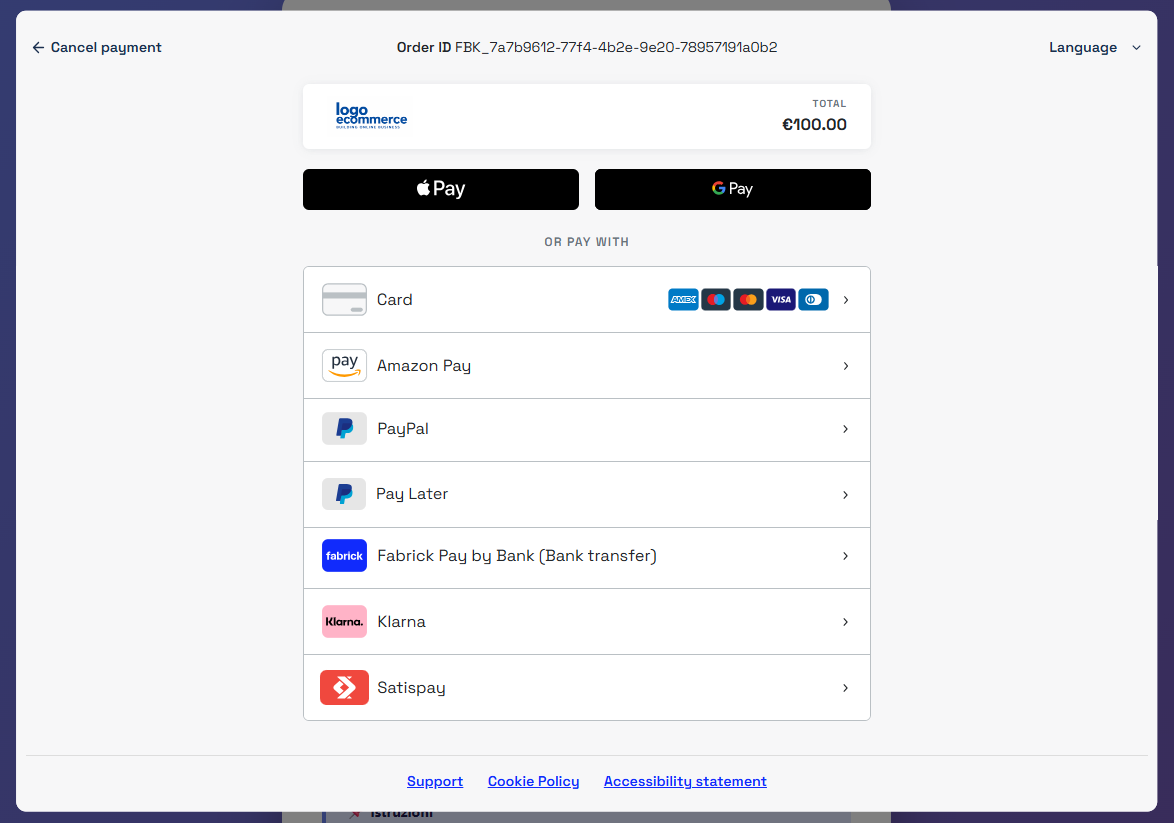
If a pop-up blocker is active on the buyer's device or browser, this configuration may prevent new pages from opening. On desktop devices or browsers, the buyer is not always prompted to allow the external page to open, which may prevent the payment from being completed.
The Lightbox is optimized for browser use and does not guarantee compatibility with channels such as WebView or native applications.
Payment initialization
To initialize a payment request it is necessary to use, on the server side, the payment/create call.
This method guarantees a higher level of security in generating the payload and managing the API key, avoiding the exposure of sensitive information on the front‑end.
The payment/create call represents the basis of the payment request and can be extended by integrating the services made available by Fabrick, such as:
- the fraud prevention service
- Tokenization features
- dedicated objects for individual payment methods
This flexibility allows the merchant to build a complete, customizable payment request aligned with their operational needs.
In the following sections we will go into detail regarding the use of the integration and the parameters to include in the call to customize the payment request.
Payment Method Presentation Logic
During the creation of the request, if the shopLogin is enabled for multiple payment methods (APM), by using the paymentType object it is possible to specify in the payment/create call which methods to display on the page, if only one payment method is specified the system will redirect the buyer directly to the service without passing through the method selection page.
If instead you want to redirect the buyer to the page dedicated to entering the card details provided by Fabrick without passing through the method selection page, it is necessary to specify in the call the paymentType CREDITCARD, by specifying this object, if enabled, wallet payment methods such as ApplePay, GooglePay and Click to Pay will also be displayed.
If in the call the paymentType object is not used, based on the configurations set in the Gestpay backoffice, on the payment page all payment methods enabled for the used shopLogin will be displayed and the buyer will be able to choose which payment method to proceed with.
The possible values of paymentType are available in the payment type codes section or alternatively it is possible to use the GET shop/paymentMethods endpoint to verify in real time the payment methods enabled for the used shopLogin and filter the response by payload.paymentMethod.paymentType.
On mobile devices, pre-selecting a single APM method that opens on a new page (e.g. PAYPAL, KLARNA) is not supported: the automatic opening of the service is blocked by the browser. See Behavior with alternative payment methods (APM) for the details and the alternatives.
Below is an example request in which only card payment is specified, in this case the buyer will be presented with the page dedicated to entering card details without passing through the method selection page.
Request
POST /api/v1/payment/create
Host (sandbox): sandbox.gestpay.net
Host (production): ecomms2s.sella.it
Authorization: apikey ****************
Content-Type: application/json
{
  "shopLogin": "GESPAY12345",
  "amount": "100",
  "currency": "EUR",
  "shopTransactionID": "FBK_OrderID",
  "paymentType":["FABRICKPASS"]
}
If multiple payment methods are specified in the request, for example CREDITCARD and FABRICKPASS, the buyer will be shown the payment method selection page, in which they will be able to choose one of the methods indicated in the call.
Request
POST /api/v1/payment/create
Host (sandbox): sandbox.gestpay.net
Host (production): ecomms2s.sella.it
Authorization: apikey ****************
Content-Type: application/json
{
  "shopLogin": "GESPAY12345",
  "amount": "100",
  "currency": "EUR",
  "shopTransactionID": "FBK_OrderID",
  "paymentType":["CREDITCARD", "FABRICKPASS"]
}
Order confirmation page and server to server notification
During the creation of the request it is possible to use the responseURLs object to dynamically define the redirect URLs and the server to server notification URL, which the system will use at the end of the transaction, both in case of a positive outcome and in case of a negative outcome.
When the responseURLs object is included in the call, only for this transaction, the system will not use the URLs configured in the Gestpay backoffice, but will apply those specified in the request. If instead the object is not present, the backoffice configurations will be used.
It is possible to specify even only part of the parameters. For example, if only the server to server notification URL or only one of the redirect URLs is set, the system will overwrite only the specified values, continuing to use the other URLs configured in the Gestpay backoffice.
Below is an example request in which all redirect URLs and the server to server notification URL are defined.
Request
POST /api/v1/payment/create
Host (sandbox): sandbox.gestpay.net
Host (production): ecomms2s.sella.it
Authorization: apikey ****************
Content-Type: application/json
{
  "shopLogin": "GESPAY12345",
  "amount": "100",
  "currency": "EUR",
  "shopTransactionID": "FBK_OrderID",
  "responseURLs": {
    "buyerOK": "https://merchant-url-ok.com",
    "buyerKO": "https://merchant-url-ko.com",
    "serverNotificationURL": "https://merchant-url-s2s.com"
  }
}
Lightbox Integration
Once PaymentToken and PaymentID have been obtained in response to the payment/create call, it is possible to proceed with the integration of the Lightbox solution.
1. Fabrick JavaScript (CDN)
The first step consists in importing the dedicated JavaScript library:
- Sandbox:
https://sandbox.gestpay.net/pagam/javascript/axerve.js - Production:
https://ecomm.sella.it/pagam/javascript/axerve.js
The Fabrick script must be loaded before your script that uses it, or managed through an onload callback, to guarantee the correct initialization of the library.
2. Variable setup
Subsequently it is necessary to set the shopLogin value, using
axerve.lightBox.shop = shopLogin
The shopLogin value is unique for each merchant and is provided by Fabrick at the time of service activation.
3. Payment page presentation
After having configured the shopLogin, it is possible to open the Lightbox using the function axerve.lightBox.open().
The function requires in input paymentID and paymentToken, obtained in response to the payment/create call, and also accepts a third optional parameter that allows specifying a callback for the custom management of the payment outcome.
Available modes :
-
Automatic redirect
By passing PaymentID and PaymentToken to the function
axerve.lightBox.open(paymentID, paymentToken), the Lightbox will be opened and, at the end of the payment, Fabrick will automatically perform the redirect to the success/failure URL configured for the transaction.Below an example:
<!DOCTYPE html><html lang="en"><head><meta charset="UTF-8" /><title>Test Payment Lightbox</title><script>// Initialization after axerve.js is loadedfunction initFabrickLightbox() {console.log("Fabrick Lightbox SDK loaded successfully");// Set shopLoginaxerve.lightBox.shop = "GESPAY12345";// These values are for DEMO purposes ONLY// In production they must come from the backendwindow.paymentID = "1610469726440";window.paymentToken = "c7d0cb20-0d82-4f8a-b54b-18f1b3a3b82f";}</script><!-- Fabrick script with onload --><scriptsrc="https://sandbox.gestpay.net/pagam/javascript/axerve.js"onload="initFabrickLightbox()"></script></head><body><button onclick="axerve.lightBox.open(paymentID, paymentToken)">Start Payment</button></body></html>
-
Callback
By passing PaymentID, PaymentToken and, as third parameter, a callback to the function
axerve.lightBox.open(paymentID,paymentToken, handleCallback)it is possible to override the redirect behavior managed by Fabrick. In this case, once the payment has been completed, the callback function will be invoked, which will receive as parameter an object with the following information:- error: any errors encountered during the process (
codeanddescriptionfields) - paymentId: transaction identifier, useful to retrieve details through
payment/detail - responseURL: Redirect URL to the positive or negative result page
- status: payment status (OK, KO)
Below an example:
<!DOCTYPE html><html lang="en"><head><meta charset="UTF-8" /><title>Test Payment Lightbox</title><script>// Initialization after axerve.js is loadedfunction initFabrickLightbox() {console.log("Fabrick Lightbox SDK loaded successfully");// Set shopLogin (required)axerve.lightBox.shop = "GESPAY12345";// These values are for DEMO purposes ONLY// In production they must come from the backendwindow.paymentID = "1610469726440";window.paymentToken = "c7d0cb20-0d82-4f8a-b54b-18f1b3a3b82f";}// Callback defined at global scope to be accessible from onclickfunction handleCallback(response) {console.log(response);/* example response:{"error": { "code": null, "description": null },"status": "OK","responseURL": "https://redirect-url.com","paymentId": "1403159914604"}*/}</script><!-- Fabrick script with onload --><scriptsrc="https://sandbox.gestpay.net/pagam/javascript/axerve.js"onload="initFabrickLightbox()"></script></head><body><button onclick="axerve.lightBox.open(paymentID, paymentToken, handleCallback)">Start Payment</button></body></html>
Behavior with alternative methods (APM)
For both Lightbox opening modes, if the buyer selects a payment method different from card, or if in the
payment/createrequest only one APM method was specified, the system will open a new page and will automatically perform the redirect to the selected service. At the end of the payment, the page will close and the buyer will automatically be redirected back to the previous page where the Lightbox had been initialized.
- error: any errors encountered during the process (
Transaction conclusion and Payment Notification
Once the payment has been completed, the Lightbox pop‑up closes automatically and the subsequent behavior varies depending on the mode used:
- if a callback has not been defined, Fabrick performs the redirect of the buyer to the success or failure URL configured for the transaction.
- if a callback has been specified, the system returns a JavaScript object containing the information related to the outcome, leaving to the merchant the complete management of the subsequent flow.
Regardless of the mode used, the system always sends a server to server (S2S) notification with the transaction outcome.
Example redirect URL and S2S notification:
https://merchant-url.com?a=GESPAY12345&Status=OK&paymentID=1360119538182&paymentToken=8a901523-67a5-4aca-bbd2-c7c412934289
Inside the redirect URL and the S2S notification there is the Status parameter, which allows immediately identifying the payment status. The possible values are:
OK: payment completed successfullyKO: payment completed with negative outcomeXX: payment in suspended state, waiting for the final outcome.
The XX status is used only for some alternative payment methods (APM) and is returned when the outcome is asynchronous. In this scenario Fabrick redirects the customer to the success URL, but the status is not yet final: it will be necessary to wait for a subsequent S2S notification that will communicate the final outcome (OK or KO).
- If you receive status XX, do not proceed with shipping the goods or delivering the service.
- Wait for the S2S notification that will communicate the final outcome of the payment.
To verify the outcome or the updated status of the transaction it is possible to use the endpoint GET payment/detail, passing as parameter the paymentID returned by the payment/create call, obtained from the redirect URL/S2S notification or from the javascript object.
In the response there is the parameter transactionResult, which indicates the payment status. The possible values are:
AUTHENTICATED: payment authenticated (OK)APPROVED: approved payment (OK)DECLINED: rejected payment (KO)PENDING: payment pending confirmation (XX)WAITING: payment in progress (XX)UNSUBMITTED: payment has not yet started (XX)
Example call to verify the transaction status through paymentID.
Request
GET api/v1/payment/detail/{paymentID}
Host (sandbox): sandbox.gestpay.net
Host (production): ecomms2s.sella.it
Authorization: apikey **************** (or) PaymentToken: c7d0cb20-0d82-4f8a-b54b-18f1b3a3b82f
Content-Type: application/json
Response
{
    "error": {
        "code": "0",
        "description": "request correctly processed"
    },
    "payload": {
        "transactionType": "detail",
        "transactionResult": "APPROVED",
        "transactionState": "AUT",
        "transactionErrorCode": "0",
        "transactionErrorDescription": "Transaction successfully completed",
        "bankTransactionID": "1825",
        "shopTransactionID": "FBK_OrderID",
        "shopTransactionID_2": "",
        "authorizationCode": "794183",
        "paymentID": "1610469726440",
        "currency": "EUR",
        "country": "ITALY",
        "company": "VISA",
        "tdLevel": "FULL",
        "threeDS": {
            "authenticationResult": {
                "authenticationLevel": "2C",
                "authenticationStatus": "Y",
                "authStatusReason": "",
                "challengeResultTransStatus": "",
                "XID": "1dd3cf75-92a7-4487-abb5-b1f3cdd68f3b",
                "AV": "MTIzNDU2Nzu5MDA5ODc2NTQzMjE=",
                "ECI": "05",
                "AVAlgorithm": "",
                "threeDsVersion": "2.2.0"
            },
            "transDetails": {
                "authData": "",
                "authMethod": "02",
                "authTimeStamp": "202505131259",
                "acsID": "f688e45c-ff27-4ba6-a631-4b68df2dbf99"
            }
        },
        "events": [
            {
                "event": {
                    "eventtype": "AUT",
                    "eventamount": "0.00",
                    "eventdate": "13/05/25 13:01:52",
                    "eventARN": "",
                    "eventID": "",
                    "eventReferred": ""
                }
            }
        ],
        "buyer": {
            "name": "",
            "email": ""
        },
        "risk": {
            "riskResponseCode": "",
            "riskResponseDescription": ""
        },
        "customInfo": null,
        "alertCode": "",
        "alertDescription": "",
        "cvvPresent": "TRUE",
        "dcc": null,
        "maskedPAN": "",
        "paymentMethod": "VISA",
        "productType": "Credit",
        "token": "40G5LMXUQQ613101",
        "tokenExpiryMonth": "05",
        "tokenExpiryYear": "27",
        "tokenDetails": {
            "TokenValue": "40G5LMXUQQ613101",
            "TokenExpiryMonth": "05",
            "TokenExpiryYear": "27",
            "TokenProvider": "AXERVE",
            "CardDetails": {
                "CardSuffix": "3101",
                "CardExpiryMonth": "05",
                "CardExpiryYear": "27",
                "CardHolderName": null
            },
            "CardAssets": {
                "CardArt": {
                    "Type": null,
                    "MediaContents": null,
                    "Height": null,
                    "Width": null
                },
                "BrandLogo": {
                    "Type": null,
                    "MediaContents": null,
                    "Height": null,
                    "Width": null
                }
            }
        },
        "fraudPrevention": {
            "check": "FALSE",
            "state": "",
            "description": "",
            "order": ""
        },
        "automaticOperation": {
            "type": "CAN",
            "date": "07/06/25 00:00:00",
            "amount": "0.00"
        }
    }
}