AppPago
Why choose AppPago
AppPago is the Buy Now, Pay Later (BNPL) solution by Sella Personal Credit that allows buyers to purchase goods or services online and to defer or spread the payment, according to the terms of the service.
The buyer completes the purchase by selecting AppPago as the payment method during the checkout and following its authorization process.
Services and features available through the Fabrick integration
Integrating AppPago with Fabrick Payment Orchestra gives you access to the following features:
- Deferred or instalment payments: the buyer can spread or postpone the payment according to the terms set by AppPago.
- A single integration with Fabrick: AppPago is added alongside the other payment methods without changing your existing Payment Orchestra integration.
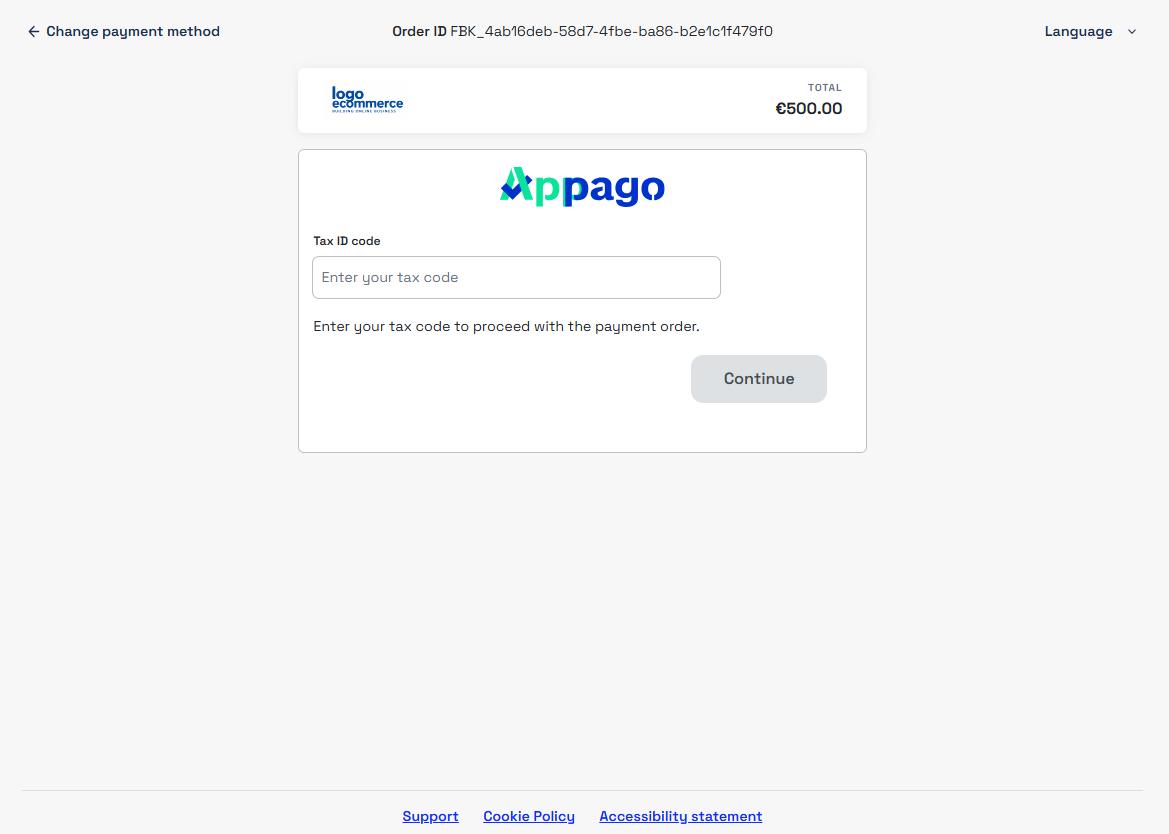
- Tax code sent in the request or requested on the page: the data can be sent by the merchant in the payment request or requested by Fabrick during the checkout (see Tax code).
Minimum amount
AppPago can only be used for transactions of €60 or more.
Unified capture
AppPago supports unified capture only, with the amount captured at the time of the authorization and no option to request the capture at a later stage. As no separate authorization stage is available, the transaction cannot be cancelled.
Tax code
The buyer's tax code is mandatory to complete a payment with AppPago. The merchant can choose whether to send it in the payment request or to let Fabrick request it from the buyer:
| Mode | Behaviour |
|---|---|
| Handled by the merchant | The tax code is collected on the merchant's website and sent in the payment request. Fabrick uses the data received and the buyer goes straight to AppPago (see CustomerDetail) |
| Delegated to Fabrick | If the data is not sent, Fabrick shows the buyer a dedicated page to enter the tax code before proceeding with the payment |
AppPago on Fabrick Payment Orchestra: activation and integration types
Activation request
To use AppPago you need an active agreement with Sella Personal Credit. If you have not activated it yet, you can request it on the AppPago website.
To start accepting AppPago payments, you can request the activation:
- By contacting your sales representative
- By contacting support at the following link
During activation you must provide Fabrick with the merchant's VAT number registered with AppPago and the merchant identifier assigned to the merchant by AppPago. Without them the configuration cannot be completed.
Once the required procedures are complete:
- Fabrick enables AppPago on the shop and informs the merchant.
- You can verify that the payment method is active in the Dashboard, under Workspace → Shops → [Select shop] → Settings
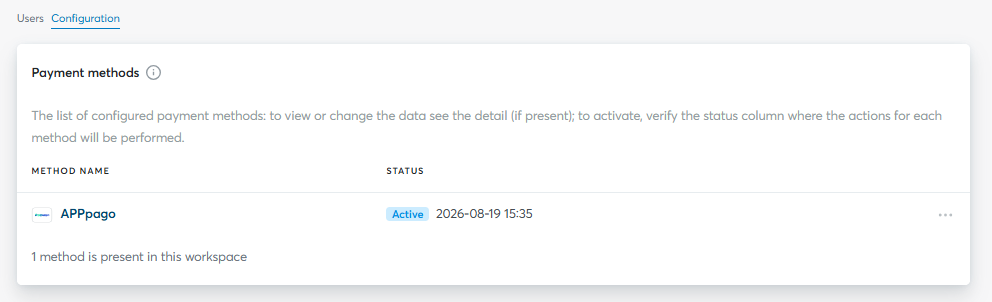
From this moment on, your e-commerce is ready to accept AppPago payments through Fabrick Payment Orchestra.
Integration types
Fabrick offers two integration types for AppPago:
-
Hosted integration
Supported integrations
✓Checkout Page✓Pay By Link✓Web Component✓LightboxAppPago is displayed directly on the Fabrick payment page, with no development work required on the merchant's side. Fabrick handles the display of the payment method, the entry of the tax code and the entire processing phase.
-
API integration
Supported integrations
✓API OnlyThe redirect to AppPago is handled directly through the API. You need to initialise the transaction with
payment/create, setting thepaymentTypefield to theAPPPAGOtag, and handle the buyer's redirect.
In the test environment, use the tax code RSSMRA80A01F205X to complete the payment, either sending it in the request or entering it on the dedicated Fabrick page.
Hosted integration
AppPago is displayed directly on the Fabrick payment page, with no additional development work on the merchant's side. Fabrick handles the display of the payment method and the entire transaction processing phase.
To set up the call for the hosted integration, go to the creating the transaction and redirecting to AppPago section and remove the paymentType field from the payment/create call.
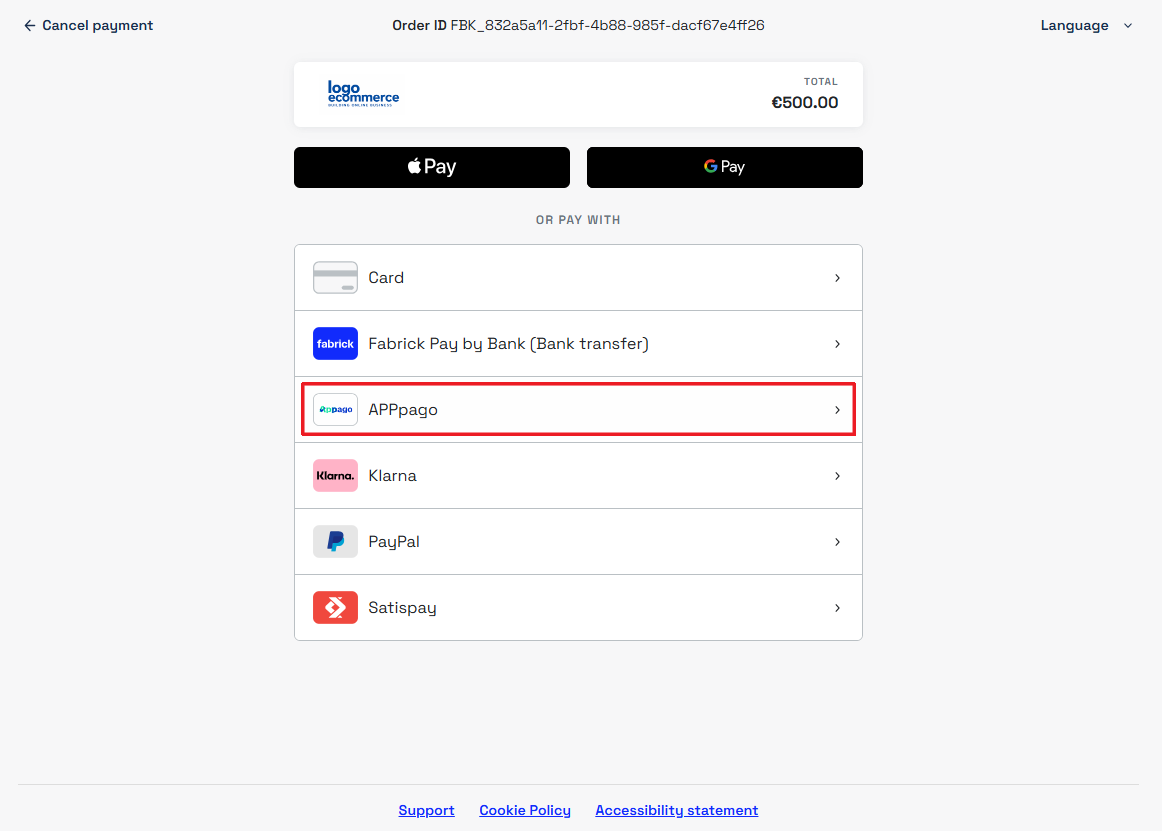
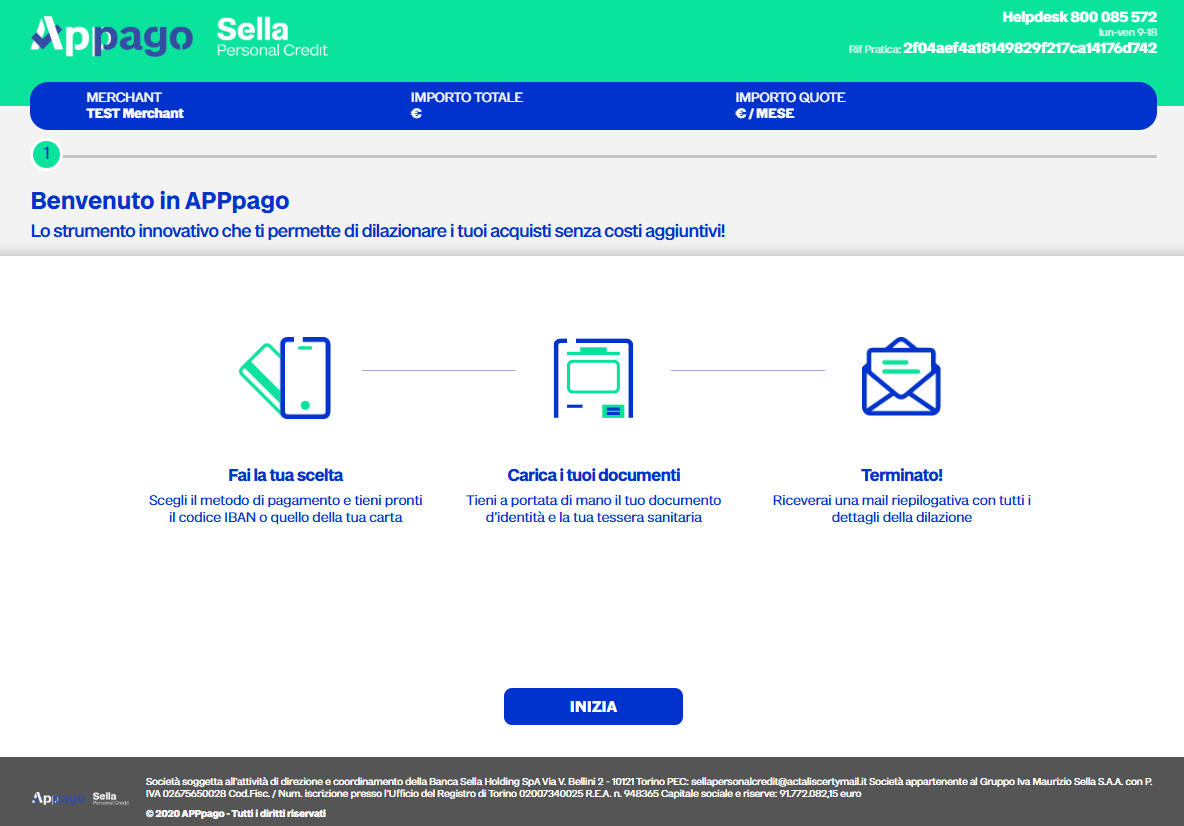
When the buyer selects AppPago, if the tax code was not sent in the call Fabrick requests it on a dedicated page. Once the data is available, entered on the page or already present in the request, the buyer is redirected to AppPago to complete the payment.
API integration
To request an AppPago payment using the API integration, you need to initialise the transaction with payment/create using the APPPAGO tag in the paymentType field.
Creating the transaction and redirecting to AppPago
Request
POST /api/v1/payment/create
Host (sandbox): sandbox.gestpay.net
Host (production): ecomms2s.sella.it
Authorization: apikey ****************
Content-Type: application/json
{
    "shopLogin": "GESPAY12345",
    "amount": "500",
    "currency": "EUR",
    "shopTransactionID": "FBK_OrderID",
    "paymentType": ["APPPAGO"], // Remove this line for the hosted integration
    "paymentChannel": { "channelType": ["LINK"] },
    "orderDetails": {
        "customerDetail": {
            "SocialSecurityNumber": "RSSMRA80A01F205X"
        }
    }
}
The SocialSecurityNumber field can be omitted: in that case Fabrick requests the tax code through the dedicated page (see Tax code).
The returned link can be used under a Pay with AppPago button, in line with the brand usage guidelines.
Fields to send in the call to AppPago
AppPago requires no mandatory fields in the call. The buyer's tax code can however be sent in the payment request (see Tax code).
CustomerDetail
| Field | Description |
|---|---|
orderDetails.customerDetail.SocialSecurityNumber | Buyer's tax code. If it is not populated, the buyer is asked for it on a dedicated Fabrick page |
Support
Fabrick
- Status page: https://status.fabrick.com/
- Support: https://landing.fabrick.com/fabrick-dashboard-support
AppPago
- Support: https://www.apppago.it/assistenza