Google Pay
Why choose Google Pay
Google Pay is the digital payment system developed by Google, allowing payments to be made simply, quickly and securely from a smartphone (NFC) or on the web, using the card details saved in the buyer's Google account.
Integrating it into your e-commerce widens the payment methods available and improves the user experience through a fast, frictionless checkout. It removes the need to enter card details manually and, thanks to the authentication already in place on the device or on the Google account, buyers authorise payments immediately with a single tap.
For more information see the official Google Pay API documentation
Services and features available through the Fabrick integration
Integrating Google Pay with Fabrick Payment Orchestra provides a complete set of features that simplify transaction management and improve the experience for both the merchant and the buyer.
- Compatible with apps and websites: support for Android apps and for web integrations through the Google Pay JS API.
- Payment Token handling: Fabrick handles the payment token itself, displaying Google Pay on its own page with no additional development on the merchant's side.
- Tokenization: the payment method can be tokenized and reused for subsequent charges (see Tokenization).
- Recurring payments: Google Pay can be used as the payment method of a recurring series (see Recurring payments).
- Fabrick Guaranteed Payments: fraud prevention service supporting the merchant (find out more).
- Fabrick Advice: Transaction Risk Analysis (TRA) service to take advantage of the exemptions provided for by PSD2 (find out more).
- Simplified reconciliation: payment management through dedicated reports (find out more).
- Advanced transaction management: support for partial and multiple captures and reversals, for flexible payment management.
- Multi-currency support: compatible with several currencies for international transactions.
- Support for international schemes: Google Pay through Fabrick supports Visa and Mastercard.
Google Pay on Fabrick Payment Orchestra: activation and integration types
Activation request
To start accepting Google Pay payments, you can request the activation:
- By contacting your sales representative
- By contacting support at the following link
For the Web Component integration you must also provide the Merchant ID of your Google Pay & Wallet Console account, to be associated with the Fabrick account for the environment in use (see Additional configuration for Web Component and WebView).
Once the required procedures are complete:
- Fabrick enables Google Pay on the shop and informs the merchant.
- You can verify that the payment method is active in the Dashboard, under Workspace → Shops → [Select shop] → Settings
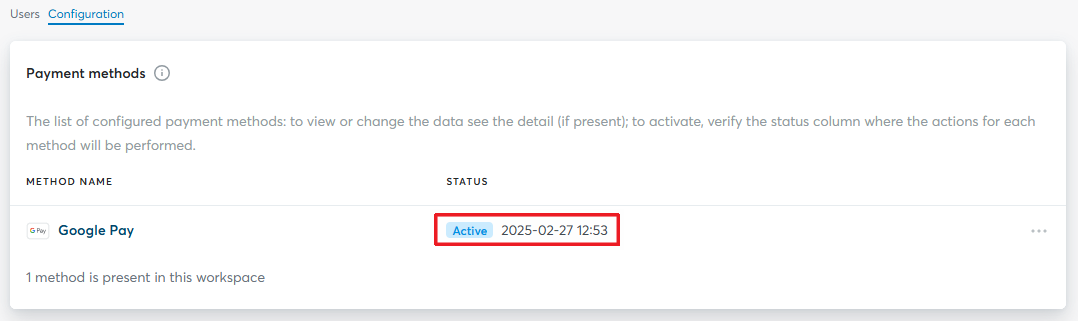
From this moment on, your e-commerce is ready to accept Google Pay payments through Fabrick Payment Orchestra.
Integration types
Fabrick offers two integration types for Google Pay:
-
Hosted integration
Supported integrations
✓Checkout Page✓Pay By Link✓Web Component✓LightboxGoogle Pay is displayed directly on the payment page. Fabrick handles the display of the button, the generation of the token and the entire processing phase of the payment request. Integrations through Web Component or using a WebView require an additional configuration step.
-
API integration
Supported integrations
✓API OnlyWith this method Google Pay is integrated directly into the merchant's website or app. The merchant implements the payment button, generates the token and sends it to Fabrick for the transaction to be processed.
Google Pay is supported by the main modern browsers, including Chrome, Edge, Firefox and Safari.
To run the tests you need a Google account and either an Android device or a browser that supports Google Wallet.
Further reading:
Hosted integration
Google Pay is displayed directly on the payment page. Fabrick handles the button, the generation of the payment token and the authentication (SCA) flow where required.
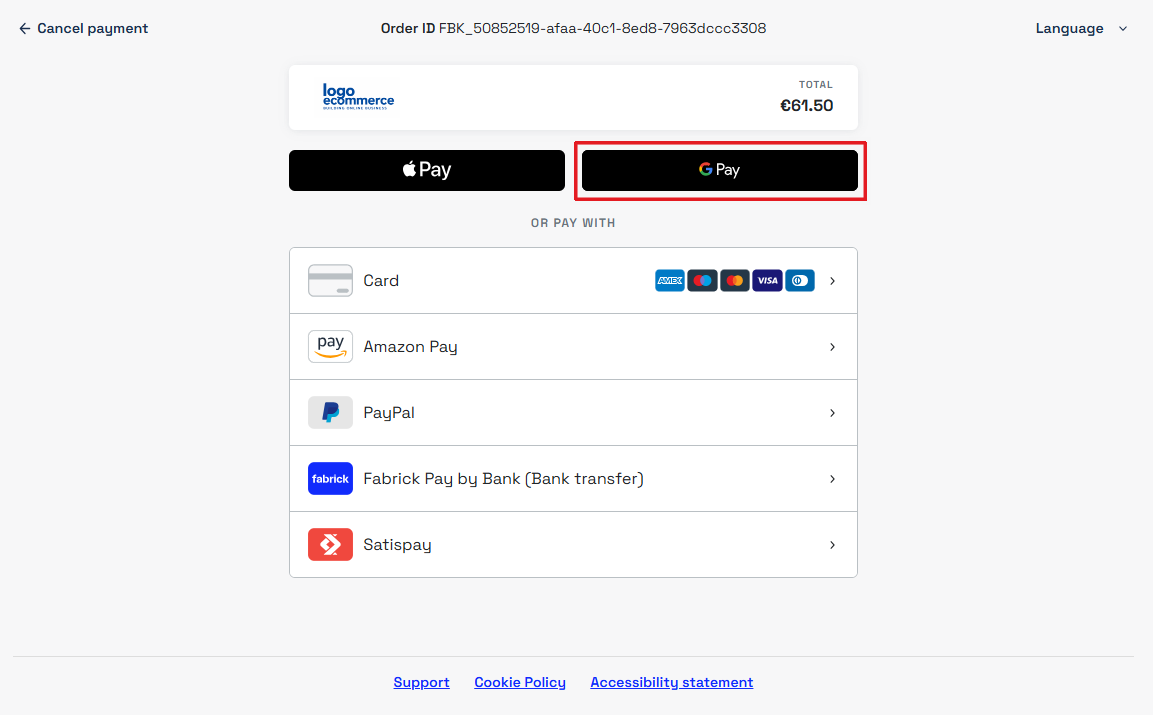
When the buyer selects Google Pay, the Google modal opens in the browser to choose the card the payment is to be completed with.
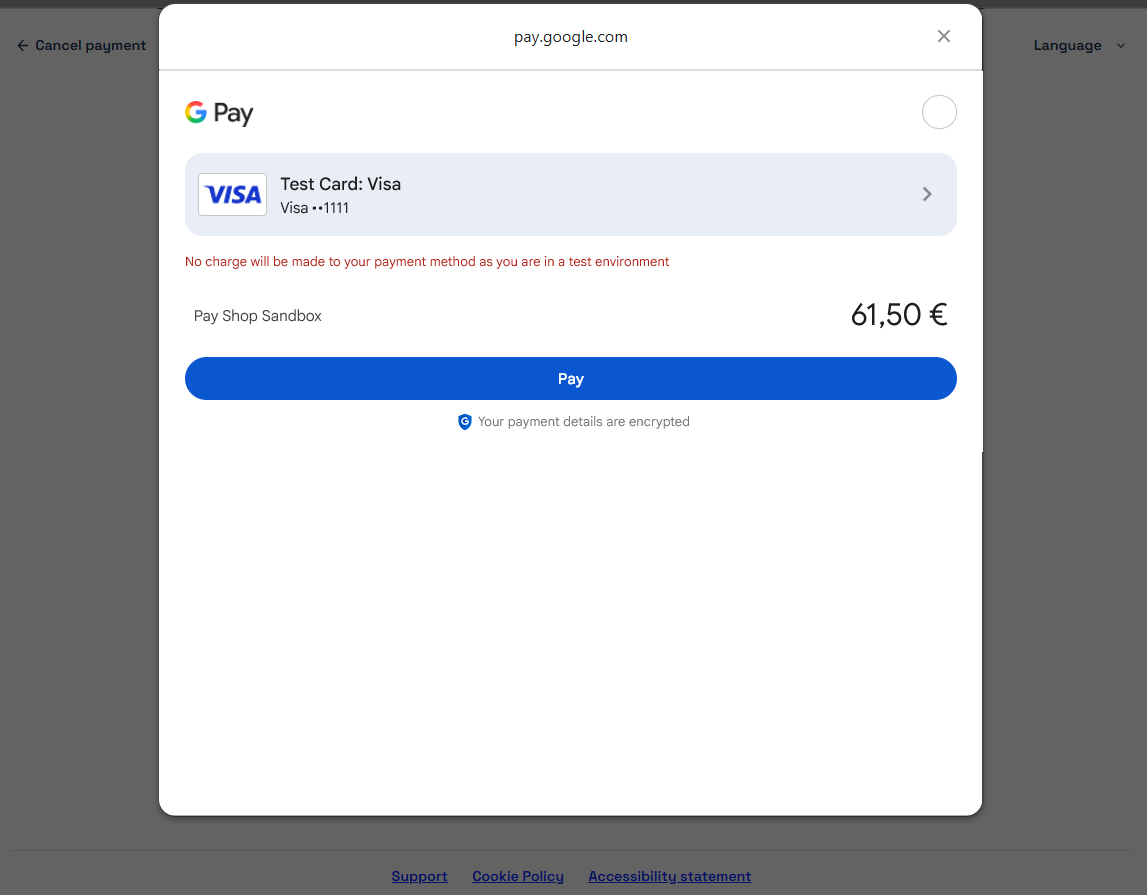
Additional configuration for Web Component and WebView
With these integrations Google Pay runs directly on the merchant's domain. You are therefore required to register your domain through the Google Pay & Wallet Console and wait for Google to approve it. During the registration, when prompted, select PSP: Axerve as the integration type. The procedure is described in the official guide. In the sandbox environment the domain approval is not required.
For Web Component integrations, provide your Merchant ID to your sales representative or to support so that it can be associated with the Fabrick account and the configuration completed. In production, provide it once you have received Google's approval.
If your web checkout is embedded in an Android WebView, additional configuration is required on the app side; for this integration you do not need to provide Fabrick with your Merchant ID. See the official Google guide.
API integration
Activation requirements
To use the API integration for Google Pay you need:
-
Google Pay & Wallet Console: You must register an account on the Google Pay & Wallet Console to manage the integration, accept the policies and obtain the
merchantIdto be used in production. -
Acceptance of the Google policies: All merchants must accept the Google Pay API Terms of Service and the Google Pay APIs Acceptable Use Policy before proceeding with the integration.
-
Domain registration and production access: Before going live you must register your domain through the Google Pay & Wallet Console and wait for Google to approve it. The procedure is described in the official guide. In the sandbox environment the domain approval is not required.
Activation completeOnce you have received Google's approval, provide your Merchant ID to your sales representative or to support so that it can be associated with the Fabrick account and the configuration completed.
Configuring the JavaScript code on your website
The direct web integration follows the official Google Pay guide, with some Fabrick-specific settings described in the steps below.
Step 1 — tokenizationSpecification configuration
Set gateway to gestpay to tell Google Pay to use Fabrick as the payment gateway.
In the gatewayMerchantId parameter specify the Fabrick shopLogin for the environment in use (sandbox or production):
"tokenizationSpecification": {
  "type": "PAYMENT_GATEWAY",
  "parameters": {
    "gateway": "gestpay",
    "gatewayMerchantId": "GESPAY12345"
  }
}
Step 2 — Supported networks and payment methods
Configure the networks and the authentication methods supported by Fabrick through the allowedCardNetworks parameter, which defines the accepted schemes, and allowedCardAuthMethods, which defines the authentication method. Fabrick supports both methods:
PAN_ONLY— the card is stored in the user's Google Account, not on the device. Google returns the PAN with the expiry month and year. The transaction does not natively satisfy SCA: Fabrick automatically runs the 3DS flow as a fallback.CRYPTOGRAM_3DS— the card is tokenized on the Android device through Google Wallet. Google returns a 3DS cryptogram generated on the device itself, which natively satisfies the SCA requirements: there is no need to handle the 3DS flow.
CRYPTOGRAM_3DS tokens (DPAN) are generated on Android devices only. From desktop and from iOS devices Google Pay always returns PAN_ONLY tokens (official Google FAQ).
const allowedCardNetworks = ["MASTERCARD", "VISA"];
const allowedCardAuthMethods = ["PAN_ONLY", "CRYPTOGRAM_3DS"];
For more details on the configuration parameters see the official Google documentation.
The two methods require different cards in the test environment:
PAN_ONLY— use a card associated with your Google account for online payments. These are the cards shown in the Google Pay checkout window from a browser. You can add one directly from Chrome: Settings → Autofill and passwords → Payment methods → Add credit card.CRYPTOGRAM_3DS— use a card tokenized on an Android device through Google Wallet. These are not shown in the web checkout: to test them you need to make the payment from a smartphone.
Note: the cards held on payments.google.com are distinct from those enabled for the web checkout and are not shown in the Google Pay payment window from a browser.
Step 3 — Setting the Google Pay environment
The environment parameter determines which environment Google Pay operates in. Set it to TEST or PRODUCTION according to the environment in use:
const paymentsClient =
    new google.payments.api.PaymentsClient({ environment: 'TEST' });
// For the production environment use: { environment: 'PRODUCTION' }
In the TEST environment the gatewayMerchantId must be populated with the Fabrick sandbox shopLogin, not with the production one. The value goes in Step 1.
Note: move to the PRODUCTION environment only once you have completed all the tests and received the approvals from Google.
Step 4 — Adding the Google Pay button
Add the Google Pay button to the checkout page, following the Google brand guidelines and the available customisation options:
function addGooglePayButton() {
  const paymentsClient = getGooglePaymentsClient();
  const button = paymentsClient.createButton({
    onClick: onGooglePaymentButtonClicked,
    allowedPaymentMethods: [baseCardPaymentMethod]
  });
  document.getElementById('container').appendChild(button);
}
Step 5 — Defining the required payment data
Build the paymentDataRequest object with the amount, the currency and merchantInfo:
const paymentDataRequest = Object.assign({}, baseRequest);
paymentDataRequest.allowedPaymentMethods = [cardPaymentMethod];
paymentDataRequest.transactionInfo = {
  totalPriceStatus: 'FINAL',
  totalPrice: '100.00',
  currencyCode: 'EUR',
  countryCode: 'IT'
};
paymentDataRequest.merchantInfo = {
  merchantId: 'MERCHANT_ID_GOOGLE',
  merchantName: 'Your shop name'
};
merchantId identifies your account on the Google Pay & Wallet Console and is mandatory in production. In the TEST environment it can be omitted or populated with a placeholder. To obtain it you need to complete the registration on the Google console, as described in the official guide.
Step 6 — Handling the click and retrieving the payment token
On the button click, start the request and retrieve the token to be sent to Fabrick:
function onGooglePaymentButtonClicked() {
  const paymentDataRequest = getGooglePaymentDataRequest();
  const paymentsClient = getGooglePaymentsClient();
  paymentsClient.loadPaymentData(paymentDataRequest)
    .then(function(paymentData) {
      // Send the payment token to Fabrick through payment/submit
      processPayment(paymentData.paymentMethodData.tokenizationData.token);
    })
    .catch(function(err) {
      console.error(err);
    });
}
Step 7 — Sending the payment request to Fabrick
Once you have obtained the token from the paymentData object, the payment is handled in two consecutive stages: payment/create to initialise the transaction and payment/submit to send the Google Pay token.
Stage 1 — Creating the payment request
Request
POST /api/v1/payment/create
Host (sandbox): sandbox.gestpay.net
Host (production): ecomms2s.sella.it
Authorization: apikey ****************
Content-Type: application/json
{
  "shopLogin": "GESPAY12345",
  "amount": "100",
  "currency": "EUR",
  "shopTransactionID": "FBK_OrderID"
}
The amount and currency values passed to payment/create must match exactly those defined in Step 5.
In the sandbox the 3DS flow for PAN_ONLY tokens may not be triggered automatically. To simulate the behaviour in production, add exemption: SKIP to the payment/create call:
{
  "shopLogin": "GESPAY12345",
  "amount": "100",
  "currency": "EUR",
  "shopTransactionID": "FBK_OrderID",
  "transDetails": {
    "threeDsContainer": {
      "exemption": "SKIP"
    }
  }
}
Response
{
  "error": {
    "code": "0",
    "description": "request correctly processed"
  },
  "payload": {
    "paymentToken": "f0419188-8a78-4918-913c-a491e4e78084",
    "paymentID": "1881129911957",
    "userRedirect": null,
    "qrCode": null
  }
}
Stage 2 — Sending the token and processing
Send a request to payment/submit with the Google Pay token obtained in Step 6:
PaymentTokenheader: populate it with thepaymentTokenreceived from Stage 1- Body: place the Google Pay token in
paymentTypeDetails.googlePay.tokenizationData.token
Request
POST /api/v1/payment/submit
Host (sandbox): sandbox.gestpay.net
Host (production): ecomms2s.sella.it
PaymentToken: f0419188-8a78-4918-913c-a491e4e78084
Content-Type: application/json
{
    "shopLogin": "GESPAY12345",
    "paymentType": "GOOGLEPAY",
    "paymentTypeDetails": {
        "googlePay": {
            "tokenizationData": {
                "token": {
                    "signature": "MEYC...",
                    "protocolVersion": "ECv1",
                    "signedMessage": "{\"encryptedMessage\":\"EFVBR...\",\"ephemeralPublicKey\":\"BPiL...\",\"tag\":\"ZN43...\"}"
                }
            }
        }
    }
}
The response varies according to the type of Google Pay token received:
PAN_ONLY— SCA is not natively satisfied. Fabrick returns code8006withuserRedirect.hrefpopulated with the URL of the 3DS authentication page. The merchant must redirect the buyer to that URL to complete the verification. At the end, the buyer is sent back to the outcome page and the transaction is finalised.CRYPTOGRAM_3DS— SCA is already satisfied by the cryptogram generated on the device, so there is no need to handle the 3DS flow. If the transaction is approved, the response returnstransactionResult: "OK"and the payment is complete. At the same time, the system sends a server-to-server (S2S) notification with the outcome of the transaction.
The protocolVersion field (ECv1 / ECv2) indicates the version of the token's encryption protocol, not the authentication method: an ECv2 token can carry either PAN_ONLY or CRYPTOGRAM_3DS. The actual method (authMethod) is held in the encrypted signedMessage, readable by the gateway only.
To tell apart, on the merchant side, the transactions that require a 3DS step-up, set assuranceDetailsRequired: true in the CardParameters (Step 2): the Google Pay response will then include the assuranceDetails object with the accountVerified and cardHolderAuthenticated fields. Only if both are true is the transaction SCA compliant and free of 3DS; otherwise Fabrick triggers the 3DS flow (code 8006 with userRedirect.href). For more details see the official Google SCA guide.
- CRYPTOGRAM_3DS — SCA satisfied
- PAN_ONLY — SCA not satisfied
Example of a response for tokens that natively satisfy the SCA requirements:
Response
{
  "error": {
    "code": "0",
    "description": "request correctly processed"
  },
  "payload": {
    "transactionType": "submit",
    "transactionResult": "OK",
    "transactionErrorCode": "0",
    "transactionErrorDescription": "Transaction correctly processed",
    "bankTransactionID": "2528",
    "shopTransactionID": "FBK_OrderID",
    "shopTransactionID_2": "",
    "authorizationCode": "284731",
    "paymentID": "1881129911957",
    "currency": "EUR",
    "country": "",
    "company": "GOOGLEPAY - VISA",
    "tdLevel": "FULL",
    "buyer": {
      "name": "",
      "email": ""
    },
    "risk": {
      "riskResponseCode": "",
      "riskResponseDescription": ""
    },
    "customInfo": {},
    "alertCode": "",
    "alertDescription": "",
    "cvvPresent": "N",
    "maskedPAN": "",
    "paymentMethod": "",
    "productType": "",
    "token": "",
    "tokenExpiryMonth": "",
    "tokenExpiryYear": "",
    "userRedirect": {
      "href": "https://sandbox.gestpay.net/pagam/AxerveThankYou.aspx"
    }
  }
}
Example of a response for tokens that do not satisfy the SCA requirements:
Response
{
    "error": {
        "code": "0",
        "description": "request correctly processed"
    },
    "payload": {
        "transactionType": "submit",
        "transactionResult": "",
        "transactionErrorCode": "8006",
        "transactionErrorDescription": "Verify By Visa",
        "bankTransactionID": "",
        "shopTransactionID": "",
        "shopTransactionID_2": "",
        "authorizationCode": "",
        "paymentID": "1881129911957",
        "currency": "",
        "country": "",
        "company": null,
        "tdLevel": "",
        "buyer": {
            "name": "",
            "email": ""
        },
        "risk": {
            "riskResponseCode": "",
            "riskResponseDescription": ""
        },
        "customInfo": {},
        "alertCode": "",
        "alertDescription": "",
        "cvvPresent": "N",
        "maskedPAN": "",
        "paymentMethod": "",
        "productType": "",
        "token": "",
        "tokenExpiryMonth": "",
        "tokenExpiryYear": "",
        "userRedirect": {
            "href": "https://sandbox.gestpay.net/pagam/pagam3d.aspx?a=GESPAY12345&b=f0419188-8a78-4918-913c-a491e4e78084&axerve3D=True&IsLightBox=False"
        }
    }
}
Additional payment method features
You can enable additional features on the transaction by amending the payment/create call to include the specific services, such as Fabrick Guaranteed Payments or Fabrick Advice. The services configured are applied automatically to the transaction when the buyer selects Google Pay.
Separated and unified capture
Google Pay is handled as a card: the transaction handling mode, unified or separated, is the one configured for cards and requires no dedicated setting.
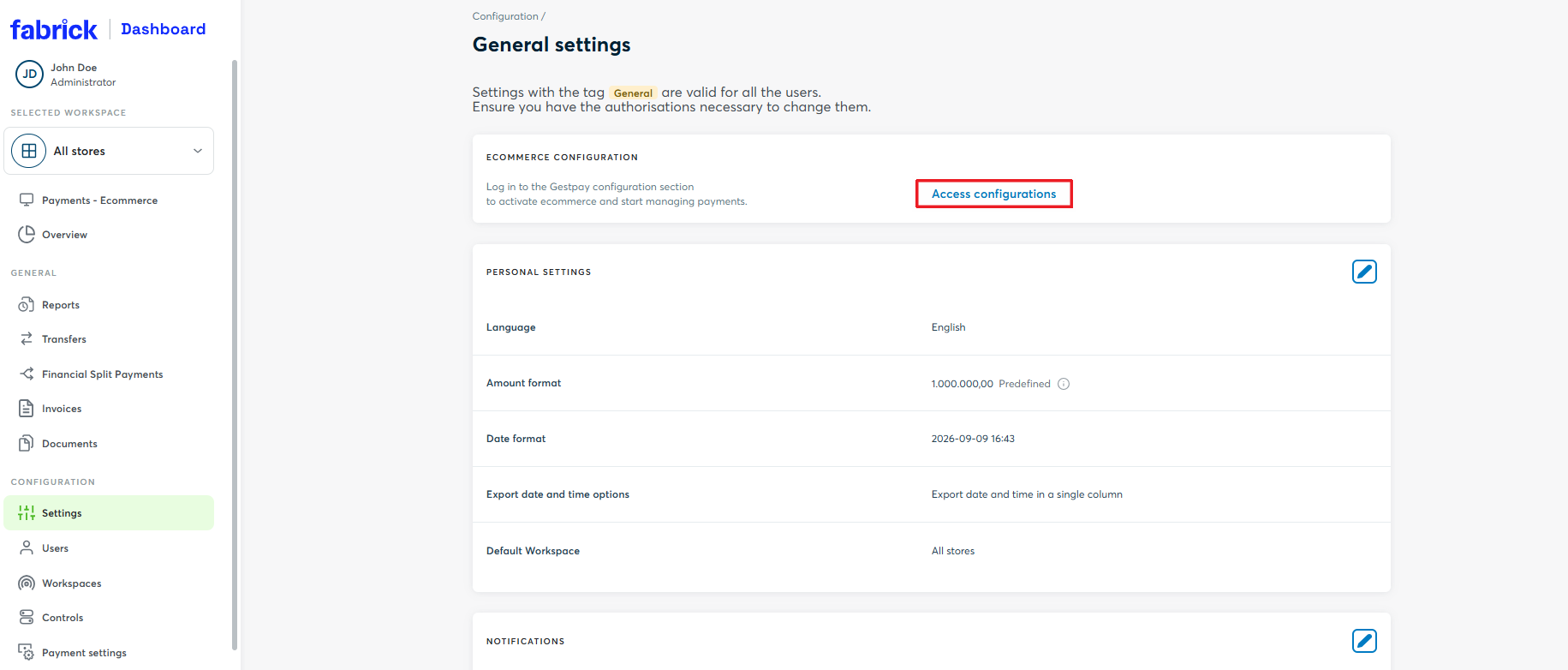
To check or change the configuration:
-
Log in to the Dashboard and go to Settings → Access the configurations
-
Once redirected to the back office, go to Configurations → Environment and click MOTO: a side panel opens with the list of active payment methods
-
Find the cards row and select the required mode between Unified and Separated
The mode set for cards applies to all card payments, including those made with Google Pay and Apple Pay: changing it for the wallet means changing it for cards too.
For more details on how the two modes work, see the separated and unified capture section.
Tokenization
The payment method used with Google Pay can be tokenized: Fabrick returns a token representing the card the buyer chose in their wallet, which can be reused for subsequent charges without asking for the payment details again.
Tokenization is requested in the payment/create call, by populating the requestToken field with MASKEDPAN.
The token behaves the same way with PAN_ONLY and with CRYPTOGRAM_3DS: the authentication method used during the payment affects neither the generation of the token nor its reuse.
- Hosted integration
- API integration
The payment/create call is enough: Fabrick handles the Google Pay button, the generation of the payload and the return of the token.
Request
POST /api/v1/payment/create
Host (sandbox): sandbox.gestpay.net
Host (production): ecomms2s.sella.it
Authorization: apikey ****************
Content-Type: application/json
{
    "shopLogin": "GESPAY12345",
    "amount": "100",
    "currency": "EUR",
    "shopTransactionID": "FBK_OrderID",
    "paymentChannel": { "channelType": ["LINK"] }, // Pay By Link only
    "requestToken": "MASKEDPAN"
}
By populating paymentType with ["CREDITCARD"] the payment page displays the card and the wallets enabled on the shopLogin, Google Pay among them. The request does not change according to the method the buyer chooses, and the token returned corresponds to the method used.
The requestToken field goes in the payment/create call. In the payment/submit call, which carries the Google Pay payload, the field must not be repeated.
Request
POST /api/v1/payment/create
Host (sandbox): sandbox.gestpay.net
Host (production): ecomms2s.sella.it
Authorization: apikey ****************
Content-Type: application/json
{
    "shopLogin": "GESPAY12345",
    "amount": "100",
    "currency": "EUR",
    "shopTransactionID": "FBK_OrderID",
    "requestToken": "MASKEDPAN"
}
The payment/submit call remains the one described in Stage 2.
The token is available in the payment/detail response, in the payload.token field. For more information about the token, you can read the payload.tokenDetails object.
For reading the token data, amending it and deleting it, see Reading token data.
Recurring payments
Google Pay can be used as the payment method of a recurring series. The buyer authorises the first payment of the series (First, CIT) with their own authentication, while the subsequent payments (Next, MIT) are carried out by the merchant in their absence, using the token obtained during the First.
| Transaction | Available integrations | Data to send |
|---|---|---|
| First (CIT) | Hosted integrations or API Only | Google Pay payload, or an existing token |
| Next (MIT) | API | Token generated or used in the First |
In Next transactions the token must always be sent in the paymentTypeDetails.creditcard.token field, even when the First was paid with Google Pay. The Next flow is therefore the same as the card one.
For the full flow, the mandatory fields of the First, the data to save and how to handle the 8026 soft decline, see Recurring payments with cards and wallets.
Support
Fabrick
- Status page: https://status.fabrick.com/
- Support: https://landing.fabrick.com/fabrick-dashboard-support