Satispay
Why choose Satispay
Satispay is an Italian payment app that lets customers buy online and in physical stores, send and receive money, and pay with meal vouchers and for subscriptions. The payment is completed directly from the app, with no card details to enter.
For further information see the official Satispay documentation
Services and features available through the Fabrick integration
Integrating Satispay with Fabrick Payment Orchestra gives you access to the following features:
- Three payment products: e-money, Meal Voucher and Fringe Benefit, depending on the enablements the merchant has requested from Satispay.
- Recurring payments: available to all merchants through tokenization (see Tokenization and recurring payments).
- Configurable meal vouchers: you can limit or exclude the use of Meal Vouchers on a single transaction (see Meal Voucher).
- Refund management: full refunds for all products, partial and multiple refunds for e-money (see Refund limits).
- Separated or unified authorization and financial confirmation: the capture can be unified with the authorization or requested at a later time (see Separated and unified capture).
Available Satispay products
The integration allows merchants to receive payments through three products:
| Product | Description | Enablement |
|---|---|---|
| e-money | Satispay's default product: an electronic money balance topped up by the customer from their bank account (IBAN). | Active for all merchants |
| Meal Voucher | Meal vouchers. The maximum number that can be used in a single transaction is 8 by default, in line with Italian regulations. Can be combined with e-money in the same transaction. | Restricted to merchants with eligible MCCs (e.g. food, beverage, groceries). Requires explicit enablement by Satispay and unified capture |
| Fringe Benefit | Company benefits. Cannot be used together with e-money or Meal Voucher: only one of these payment options can be used for each transaction. | Restricted to merchants with eligible MCCs. Requires explicit enablement by Satispay. No constraint on the capture type: it can also be used with separated capture |
Meal Voucher and Fringe Benefit are not activated through Fabrick. In addition to falling within the eligible business category, the merchant must explicitly request the enablement of each product on their shop from Satispay.
Separated and unified capture
To set or change how transactions are handled for the payment method:
-
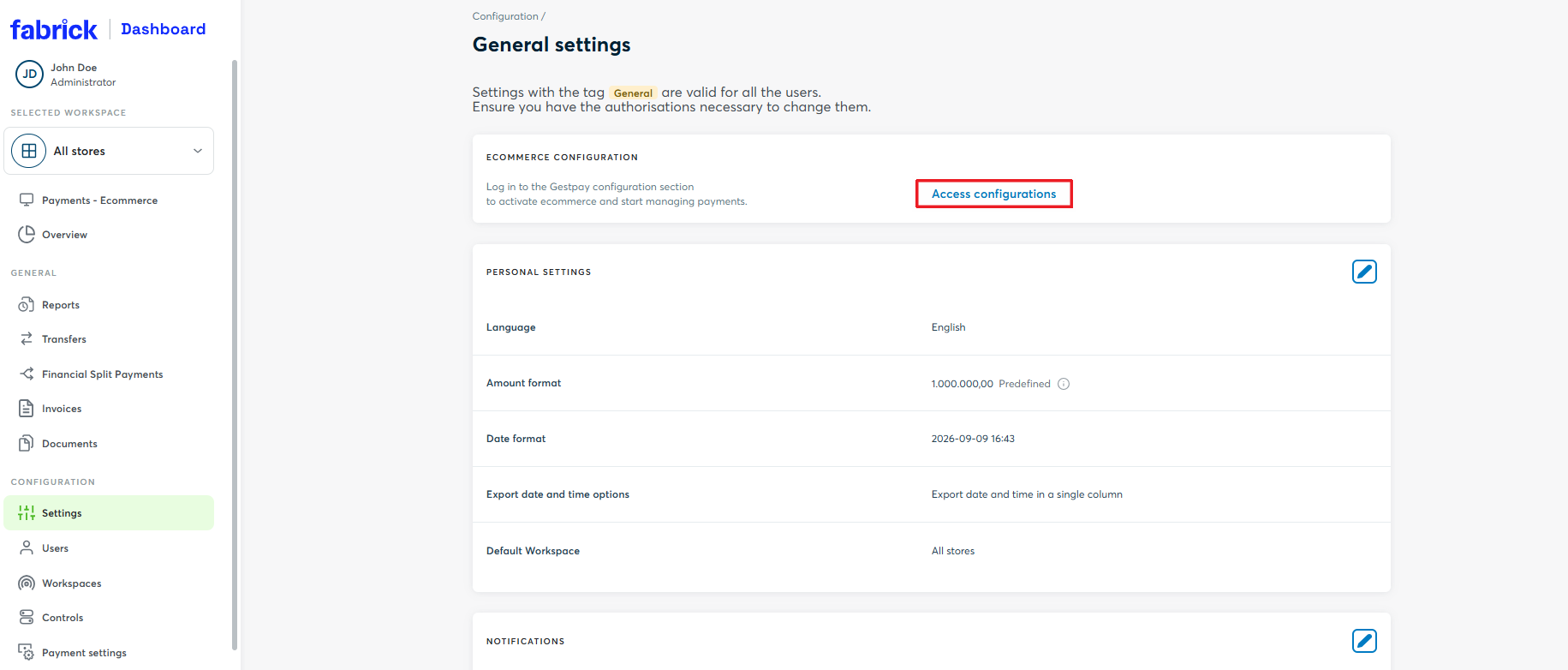
Log in to the Dashboard and go to Settings → Access the configurations
-
Once redirected to the back office, go to Configurations → Environment and click MOTO: a side panel opens with the list of active payment methods
-
Find the payment method and select the mode you want between Unify transaction and Separate
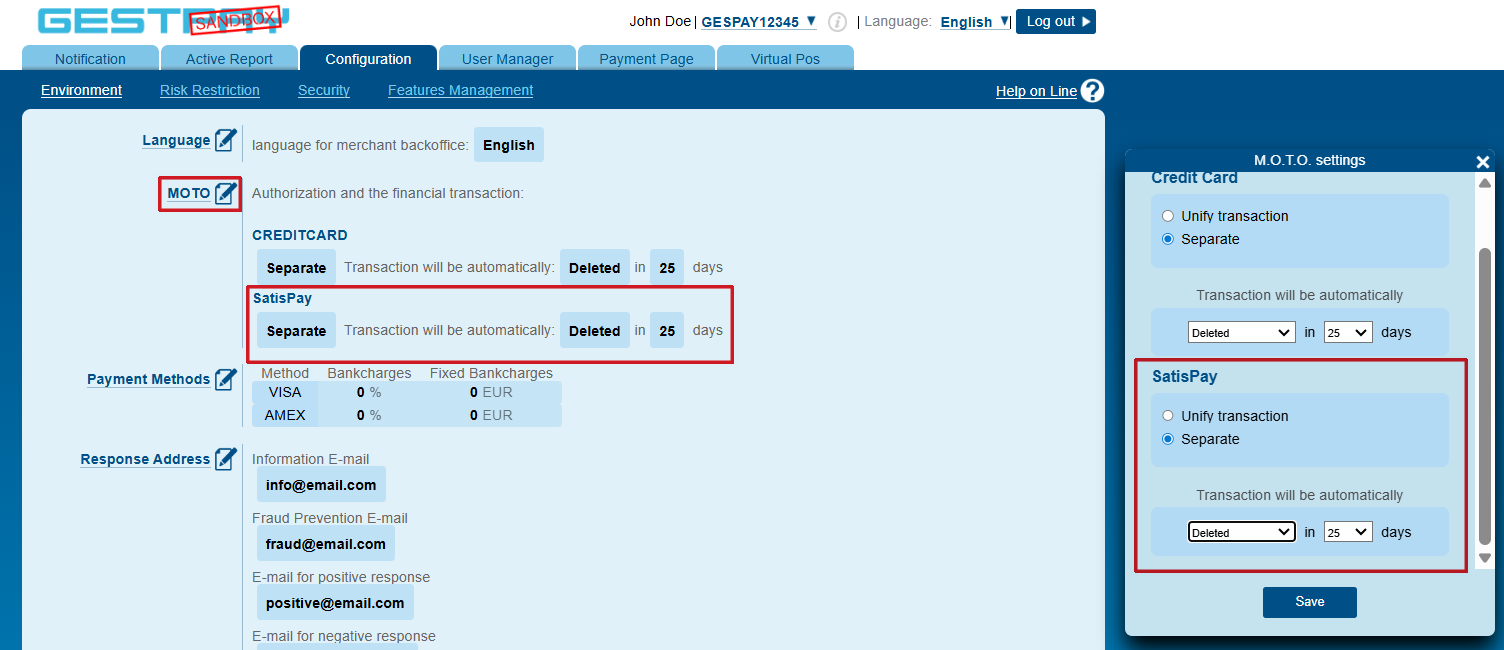
For more details on how the two modes work, see the separated and unified capture section.
Refund limits
Refund rules vary according to the Satispay product used by the buyer for the payment (Satispay reference):
| Product | Time window | Partial refund |
|---|---|---|
| e-money | Within 365 days of the payment creation | Allowed, including multiple refunds up to the total |
| Meal Voucher | Only on the same day as the payment creation | Not allowed: full amount only |
| Fringe Benefit | By the end of the month in which the payment was created | Not allowed: full amount only |
Satispay on Fabrick Payment Orchestra: activation and integration types
Activation request
To use Satispay you need a Satispay business account. If you do not have one yet, you can sign up on the Satispay website.
To start accepting Satispay payments, you can request the activation:
- By contacting your sales representative
- By contacting support at the following link
During activation you must provide Fabrick with the Shop Code and the Activation Code of the shop, available in the Satispay dashboard. Without them the configuration cannot be completed.
The enablement of Meal Voucher and Fringe Benefit must be requested directly from Satispay, not from Fabrick, and depends on the business category of the shop (see Available Satispay products).
Once the required procedures are complete:
- Fabrick enables Satispay on the shop and informs the merchant.
- You can verify that the payment method is active in the Dashboard, under Workspace → Shops → [Select shop] → Settings
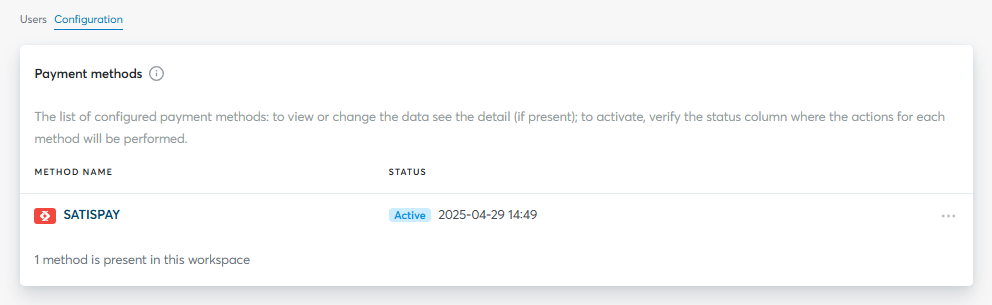
From this moment on, your e-commerce is ready to accept Satispay payments through Fabrick Payment Orchestra.
Integration types
Fabrick offers two integration types for Satispay:
-
Hosted integration
Supported integrations
✓Checkout Page✓Pay By Link✓Web Component✓LightboxSatispay is displayed directly on the Fabrick payment page, with no development work required on the merchant's side. Fabrick handles the display of the payment method and the entire processing phase.
-
API integration
Supported integrations
✓API OnlyThe redirect to Satispay is handled directly through the API. You need to initialise the transaction with
payment/create, setting thepaymentTypefield to theSATISPAYtag, and handle the buyer's redirect.
The process to access the test environment is the same as for production: you can request access to the test environment directly from Satispay, retrieve the dedicated Shop Code and Activation Code, provide them to Fabrick and connect to the test environment to verify your payments.
Hosted integration
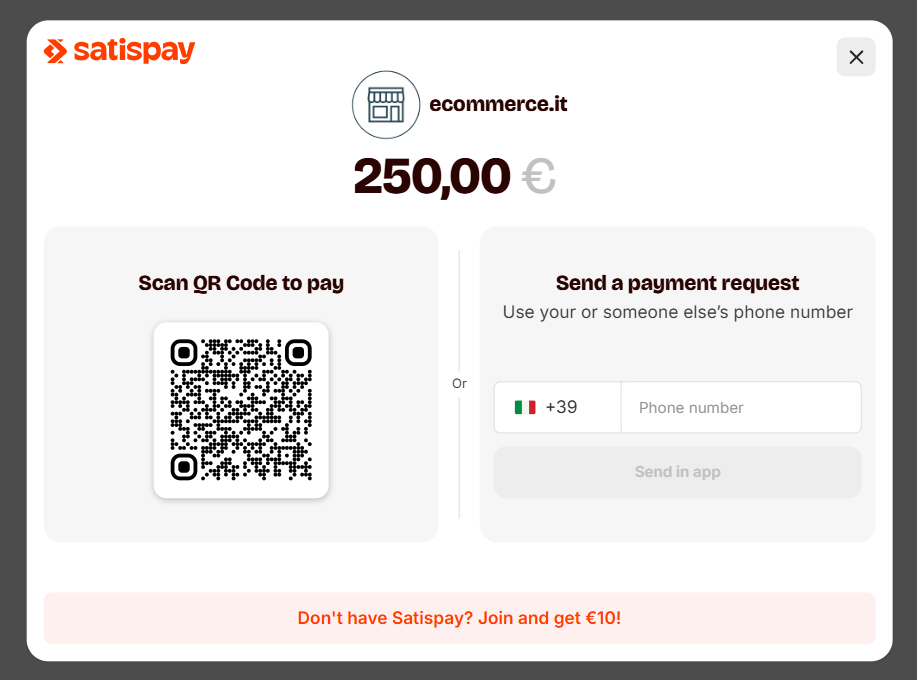
Satispay is displayed directly on the Fabrick payment page, with no additional development work on the merchant's side. Fabrick handles the display of the payment method and the entire transaction processing phase.
To set up the call for the hosted integration, go to the creating the transaction and redirecting to Satispay section and remove the paymentType field from the payment/create call.
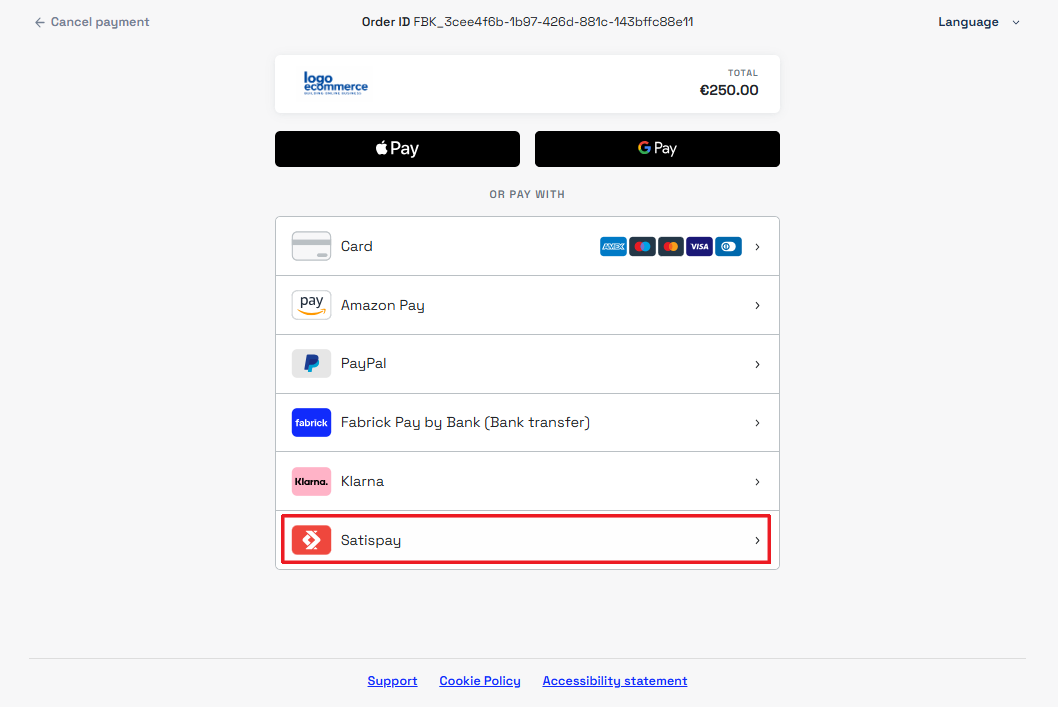
When the buyer selects Satispay, they are redirected to the service to log in and complete the payment.
API integration
To request a Satispay payment using the API integration, you need to initialise the transaction with payment/create using the SATISPAY tag in the paymentType field.
Creating the transaction and redirecting to Satispay
Request
POST /api/v1/payment/create
Host (sandbox): sandbox.gestpay.net
Host (production): ecomms2s.sella.it
Authorization: apikey ****************
Content-Type: application/json
{
    "shopLogin": "GESPAY12345",
    "amount": "375.50",
    "currency": "EUR",
    "shopTransactionID": "FBK_OrderID",
    "paymentType": ["SATISPAY"], // Remove this line for the hosted integration
    "paymentChannel": { "channelType": ["LINK"] }
}
The response returns the link to redirect the buyer to Satispay in the payload.userRedirect.href field.
Response
{
    "error": {
        "code": "0",
        "description": "request correctly processed"
    },
    "payload": {
        "paymentToken": "b59abdc3-4eac-4660-b11b-4879d308cf09",
        "paymentID": "12864010053773",
        "userRedirect": {
            "href": "https://sandbox-web.axerve.com/orchestra/checkout/pbl/a/GESPAY12345/b/12864010053773/c/b59abdc3-4eac-4660-b11b-4879d308cf09"
        },
        "qrCode": null
    }
}
The returned link can be used under a Pay with Satispay button. For the official brand assets and their conditions of use, contact your Satispay representative.
Additional payment method features
Meal Voucher and Fringe Benefit
If the shop is enabled for Meal Vouchers and/or Fringe Benefits, these products are always active: they are applied automatically by Satispay based on the buyer's balance and on the wallet set as primary in their app. No specific parameter needs to be sent to accept them.
Meal Voucher: limiting the transaction caps
By default, that is when the ProductDetails object with Type: "12" is not sent, the system allows the maximum number of vouchers provided for, which is 8.
The Type: "12" object therefore serves only to change or reset this behaviour on a single transaction:
| Field | Effect |
|---|---|
Type: "12" | Identifies the line as a Meal Voucher configuration |
Quantity | Maximum number of vouchers that can be used in the transaction (default: 8) |
Price | Maximum total amount payable with vouchers |
- Limiting the vouchers available
- Excluding meal vouchers
- Detailing the order
To allow a number of vouchers lower than the cap, set Quantity to the value you want. In this example the transaction accepts a maximum of 4 vouchers, for a total voucher amount of no more than €32.
Request
POST /api/v1/payment/create
Host (sandbox): sandbox.gestpay.net
Host (production): ecomms2s.sella.it
Authorization: apikey ****************
Content-Type: application/json
{
    "shopLogin": "GESPAY12345",
    "amount": "65.50",
    "currency": "EUR",
    "shopTransactionID": "FBK_OrderID",
    "paymentType": ["SATISPAY"], // Remove this line for the hosted integration
    "paymentChannel": { "channelType": ["LINK"] },
    "orderDetails": {
        "ProductDetails": [
            {
                "Name": "Meal vouchers",
                "Quantity": "4",
                "Price": "32",
                "UnitPrice": "8",
                "Type": "12"
            }
        ]
    }
}
To prevent the use of meal vouchers on the transaction altogether, set Quantity, Price and UnitPrice to 0. The full amount will be paid with e-money.
Request
POST /api/v1/payment/create
Host (sandbox): sandbox.gestpay.net
Host (production): ecomms2s.sella.it
Authorization: apikey ****************
Content-Type: application/json
{
    "shopLogin": "GESPAY12345",
    "amount": "65.50",
    "currency": "EUR",
    "shopTransactionID": "FBK_OrderID",
    "paymentType": ["SATISPAY"], // Remove this line for the hosted integration
    "paymentChannel": { "channelType": ["LINK"] },
    "orderDetails": {
        "ProductDetails": [
            {
                "Name": "Meal vouchers",
                "Quantity": "0",
                "Price": "0",
                "UnitPrice": "0",
                "Type": "12"
            }
        ]
    }
}
There is no need to state the difference between the amount payable with vouchers and the transaction total: the system calculates it automatically and covers it with e-money. You can however add further ProductDetails lines if you want to send a more complete breakdown of the order.
Request
POST /api/v1/payment/create
Host (sandbox): sandbox.gestpay.net
Host (production): ecomms2s.sella.it
Authorization: apikey ****************
Content-Type: application/json
{
    "shopLogin": "GESPAY12345",
    "amount": "65.50",
    "currency": "EUR",
    "shopTransactionID": "FBK_OrderID",
    "paymentType": ["SATISPAY"], // Remove this line for the hosted integration
    "paymentChannel": { "channelType": ["LINK"] },
    "orderDetails": {
        "ProductDetails": [
            {
                "Name": "Meal vouchers",
                "Quantity": "4",
                "Price": "32",
                "UnitPrice": "8",
                "Type": "12"
            },
            {
                "Name": "Purchase",
                "Quantity": "1",
                "Price": "33.50",
                "UnitPrice": "33.50",
                "Type": "1"
            }
        ]
    }
}
These parameters only define caps: it is Satispay that determines how many vouchers are actually used, based on the balance in the buyer's account. The real number of vouchers used is known only once the payment is complete.
Fringe Benefit: no parameter required
There is no configuration parameter for Fringe Benefits: if the shop is enabled, they are applied automatically when the buyer has the Fringe Benefit wallet set as primary. Their number and amount cannot be specified towards Satispay, so no dedicated ProductDetails line should be sent.
Payments made with Fringe Benefits can only be refunded for the full amount, and by the end of the month in which the payment was created. See Refund limits.
Tokenization and recurring payments
Recurring payments are enabled and available to all merchants. The flow consists of two phases: creating the token and using it for subsequent payments.
Creating the token
Tokenization is enabled by including the satisPayDescription field in the payment/create call. The token can be requested in two ways:
- Alongside a payment, setting the actual amount of the order: the transaction is charged to the buyer and the token is generated at the same time
- Without a payment, setting the amount to
0: no amount is charged and the call serves only to generate the token
Request
POST /api/v1/payment/create
Host (sandbox): sandbox.gestpay.net
Host (production): ecomms2s.sella.it
Authorization: apikey ****************
Content-Type: application/json
{
    "shopLogin": "GESPAY12345",
    "amount": "0",
    "currency": "EUR",
    "shopTransactionID": "FBK_OrderID",
    "paymentType": ["SATISPAY"],
    "paymentChannel": { "channelType": ["LINK"] },
    "satisPayDescription": "Gym membership"
}
The satisPayDescription field is mandatory to start a recurring payment flow: it contains the description of the agreement shown to the buyer. Without it, a standard payment is processed.
The response returns the link to redirect the buyer to Satispay in the payload.userRedirect.href field.
Response
{
    "error": {
        "code": "0",
        "description": "request correctly processed"
    },
    "payload": {
        "paymentToken": "f18637e4-677f-4b3f-b494-d964d276c6e9",
        "paymentID": "25320110053774",
        "userRedirect": {
            "href": "https://sandbox-web.axerve.com/orchestra/checkout/a/3064c1b18acb4b8d9b8a2e5c81dd398b/b/ac1dc75fef96f660fce83b75dd6c1f20f3b67d74487b937f570909c7e199aa8a28eac18b-275b-46e5-86f1-38b13abaa5e6LLSCRgadjN2jB6tm9WM7tZuBdAwDZSSNkR35Cz09khCThZf1mFk6Axzyt5CSVDm5aI7qYk0VX5KI2dKI0I985sqfS9uLoZTgUw0-JSJMtNRat7hsDgz7DzvatK8hiBf6I432mcdxE8af6oKNohNnnPE4cwpg"
        },
        "qrCode": null
    }
}
Redirect the buyer to the returned link: the buyer logs in to Satispay and authorises the agreement, which shows the description provided in satisPayDescription.
Retrieving the token
Once the buyer has completed the transaction, the generated token is available through GET /payment/detail, in the payload.token field: retrieve it and store it for subsequent payments.
The result returned in transactionResult depends on how the token was requested:
| Mode | transactionResult |
|---|---|
Tokenization without a payment (amount 0) | WAITING |
| Tokenization alongside a payment | Positive outcome of the transaction |
- Amount set to zero
- Alongside a payment
Request
GET /api/v1/payment/detail/{paymentID}
Host (sandbox): sandbox.gestpay.net
Host (production): ecomms2s.sella.it
Authorization: apikey ****************
Content-Type: application/json
Response
{
    "error": {
        "code": "0",
        "description": "request correctly processed"
    },
    "payload": {
        "transactionType": "detail",
        "transactionResult": "WAITING",
        "transactionState": "",
        "transactionErrorCode": "",
        "transactionErrorDescription": "",
        "bankTransactionID": "",
        "shopTransactionID": "",
        "shopTransactionID_2": "",
        "authorizationCode": "",
        "paymentID": "",
        "currency": "",
        "country": "",
        "company": "",
        "tdLevel": "",
        "threeDS": {
            "authenticationResult": null,
            "transDetails": null
        },
        "events": null,
        "buyer": null,
        "risk": null,
        "customInfo": null,
        "alertCode": "",
        "alertDescription": "",
        "cvvPresent": "",
        "dcc": null,
        "maskedPAN": "",
        "paymentMethod": "",
        "productType": "",
        "token": "STLBMSRUE3HYYUT9",
        "tokenExpiryMonth": "",
        "tokenExpiryYear": "",
        "tokenDetails": null,
        "fraudPrevention": null,
        "automaticOperation": null
    }
}
Request
GET /api/v1/payment/detail/{paymentID}
Host (sandbox): sandbox.gestpay.net
Host (production): ecomms2s.sella.it
Authorization: apikey ****************
Content-Type: application/json
Response
{
    "error": {
        "code": "0",
        "description": "request correctly processed"
    },
    "payload": {
        "transactionType": "detail",
        "transactionResult": "APPROVED",
        "transactionState": "AUT",
        "transactionErrorCode": "0",
        "transactionErrorDescription": "Transaction correctly processed",
        "bankTransactionID": "4561",
        "shopTransactionID": "FBK_OrderID",
        "shopTransactionID_2": "",
        "authorizationCode": "ST8248",
        "paymentID": "1881129911957",
        "currency": "EUR",
        "country": "",
        "company": "SATISPAY",
        "tdLevel": "",
        "threeDS": {
            "authenticationResult": null,
            "transDetails": null
        },
        "events": [
            {
                "event": {
                    "eventtype": "AUT",
                    "eventamount": "5.00",
                    "eventdate": "03/09/26 15:13:43",
                    "eventARN": "",
                    "eventID": "",
                    "eventReferred": ""
                }
            }
        ],
        "buyer": {
            "name": "",
            "email": ""
        },
        "risk": {
            "riskResponseCode": "",
            "riskResponseDescription": ""
        },
        "customInfo": null,
        "alertCode": "",
        "alertDescription": "",
        "cvvPresent": "FALSE",
        "dcc": null,
        "maskedPAN": "",
        "paymentMethod": "SATISPAY",
        "productType": "",
        "token": "STLBMSRUE3HYYUT9",
        "tokenExpiryMonth": "",
        "tokenExpiryYear": "",
        "tokenDetails": null,
        "fraudPrevention": {
            "check": "FALSE",
            "state": "",
            "description": "",
            "order": ""
        },
        "automaticOperation": {
            "type": "CAN",
            "date": "28/09/26 00:00:00",
            "amount": "5.00"
        }
    }
}
Using the token for subsequent payments
Create the payment request with payment/create without setting paymentType.
Request
POST /api/v1/payment/create
Host (sandbox): sandbox.gestpay.net
Host (production): ecomms2s.sella.it
Authorization: apikey ****************
Content-Type: application/json
{
    "shopLogin": "GESPAY12345",
    "amount": "10",
    "currency": "EUR",
    "shopTransactionID": "FBK_OrderID"
}
Response
{
    "error": {
        "code": "0",
        "description": "request correctly processed"
    },
    "payload": {
        "paymentToken": "7ebd948a-c9ad-44c9-ac43-02b0beb55a7a",
        "paymentID": "1541109548247",
        "userRedirect": null,
        "qrCode": null
    }
}
In the payment/submit call, use the token to process the payment:
PaymentTokenheader: populate it with thepaymentTokenreceived frompayment/create- Body: populate
paymentTypeDetails.satisPay.tokenwith the Satispay token retrieved throughpayment/detail
Request
POST /api/v1/payment/submit
Host (sandbox): sandbox.gestpay.net
Host (production): ecomms2s.sella.it
PaymentToken: 7ebd948a-c9ad-44c9-ac43-02b0beb55a7a
Content-Type: application/json
{
    "shopLogin": "GESPAY12345",
    "paymentType": "SATISPAY",
    "paymentTypeDetails": {
        "satisPay": {
            "token": "STLBMSRUE3HYYUT9"
        }
    }
}
Support
Fabrick
- Status page: https://status.fabrick.com/
- Support: https://landing.fabrick.com/fabrick-dashboard-support
Satispay
- Docs: https://developers.satispay.com/
- Business dashboard: https://business.satispay.com/login