Shopify
Available features
The Fabrick Payment Orchestra integration on Shopify is offered as an Application and allows the use of various payment methods.
The Fabrick app for Shopify enables payment through the Fabrick Payment Orchestra payment gateway, which allows accepting cards from the main national and international circuits and over 250 alternative systems. The over 1.7 million businesses that rely on Shopify will have access to the payment methods allowed by the partner (continuously updated) that the merchant has subscribed with Fabrick.
The application provides a single settings panel for:
- entering your own "shop login" and "api key" that the merchant must have previously requested from Fabrick after activating a contract.
Multi-language and multi-currency management are handled automatically based on the Shopify order parameters and portal settings.
Back Office configuration (myCommerce dashboard)
At the following link you can request a Test Account to test the Plugin with the Fabrick Payment Orchestra payment gateway:
https://dashboard.gestpay.net/BackOffice/
Once the test account has been created, you need to communicate the Shoplogin, all payment methods and features you want to test via the technical support form.
Creating the test account also allows you to proceed with the next steps.
Perform the following steps in the application Back Office:
- Once logged into your Fabrick Back Office, go to the menu Configuration > Security.
- Click "Security Level".
- Click "APIKEY".
- Select "Add Key".
- Go to the menu "Security Level".
- Select the "APIKEY" checkbox.
Shopify installation flow
To activate the Application on your Shopify portal, the merchant must proceed through the standard application installation procedure from this link.
1. Install the payment
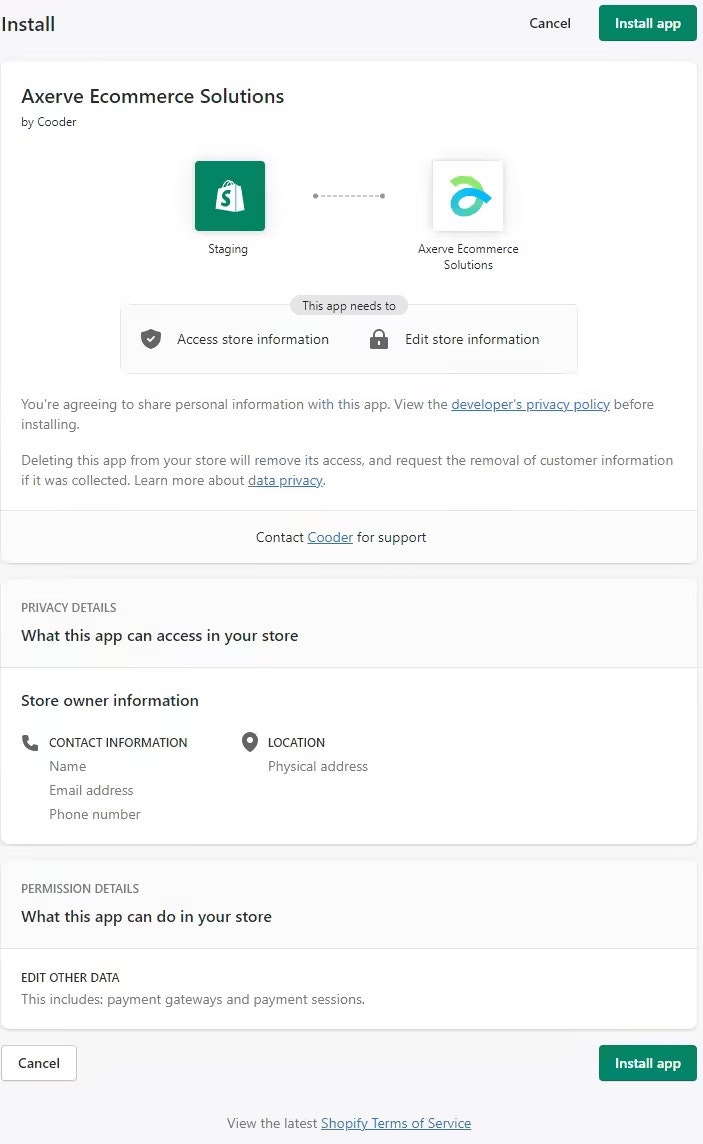
In this phase the Application installs and authenticates with the shop through the oAuth protocol (https://shopify.dev/apps/auth/oauth), notifying the merchant of the data the Application has access to, called "scopes":
write_payment_gateways: read and write API access for gateway settings configurationwrite_payment_sessions: read and write access related to payment and refund sessions
From this phase the Application obtains the accessToken to interact with the transactions created by the e-commerce platform.
Steps to follow on the Shopify platform:
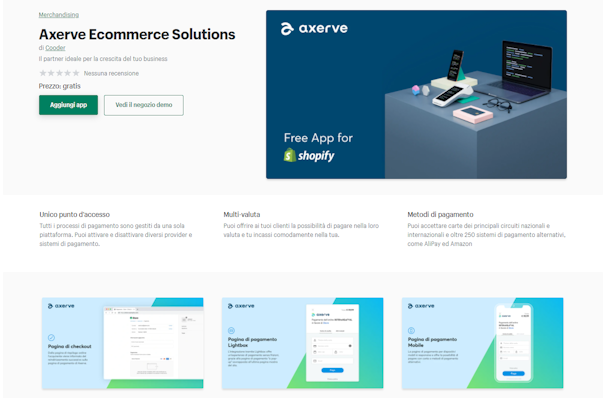
From the Application page click on the "Add App" CTA
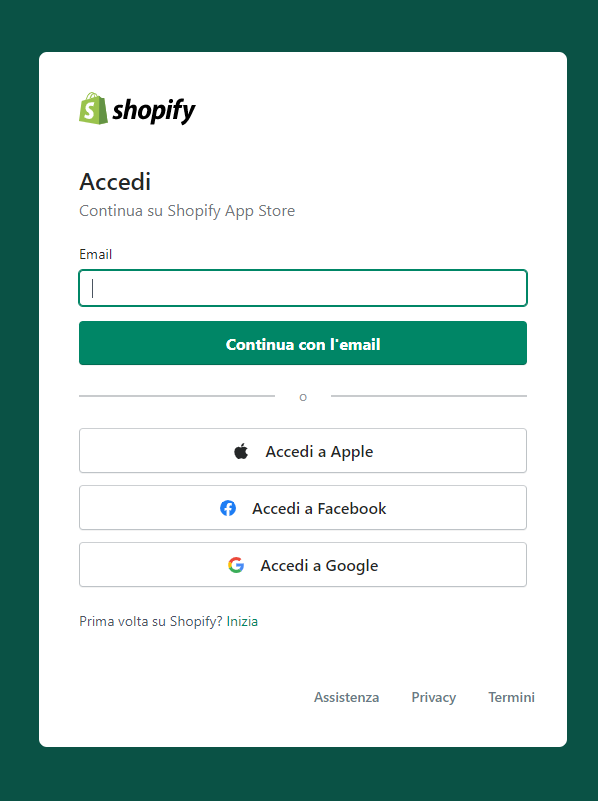
You will be asked to log into your store if not already connected:
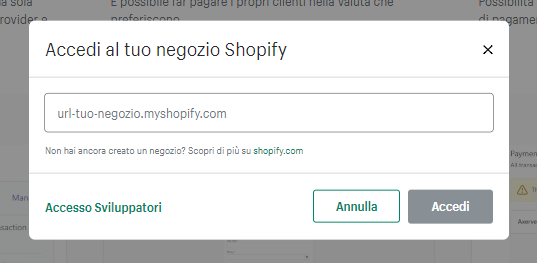
Select from the store list the store where you want to install the Application, or enter the URL directly.
Complete the installation procedure on your store, confirming that you want to install the Application.
2. Configure and activate the payment method
You need to configure the new payment method to activate it before making it available. As also indicated in the configuration form, in this case you need to have previously activated a contract with Fabrick in order to have an account with two essential parameters:
- Shop Login (ex. GESPAY12345)
- Payment Api Key (ex. YzejApM8AfnBzmvmMsMIp0y1V91aakQY…)
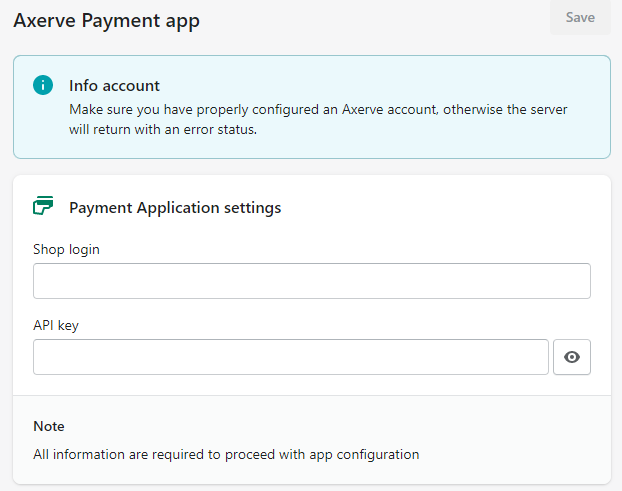
You need to enter the data and save to be able to manage the payment method and find it in the Settings > Payment section to which you are automatically redirected. If the data is not saved, you need to proceed again with the installation phase described in step 1.
After configuring and saving the data, the method can be activated and from that moment it is also visible in the checkout flow.
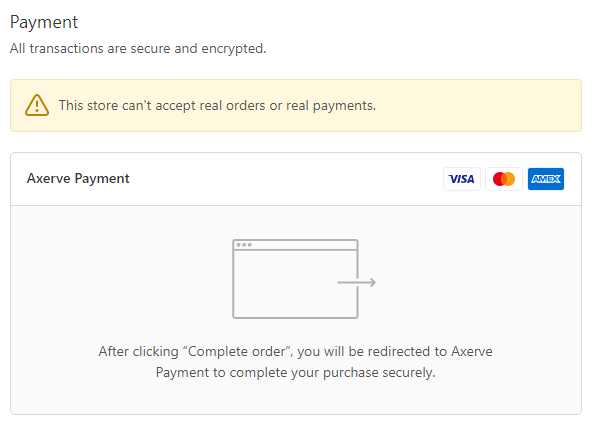
After completing the installation and configuration steps, click "Activate".
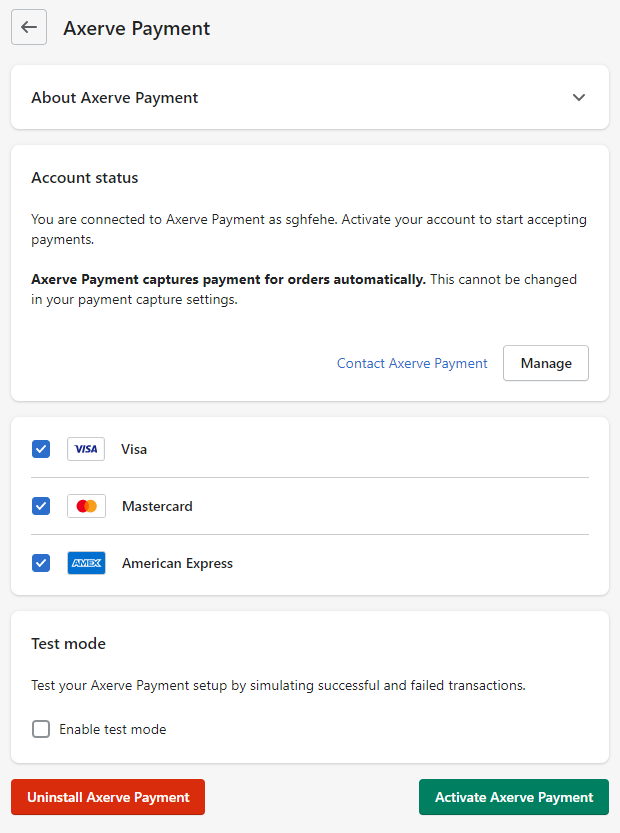
3. Deactivate the payment method
If you want to deactivate the payment method, you can do so from the gateway Configuration Panel in Shopify. When the method is deactivated, it is removed from the list of available/enabled methods, but it is still possible to process refunds for previously received orders.
Do not uninstall the Application. Once the Application is uninstalled, all operations on orders paid with that gateway, including refunds, are disabled.
- Select the provider from the list, in the "Supported payment methods" section.
- Click "Manage".
- Click "Deactivate" to deactivate the provider.
- Click "Deactivate Payments App".
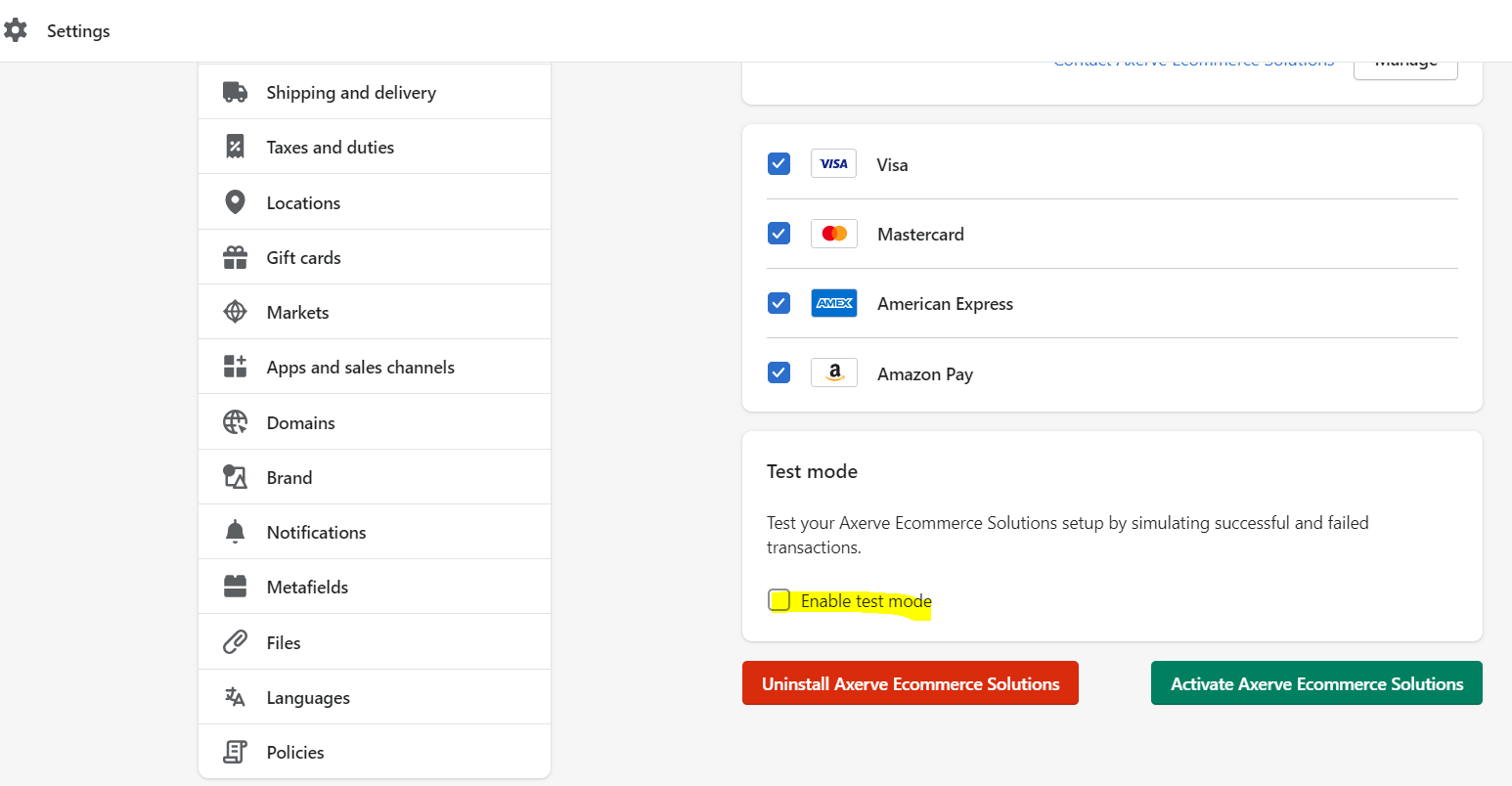
4. Enable test mode on Shopify
After creating the test account on Fabrick and configuring Shopify, to enable test mode simply select the specific option.
5. Reconcile Shopify and Fabrick orders
To reconcile orders between the Shopify backend and the Fabrick dashboard, note that the ShopTransactionID on the Fabrick dashboard corresponds to the Payment Reference on the Shopify order.