PrestaShop
The Fabrick Checkout module integrates Fabrick Payment Orchestra payments into PrestaShop through the REST APIs and the Web Component <fbk-checkout>. The buyer completes the payment on a dedicated page of the store, where the Web Component presents the card and the alternative payment methods (APMs) enabled on the shopLogin.
The module uses the <fbk-checkout> Web Component, which presents all the payment methods enabled on the shopLogin: there is therefore no list of methods supported by the plugin. To offer a method, simply enable it on the shopLogin; Apple Pay and Google Pay also require the configuration described in the Requirements.
Main features
- Standard payment with card and the APMs enabled on the shopLogin
- Checkout on a dedicated page (Redirect) with the Fabrick Web Component
- Pay By Link (optional)
- Card saving with customer consent and management from the Account area (optional)
- Server-to-server notifications and buyer return to the store
- Reconciliation of pending payments through CRON, for example for Pay By Bank
- Refunds from the PrestaShop back office
- Multistore, with configuration and credentials for each store
Requirements
- PrestaShop 8.0 or later, or 9.x
- Fabrick account with Payment Orchestra, Web Components and REST APIs enabled
- Shop Login and API Key credentials, for sandbox or production
- HTTPS on the store domain: recommended in sandbox, mandatory in production
- For Apple Pay and Google Pay, the wallet configuration for the Web Component, described on the Apple Pay and Google Pay pages
Compatibility is not guaranteed if modules that change the standard PrestaShop checkout flow are installed.
Installation
- Upload the module archive, or copy the
fabrickcheckoutfolder to themodules/directory of the store. - In the PrestaShop back office, go to Modules, search for Fabrick Checkout and click Install.
- Click Configure and fill in the settings described in the Module configuration section.
- Check that the module is enabled and available for the cart currencies.
After an update performed without reinstalling the module, open the configuration page at least once: the module automatically checks and restores the hook registration and the configuration.
Fabrick back-office configuration
Before configuring the module, you need to retrieve the credentials and enable some response parameters in the Fabrick merchant back office.
Creating and copying the API Key
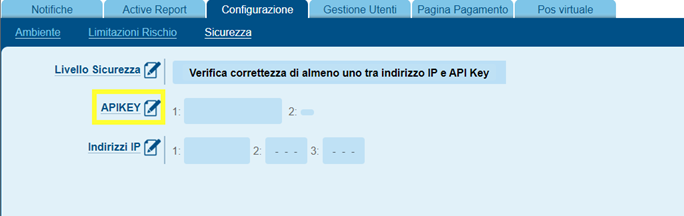
- Go to Configurazione > Sicurezza > APIKEY and open the key management.
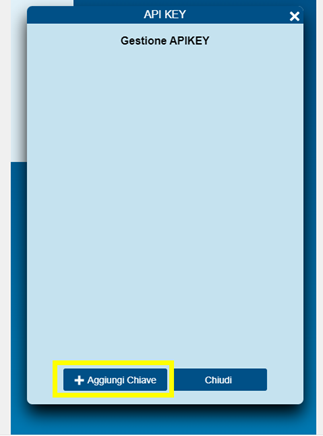
- Click Aggiungi Chiave (Add Key).
- Use the copy icon next to the new key and paste it into the API Key field of the PrestaShop module.

The API Key allows operations on the payments of the shopLogin: do not share it or expose it outside the module configuration. Sandbox and production credentials are different.
Response parameters
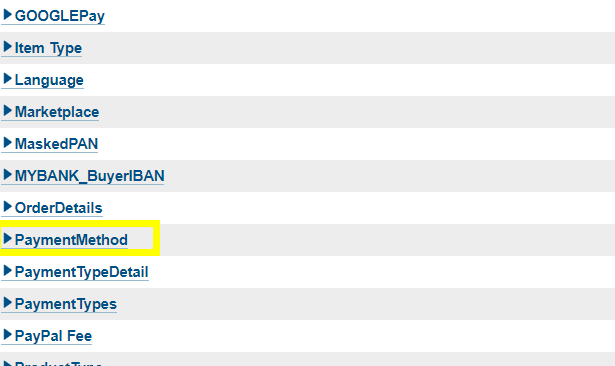
In Pagina di Pagamento > Campi & Parametri, enable the following parameters in the response, on both pages:
PaymentMethodTokenToken ExpiryMonthToken ExpiryYear
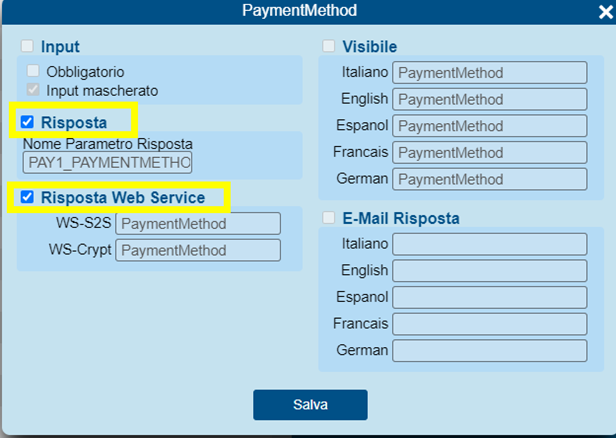
For each parameter, open its panel, select Risposta (Response) and Risposta Web Service (Web Service Response), then click Salva (Save). The example below shows PaymentMethod; the other parameters follow the same logic.
Module configuration
The configuration is available in Modules > Fabrick Checkout > Configure.
If PrestaShop manages more than one store, select the store in the back-office header before opening or saving the configuration. Settings apply to the single store and are not applied in bulk to All stores.
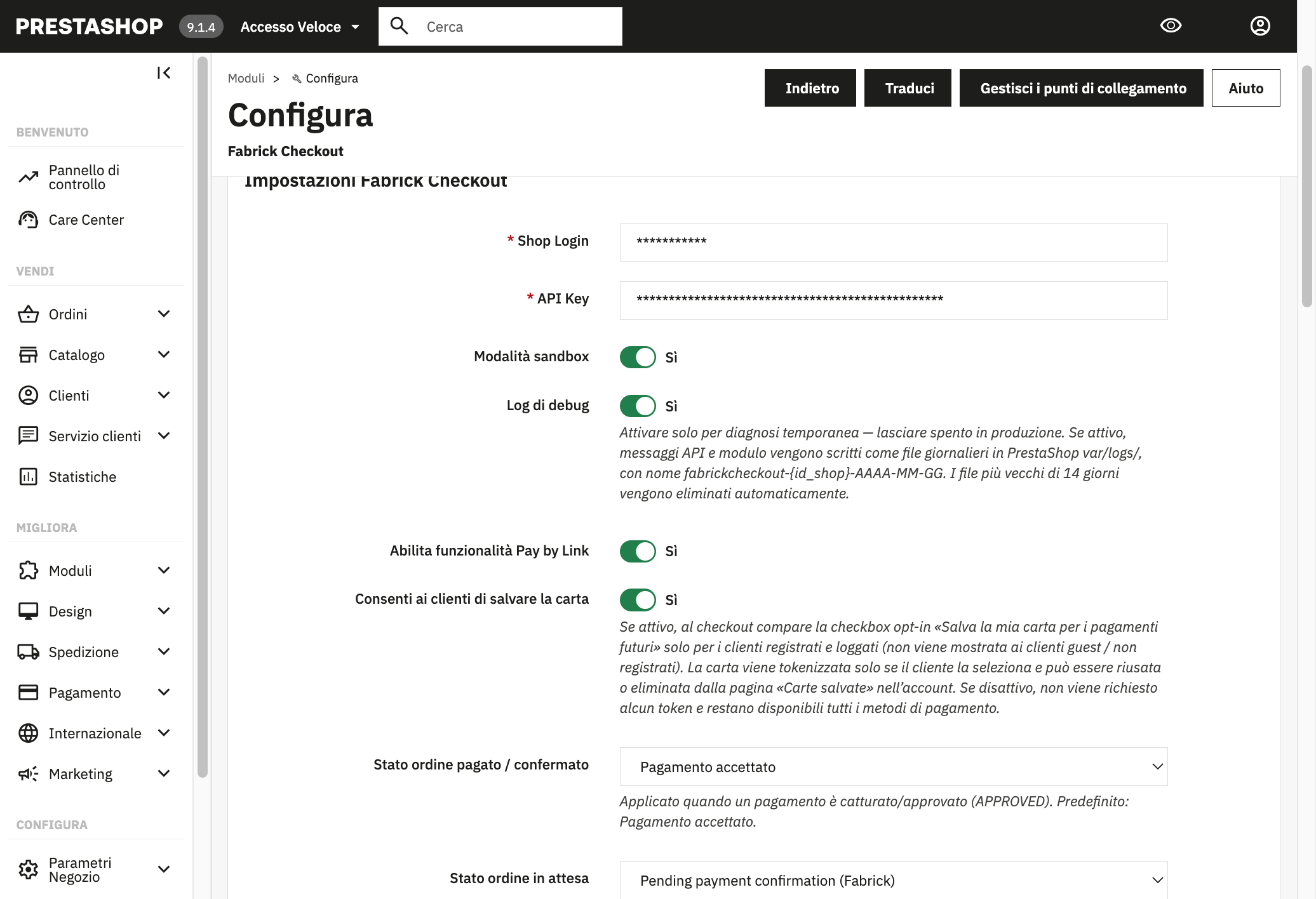
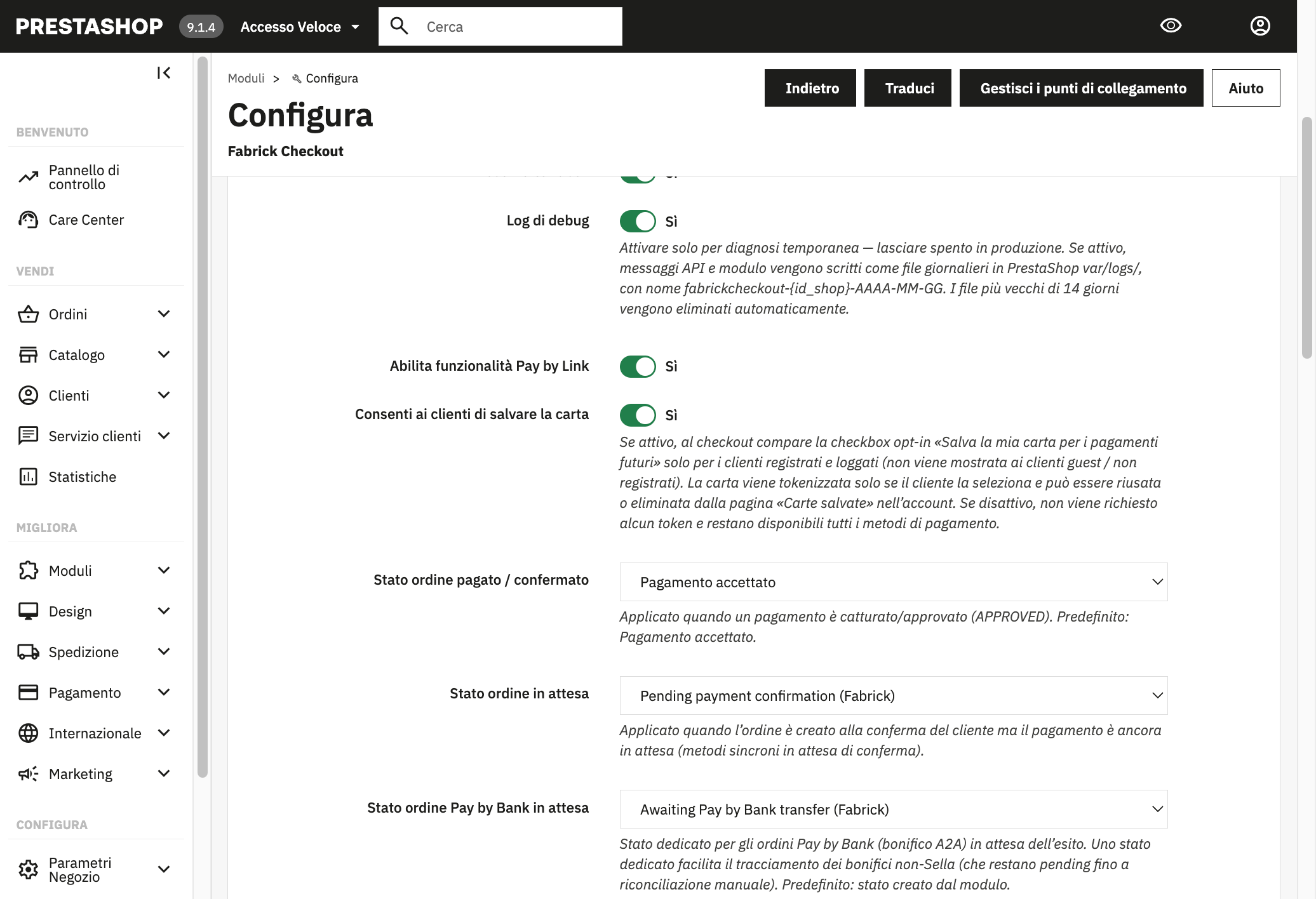
Credentials and environment
| Setting | Description |
|---|---|
| Shop Login | Merchant code assigned by Fabrick |
| API Key | API key created in the Fabrick back office (see Creating and copying the API Key) |
| Sandbox mode | Yes: requests are sent to the test environment. No: requests are sent to the production environment |
| Debug log | Writes daily logs to var/logs/fabrickcheckout-{id_shop}-YYYY-MM-DD. Enable it only for temporary diagnostics and disable it in production: files older than 14 days are deleted automatically |
Functional options
| Setting | Description |
|---|---|
| Enable Pay by Link | Shows the Pay By Link payment option at checkout |
| Pay by Link validity (hours) | Validity period of the payment link, up to a maximum of 49 hours |
| Allow customers to save their card | Shows the Save my card for future payments checkbox at checkout and the Saved cards page in the Account area. See Saved cards |
Order states
On installation the module creates dedicated order states, which can be mapped to existing PrestaShop states.
| Setting | When it is applied | Default value |
|---|---|---|
| Paid / confirmed order state | Payment approved (APPROVED) | Payment accepted |
| Pending order state | Order created on customer confirmation, with the payment still awaiting an outcome (methods with deferred confirmation) | Pending payment confirmation (Fabrick) |
| Pending Pay by Bank order state | Order paid with Pay By Bank, awaiting the outcome of the transfer | Awaiting Pay by Bank transfer (Fabrick) |
States for Pay By Link pending / paid and for failed payment can also be configured.
A state dedicated to Pay By Bank orders makes it easier to track transfers that do not return an immediate outcome: these orders remain pending until reconciliation, either automatic through CRON or manual.
Pending payment reconciliation (CRON)
Some methods, such as Pay By Bank and Pay By Link, return the final outcome after the buyer has returned to the store. The reconciliation CRON periodically checks with Fabrick the orders in the dedicated pending states and updates them only when a final outcome, positive or negative, is available.
Abandoned checkout sessions and other payment methods are excluded from reconciliation.
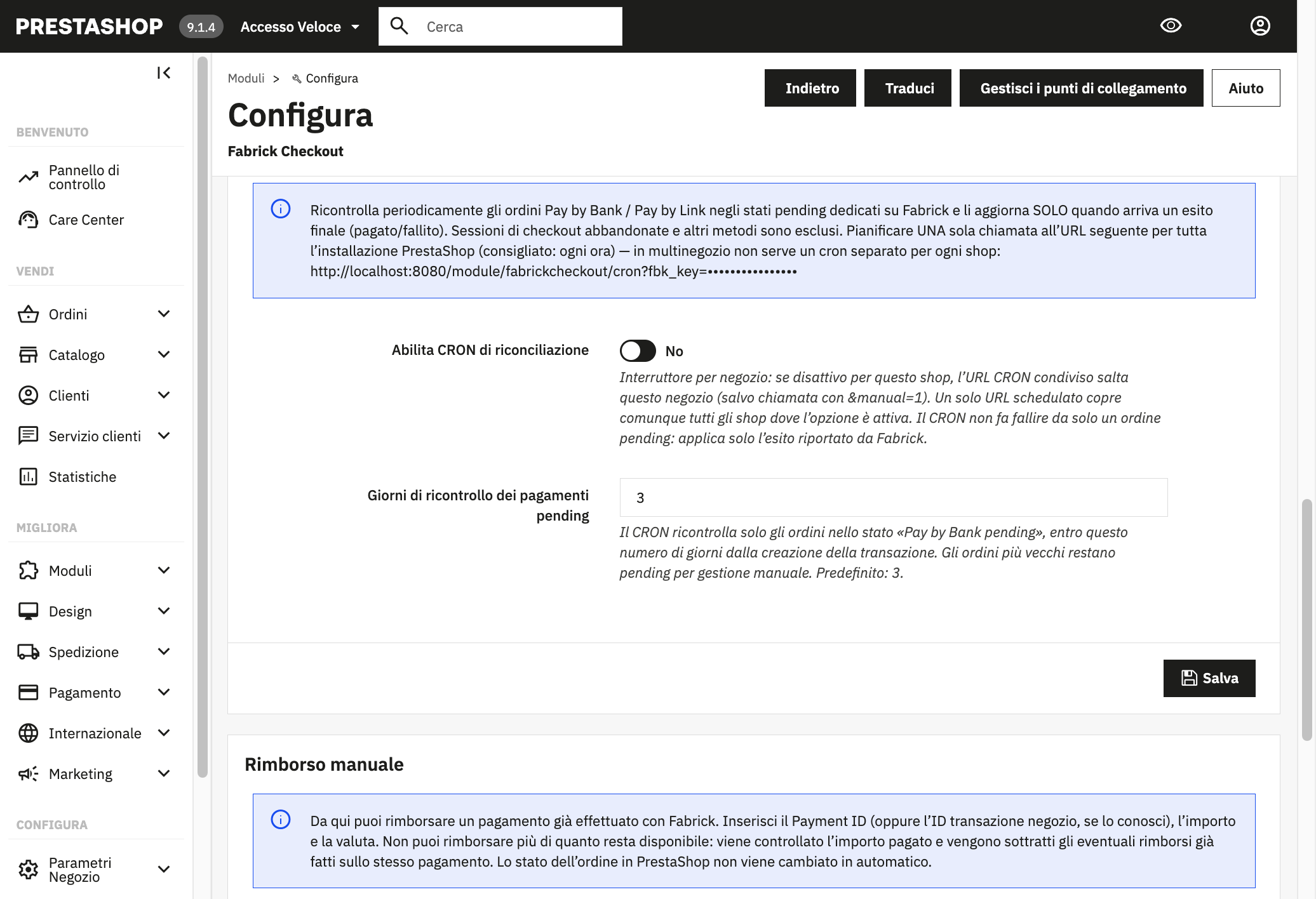
| Setting | Description |
|---|---|
| Enable reconciliation CRON | Enables reconciliation for the store. If disabled, the CRON call skips the store, unless it is run manually with the &manual=1 parameter |
| Days to recheck pending payments | Number of days, from the creation of the transaction, within which a pending order is rechecked. Older orders remain pending and must be handled manually. Default: 3 |
Scheduling the CRON
Schedule a single periodic call on the server, for example every hour, to the URL shown on the configuration page:
https://yourdomain/module/fabrickcheckout/cron?fbk_key=...
- In multistore setups you do not need one CRON per store: the same URL, on the main domain and without the path of the individual store (for example
/shop2/), reconciles all the stores where the CRON is enabled. - The
fbk_keyvalue is the key of the default store, generated on installation: do not share it publicly. - The CRON never marks an order as failed on its own: it only applies the outcome returned by Fabrick.
Manual refund
From the Manual refund section of the configuration you can refund a payment already processed with Fabrick.
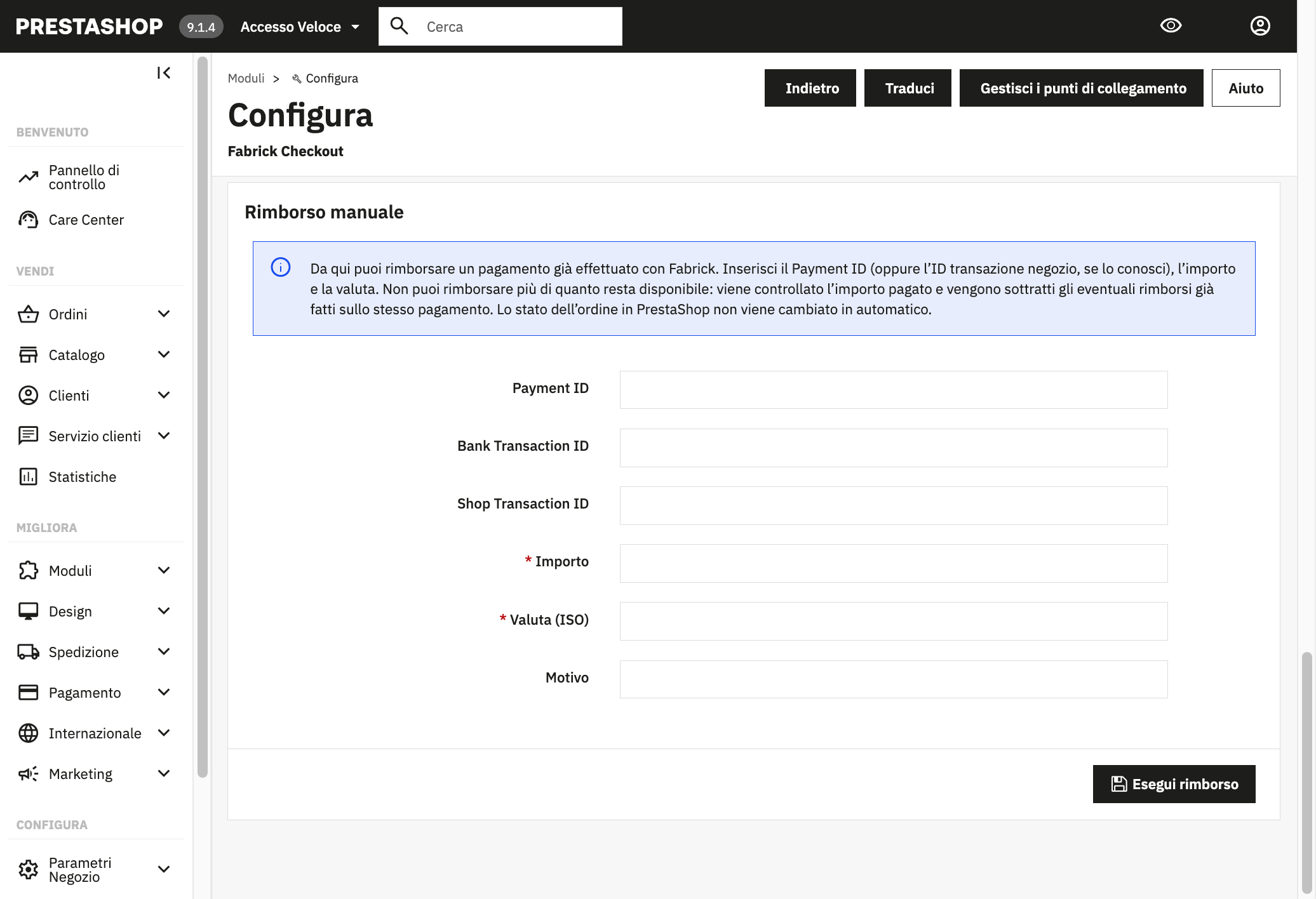
- Enter the Payment ID of the payment, or the Bank Transaction ID or Shop Transaction ID if you know them.
- Enter the Amount and the Currency (ISO), both mandatory, and optionally the Reason.
- Click Execute refund.
- You cannot refund more than the remaining amount: the module checks the amount paid and subtracts any refunds already made on the same payment.
- The order state in PrestaShop is not updated automatically: if needed, update it manually from the order page.
Payment experience
The module uses the Redirect mode: the payment takes place on a dedicated page of the module, which embeds the Fabrick Web Component.
Standard payment
- The customer completes the cart and the checkout up to the payment step.
- They select Pay with Fabrick and, if available, the card saving checkbox.
- They are redirected to the dedicated page and complete the payment in the Web Component, with a card or one of the available APMs.
- At the end, the order is confirmed in PrestaShop, or remains in the pending state set for the method used.
If the payment is declined, for example because 3DS authentication failed, the customer returns to the payment step of the checkout and sees a notice at the top of the page stating that the payment was not completed, with the reason returned by Fabrick when available.
Pay By Link
If the option is enabled, a dedicated choice for paying by link appears at checkout. The customer receives or uses the link according to the Fabrick configuration, and the order may remain in the pending state until the payment outcome.
Saved cards
With the Allow customers to save their card option enabled:
- the Save my card for future payments checkbox is shown only to registered and logged-in customers, not to guests;
- the card is tokenized only if the customer selects the checkbox before completing the payment;
- on subsequent payments the Pay with saved card option may appear, with the card brand, last digits and expiry date;
- from Account > Saved cards the customer can view and delete their saved cards; deletion also revokes the token on Fabrick, when possible.
With the option disabled, no token is requested and all payment methods remain available. For how tokenization works, see the Tokenization section.
Buyer return and notifications
- Buyer return: at the end of the payment, the customer is taken back to the store.
- Server-to-server notification: reliably updates the order state on the server side, even if the customer does not return to the store. Do not disable the public URLs of the module, which must remain reachable by Fabrick.
Sandbox and testing
- Enable Sandbox mode and enter the test credentials.
- Run payments with the Fabrick test cards, for example for the frictionless, challenge and failed 3DS authentication flows.
- Check order creation, order states and, if used, card saving.
- With Debug log enabled, check the
var/logs/fabrickcheckout-{id_shop}-YYYY-MM-DDfiles on the server. - Check that a declined payment takes the customer back to the payment step with the notice at the top of the page.
Do not use real cards in the sandbox environment.
Go-live checklist
Before enabling the module in production, check the following:
- Sandbox mode set to No
- Production Shop Login and API Key
- Debug log disabled, or enabled only for as long as needed
- Site on HTTPS and module URLs reachable by Fabrick
- CRON scheduled, if you use methods with a deferred outcome such as Pay By Bank
- End-to-end tests completed with card and with the enabled APMs
- Apple Pay and Google Pay configured for the production domain, if used
Troubleshooting
Start with the simplest checks, configuration and cache, and only then look into logs and network.
| Issue | Checks |
|---|---|
| The payment method does not appear at checkout | Check that the module is installed and enabled, that the cart currency is among those enabled and that Shop Login and API Key are set correctly. Country or currency restrictions on the Fabrick profile can also hide the method |
| Blank page after Pay with Fabrick | Clear the theme and Smarty cache and try again. Check the browser console for errors loading the fbk-elements.js script and make sure there are no CSP or network blocks |
| The card is not saved | The card saving option must be enabled and the customer must have selected Save my card before completing the payment. With the debug log enabled, the paid session must show requestToken=MASKEDPAN and save_card_requested=1 |
| The order remains pending | This can be normal for methods with a deferred outcome, such as Pay By Bank. Check that server-to-server notifications arrive, that the CRON is scheduled and that the configured order states are the expected ones |
| No notice appears after a failed payment | Clear the PrestaShop cache and check that the module is up to date and that the actionFrontControllerInitAfter hook is registered: opening the module configuration page is enough to restore it |
| The refund does not change the order state | This is the expected behaviour: the manual refund only acts on Fabrick. Update the state in Orders, if needed |
Where to read the logs
With Debug log enabled, API calls are recorded in var/logs/ of the PrestaShop store, in a daily file fabrickcheckout-{id_shop}-YYYY-MM-DD (for example fabrickcheckout-1-2026-09-04). Files are kept for a maximum of 14 days. In production, keep debugging enabled only for as long as needed for the diagnosis.
For further support, contact technical support.