Salesforce Commerce Cloud
Features
Merchants who want to use Fabrick Payment Orchestra within their products must first register and create an account with Fabrick Payment Orchestra.
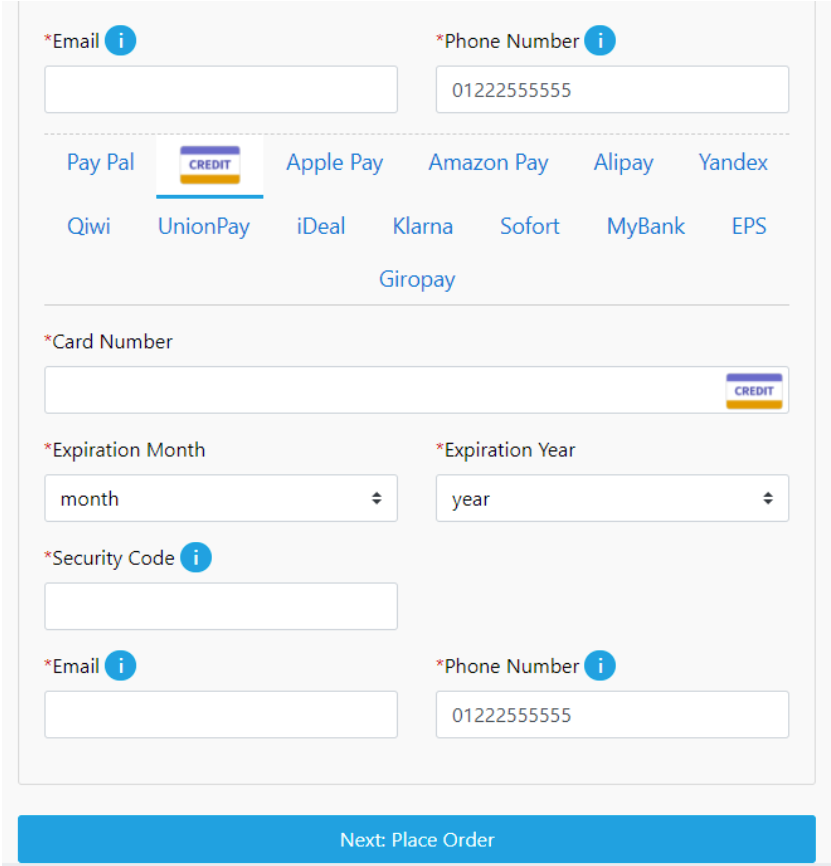
The Fabrick Payment Orchestra integration on Salesforce Commerce Cloud is offered as a generic cartridge and allows the use of various payment methods.
Below is a list of features made available to merchants using Fabrick on Salesforce Commerce Cloud:
Fabrick Payment Orchestra merchant back-office configuration
Configuration
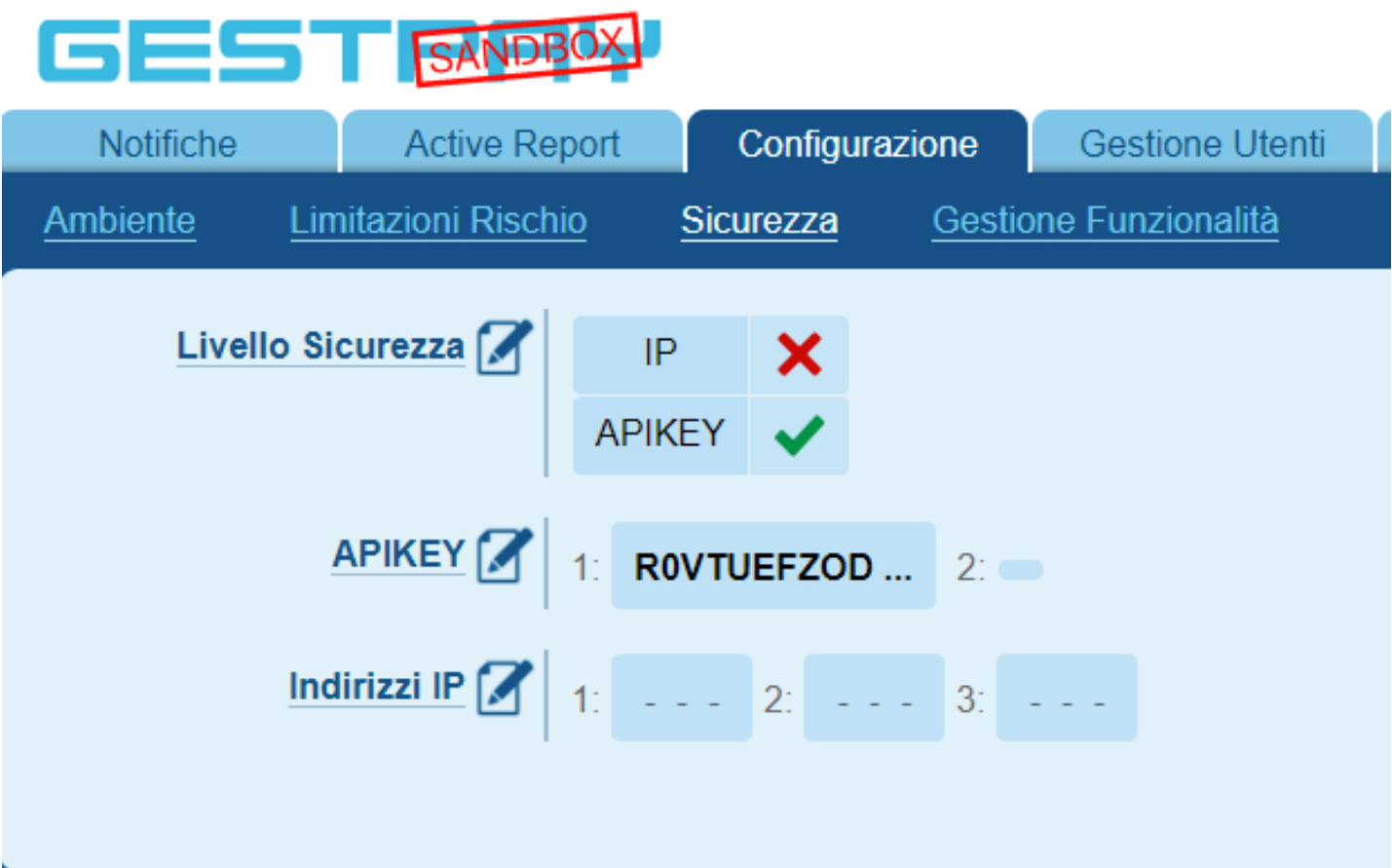
In the Configuration > Security section you can create the API to enable communication between the Salesforce Commerce Cloud sandbox and the Fabrick Payment Orchestra back-office.
It is not necessary to activate the IP security level, as by activating the API Key it is possible to use this connection mode across different instances (test SFCC sandbox, development, staging).
In the Configuration > Environment section, fields are available to specify the URLs to redirect the customer to depending on the payment outcome:
- URL for positive responses: the URL to which Fabrick redirects users after the payment process, in case of a positive outcome
- URL for negative responses: the URL to which Fabrick redirects users after the payment process, in case of a negative outcome
- Server-to-server URL: server to server call, the response is sent in both cases (positive and negative)
After completing the previous steps, you need to access the Payment Page > Fields & Parameters section and proceed with the insertion of the custom parameter PAYMENT_INSTRUMENT_UUID.
This parameter is necessary to identify the payment method used and associate it with the reference order, since a single Salesforce order could be paid with different payment methods (credit card, PayPal, discount coupon, etc.).
Click on Add parameter:
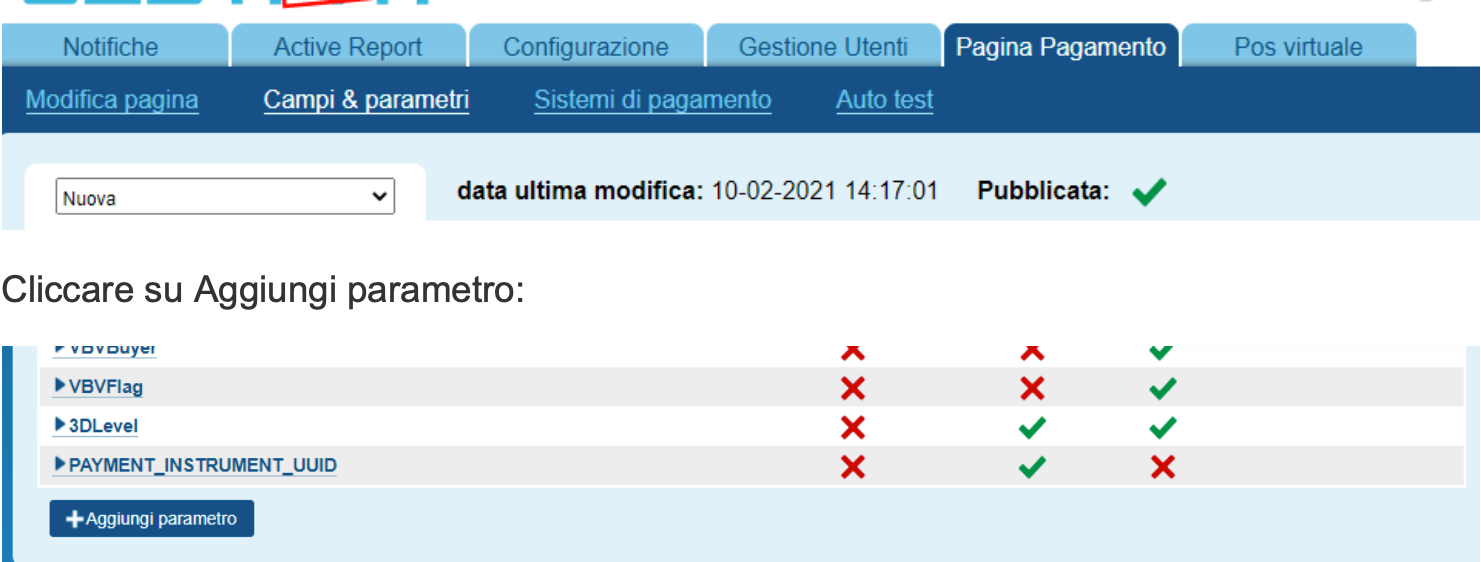
The following screen will be displayed:
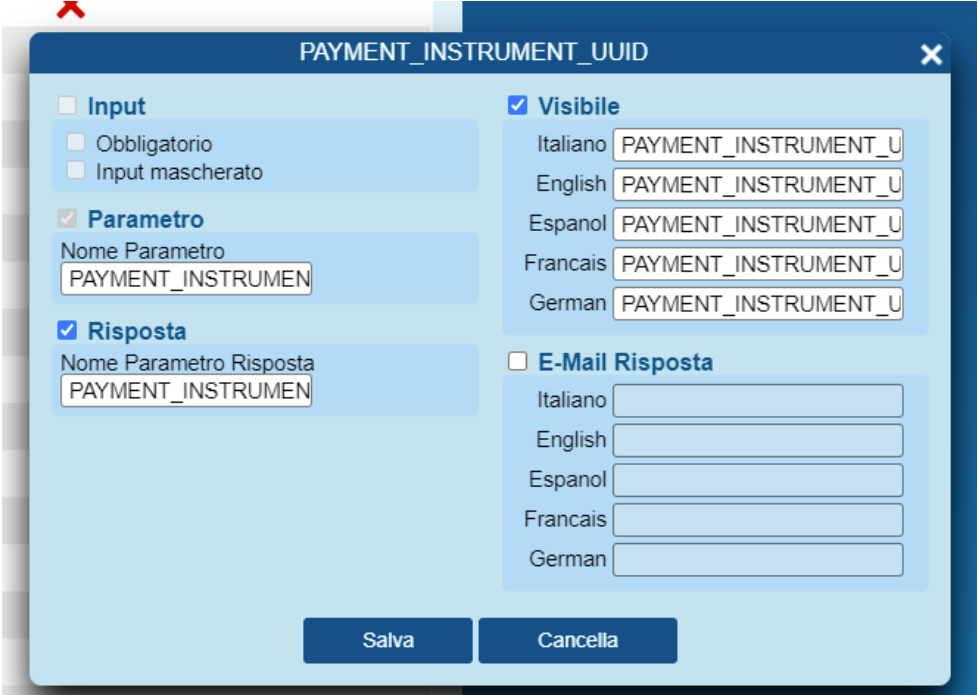
Then you will need to enable these parameters: TOKEN, Token ExpiryMonth, Token ExpiryYear e ORDER_TOKEN.

Another custom parameter to add is the SITE parameter, as per the attachment.
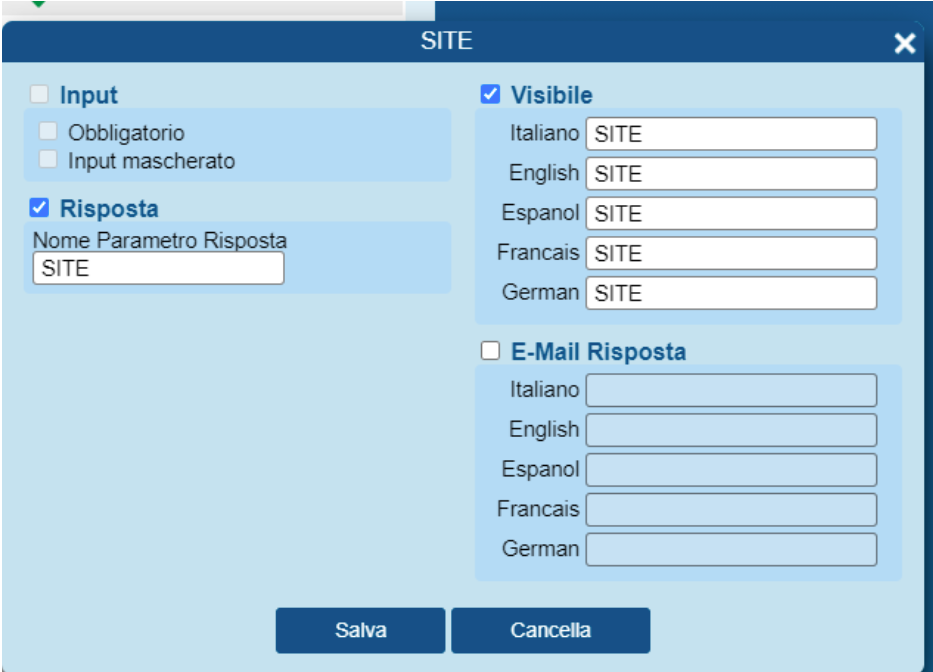
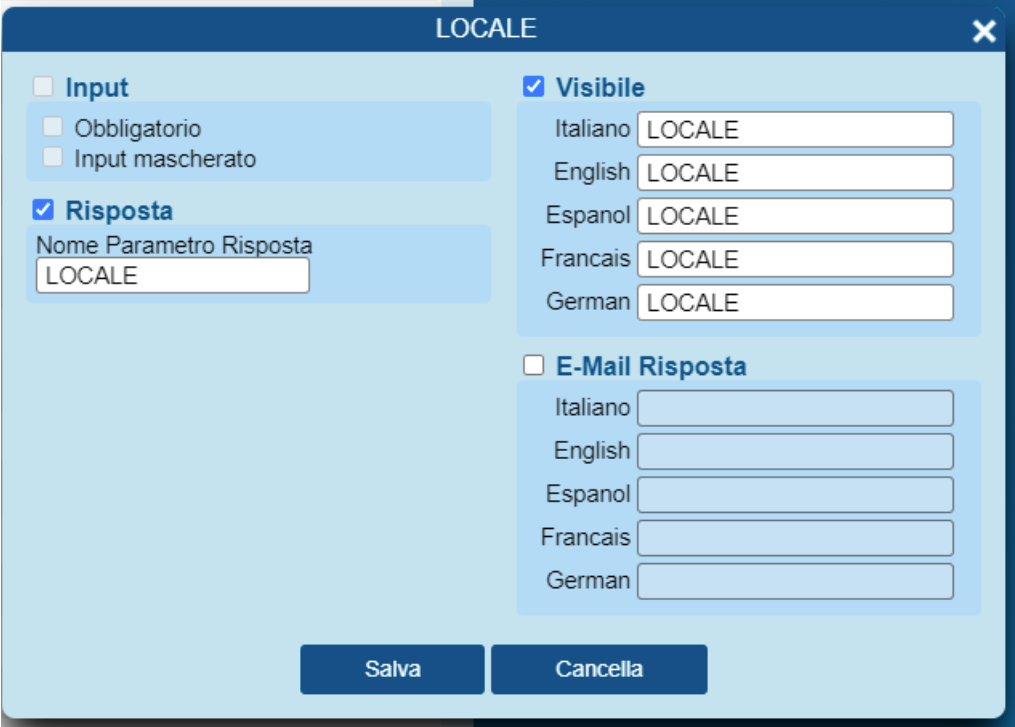
A parameter to add is the LOCALE parameter:
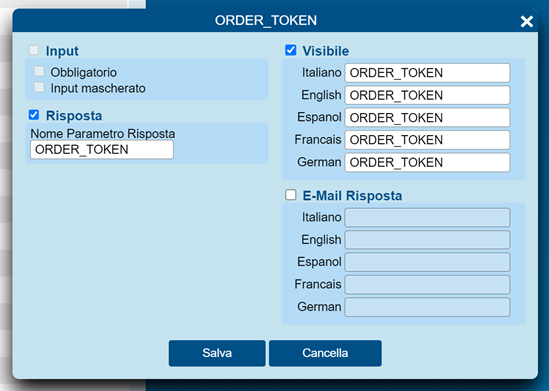
The last parameter to add is ORDER_TOKEN:
Cartridge installation guide
Installation from Zip file and update
Download the cartridge archive: Salesforce (ZIP)
Extract the contents of the archive and copy the link_fabrick and plugin-applepay folders into the project root.
Front-end compilation
To use the Fabrick Payment Orchestra cartridge, you need to have NodeJS 8+ installed on your device.
link_fabrick
- Open the terminal in the folder
link_fabrick. - Run:
npm install. - Run:
npm run compile:js. The cartridge does not contain CSS files to compile separately.
plugin-applepay
- From the root of
plugin-applepay:npm install. - Run:
npm run compile:js && npm run compile:scss.
Cartridge path configuration
On Business Manager, go to the section Administration > Sites > Manage sites > siteID > tab Settings and add the cartridges int_fabrick e plugin_applepay as in the example below:
int_fabrick:plugin_applepay:app_storefront_base:
The cartridges must be loaded using the standard procedures provided by Salesforce Commerce Cloud: via the Commerce Cloud UX-Studio plugin on Eclipse, or via the configuration file dw.json and the Prophet Debugger extension on Visual Studio Code.
Import Metadata
The first step in installing the cartridge is importing the files contained in the folder link_fabrick/metadata. All xml import procedures described must be performed in MERGE mode. Below are the sections where to import the files:
- jobs.xml e services.xml: Administration > Operations > Import & Export
- metadata.xml: Administration > Site Development > Import & Export
- payment-methods.xml: Merchant Tools > Ordering > Import & Export
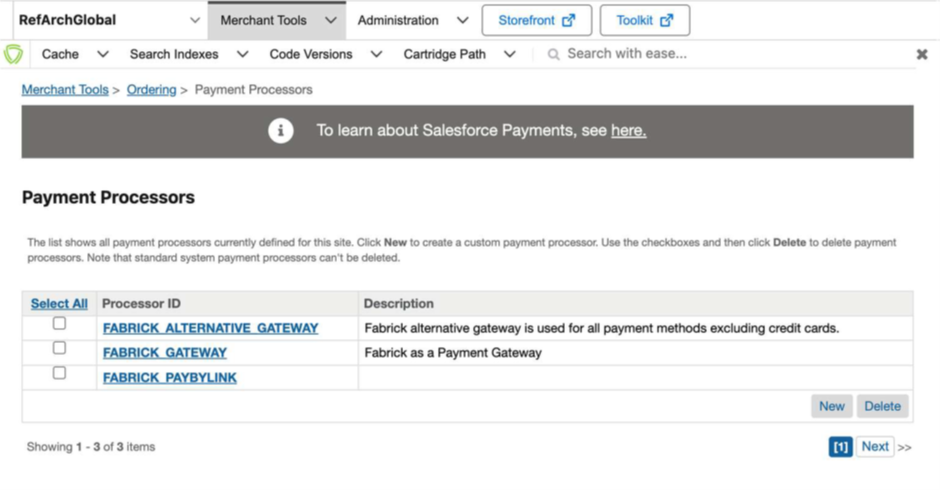
- payment-processors.xml: This file cannot be imported, but contains the list of payment processors to add on the platform (
FABRICK_GATEWAY,FABRICK_ALTERNATIVE_GATEWAY,FABRICK_PAYBYLINK). For correct configuration, you need to go to the section Merchant Tools > Ordering > Payment Processors and manually create the Payment Processors following the IDs and descriptions indicated in the xml file.
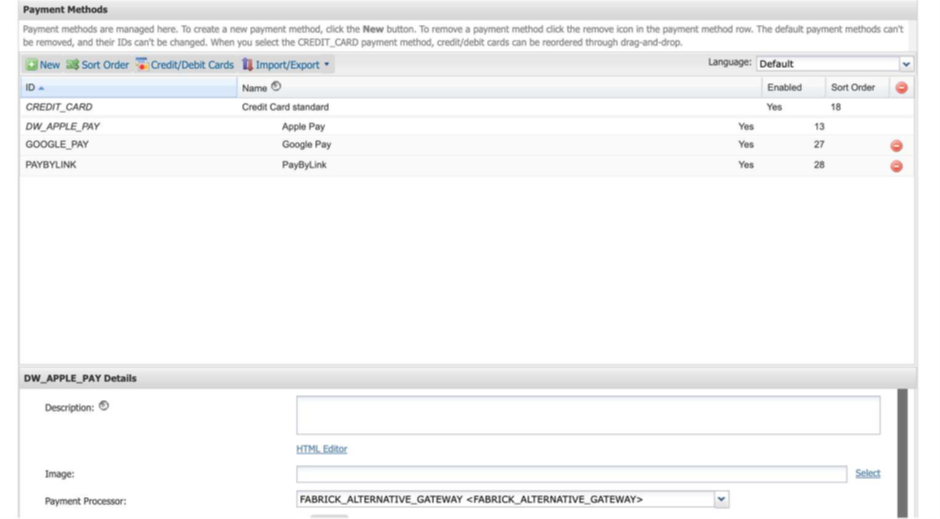
Payment method configuration and activation
Payment methods will be imported as not enabled. Therefore, to enable the desired payment methods, you need to go to Merchant Tools > Ordering > Payment Methods and set 'Enabled = Yes' for the methods you want to activate.
Pay By Link
Configure the following site preference from Merchant Tools > Site Preferences > Custom Site Preference Groups > Fabrick Config:
- Fabrick Pay By Link Minutes Validity Time: allows you to send Fabrick the minutes for which the payment link will remain active after the order is closed.
Google Pay
Configure the following site preferences:
- Show Google Pay in cart: allows displaying the Google Pay payment CTA directly on the cart and mini cart, enabling payment without entering the checkout.
- GooglePay Merchant ID: value provided by the Google Pay Account, mandatory only in production.
- GooglePay Merchant Name: value provided by Google.
Apple Pay
Configure the following site preferences from Merchant Tools > Site Preferences > Custom Site Preference Groups > Fabrick Config:
- Enable Apple Pay Cart e Mini Cart: allows displaying the Apple Pay payment CTA directly on the cart and mini cart, enabling payment without entering the checkout.
- Enable Apple Pay PDP: allows displaying the Apple Pay payment CTA on the PDP, enabling payment without entering the checkout.
Additionally, from Merchant Tools > Site Preferences > Apple Pay all fields must be configured based on the Apple Pay merchant configuration.