Magento 2
Features
The Ecommerce Sella plugin for Magento 2 provides the following features, which can be customized as needed:
Detailed feature description:
- Simple and fast configuration
- Wide availability of alternative payments
- Order and invoice management via server-to-server calls (orders, refunds, pre-authorizations)
- Fast payment management thanks to card tokenization (one-click mode)
- Fast payment management via the form rendered on the Magento checkout page
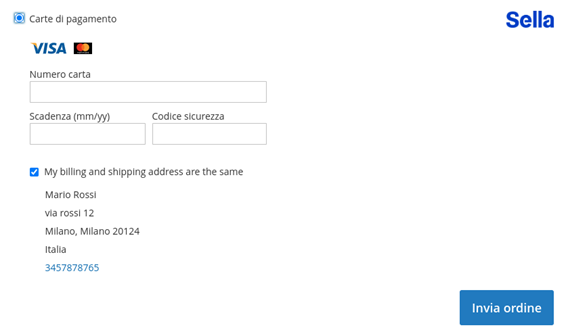
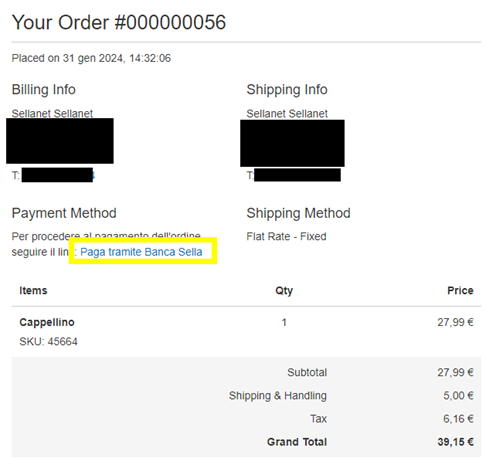
- Pay By Link: ability to generate an order from the Magento backend, sending the customer an email with a link to complete the payment (not all alternative methods are supported)
Email example
-
Sella RBA (Risk Based Authentication): a solution that analyzes the fraud risk of transactions in real time and, in case of low risk, activates the TRA (Transaction Risk Analysis) exemption.
-
Fabrick Guaranteed payments: an end-to-end fraud prevention solution for online merchants that leverages an artificial intelligence system to assess transaction risk levels (Powered by Riskified).
-
The plugin is compatible with:
- Adobe Commerce (cloud): 2.4
- Adobe Commerce (on-prem): 2.4
- Magento Open Source: 2.4
All compatibility tests were conducted on the most recent versions of Adobe Commerce available for the compatible release lines at the time the extension was submitted.
Merchant back-office configuration
In the merchant back-office provided, you can retrieve credentials, SHOP Login and API Key, to be reused when configuring the plugin in the Magento back-office.
Within Configuration > Security > APIKEY you can create the required value
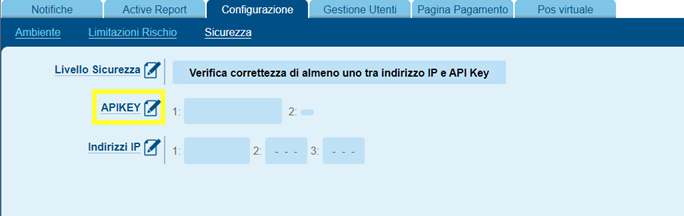
By pressing the Add Key button.
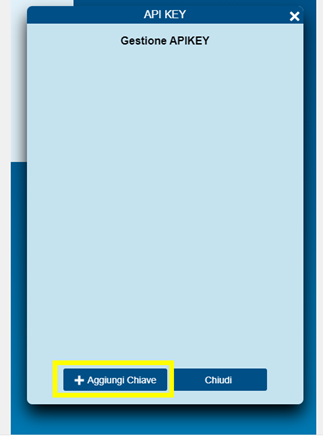
Then press the copy button, highlighted in the figure, to copy the key to clipboard, for later use on the Magento backend.

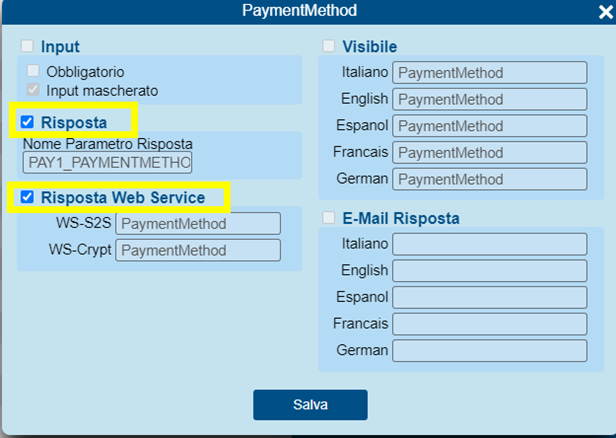
Within Payment Page > Fields & Parameters the PaymentMethod parameter must be enabled in the response, on both pages

By checking the two entries visible in the following screen.
Plugin installation information
Installation via Composer (all versions)
Installation via Composer, the official Adobe method for installing modules.
- From the Adobe Commerce website, add to cart and purchase (free of charge) the "Ecommerce Sella" module https://commercemarketplace.adobe.com/easynolo-ecommercesella.html
- Run the command "
composer require easynolo/ecommercesella"
Everything should now be ready for configuration via the administration panel.
Plugin configuration
To use the plugin features, you need to request Sella support to activate the following features on the merchant code:
- iFrame
- S2S API (Authorization, Capture, Refund, Inquiry)
After installing the plugin, you need to configure the options made available through the Magento back-office.
In the dedicated section stores → configuration → sales → payment methods there is the "Sella" block for plugin configuration.

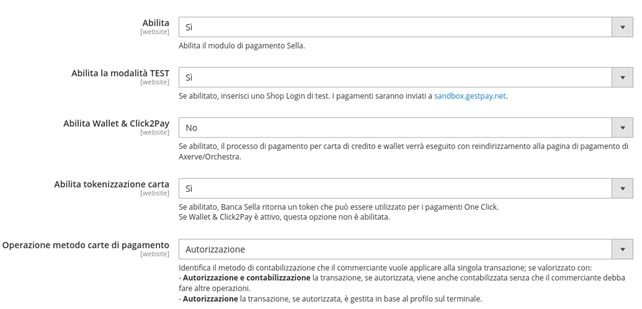
In the first section you can configure:
- plugin activation: enables the display of payment methods provided by Sella during checkout;
- test mode activation: allows you to use the payment gateway sandbox with the corresponding test SHOP Login and API Key;
- Wallet&Click2Pay activation: enables access to Apple Pay, Google Pay and credit card services on the new Fabrick Payment page;
- card tokenization activation: allows the customer's payment card to be securely saved and then offered in subsequent payments;
- credit card operation type selection: identifies the settlement method: if set to "Authorization and capture" the transaction, if authorized, is also captured automatically; if set to "Authorization" the transaction, if authorized, requires a manual operation to be captured
Here is an example of the configuration section:
If you want to use the Wallet & Click2Pay feature with Fabrick Payment, you need to configure the following URLs for positive, negative and Server to Server responses in the merchant back office:
- positive response:
{domain}/sella/back/success/ - negative response:
{domain}/sella/back/failed/ - Server to Server:
{domain}/sella/back/walletclick2paypost/
Enabling the Wallet & Click2Pay feature requires keeping the GooglePay section set to NO (see the section below).
Additionally, you can configure the visibility of individual payment methods. If needed, a dedicated button is provided to hide a method.
Payment method configuration
In the first section, there are three sub-sections for managing extra configurations on specific payment methods:
- Consel, where, upon enabling the method, you need to specify the Merchant Promotional Code;
- Google Pay, where, upon enabling the method, you need to specify the Merchant ID;
- PayPal, for which you can choose the operation type: authorization and capture or authorization.
In the second section there are two specific fields for entering the SHOP Login and API Key credentials.

When saving the configuration, the entered credentials are validated. If valid, the plugin will synchronize all active payment methods on the terminal to offer them during checkout to the end customer.
If payment methods are updated in the merchant back-office, a Magento procedure periodically synchronizes the list.
If the merchant wants to synchronize payment methods with immediate effect, they will need to save the plugin configuration on Magento again.
If Wallet&Click2Pay mode is enabled, it will not be necessary to specify Google Pay parameters as this method will be managed through Fabrick Payment, and the parameters will be specified within the back-office.
Fabrick Guaranteed Payments configuration (Powered by Riskified)
To enable the use of the anti-fraud solution, you need to set the following option to "Yes":

Saved card management information (frontend)
If the backend has the option to save the token for credit cards enabled, on the frontend the buyer will see the save option when entering card details at checkout
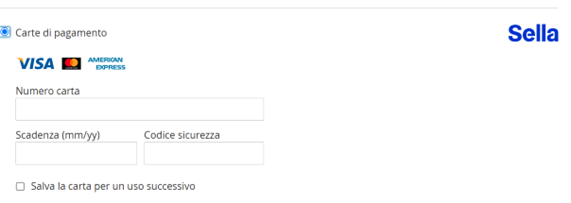
Once saved, when placing an order, the saved tokens will appear as the first payment option (but the buyer can always choose to use another payment method or enter a new credit card).
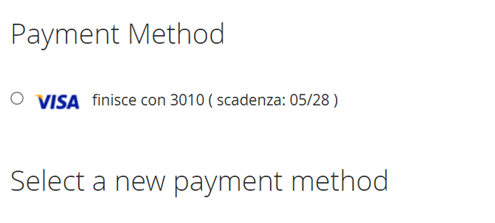
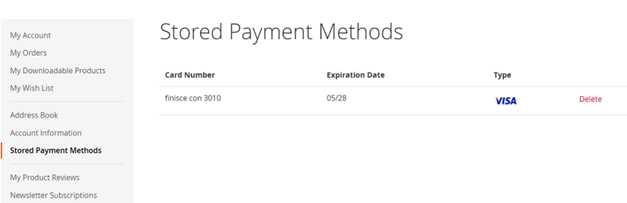
Subsequently, from their profile, under "Stored Payment Methods", they can view all cards saved on the site and delete those they prefer.
Order and transaction management information
Authorization request
With the M.O.T.O. configuration, Fabrick allows separating the authorization and capture phases. If activated, the first transaction is limited to the authorization request, otherwise Fabrick captures the amount immediately after authorization.
The plugin works according to the chosen configuration described in the Plugin configuration section.
Capture
With the capture operation, the authorized total is permanently transferred to the merchant's bank account. To use it, the M.O.T.O. function must be configured so that it is separated from the authorization.
With this configuration, Magento creates an order and during payment the amount is held through the authorization operation (the merchant receives an email from Fabrick).
When the invoice is requested, Magento requests Fabrick to capture the authorized amount, which proceeds and sends an email to the merchant.
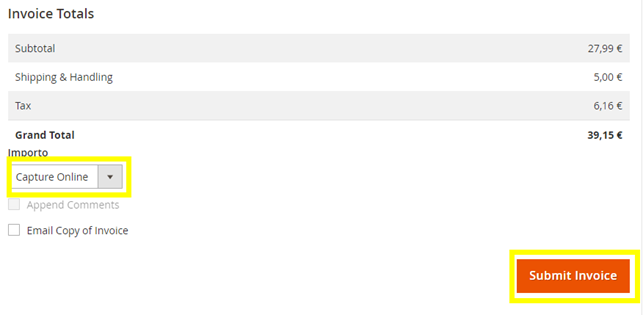
The operation can be performed through the Magento backend (from Sales > Orders), selecting the relevant order, pressing View and then Invoice from the top right panel.

In the window that opens, select Capture Online and then Submit Invoice.
Cancellation
Cancellation can be requested for an authorized but not yet captured transaction, and the M.O.T.O. function must be set with the separation of authorization and capture.
The operation can be performed through the Magento backend (from Sales > Orders), selecting the relevant order, pressing View and then Cancel from the top right panel.

Refund
It can only be requested on already captured payments. From a fiscal standpoint, it involves a charge to the merchant and a credit to the buyer's card.
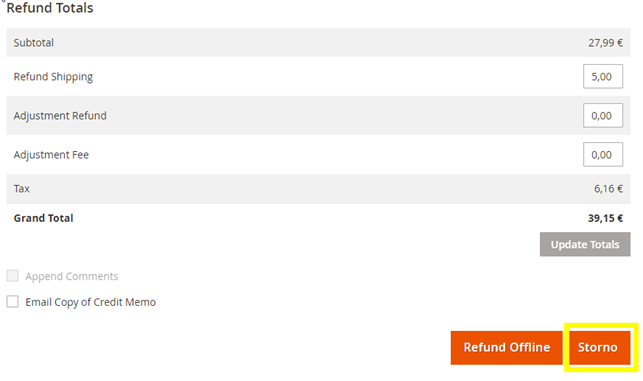
A transaction can be refunded totally or partially multiple times, up to the total payment amount. On Magento, a refund is performed through the backend (from Sales > Orders), selecting the order and pressing View. Then, enter the invoices menu and select the invoice linked to the order. From the invoice, select Credit Memo.

Select the quantities of the products you wish to refund.

Finally, after deciding whether to refund shipping costs or other details, press "Refund", as shown below.
MOTO management
Depending on the configuration on the plugin or on the Fabrick merchant back office, there are three possible scenarios:
-
If you want Fabrick to capture the transaction, you need to set MOTO: Unify transaction on the Fabrick merchant back office. On the Magento side, the action to set is Authorization and the Capture via Magento order page can only be offline (for invoice generation only).
-
If you want Magento to capture the transaction, you need to set MOTO: Separate on Fabrick. After doing so, there are two options:
-
On the Magento side, the action to set is "Authorization" if you want to perform a manual Capture via the Magento order page. In this case, the Capture via Magento order page can be offline (for generating the invoice only without financially capturing the transaction), or online (for generating the invoice and financially capturing the transaction). In the case of offline capture, the financial settlement must be done from the Fabrick dashboard.
-
On the Magento side, the action to set is "Authorization and capture" if you want Magento to financially capture the transaction immediately, and immediately generate the invoice. In this case, the Capture via Magento order page must not be managed because the transaction is already captured and the invoice generated.
-
LOG files
The operation logs are available in the debug.log file, in the /var/log path.
CRON Job
Leveraging the CRON Job already present in Magento, the Ecommerce Sella plugin can:
- Handle the Waiting(XX) status returned by certain payment methods that do not immediately return an OK or KO upon order confirmation
- Handle the pending status from Riskified, which in some circumstances does not immediately approve or reject the transaction, but requires more time for fraud analysis
Compatible versions
The plugin is compatible with:
- Adobe Commerce (cloud): 2.4
- Adobe Commerce (on-prem): 2.4
- Magento Open Source: 2.4
All compatibility tests were conducted on the most recent versions of Adobe Commerce available for the compatible release lines at the time the extension was submitted.