WooCommerce
WooCommerce Blocks compatibility. The plugin developed by Fabrick for integration with the Payment Orchestra payment gateway is fully compatible with the WooCommerce Blocks checkout (starting from version 20251027). All payment methods are supported both in the classic checkout and in the Blocks checkout mode: it is therefore not necessary to deactivate WooCommerce Blocks.
WooCommerce is a marketplace plugin for Wordpress. You can start selling items in less than 15 minutes, and there are many plugins to meet every need.
Fabrick Payment Orchestra develops and distributes a free plugin for WooCommerce.
Description
With Fabrick Payment Orchestra you can:
- Accept payments with all major credit cards.
- Accept payments through numerous alternative methods such as PayPal, Apple Pay, Google Pay and many others, managing them all from the same dashboard.
- Customize every aspect of the payment page.
- Be compliant with PCI-DSS standards, avoiding the need to store your customers' credit card data.
- Rely on support for the 3DS2.X standard.
Available payment methods
- Alipay
- Amazon Pay
- Apple Pay
- AppPago
- BANCOMAT Pay
- Bancontact
- EPS
- Fabrick Pay by Bank
- Google Pay
- Klarna
- Konbini
- Multibanco
- MyBank
- iDEAL
- PayPal
- Paysafecard
- PRZELEWY24
- Satispay
- UnionPay
- WeChat Pay
The plugin also supports OneClick payments, PayByLink and subscriptions using the WooCommerce Subscriptions plugin (not included).
Benefits
- Accept credit card payments directly on the checkout page.
- Offer your customers a wide range of alternative payment methods, increasing the conversion rate thanks to the ability to choose their preferred method.
- Reduce the risk of fraud thanks to advanced fraud detection tools (RBA).
Security
- No credit card data is stored on your servers during the payment process.
- Support for the main payment card networks (Visa, Mastercard, American Express).
- Support for the 3DS2.X standard.
Support
You can contact our support team by writing to ecommerce@sella.it.
Here and here you can download the tutorial and the complete guide for installing the plugin .
Prerequisites
Before installing the plugin, verify that your store environment meets the minimum requirements shown in the table. The versions indicated are those declared by the plugin: below PHP 8.0 or WooCommerce 9.0 the gateway does not start and displays a notice in the dashboard.
Plugin technical requirements
| Requirement | Value | Why it is needed |
|---|---|---|
| WordPress | 6.4 or higher (verified up to 7.0) | Minimum version supported by the plugin. |
| PHP | 8.0 or higher | With earlier versions the plugin stops and reports the requirement. |
| WooCommerce | 9.0 or higher (verified up to 10.0) | The gateway registers itself among WooCommerce payment methods. |
| Order storage | Compatible with HPOS, high-performance order storage, and with classic storage | The plugin declares HPOS compatibility, so you can enable it without losing the payment information on orders. |
| SSL certificate | Valid HTTPS across the entire site, mandatory in production | The customer's return from the payment and the platform's notifications reach addresses of your store: they must be served over HTTPS. |
| Connection to Fabrick | Outbound HTTPS calls from the server to the Fabrick platform | Payment session creation, outcome verification, refunds and reading of active methods go through the Fabrick APIs. |
| Fabrick contract | Shop Login and API Key for sandbox and for production | These are the credentials the plugin uses to communicate with the platform. |
| WooCommerce Subscriptions | Optional | Only needed for subscription products and automatic renewals. |
Requirements for use
- Fabrick account with Payment Orchestra, Web Components and REST API enabled.
- Credentials: Shop Login and API Key (sandbox or production).
- HTTPS protocol on the store's domain (recommended and mandatory in the production environment).
- For Apple Pay and Google Pay: domain prerequisites and activation of the service on the Fabrick side (consult the official documentation).
To simplify the configuration, use a Wordpress installation hosted on a public server. Using it on a local server could be difficult because Fabrick Payment Orchestra might not be able to access the server.
To use the plugin you do not need to know how to program: you just need to know how to use Wordpress and WooCommerce as a user.
How to install
Download the zip file and save it in a folder on your hard drive.
Search for Gestpay per WooCommerce in Wordpress, Plugins > Add New and click on install now.
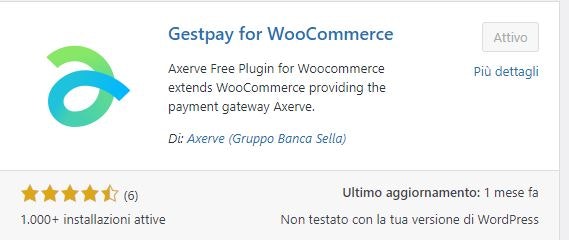
Don't forget to activate (Activate) the plugin.
If you want to install the plugin manually, you can find it in the Wordpress Plugin Repository.
How to activate the plugin
Immediately after the plugin is activated, WordPress opens the setup wizard: five steps that connect the store to your Fabrick account, verify that the credentials work, define which payment methods to offer and establish whether the store should communicate with the sandbox or the production environment. Until the procedure is completed the gateway cannot accept payments, so it is best to complete it in a single session.
The procedure is located at wp-admin/admin.php?page=fabrick-orch-setup and takes up the entire browser window. The page does not appear in the administration menus: you reach it through the automatic redirect after activation, through the link Complete the setup → in the notice Fabrick Payment Orchestra requires configuration before accepting payments, or by opening the gateway tab in WooCommerce → Settings → Payments: until the configuration is complete, that tab redirects to the setup wizard.
Activation steps
At the top, the progress indicator with the five steps is always visible: Welcome, Account, Payment methods, Environment and Completion. From the second step onwards, the Back button returns to the previous step without saving the current one, while Exit setup at the top right returns to the list of WooCommerce payment methods. If you exit before the end, when you reopen it the procedure restarts from the step you had reached.
1. Welcome
The Welcome to Fabrick Payment Orchestra screen lists the technical requirements the plugin relies on: the minimum PHP version, the minimum WooCommerce version and compatibility with high-performance order storage. There are no fields to fill in: press Start.
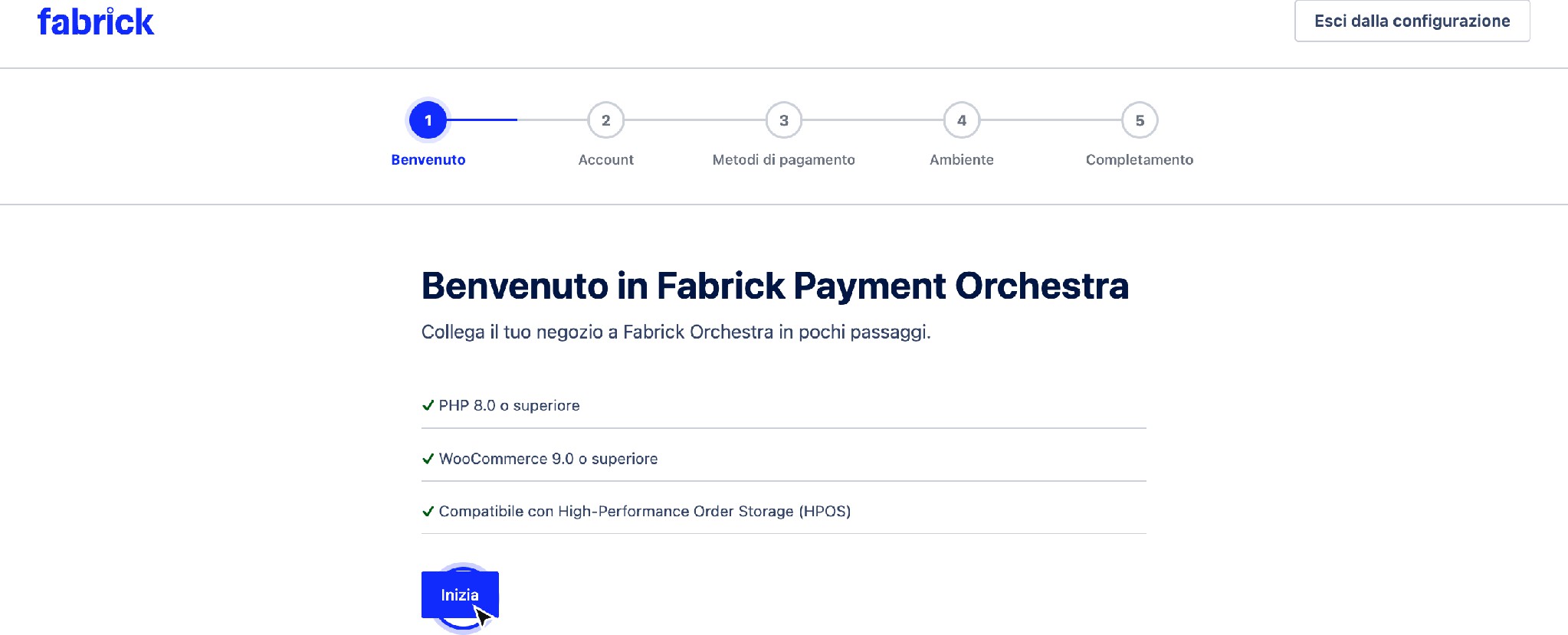
The first step summarizes the technical requirements and shows the progress indicator for the five steps.
2. Account
In the Connect your Fabrick account screen, fill in Shop Login with your store's identifier on the platform, up to 64 characters, and API Key with the associated key. The key field is masked and never shows the value already stored: if a key is already saved, the field shows a placeholder value and the hint Leave empty to keep the saved API Key.
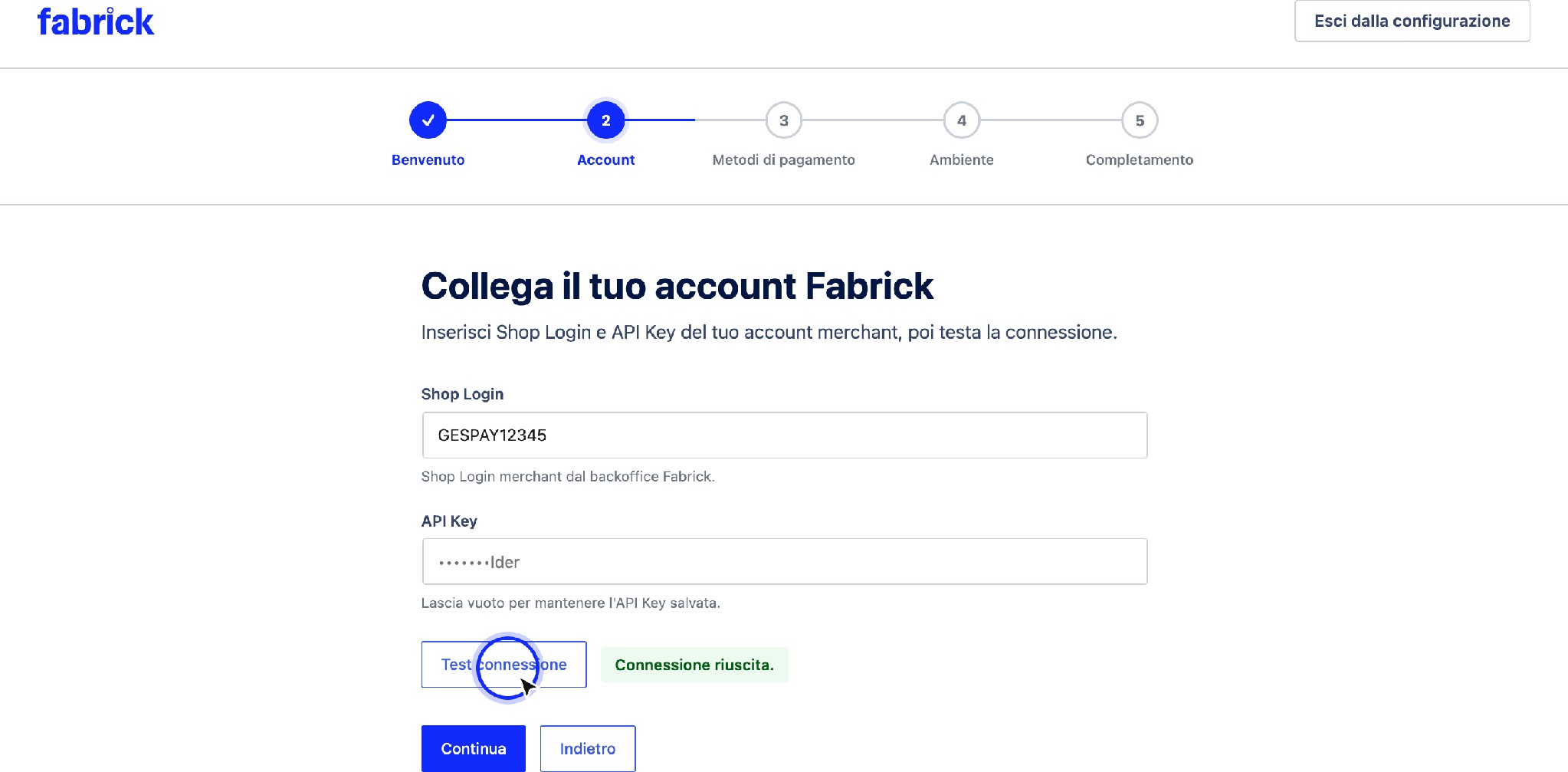
The Account step collects the Shop Login and API Key and provides the connection test.
Credential verification. Press Test connection: the plugin sends the entered values to its own server, which queries the Fabrick platform with the specified account. The label next to the button changes from Not yet tested to Test connection in progress and finally to Connection successful. The key is never returned to the browser or shown in clear text. When the outcome is positive, press Continue: without a successful test the procedure stays on the step and displays Run a successful connection test before continuing.
Credentials from the GestPay plugin. If the credentials of the previous GestPay for WooCommerce plugin are still present on the site and have not already been recovered, above the fields a box appears with the title We found credentials from the legacy GestPay for WooCommerce plugin with the button Import legacy credentials. When you press it, Shop Login and API Key are copied into the fields of this procedure and the plugin notifies you with Legacy GestPay credentials imported. Run a connection test before continuing. The operation is available only once: after the import the box does not appear again.
3. Payment methods
The Choose which alternative payment methods to offer at checkout screen lists the methods with a switch for each one, starting with Card (+ wallets if enabled). After a successful test, the list reflects the methods that the platform returns for your account; the items marked as New are those that have appeared compared to the plugin's default list. Some rows may be locked with the indication Always enabled: these are methods managed by the platform, to be handled with the Fabrick backoffice or with your sales contact. Turn off anything you do not want to offer and press Continue.
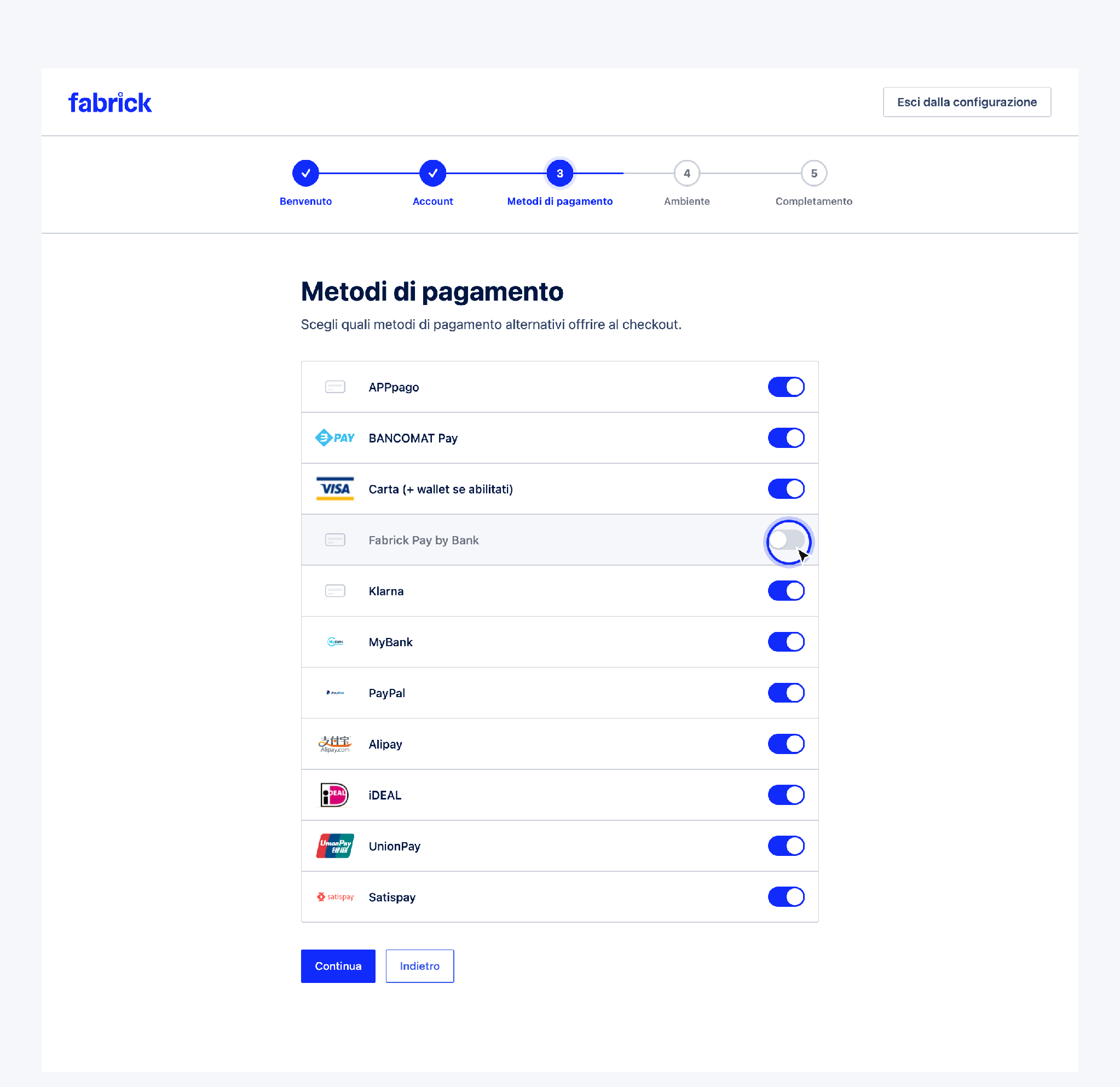
Each method has its own switch; locked rows always remain active.
4. Environment
The Choose the payment environment screen shows the connected account and two options:
- Sandbox: Recommended during testing. No real charges.
- Live: Production mode. Real payments use the live Orchestra API. Selecting it displays the notice about real payments and the checkbox I understand that live mode will process real payments, which you must tick to proceed.
The plugin uses the same account entered at the Account step also for production and repeats the connection check on the chosen environment before advancing the procedure. Press Continue.
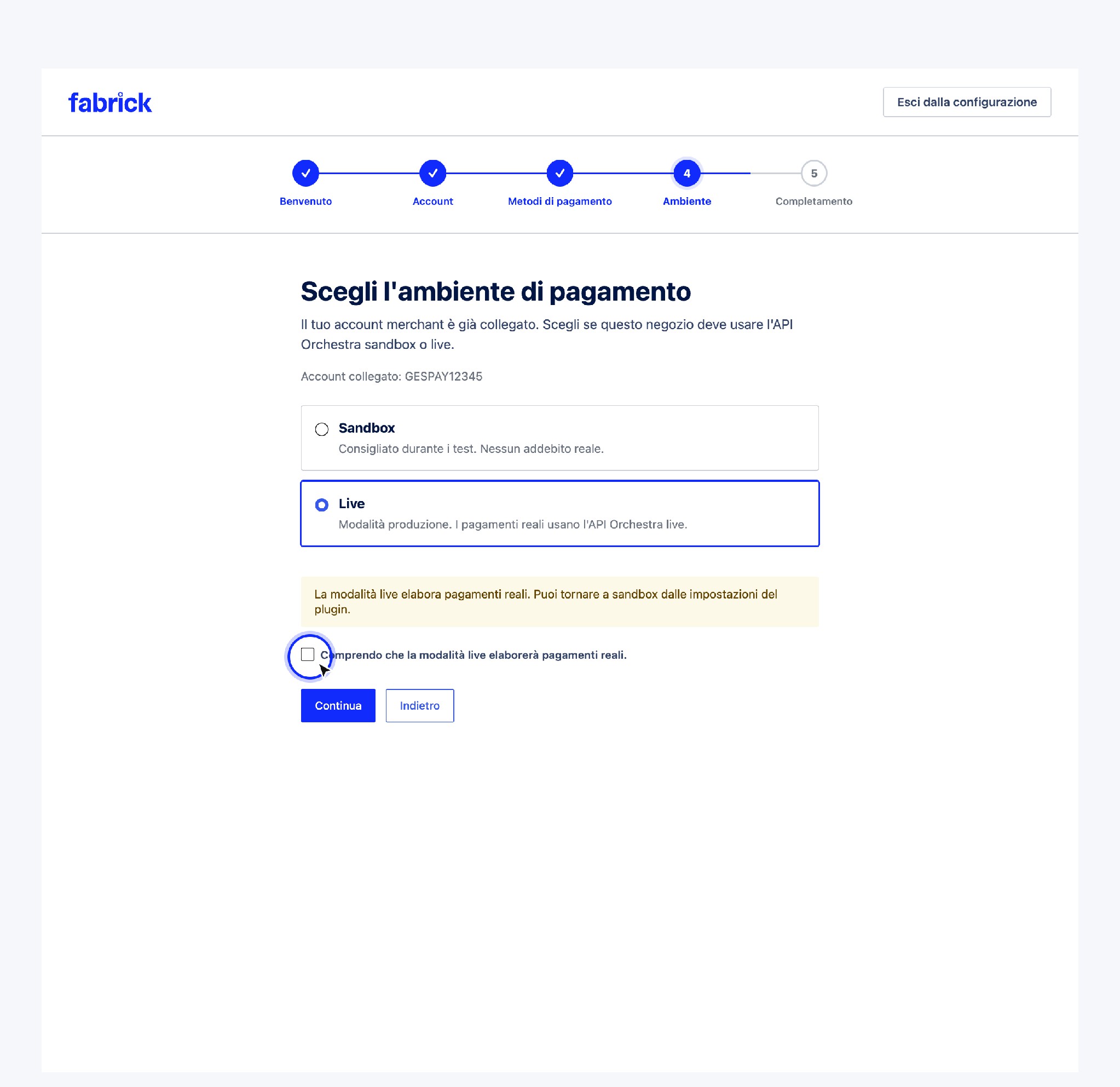
Choosing live mode requires explicit confirmation before proceeding.
5. Completion
The You're almost there screen summarizes Merchant account connected, Connection test passed and the selected environment, and warns that the gateway will remain disabled until you enable it manually. Press Complete setup: the plugin records the configuration as completed and takes you to the gateway tab in WooCommerce → Settings → Payments.
Configure Gestpay for WooCommerce
The modes described in this section (Starter, Professional, Professional On Site, Professional iFrame) refer to the previous GestPay for WooCommerce plugin. For the new Fabrick Payment Orchestra for WooCommerce plugin, the initial configuration is done through the setup wizard described in How to activate the plugin.
Once installed and activated, go to WooCommerce > Settings and click on the Gestpay per WooCommerce tab to configure the plugin.
There are four operating modes in this plugin, selectable from the drop-down menu in the Administrator Version. Which one to use depends on the version of Fabrick Payment Orchestra you are using:
- Starter
- Professional
- Professional On Site
- Professional iFrame
The plugin also supports Subscriptions.
Starter
Starter is the simplest version of the plugin. Using it, the buyer will be redirected to the Fabrick Payment Orchestra payment page. After payment, the user is redirected back to the merchant's site.
Below we describe the configuration options:
| Field | Description |
|---|---|
| Fabrick Shop Login | Unique identifier of Fabrick Payment Orchestra. A test shopLogin can also be used (see below). Here you can enter either the test shopLogin (which must start with GESPAYXXXXX) or the production Shop Login. The latter consists only of digits (example: if the merchant's Back Office login code is XX912345, use only 912345). |
| IP Address | The plugin will detect the server's public IP. Use this IP to configure Fabrick Payment Orchestra. |
| Sandbox mode | Tick if you want to direct the payment to the test environment, where you can test the payment process without real credit cards or money. |
| Debug log | Tick if you want to save a log of the data sent to Fabrick Payment Orchestra. It is useful for testing and reporting bugs. |
| Force response verification | In case of problems with updating the order status, tick this option, which forces verification of the response from Fabrick Payment Orchestra. |
Professional
With Professional you can further customize the way Fabrick Payment Orchestra interacts with users. Buyers will still be redirected to the Fabrick Payment Orchestra payment page for credit card payments, but you can configure Fabrick Payment Orchestra to work with alternative payment methods (such as PayPal), so that users can choose the payment method they prefer.
You can choose to send Fabrick Payment Orchestra the buyer e-mail and name, a language parameter, and even some custom parameters.
In addition to the options already described for Fabrick Payment Orchestra Starter, below is a description of the Fabrick Payment Orchestra Professional settings:
| Field | Description |
|---|---|
| Buyer e-mail | Tick if you want to send the buyer's e-mail to Fabrick Payment Orchestra. |
| Buyer name | Tick if you want to send the buyer's name to Fabrick Payment Orchestra. |
| Language | By selecting this option you can change the language of the payment page. The languages available in Fabrick Payment Orchestra are Italian, English, French, German and Spanish. To use this feature, enable a multilingual plugin: Gestpay for WooCommerce is compatible with qTranslate-X and with WPML. If you prefer to replicate the same site in different languages, define the WPLANG constant in wp-config.php, for example define ('WPLANG', 'it_IT');. |
| Custom info | Here you can enter custom data in the form parameter=value, one per line. The following characters, together with the space character, are not allowed: & § ( ) * , ; : *P1* / /* [] ? = % ~. Remember to enable custom parameters in the merchant's Back Office. |
| Payment Types | Tick to redirect your users directly to a specific payment method. |
| Alternative Payments | Here you can enable other systems, such as PayPal, Sella Personal Credit, etc. |
Professional On Site
Professional On Site allows the user to pay directly from the site, without being redirected. On the /checkout page the user will be able to enter, in addition to the shipping address, their payment details.
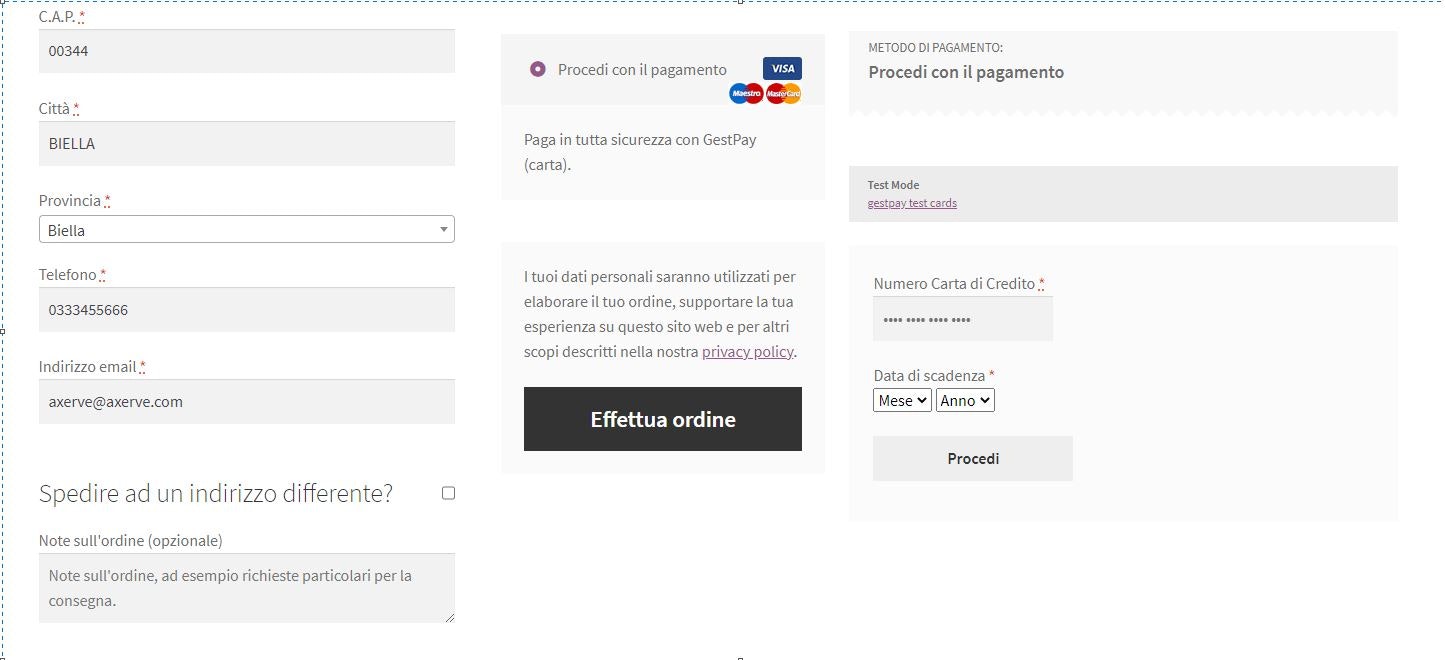
With Professional On Site you can also store an "obscured" version of the credit card, to be used later to simplify the shopping process or to enable subscriptions (see the section on subscriptions).
In addition to those already described for Starter and Professional, Professional On Site adds some new parameters to the settings page:
| Field | Description |
|---|---|
| Store Tokens | If enabled, a token is requested from Fabrick Payment Orchestra and stored in a database. With tokens you can enable recurring payments; a registered user can pay without entering credit card details. |
| CVV | Send the CVV field to Fabrick Payment Orchestra when requesting a token. Note: the field must be set as input in the merchant's Back Office, otherwise an error is received. |
| 3D Secure | If ticked, 3D Secure must be enabled for this store (default). |
3D Secure is a security protocol. If the card supports 3D Secure, the user is temporarily redirected to the card issuer's site to enter a personal code. This ensures that the transaction cannot be disputed. In any case, for subscriptions or automatic payments this function must be disabled (contact customer care for this action), otherwise the payment will not be processed.
Professional iFrame
Professional iFrame is very similar to Professional On site; however, after the checkout phase the user is redirected to checkout/order-pay/:id/, where :id is the order number.
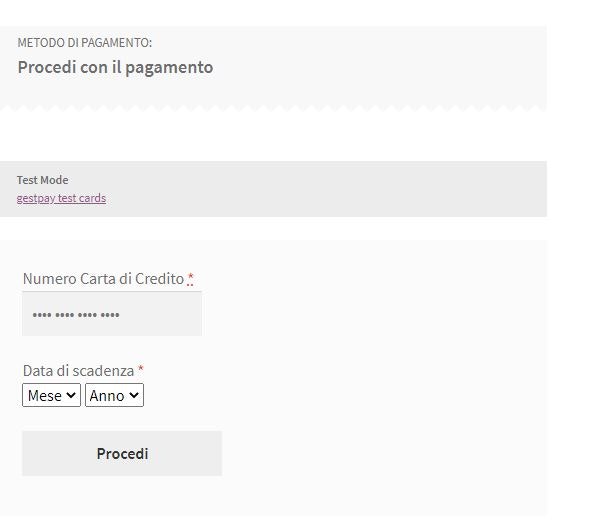
The available settings are the same as in the previous versions. The difference is that with the iFrame version the buyer cannot choose their tokenized card, but the site can still sell subscriptions and recurring payments using this method.
Subscriptions
Fabrick Payment Orchestra for WooCommerce supports subscriptions and recurring payments using the WooCommerce Subscriptions plugin (not included).
To get started, create a subscription product in the store. To do so, set the prices as shown below:
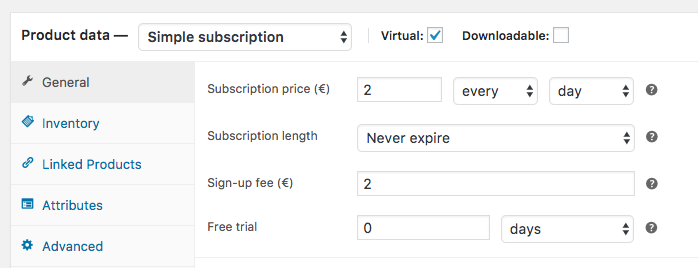
In the WooCommerce Subscriptions documentation you can find detailed tutorials and guides for setting up a subscription product.
The products will be displayed like this (the graphics may vary depending on the theme):
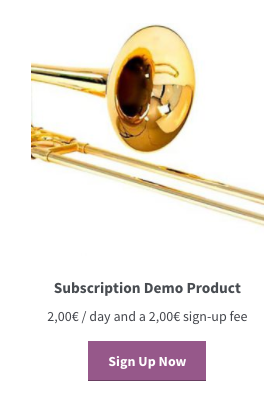
To enable recurring payments:
- Choose between Professional iFrame or On-Site.
- The Store Tokens checkbox must be selected.
- The 3D Secure checkbox must not be selected. If 3D Secure is enabled, the payment will stall waiting for the user's PIN.
Once the payment is processed, recurring payments are displayed on the WooCommerce > Orders page:
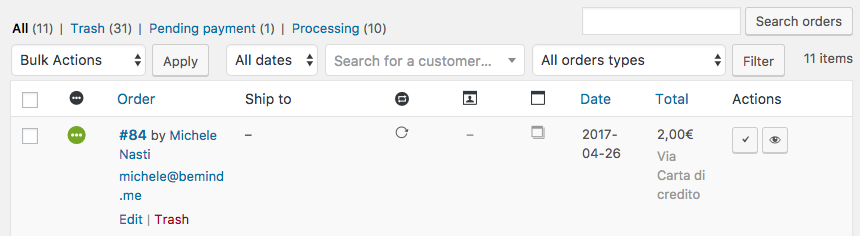
Instructions for testing subscriptions can be found here: WooCommerce Subscriptions docs.
A recurring transaction may be declined, for example, if the card has expired or if the available balance on the card is negative. When this occurs, the subscription stalls and the buyer must pay manually from their personal page. To automatically retry declined payments, choose the Retry Failed Payments option from WooCommerce Subscriptions.
For further details on declined payments, visit this page.
Refund - Settle - Delete
Clicking on the order number displays the order details, plus a section with three buttons: Refund, Settle, Delete (left button): their actions depend on the M.O.T.O. configuration. Let's see them in action:
Refund: when a transaction has already been settled, it can be partially or fully refunded by clicking this button. Clicking again will display a box like the following:
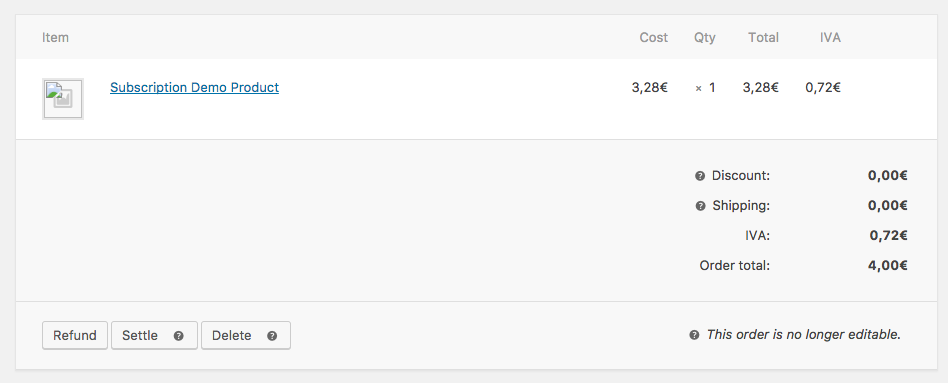
The Refund X,XX€ manually button is a default button and does not perform a real refund: with this button you tell WooCommerce that you have already made (or will make) a refund from Gestpay Office.
Using Refund X,XX€ via Fabrick Payment Orchestra directly performs the refund of the operation using the Fabrick Payment Orchestra APIs.
Settle: if the MOTO configuration is set to separation of the authorization and the transaction process, after an order the transaction is only authorized. By clicking this button the transaction is settled.
Delete: if the MOTO configuration is set to separation of the authorization and the transaction process, the transaction is authorized but not settled. By clicking this button you cancel the authorized transaction.
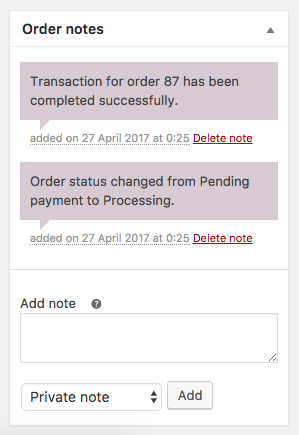
On the right of the page you will find the log of all the actions performed on the transaction. This log is extremely useful for debugging and following the situation.
Deactivating subscriptions on WooCommerce
In addition to deactivating the module, you also need to clear the queue of pending subscriptions. The Fabrick plugin simply hooks into the Subscriptions features and, if there are scheduled actions, it triggers the calls on the scheduled date anyway. Therefore it is necessary to check and, if necessary, manually delete the scheduled actions that are still active.
To complete the deactivation, the operations indicated in this guide must be performed: https://docs.woocommerce.com/document/subscriptions/disabling-subscriptions/
Activate Gestpay for WooCommerce
Once the plugin has been set up with the Fabrick Payment Orchestra account, go to the WooCommerce > Settings page and select the Checkout tab.
Here you can see the activated Fabrick Payment Orchestra menu. The payment methods are displayed based on the configured alternative payments. For example, in the following image we see Gestpay Pro PayPal.
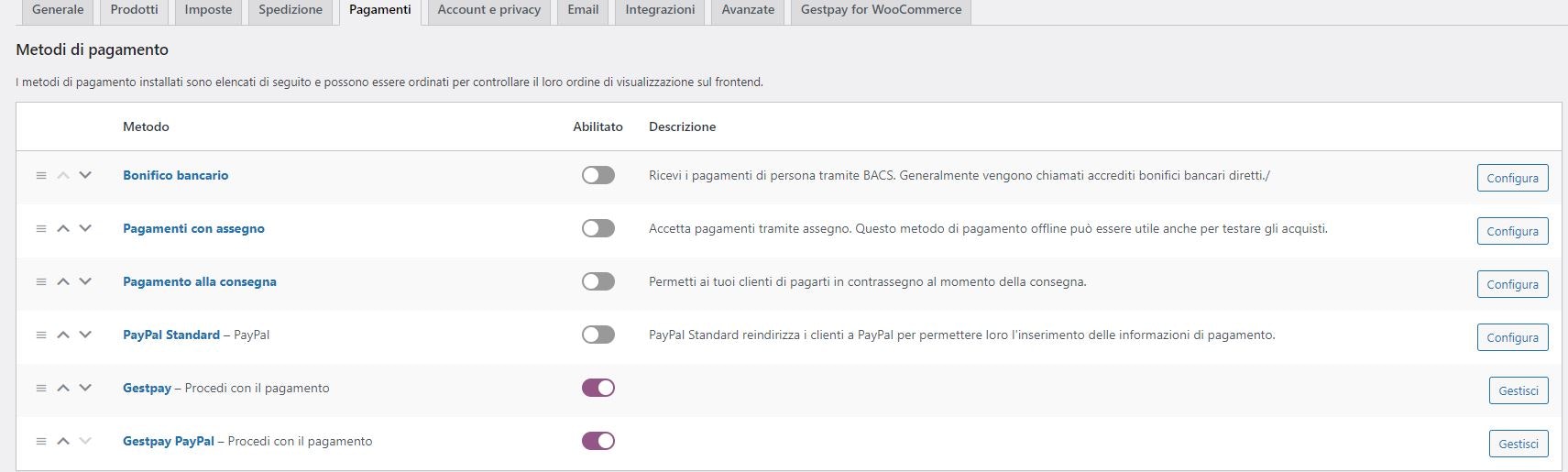
By clicking on Gestpay, you can:
- Enable/disable the payment method
- Set a title and a description (which will be displayed to the user at checkout)
- Choose the icons that will be shown to the user
The configuration for the enabled custom alternative payments is similar.
Configure the Merchant Back Office
The merchant can configure the Merchant Back Office to receive requests from the WooCommerce plugin. Two environments are available:
To request a test account, go to the registration page.
Configure authentication
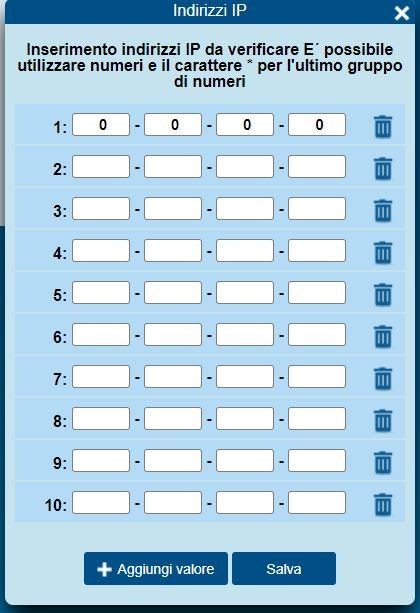
Fabrick Payment Orchestra identifies the merchant by comparing their IP address with those configured in the Merchant Back Office. To enter the address (or addresses), go to Configuration > Environment and click on IP Address.
Configure the landing addresses
Fabrick Payment Orchestra notifies the transaction status by redirecting the browser to the pages set by the merchant (for example, success.php or error.php).
In Configuration > Environment click on Response Address and set the information relevant for customer care, fraud prevention, etc.
Then set the URL for positive response and the URL for negative response. If the site address is http://yoursite.com, set in both fields:
http://yoursite.com/?wc-api=WC_Gateway_Gestpay
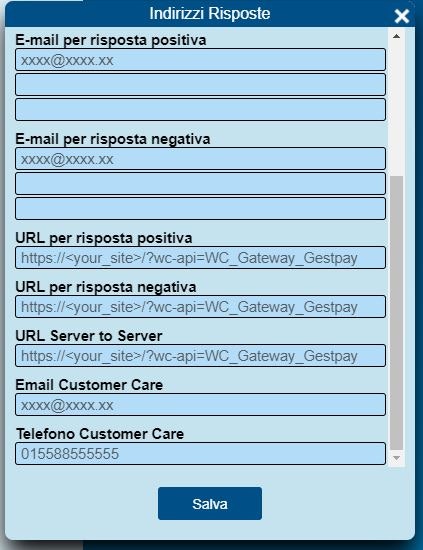
It is very important that ?wc-api=WC_Gateway_Gestpay is added to the site address. This code identifies Fabrick Payment Orchestra and therefore the call is decoded. Afterwards the user is redirected to the WooCommerce Order Received page.
It is important to add the string to all three URLs.
LOG files
To reach the plugin logs there are two paths:
- WooCommerce > Status > Logs and select the Gestpay log for the day of interest, e.g.:
gestpay-for-woocommerce-2021-03-02-137cd59a529d112ba849c25a34b429fc.log(2 March 2021 at 16:17) - Alternatively you can access the file from the path
site-base-path/wp-content/uploads/wc-logs/inside which all the logs are identified bygestpay-for-woocommerce-2021-etc…
For more information, a guide on how to enable logs on WooCommerce is available: https://pagely.com/blog/wordpress-logs-track-errors-guide/
Features
| Desired feature | Functions to contract and/or configure on the Backoffice |
|---|---|
| iFRAME | iFrame |
| Card saving and token use | Tokenization |
| S2S authorization | Enable the TOKEN, TOKENEXPMONTH and TOKENEXPYEAR parameters in "Fields & Parameters" on the backoffice |
| Payment settlement | S2S cancellation and settlement |
| Transaction cancellation | S2S cancellation and settlement |
| Refund | S2S refund |
MyBank on mobile devices
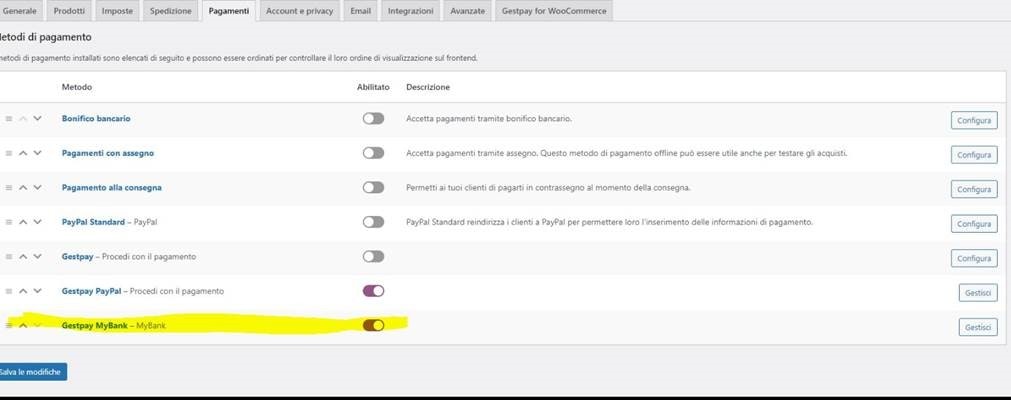
To have MyBank on mobile devices, after enabling the method in the control panel:
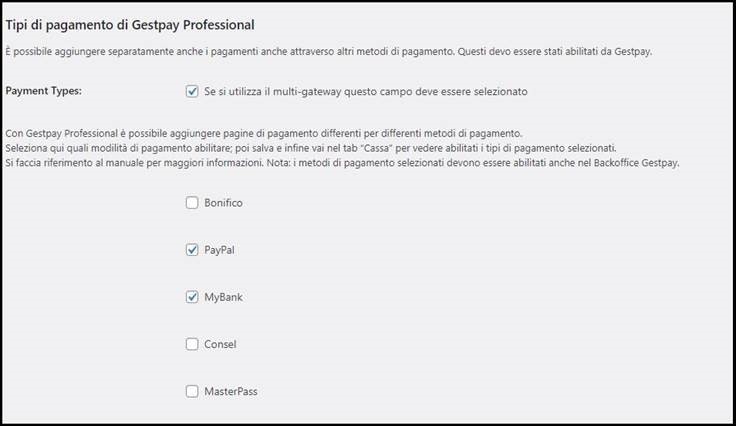
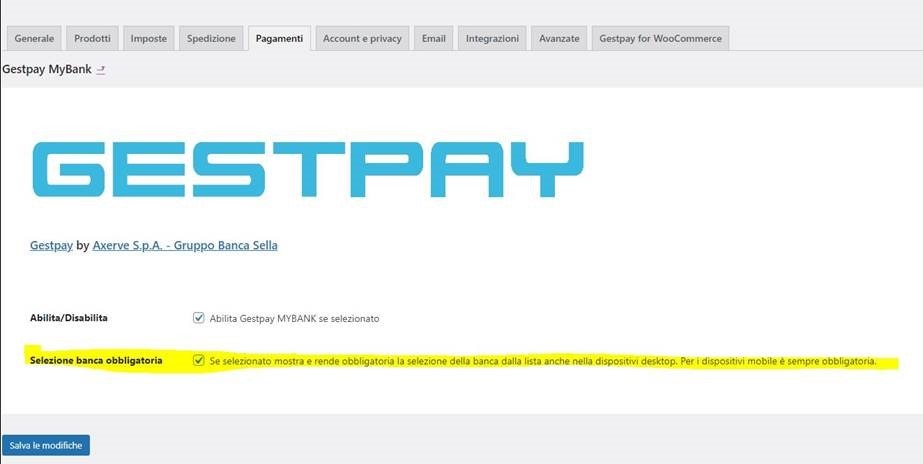
And after enabling the payment component in the "Payments" tab:
You must tick the "Mandatory bank selection" option:
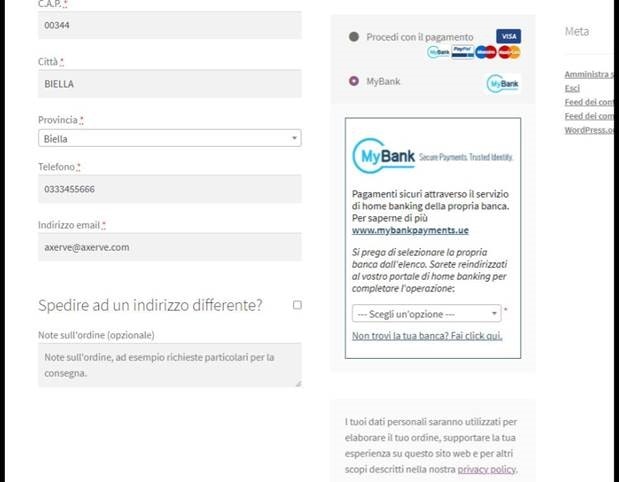
In this way, on the checkout page, the option to choose the desired bank will be displayed:
This option works with the three contract options (Professional, On-Site and iFrame).