OpenCart
Features
The OpenCart plugin provides the following features, which can be customized as needed:
Detailed feature description:
- Simple and fast configuration
- Wide availability of alternative payments
- Order and invoice management via server-to-server calls (orders, refunds, pre-authorizations)
- Fast payment management via the form rendered on the OpenCart checkout page
Merchant back-office configuration
In the merchant back-office provided, you can retrieve credentials, SHOP Login and API Key, to be reused when configuring the plugin in the OpenCart back-office.
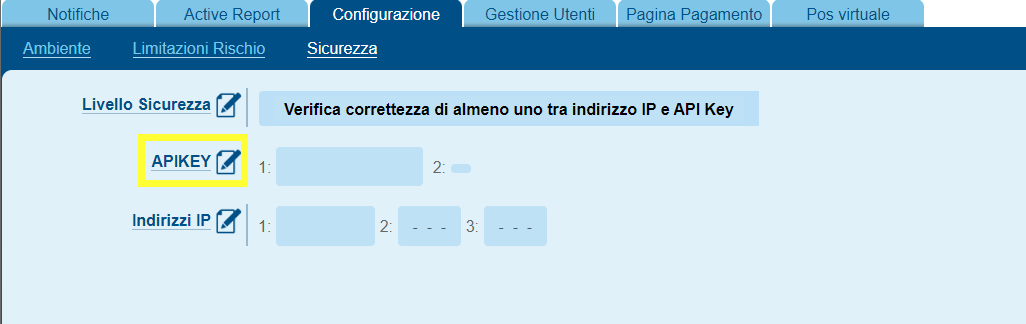
Within Configuration > Security > APIKEY you can create the required value
By pressing the Add Key button
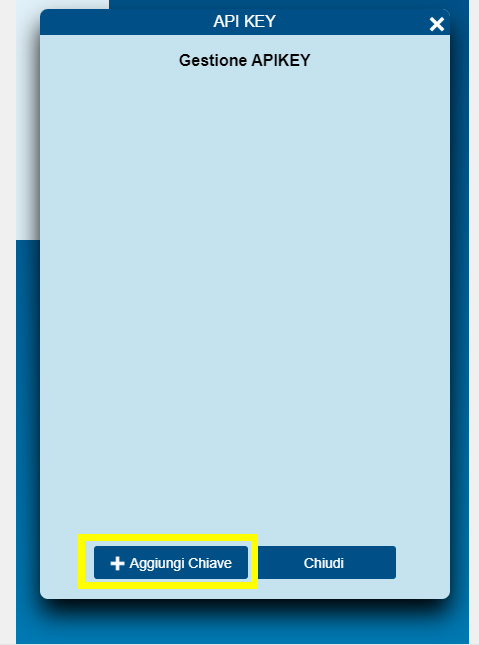
Then press the copy button, highlighted in the figure, to copy the key to clipboard, for later use on the OpenCart backend

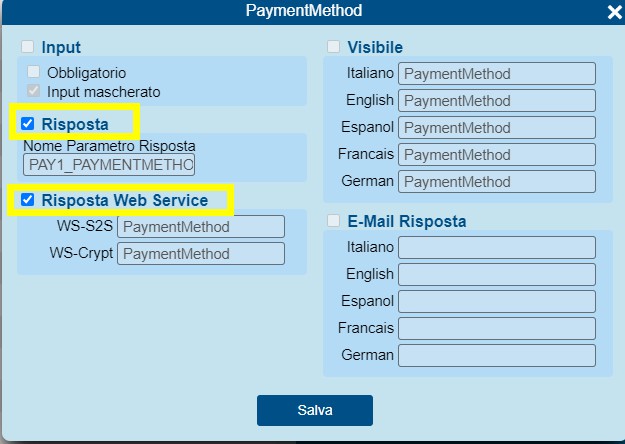
Within Payment Page > Fields & Parameters the PaymentMethod parameter must be enabled in the response, on both pages
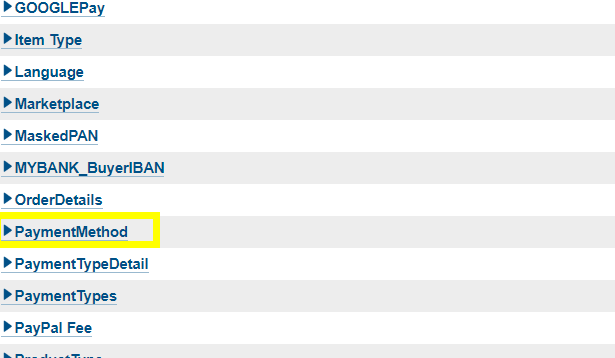
By checking the two entries visible in the following screen
Plugin installation information
Installation
The latest available version of the plugin can be downloaded from the OpenCart marketplace, at this link.
Go to the "Extensions" → "Installer" section of the back-office menu and select the option to upload a new extension via the dedicated button in the top right, then select the previously downloaded .ocmod file.
The extension will appear in the table below; then click the dedicated button in the "Fabrick" row to install the module.
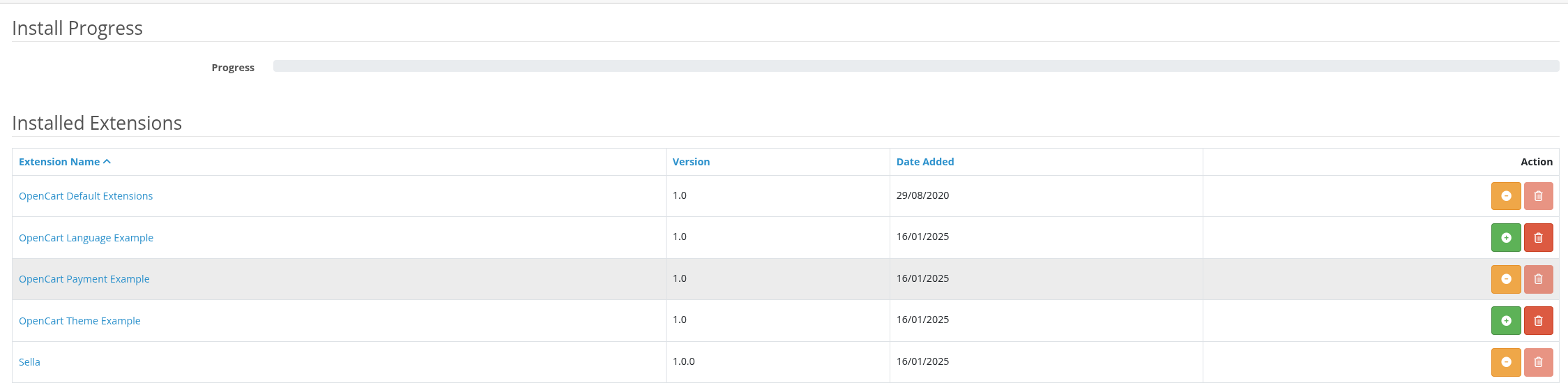
Everything should now be ready for configuration via the administration panel.
Plugin configuration
After installing the plugin, you need to configure the options made available through the OpenCart back-office.
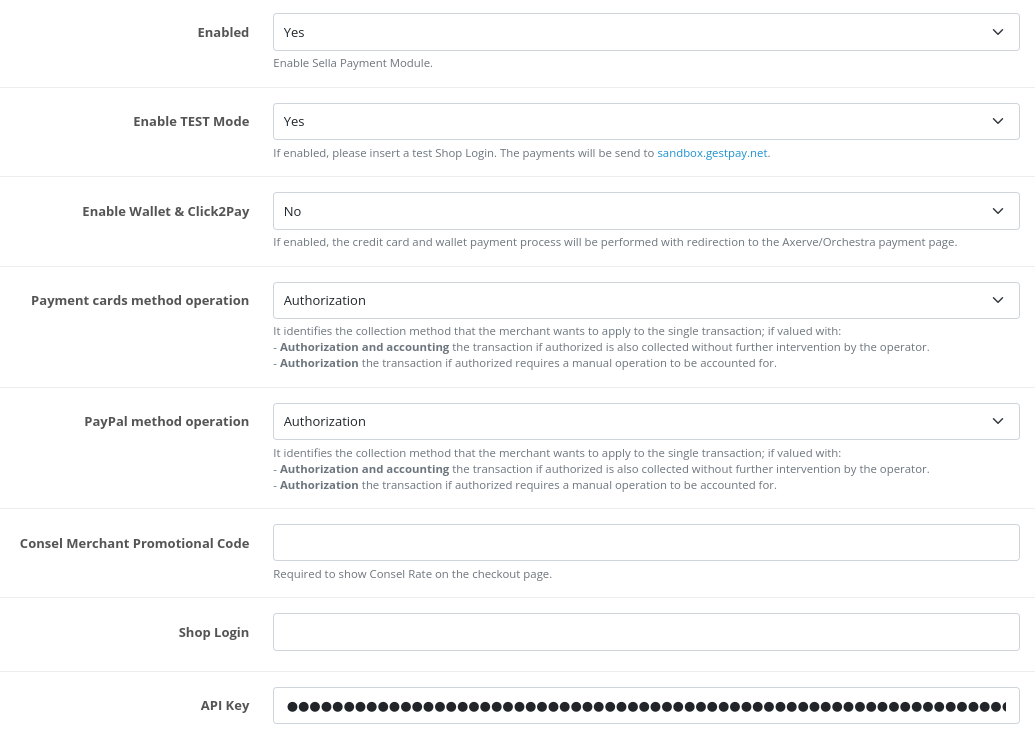
In the dedicated section Extensions → Extensions → Payments there is the "Ecommerce Fabrick" block for plugin configuration

You can configure:
- plugin activation: enables the display of payment methods provided by Fabrick during checkout;
- test mode activation: allows you to use the payment gateway sandbox with the corresponding test ShopLogin and API Key;
- Wallet&Click2Pay activation: enables access to Apple Pay, Google Pay and Credit Card services on the new Fabrick Payment page;
- credit card operation type selection: identifies the settlement method: if set to "Authorization and capture" the transaction, if authorized, is also captured automatically; if set to "Authorization" the transaction, if authorized, requires a manual operation to be captured.
Here is an example of the configuration section:
Additionally, with Fabrick Payment, you can configure the visibility of individual payment methods. If needed, a dedicated button is provided to hide a method.
Payment method configuration
There are two fields for managing extra configurations on specific payment methods:
- Consel, where, upon enabling the method, you need to specify the Merchant Promotional Code;
- PayPal, for which you can choose the operation type: authorization and capture or authorization.
There are also two specific fields for entering the Shop Login and API Key credentials.

When saving the configuration, the entered credentials are validated. If valid, the plugin will synchronize all active payment methods on the terminal to offer them during checkout to the end customer.
If payment methods are updated in the merchant back-office, an OpenCart cron job periodically synchronizes the list.
If the merchant wants to synchronize payment methods with immediate effect, they will need to save the plugin configuration on OpenCart again or manually run the cron job in the dedicated section (Extension > Cron Job).
Order and transaction management information
Authorization request
With the M.O.T.O. configuration, Fabrick allows separating the authorization and capture phases. If activated, the first transaction is limited to the authorization request, otherwise Fabrick captures the amount immediately after authorization.
The plugin works according to the chosen configuration described in the Plugin configuration section.
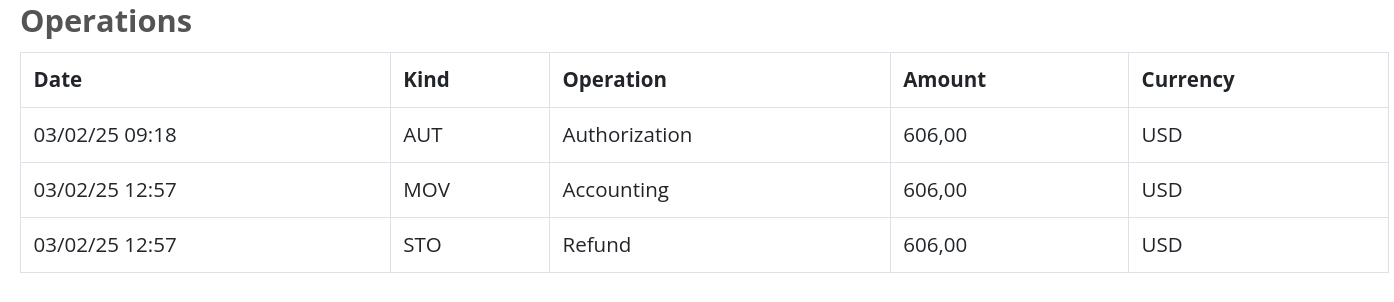
In the dedicated section (Sales > Orders > View > Ecommerce Fabrick) all movements related to that order are displayed:
Capture
With the capture operation, the authorized total is permanently transferred to the merchant's bank account. To use it, the M.O.T.O. function must be configured so that it is separated from the authorization.
With this configuration, OpenCart creates an order and during payment the amount is held through the authorization operation (the merchant receives an email from Fabrick). When capture is requested, OpenCart requests Fabrick to settle the authorized amount, which proceeds and sends an email to the merchant.
The operation can be performed through the OpenCart back-office, selecting the relevant order and the "Ecommerce Fabrick" tab.
In the window that opens, enter the desired amount and select the appropriate button.


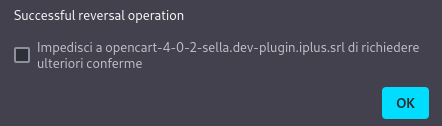
Cancellation
Cancellation can be requested for an authorized but not yet captured transaction, and the M.O.T.O. function must be set with the separation of authorization and capture. The operation can be performed through the OpenCart back-office using the dedicated button without specifying any amount.

Refund
It can only be requested on already captured payments. From a fiscal standpoint, it involves a charge to the merchant and a credit to the buyer's card.
A transaction can be refunded totally or partially multiple times, up to the total payment amount. On OpenCart, a refund is performed through the back-office in the same section as the capture by entering the desired amount and clicking the dedicated button.
MOTO management
Depending on the configuration on the plugin or on the Fabrick merchant back office, there are three possible scenarios:
-
If you want Fabrick to capture the transaction, you need to set MOTO: Unify transaction on the Fabrick merchant back office. On the OpenCart side, the action to set is "Authorization" and Capture via the OpenCart order page is not possible.
-
If you want OpenCart to capture the transaction, you need to set MOTO: Separate on Fabrick. After doing so, there are two options:
-
On the OpenCart side, the action to set is "Authorization" if you want to perform a manual Capture via the OpenCart order page.
-
On the OpenCart side, the action to set is "Authorization and capture" if you want OpenCart to financially capture the transaction immediately. In this case, Capture via the OpenCart order page must not be managed because the transaction is already captured.
-
LOG files
The operation logs are available in the "System → Maintenance → Error Logs" section and then in the "Fabrick.log" section.
CRON Job
Leveraging the CRON Job already present in OpenCart, the Ecommerce Fabrick plugin can:
- Handle the Waiting(XX) status returned by certain payment methods that do not immediately return an OK or KO upon order confirmation